
Tired of the same boring, old ways of Windows sign-in? Thankfully, we’ve since long had an alternate method to do that. Known as Windows Hello, you can use this method to sign in to your Windows without any hassles. Here’s everything you need to get started.
What is Windows Hello?
Windows Hello is a way to sign in into Windows computer with the help of PIN, facial recognition, or fingerprint. First introduced in 2015, the method has become famous for the ease of login it gives to its users using built-in camera and fingerprint sensors.
Or as Microsoft puts in their blog:
Windows Hello is a more personal, more secure way to get instant access to your Windows 11 devices using a PIN, facial recognition, or fingerprint. You’ll need to set up a PIN as part of setting up fingerprint or facial recognition sign-in, but you can also sign in with just your PIN.
These options help make it easier and safer to sign into your PC because your PIN is only associated with one device and it’s backed up for recovery with your Microsoft account.
How to Set Up Windows Hello on your PC?
To enable or set up Windows Hello on your PC, you first have to apply a PIN for your device, which then makes your PC compatible with Windows Hello. Moreover, you can store this PIN either in your Microsoft account or somewhere safe in the physical world, say, a handy notepad.
Here’s how you can set up Windows Hello:
- Go to the Start menu search bar, type in ‘settings,’ and select the Best match.
- Head to Accounts > Sign-in options.
- Under Ways to sign in, you’ll see different methods to log in to your Windows.
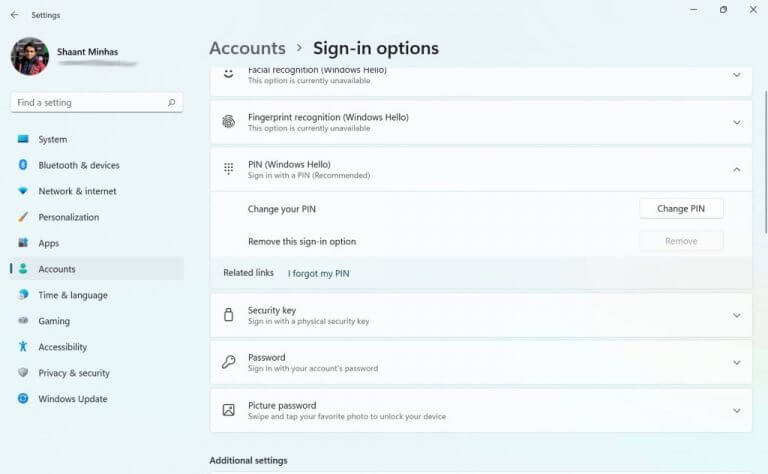
Of these, Facial recognition, fingerprint recognition and PIN, are the methods relevant in Windows Hello that we can rely on to sign in to the Windows system.
As demonstrated by the screen below, in my PC I can only rely on the PIN method, as I don’t have the relevant hardware requirements for Fingerprint and Facial recognition. So I’ll just lay out how to set up a Windows Hello PIN for now. But rest assured, the process for setting up the other two methods will also be pretty similar.
Click on the expand arrow in the PIN, and then click on Set up. If you’d set up a password for your Windows computer, then a new dialog box asking for a password will pop up. Enter your login password and hit Enter.
Now in the next dialog box, enter and confirm a strong PIN, and hit OK. As soon as you do that, a new dialog box will pop up. You’ll then get asked to verify your Microsoft school or work account. Do this and your account will be successfully set up.
Remove the Windows Hello PIN
You can easily remove your Windows Hello password log-in. Simply click on the relevant Windows Hello method you’re using, and click on Remove. Do this, and the Windows Hello login settings will be removed from your Windows.
All about Windows Hello
We hope this short guide helped you get familiar with Windows Hello. If you are or know someone who has trouble with remembering or dealing with passwords, then Windows Hello is just what you’re looking for: a good, handy substitute.


