Skip to content
OnMSFT.com
  • Home
  • About
  • Contact
  • Windows
  • Surface
  • Xbox
  • How-To
  • OnPodcast
  • Edge
  • Teams
  • Gaming
Menu
  • Home
  • About
  • Contact
  • Windows
  • Surface
  • Xbox
  • How-To
  • OnPodcast
  • Edge
  • Teams
  • Gaming
  1. Home
  2. How-to
  3. How to recover deleted files using the Command prompt on a Windows PC

How to recover deleted files using the Command prompt on a Windows PC

Shaant Minhas Shaant Minhas
February 27, 2023
3 min read

\\n

\\n

\\n

In this article

\\n

\\n

  • How to recover deleted files using the Command prompt
  • Recover deleted files from external drives using CMD
  • Recovering deleted files using the Command prompt

\\n

Losing your data out of the blue is seldom comfortable. The usual reaction is that of panic or of confusion, and it makes sense. Luckily, you don’t have to worry long if you are a Windows user. Whether it’s an accidental data loss or your computer files, have become corrupted by malware, recovering them isn’t the dallying task it used to be.

\\n

There are tools, both in-built and professional, that can recover your files as quickly as you can delete them. The Windows Command prompt is one such application. With a couple of commands, you can quickly recover your command prompt files. Let’s look at both of them one by one.

\\n

\\n

\\n

\\n

\\n

\\n

\\n

\\n

\\n

\\n

\\n

\\n

\\n

\\n

How to recover deleted files using the Command prompt

\\n

The Command prompt, also known as cmd for short, is a handy utility that lets you do all sorts of stuff straight from your keyboard. In this case, we will also use it to recover your deleted Windows files.

\\n

Now, depending on what has happened with your computer files and where they are, you will have to rely on different methods. For instance, if your files are in the recycle bin, you will have to use a very different set of commands, than when they are somewhere else.

\\n

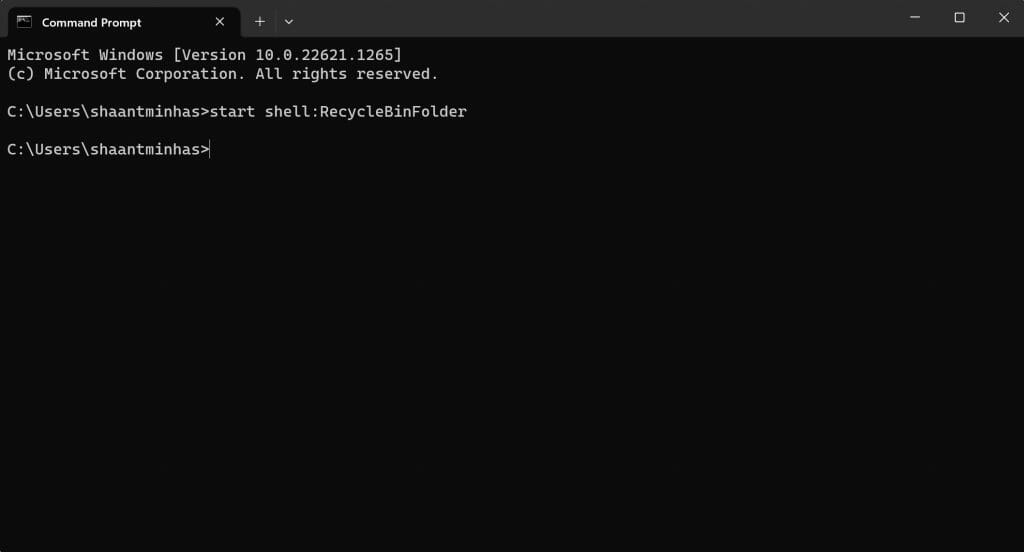
Here’s how you can recover your deleted files using the Command prompt:

\\n

    \\n

  • Head to the Start menu search bar, type in ‘cmd,’ and run the cmd as administrator.
  • \\n

  • Now head to the Command prompt, type in the following command, and hit Enter:\\n
    start shell:RecycleBinFolder

    \\n

  • \\n

  • The Recycle Bin will be launched.
  • \\n

\\n

command prompt

\\n

From there, you can select and restore the files you want to recover. This method will be convenient when you cannot access your recycle bin from the desktop itself.

\\n

\\n

\\n

\\n

\\n

\\n

\\n

\\n

\\n

\\n

\\n

\\n

\\n

\\n

Recover deleted files from external drives using CMD

\\n

Whether it’s an external hard disk, a UBS stick, or even some SD card, you can quickly recover your deleted files with the help of a Command prompt. Again, as we said above, the command will be different. 

Here’s how you can get started with it:

\\n

    \\n

  1. Connect the external drive to your computer.
  2. \\n

  3. Launch the Command prompt as an administrator.
  4. \\n

  5. Type in the following commands on your Command prompt and hit Enter:\\n
    attrib -h -r -s /s /d drive letter:\\\\*.*"

    \\n

  6. \\n

\\n

For instance, use attrib -h -r -s /s /d D:\\\\*.*” if the drive you wish to recover is D. But if it’s something else, you can replace the D with the external drive letter of your external storage media.

\\n

Your deleted files will be restored immediately if you have followed the above steps as they are. There are, of course, other ways to go about Windows file recovery that don’t rely on the Command prompt, but if you are looking to stick with the Command prompt strictly, then these methods are the only ways.

\\n

Recovering deleted files using the Command prompt

\\n

The Command prompt has a remedy for almost everything. Be it encrypting your Windows files, copying your files or folders, or even deleting them, with the Command prompt, you can manage it all. Hopefully, the methods we laid out above helped recover your deleted files.

\\n\\n

Share this article:
Shaant Minhas
Written by

Shaant Minhas

Shaant is technology writer for OnMSFT and MakeUseOf. At OnMSFT, he covers all things Microsoft. When he's not reading or writing about tech, you can find him enjoying cardio-heavy sports or watching Sci-Fi shows.

Previous Article Microsoft promises to bring badges to Edge Add-ons Store for quality-control Next Article How to delete user profiles on a Windows PC

Related Articles

43 Microsoft Edge keyboard shortcuts to remember for stylish and speedy web surfing

October 31, 2023

How to use accessibility features in Microsoft 365 like Narrator, Read aloud and Voice Search easily

October 30, 2023

How to use Windows Backup on Windows 11 for efficient data protection

October 26, 2023

Leave a Comment Cancel reply

Your email address will not be published. Required fields are marked *

Recent Posts

  • PowerToys 0.75 released; Environment Variables editor is here
  • Former Halo developer Bungie announces layoffs in wake of game delays
  • Siemens and Microsoft partner to bring GenAI to industries worldwide
  • 43 Microsoft Edge keyboard shortcuts to remember for stylish and speedy web surfing
  • Here is what’s coming to (and leaving) Xbox Game Pass soon

Recent Comments

No comments to show.

Archives

  • October 2023
  • September 2023
  • August 2023
  • July 2023
  • June 2023
  • May 2023
  • April 2023
  • March 2023
  • February 2023
  • January 2023
  • December 2022
  • November 2022
  • October 2022
  • September 2022
  • August 2022
  • July 2022
  • June 2022
  • May 2022
  • April 2022
  • March 2022
  • February 2022
  • January 2022
  • December 2021
  • November 2021
  • October 2021
  • September 2021
  • August 2021
  • July 2021
  • June 2021
  • May 2021
  • April 2021
  • March 2021
  • February 2021
  • January 2021
  • December 2020
  • November 2020
  • October 2020
  • September 2020
  • August 2020
  • July 2020
  • June 2020
  • May 2020
  • April 2020
  • March 2020
  • February 2020
  • January 2020
  • December 2019
  • November 2019
  • October 2019
  • September 2019
  • August 2019
  • July 2019
  • June 2019
  • May 2019
  • April 2019
  • March 2019
  • February 2019
  • January 2019
  • December 2018
  • November 2018
  • October 2018
  • September 2018
  • August 2018
  • July 2018
  • June 2018
  • May 2018
  • April 2018
  • March 2018
  • February 2018
  • January 2018
  • December 2017
  • November 2017
  • October 2017
  • September 2017
  • August 2017
  • July 2017
  • June 2017
  • May 2017
  • April 2017
  • March 2017
  • February 2017
  • January 2017
  • December 2016
  • November 2016
  • October 2016
  • September 2016
  • August 2016
  • July 2016
  • June 2016
  • May 2016
  • April 2016
  • March 2016
  • February 2016
  • January 2016
  • December 2015
  • November 2015
  • October 2015
  • September 2015
  • August 2015
  • July 2015
  • June 2015
  • May 2015
  • April 2015
  • March 2015
  • February 2015
  • January 2015
  • December 2014
  • November 2014
  • October 2014
  • September 2014
  • August 2014
  • July 2014
  • June 2014
  • May 2014
  • April 2014
  • March 2014
  • February 2014
  • January 2014
  • December 2013
  • November 2013
  • October 2013
  • September 2013
  • August 2013
  • July 2013
  • June 2013
  • May 2013
  • April 2013
  • March 2013
  • February 2013
  • January 2013
  • December 2012
  • November 2012
  • October 2012
  • September 2012
  • August 2012
  • July 2012
  • June 2012
  • May 2012
  • April 2012
  • March 2012
  • February 2012
  • January 2012
  • December 2011
  • November 2011
  • October 2011
  • September 2011
  • August 2011
  • July 2011
  • June 2011
  • May 2011
  • April 2011
  • March 2011
  • February 2011
  • January 2011
  • December 2010
  • November 2010
  • October 2010
  • September 2010

Categories

  • Announcements
  • Deals
  • Developer
  • Editorial
  • Feature
  • Feature stories
  • Hero-post
  • Hotdeals
  • How-to
  • Latest news
  • Microsoft / office 365
  • News
  • Office 365
  • Onpodcast
  • Opinion
  • Our featured post
  • Polls
  • Review
  • Reviews
  • Videos
OnMSFT.com

OnMSFT.com covers Microsoft news, reviews, and how-to guides. Formerly known as WinBeta, we have been your source for Microsoft news since 1998.

Categories

  • Windows
  • Surface
  • Xbox
  • How-To
  • OnPodcast
  • Gaming
  • Edge
  • Teams

Recent Posts

  • PowerToys 0.75 released; Environment Variables editor is here
  • Former Halo developer Bungie announces layoffs in wake of game delays
  • Siemens and Microsoft partner to bring GenAI to industries worldwide
  • 43 Microsoft Edge keyboard shortcuts to remember for stylish and speedy web surfing
  • Here is what’s coming to (and leaving) Xbox Game Pass soon

Quick Links

  • About OnMSFT.com
  • Contact OnMSFT
  • Join Our Team
© 2010–2026 OnMSFT.com LLC. All rights reserved.
About OnMSFT.comContact OnMSFT