
\\\\n
\\\\n
Now more than ever, organizations are dependent on communication platforms such as Microsoft Teams, Skype, Zoom, or Slack. This is after the COVID-19 pandemic, which in turn forced them to transition to hybrid work.
\\\\n
Since then, Microsoft has been unpacking a ton of features to its communication platform, Teams to ensure that the end user’s needs and wants are well-catered for thus ensuring that the workflow is seamless. In a bid to attract more people to make use of the platform.
\\\\n
\\\\n
\\\\n
\\\\n
\\\\n
\\\\n
\\\\n
The company is also working toward shipping a faster version of its enterprise chat app dubbed Microsoft Teams 2.0. This new version has been built from the ground up and is designed to make better use of PC system resources.
\\\\n
In this article, we’ll highlight several key features that have shipped to Microsoft Teams and how to make use of them to elevate both your chat and meeting experience. Here’s everything you need to know:
\\\\n
Communicate with the Video Clip feature in Microsoft Teams
\\\\n
Microsoft has incorporated a nifty feature into Teams, Video Clip. The feature lets you record a short video clip for up to a minute, which you can then send to another user via chat. This is will help you relay your message to the recipient in an exciting and progressive way.
\\\\n
To access this feature:
\\\\n
- \\\\n
- Launch Microsoft Teams.
- Open the chat between you and the person you want to send the video clip to.
- Click on the Record a video clip button that’s situated next to the Send button.
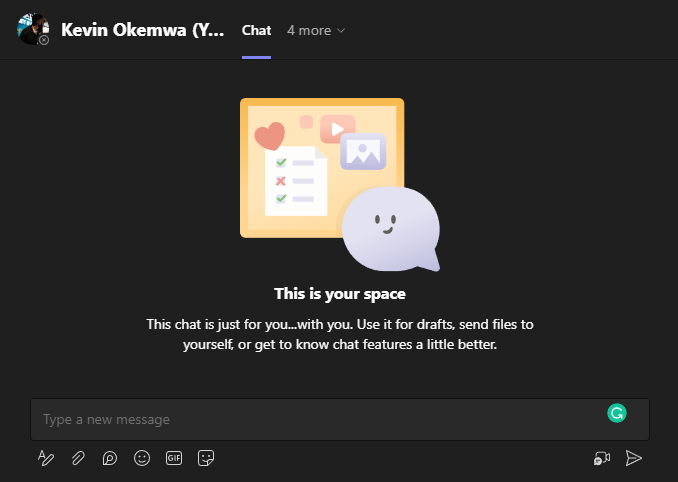
- You’ll be redirected to the Record your video clip window, you can start recording the short video clip by clicking on the Record button. (Users can pause or restart the recording)
- Select the Review button after recording, here you’ll be able to preview the video clip.
- Finally, hit the Send button to send the video clip.
\\\\n
\\\\n
\\\\n
\\\\n
\\\\n
\\\\n
\\\\n
It is worth noting that you can close the window to cancel and delete the video clip. Alternatively, while in the Review recording window, you can select the Record again option to delete the recorded video clip and start the process from the beginning.
\\\\n
\\\\n
\\\\n
\\\\n
\\\\n
\\\\n
\\\\n
Use emojis to react to chat or channel messages
\\\\n
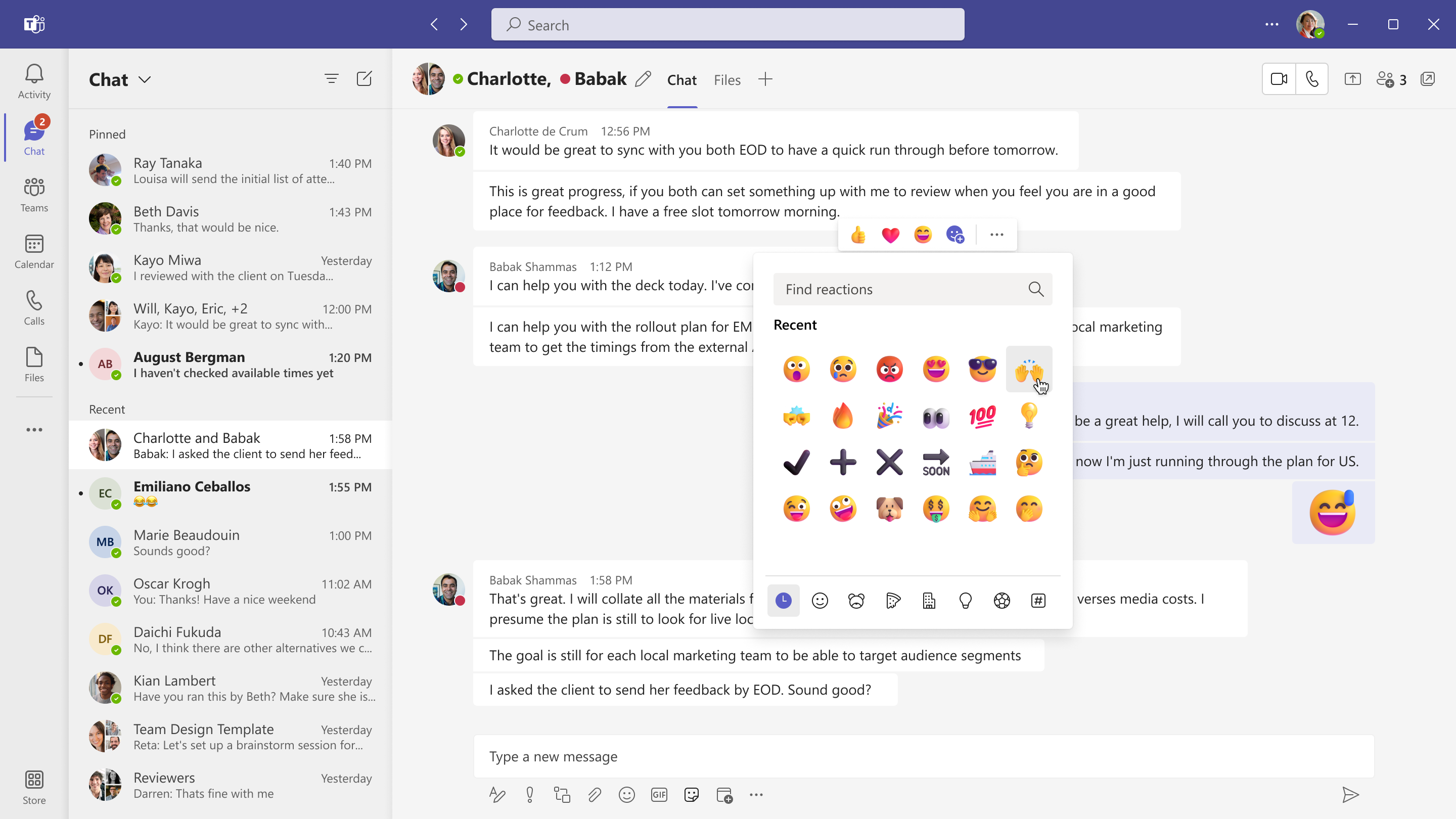
Previously, Microsoft had limited users to 5 emojis that you could use to react to both chat and channel messages. But this is no longer the case as the company has expanded reactions, allowing users to react to messages using any one of the over 800 existing Teams emojis.
\\\\n
\\\\n
You can either browse or use the search bar to find the emoji you want to use to express yourself. We also invite you to check out our expert guide which will help you learn how to save messages in Microsoft Teams.
\\\\n
Video filters in Teams meetings
\\\\n
If you are constantly attending meetings virtual and want to spice things up, Microsoft has got you covered! The company recently incorporated a new feature, Video filters, that is in place to help you enhance the meeting’s aesthetics using special visual effects such as frames and styles.
\\\\n

\\\\n
What’s more, users also have to option to enable the feature from the pre-join screen and in meetings. With this in place, you’ll be able to easily access the Video filters directly from the quick tray. However, your camera must active.
\\\\n
\\\\n
\\\\n
\\\\n
\\\\n
\\\\n
\\\\n
If you’ve already joined the meeting and still want to apply Video filters to add a bit of flavor to your meeting experience, you can easily access them from the meeting tool or the camera fly-out. Be sure to also check out our guide on how to invite someone to a Teams meeting.
\\\\n
GPT-3.5 powered Teams Premium
\\\\n
Microsoft Teams Premium is now generally available featuring tons of nifty features. The offering now ships with OpenAI’s GPT-3.5 technology. This addition is designed to enhance the meeting experience for users by making it more secure as well as personalized.
\\\\n
At the moment, the offering is available to users at an introductory fee of $7 per month that will be valid till June 30. Microsoft will then start charging $10 per month for the same.
\\\\n
By subscribing to this offering, users will have access to real-time translation of captions, recommended tasks, and personalized highlights.
\\\\n
Other features include speaker timeline markers, customized meeting templates, watermarking, recording capability limiting, branded meetings, and more.
\\\\n
Schedule messages
\\\\n
Communication is an important part of any organization, it plays a key role in ensuring that it is successful. And with even more people working asynchronously, it might not be possible to pass important information to the relevant parties in a timely manner.
\\\\n
Rather than sending a message when the recipient is off the clock, Microsoft Teams now ships with a nifty feature that allows you to schedule messages. This way, you’ll avoid causing disruptions while simultaneously delivering the information when it is needed most.
\\\\n
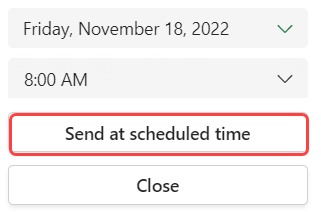
To access this feature, simply compose your message and right-click on the Send button. Here you’ll get to set the date and time you’d like to have the message delivered to the recipient. And finally, click the Send at scheduled time button and select Send.
\\\\n
\\\\n
It should be noted that you can edit, reschedule or even delete the message before the set scheduled delivery date and time lapses. You might also find our guide on how to schedule an email on Microsoft Outlook insightful.
\\\\n
Stories and Storyline in Viva Engage
\\\\n
Microsoft has now fully transitioned Yammer to Viva Engage, a module designed to help users interact better, develop relationships, establish connections, and share ideas within Microsoft Teams.
\\\\n
That’s not all, the module also ships with a notable feature, that is, Storyline designed to enhance engagement among employees. The Storyline feature can be used to share real-time updates and experiences.
\\\\n
\\\\n
To access the feature, admins will have to enable it by choosing the Manage storyline option either on Yammer.com or the Viva Engage app.
\\\\n
Optimized Teams experience
\\\\n
Hopefully, the tidbits we’ve highlighted in this post will help enhance your productivity thus promoting effectiveness and efficiency at the workplace.
\\\\n
What Teams features do you interact with most to make your work easier? Share your thoughts with us in the comment section.
\\\\n\\\\n