Skip to content
OnMSFT.com
  • Home
  • About
  • Contact
  • Windows
  • Surface
  • Xbox
  • How-To
  • OnPodcast
  • Edge
  • Teams
  • Gaming
Menu
  • Home
  • About
  • Contact
  • Windows
  • Surface
  • Xbox
  • How-To
  • OnPodcast
  • Edge
  • Teams
  • Gaming
  1. Home
  2. How-to
  3. Windows 10 How To: Customize your quick settings in the Action Center

Windows 10 How To: Customize your quick settings in the Action Center

Fahad Al-Riyami Fahad Al-Riyami
August 14, 2015
1 min read

\n

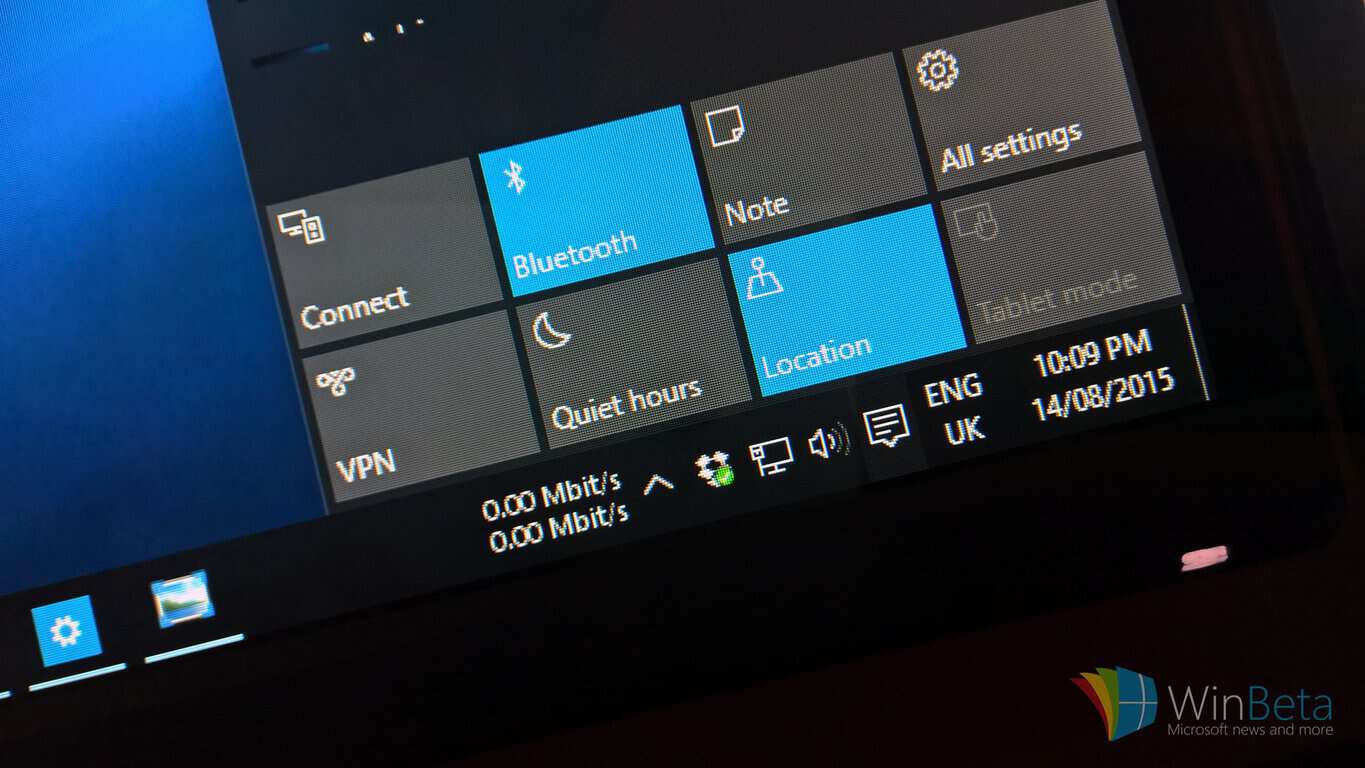
Of the probable hundreds of settings in Windows, there are only a handful that you may use on a daily a basis. Windows 10 makes it easier to get to those settings by putting them in the Action Center, just one swipe away from the desktop. But not everyone uses the same set of settings daily, so here’s how you can choose the ones you want quick access to.

\n

Step 1: Swipe in from the left edge of your screen, or click the notifications icon in your taskbar to open the Action Center

\n

Step 2: Towards the bottom, click the All Settings button, it may be hidden under the ‘Expand’ arrow.

\n

Step 3: Click ‘System’, then ‘Notifications & actions’

\n

Step 4: Under ‘Quick actions’ simply click on the boxes to choose which settings you want appearing as the first four toggles in the Action Center

\n

There you have it! Desktop users may want to change the Tablet Mode toggle as the feature is disabled on devices without a touch screen.

\n

Windows 10 How To: Customize your quick settings in the Action Center

\n

Which toggles do you find yourself using most often, and are there any settings you would like to see added to the quick actions list? Let us know in the comments section below.

\n\nFurther reading: Action Center, Microsoft, Windows 10

Share this article:
Tags:
Action Center Microsoft Windows 10
Previous Article Xbox One Preview members receiving firmware prep for Windows 10 UI update Next Article Bank of America plans to adopt Windows 10 soon

Related Articles

How to Fix the Phone Link App Not Working on Windows 11 – OnMSFT.com

December 29, 2022

5 easy ways to make desktop shortcuts on Windows 11 – OnMSFT.com

December 29, 2022

How to customize precision touchpads on Windows – OnMSFT.com

December 22, 2022

Leave a Comment Cancel reply

Your email address will not be published. Required fields are marked *

Recent Posts

  • OpenAI GPT-5.3 Instant released, when will you get it, and benchmarks
  • MSFT stock price today: Microsoft shares rise, investors watch AI execution
  • Claude is down, but Gemini 3.1 Flash-Lite is rolling out right now
  • Apple March Event Live: M5 Pro, M5 Mac, MacBook Air, MacBook Pro, and new Studio Displays
  • Is the Mac mini M5 launching today? Here’s everything you need to know

Recent Comments

No comments to show.
OnMSFT.com

OnMSFT.com covers Microsoft news, reviews, and how-to guides. Formerly known as WinBeta, we have been your source for Microsoft news since 1998.

Categories

  • Windows
  • Surface
  • Xbox
  • How-To
  • OnPodcast
  • Gaming
  • Edge
  • Teams

Recent Posts

  • OpenAI GPT-5.3 Instant released, when will you get it, and benchmarks
  • MSFT stock price today: Microsoft shares rise, investors watch AI execution
  • Claude is down, but Gemini 3.1 Flash-Lite is rolling out right now
  • Apple March Event Live: M5 Pro, M5 Mac, MacBook Air, MacBook Pro, and new Studio Displays
  • Is the Mac mini M5 launching today? Here's everything you need to know

Quick Links

  • About OnMSFT.com
  • Contact OnMSFT
  • Join Our Team
  • Privacy Policy
© 2010–2026 OnMSFT.com LLC. All rights reserved.
About OnMSFT.comContact OnMSFTPrivacy Policy
