Skip to content
OnMSFT.com
  • Home
  • About
  • Contact
  • Windows
  • Surface
  • Xbox
  • How-To
  • OnPodcast
  • Edge
  • Teams
  • Gaming
Menu
  • Home
  • About
  • Contact
  • Windows
  • Surface
  • Xbox
  • How-To
  • OnPodcast
  • Edge
  • Teams
  • Gaming
  1. Home
  2. How-to
  3. How to use Credential Manager on Windows – onmsft.com

How to use Credential Manager on Windows – onmsft.com

kip@onmsft.com kip@onmsft.com
June 28, 2022
2 min read

The Credential Manager is a Windows tool that lets you store your username and passwords related to your Windows apps for future use. The stored information includes information related to your websites and apps as well.

\

First introduce with Windows 7, it has been around since then and has become an essential of the Windows operating system experience. If you’re a regular, long-term Windows user but aren’t using the Credential Manager, then this article is for you.

\

In what follows we’ll dive into all you need to know to set up and get the most out of Credential Manager on your Windows PC. So let’s get started.

\

How to use Credential Manager on Windows

\

First off, let’s open the Credential Manager. To get started, head to the Start menu search bar, type in ‘credential manager,’ and select the best match.

\

Now, to check or edit the credentials you’ve already saved before, click on Windows Credentials. From there, click on Edit. Now simply update the username and password and click on Save.

\

If you don’t have to any credentials saved on your PC, however, then you’ll something like we what we have here.

\
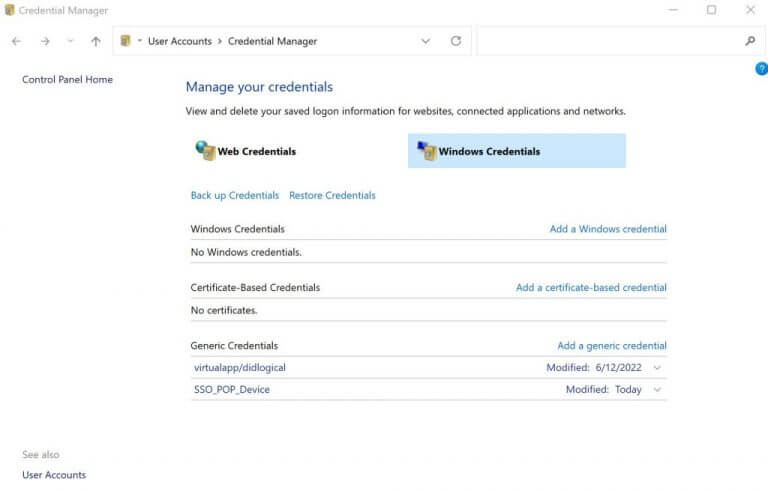
credential manager

\


\

Add on new user credentials

\

Editing your previous old information is fine. But what if you want to put in new user credentials using the Credential Manager? Here’s how you can do that…

\

In your Credential Manager, under the Windows Credential tab once again, click on Add a Windows credential link.

\

saving windows credentials

\

Enter the network address and the relevant user credentials (i.e. usernames and passwords), and hit OK.

\

Get backed up credentials

\

Another peculiar way to get new credentials is through adding your previously backed-up credentials. Here’s how.

\

On the Windows Credentials tab, click on the Restore Credentials link. Click on Browse… and head to the location where you’ve backed up your credentials—it usually a .crd file.

\

Click on the backup file, and then click on Next.

\

restoring credentials

\

Press the Ctrl + Alt + Delete to keep on the restoration process, type in the password and click on Next. Finally, click on Finish to complete your restoration process.

\

Learning how to use Credential Manager on Windows

\

Typing in your usernames and passwords again and again isn’t exactly helpful. By using Credential Manager, you not only skip this unvarying step, but also have a place to store everything at a single, central place.

\

Share This Post:

Share this article:
Previous Article A new Halo Infinite weapon has leaked – onmsft.com Next Article Chromium-based WebView2 runtime comes to Windows 10 consumer PCs – onmsft.com

Related Articles

How to Fix the Phone Link App Not Working on Windows 11 – onmsft.com

December 29, 2022

5 easy ways to make desktop shortcuts on Windows 11 – onmsft.com

December 29, 2022

How to customize precision touchpads on Windows – onmsft.com

December 22, 2022

Leave a Comment Cancel reply

Your email address will not be published. Required fields are marked *

Recent Posts

  • Chrome’s Organizer feature may sync Gemini and AI conversations across devices
  • After Chrome, Edge tests launching the browser automatically when you sign into Windows
  • iPhone Fold Latest Rumors: Display, Cameras, RAM and Price Details Revealed
  • Samsung fears first mobile operating loss due to memory price surge
  • Elon Musk’s X to Change Verification in Europe Following EU Fine

Recent Comments

No comments to show.
OnMSFT.com

OnMSFT.com covers Microsoft news, reviews, and how-to guides. Formerly known as WinBeta, we have been your source for Microsoft news since 1998.

Categories

  • Windows
  • Surface
  • Xbox
  • How-To
  • OnPodcast
  • Gaming
  • Edge
  • Teams

Recent Posts

  • Chrome’s Organizer feature may sync Gemini and AI conversations across devices
  • After Chrome, Edge tests launching the browser automatically when you sign into Windows
  • iPhone Fold Latest Rumors: Display, Cameras, RAM and Price Details Revealed
  • Samsung fears first mobile operating loss due to memory price surge
  • Elon Musk’s X to Change Verification in Europe Following EU Fine

Quick Links

  • About OnMSFT.com
  • Contact OnMSFT
  • Join Our Team
  • Privacy Policy
© 2010–2026 OnMSFT.com LLC. All rights reserved.
About OnMSFT.comContact OnMSFTPrivacy Policy
