Skip to content
OnMSFT.com
  • Home
  • About
  • Contact
  • Windows
  • Surface
  • Xbox
  • How-To
  • OnPodcast
  • Edge
  • Teams
  • Gaming
Menu
  • Home
  • About
  • Contact
  • Windows
  • Surface
  • Xbox
  • How-To
  • OnPodcast
  • Edge
  • Teams
  • Gaming
  1. Home
  2. How-to
  3. How to pause Windows 10’s automatic updates

How to pause Windows 10’s automatic updates

James Walker James Walker
January 17, 2019
4 min read

\n

\n

Pause Windows 10 Updates

\n

Note: You need Windows 10 Pro or Windows 10 1809 or above for these features

\n

    \n

  1. Open Settings>Update & security>Windows Update>Advanced Options
  2. \n

  3. Enable the Pause Updates button
  4. \n

  5. Pre Windows 10 1809, you can pause updates for 35 days
  6. \n

  7. with Windows 10 19H1 or above, you can pause for 7 days only
  8. \n

\n

\n

Applies to All Windows 10 Versions

\n

\n

Windows 10 automatically updates with new features and quality improvements as you use your device. Generally, this process works without any intervention, ensuring you’ve always got the latest release of Windows. In this guide, we’ll walk you through pausing Windows Update and why you might want to do so.

\n

Windows 10 Settings app Update & security category

\n

Launch the Settings app and open the “Update & security” category. Your next steps depend on which Windows 10 version you’re running. At the time of writing, Windows 10’s latest public release is version 1809, the October 2018 Update. If you’re running a newer release – currently the Insider Preview builds for version 19H1 – you should skip to the “19H1 Changes” section below. You can follow our guide to identify your Windows 10 version if you’re unsure.

\n

1809 and older

\n

In 1809 and older builds, the option to pause updates is only available in Windows 10 Pro. Unfortunately, Home users will need to wait until 19H1 is released – see the notes below.

\n

Pausing updates in Windows 10 1809

\n

Assuming you’re running Windows 10 Pro, launch the Settings app and click the “Update & security” category. On the “Windows Update” page which appears, click the “Advanced options” link.

\n

Under the “Pause Updates” heading, click the toggle button into the “On” position to suspend Windows Update. The change will be enforced for a period of 35 days, during which no updates will be installed. The screen informs you when updates will be re-enabled.

\n

Pausing updates in Windows 10 1809

\n

If you want to lift the update block earlier than the 35 day period, return to the settings page and disable the setting. When the block is removed – whether manually, or at the end of the 35 days – your device will automatically install all pending updates. You can’t pause updates again until this process is complete.

\n

This option gives you the ability to suspend any and all updates with a single click. However, you should think carefully before using it. There’s two kinds of update and you won’t necessarily need to suspend both.

\n

Quality updates

\n

Quality updates are released monthly and include important bug fixes and security improvements. Without these patches, your device could be at risk. However, quality updates – or cumulative updates, as they’re often referred to – have themselves introduced issues in the past. If you’re aware a new update is proving troublesome for devices like yours, pausing Windows Update might be your best option.

\n

Pausing updates in Windows 10 1809

\n

You can choose to pause only quality updates by scrolling down to the “Choose when updates are installed” header. Use the selection box at the bottom of the screen to choose how many days to defer updates by. You can suspend quality updates for up to 30 days, without impacting other types of update.

\n

Feature updates

\n

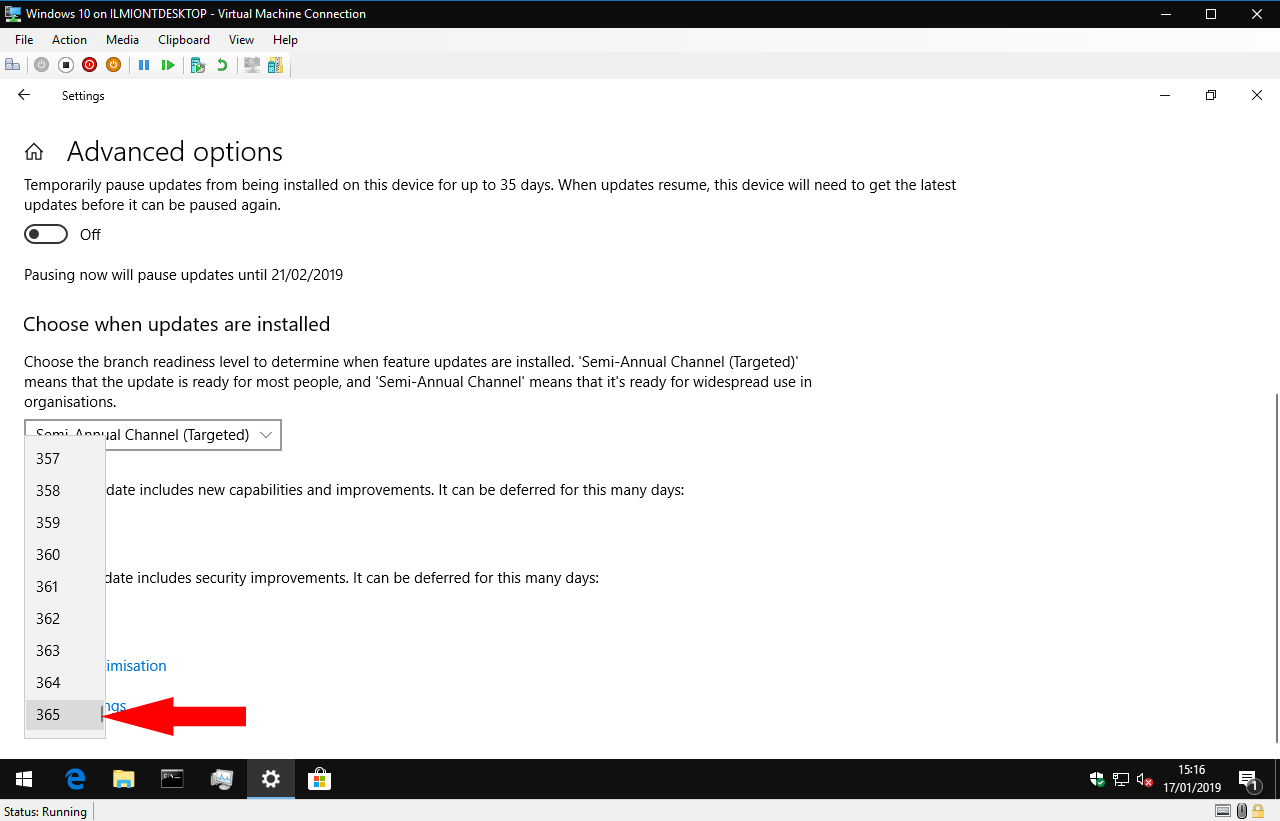
Feature updates are released roughly every six months. Per the name, they add new capabilities to Windows 10. They’re much bigger update packages which include a new build of the operating system. Update times are longer, changes are more impactful and you’ll see your device restart multiple times as it applies the new release. Feature updates are where compatibility problems usually occur, such as with the wave of problems experienced with the recent October 2018 Update.
\n

Pausing updates in Windows 10 1809

\n

Feature updates can be deferred for up to an entire year using the selection box at the bottom of the “Advanced options” screen. Windows will refrain from attempting any automatic build upgrades during the selected period. This allows you to remain safely on your current build while any issues in new releases are discovered and patched.

\n

19H1 Changes

\n

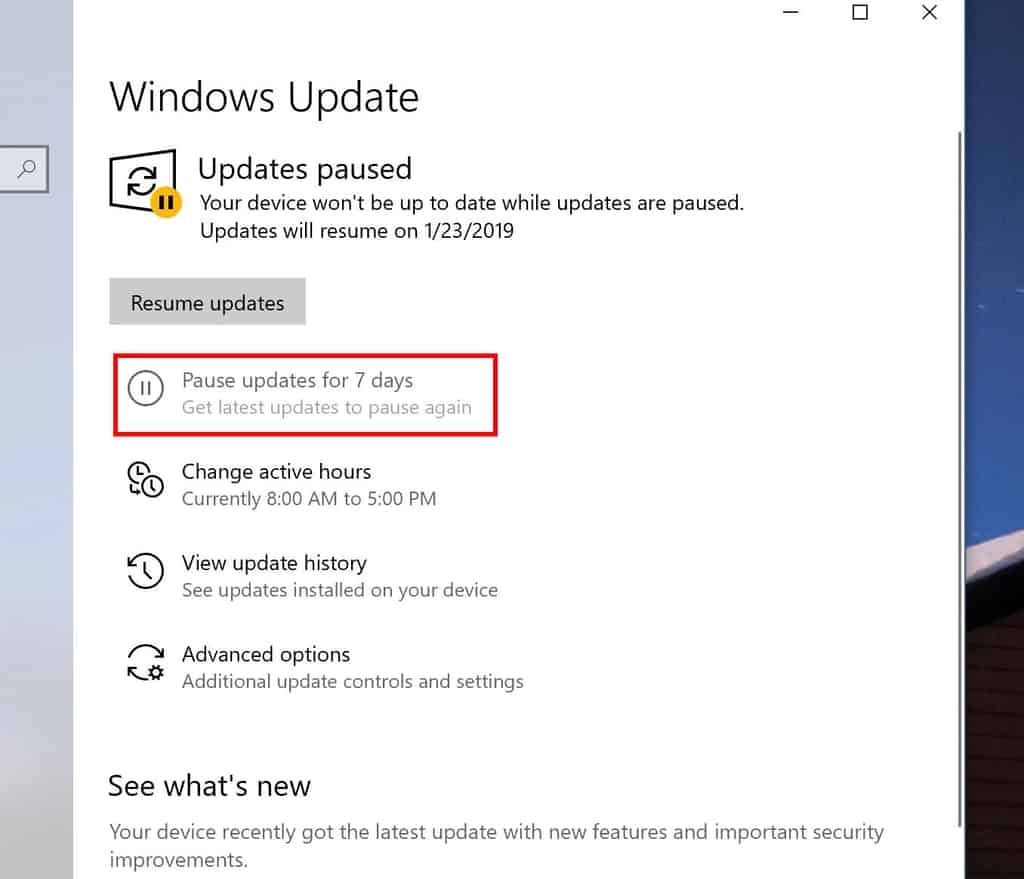
The “pause updates” experience has been given an overhaul in the current 19H1 Insider Preview builds. The option to pause updates is now exposed on the main Windows Update settings page, not within “Advanced options.” It’s available to Windows 10 Home users for the first time too, letting everyone gain some control over the update process.
\n

Pausing updates in Windows 10 19H1

\n

Unfortunately, some more advanced aspects of the experience appear to have been lost. Updates can only be paused for 7 days, unlike the 35 days offered in version 1809. Furthermore, we’ve found the individual feature and quality update deferral options have been removed from the interface entirely.

\n

Since 19H1 is still under development, it’s possible these features will be coming back before the public release. In its current state, 19H1 offers control to Home users for the first time, but represents a step backwards for Pro customers. We’ll keep monitoring the changes and update this guide as the situation becomes clearer.

\n\nFurther reading: Windows 10, Windows update

Share this article:
Tags:
Windows 10 Windows update
James Walker
Written by

James Walker

I'm a web developer and technology journalist with a particular interest in Microsoft innovations. I'm the founder of Heron Web (heron-web.com), a UK digital agency for web design and development. When I'm not working, I'm a PC gamer and passionate transport enthusiast.

Previous Article PlayerUnknown’s Battlegrounds (PUBG) to get new Vikendi map next week – OnMSFT.com Next Article Windows 10 Mail apps quietly gains darker preview pane in latest update – OnMSFT.com

Related Articles

43 Microsoft Edge keyboard shortcuts to remember for stylish and speedy web surfing

October 31, 2023

How to use accessibility features in Microsoft 365 like Narrator, Read aloud and Voice Search easily

October 30, 2023

How to use Windows Backup on Windows 11 for efficient data protection

October 26, 2023

Leave a Comment Cancel reply

Your email address will not be published. Required fields are marked *

Recent Posts

  • PowerToys 0.75 released; Environment Variables editor is here
  • Former Halo developer Bungie announces layoffs in wake of game delays
  • Siemens and Microsoft partner to bring GenAI to industries worldwide
  • 43 Microsoft Edge keyboard shortcuts to remember for stylish and speedy web surfing
  • Here is what’s coming to (and leaving) Xbox Game Pass soon

Recent Comments

No comments to show.

Archives

  • October 2023
  • September 2023
  • August 2023
  • July 2023
  • June 2023
  • May 2023
  • April 2023
  • March 2023
  • February 2023
  • January 2023
  • December 2022
  • November 2022
  • October 2022
  • September 2022
  • August 2022
  • July 2022
  • June 2022
  • May 2022
  • April 2022
  • March 2022
  • February 2022
  • January 2022
  • December 2021
  • November 2021
  • October 2021
  • September 2021
  • August 2021
  • July 2021
  • June 2021
  • May 2021
  • April 2021
  • March 2021
  • February 2021
  • January 2021
  • December 2020
  • November 2020
  • October 2020
  • September 2020
  • August 2020
  • July 2020
  • June 2020
  • May 2020
  • April 2020
  • March 2020
  • February 2020
  • January 2020
  • December 2019
  • November 2019
  • October 2019
  • September 2019
  • August 2019
  • July 2019
  • June 2019
  • May 2019
  • April 2019
  • March 2019
  • February 2019
  • January 2019
  • December 2018
  • November 2018
  • October 2018
  • September 2018
  • August 2018
  • July 2018
  • June 2018
  • May 2018
  • April 2018
  • March 2018
  • February 2018
  • January 2018
  • December 2017
  • November 2017
  • October 2017
  • September 2017
  • August 2017
  • July 2017
  • June 2017
  • May 2017
  • April 2017
  • March 2017
  • February 2017
  • January 2017
  • December 2016
  • November 2016
  • October 2016
  • September 2016
  • August 2016
  • July 2016
  • June 2016
  • May 2016
  • April 2016
  • March 2016
  • February 2016
  • January 2016
  • December 2015
  • November 2015
  • October 2015
  • September 2015
  • August 2015
  • July 2015
  • June 2015
  • May 2015
  • April 2015
  • March 2015
  • February 2015
  • January 2015
  • December 2014
  • November 2014
  • October 2014
  • September 2014
  • August 2014
  • July 2014
  • June 2014
  • May 2014
  • April 2014
  • March 2014
  • February 2014
  • January 2014
  • December 2013
  • November 2013
  • October 2013
  • September 2013
  • August 2013
  • July 2013
  • June 2013
  • May 2013
  • April 2013
  • March 2013
  • February 2013
  • January 2013
  • December 2012
  • November 2012
  • October 2012
  • September 2012
  • August 2012
  • July 2012
  • June 2012
  • May 2012
  • April 2012
  • March 2012
  • February 2012
  • January 2012
  • December 2011
  • November 2011
  • October 2011
  • September 2011
  • August 2011
  • July 2011
  • June 2011
  • May 2011
  • April 2011
  • March 2011
  • February 2011
  • January 2011
  • December 2010
  • November 2010
  • October 2010
  • September 2010

Categories

  • Announcements
  • Deals
  • Developer
  • Editorial
  • Feature
  • Feature stories
  • Hero-post
  • Hotdeals
  • How-to
  • Latest news
  • Microsoft / office 365
  • News
  • Office 365
  • Onpodcast
  • Opinion
  • Our featured post
  • Polls
  • Review
  • Reviews
  • Videos
OnMSFT.com

OnMSFT.com covers Microsoft news, reviews, and how-to guides. Formerly known as WinBeta, we have been your source for Microsoft news since 1998.

Categories

  • Windows
  • Surface
  • Xbox
  • How-To
  • OnPodcast
  • Gaming
  • Edge
  • Teams

Recent Posts

  • PowerToys 0.75 released; Environment Variables editor is here
  • Former Halo developer Bungie announces layoffs in wake of game delays
  • Siemens and Microsoft partner to bring GenAI to industries worldwide
  • 43 Microsoft Edge keyboard shortcuts to remember for stylish and speedy web surfing
  • Here is what’s coming to (and leaving) Xbox Game Pass soon

Quick Links

  • About OnMSFT.com
  • Contact OnMSFT
  • Join Our Team
© 2010–2026 OnMSFT.com LLC. All rights reserved.
About OnMSFT.comContact OnMSFT
