Skip to content
OnMSFT.com
  • Home
  • About
  • Contact
  • Windows
  • Surface
  • Xbox
  • How-To
  • OnPodcast
  • Edge
  • Teams
  • Gaming
Menu
  • Home
  • About
  • Contact
  • Windows
  • Surface
  • Xbox
  • How-To
  • OnPodcast
  • Edge
  • Teams
  • Gaming
  1. Home
  2. How-to
  3. What version of Windows 10 are you running? Here’s how to check

What version of Windows 10 are you running? Here’s how to check

James Walker James Walker
December 21, 2018
3 min read

\n

\n

Find Windows 10 version number

\n

Microsoft uses version numbers, build numbers, and update version names to identify specific Windows 10 versions. These can be confusing, but you can find which version number and build number your computer is running easily:

\n

    \n

  1.  Open Settings, and navigate to System > About
  2. \n

  3.  Click on About, and then check Windows Specifications
  4. \n

  5.  There you’ll find info on version number and build number
  6. \n

  7.  Version numbers are in the form of YY/MM, so 1809 means “the ninth month of 2018”
  8. \n

  9.  Each version could have multiple builds, depending on the number of times it’s been updated
  10. \n

\n

\n

Applies to All Windows 10 Versions

\n

\n

Windows 10 regularly updates with new features and improvements, typically on a biannual basis. Unlike previous Windows releases, Windows 10 is continually developed under Microsoft’s “Windows-as-a-Service” model. Each new “feature update” release brings with it a new name and version number, so it can be difficult to keep track of what’s actually running on your device.

\n

In tutorials and guides, you’ll frequently see references to specific Windows 10 version names and numbers – for example, the “Creators Update,” “October 2018 Update” or “1809.” In this article, we’ll explain what these terms mean and how you can identify which Windows 10 feature update you have installed.

\n

Getting version information

\n

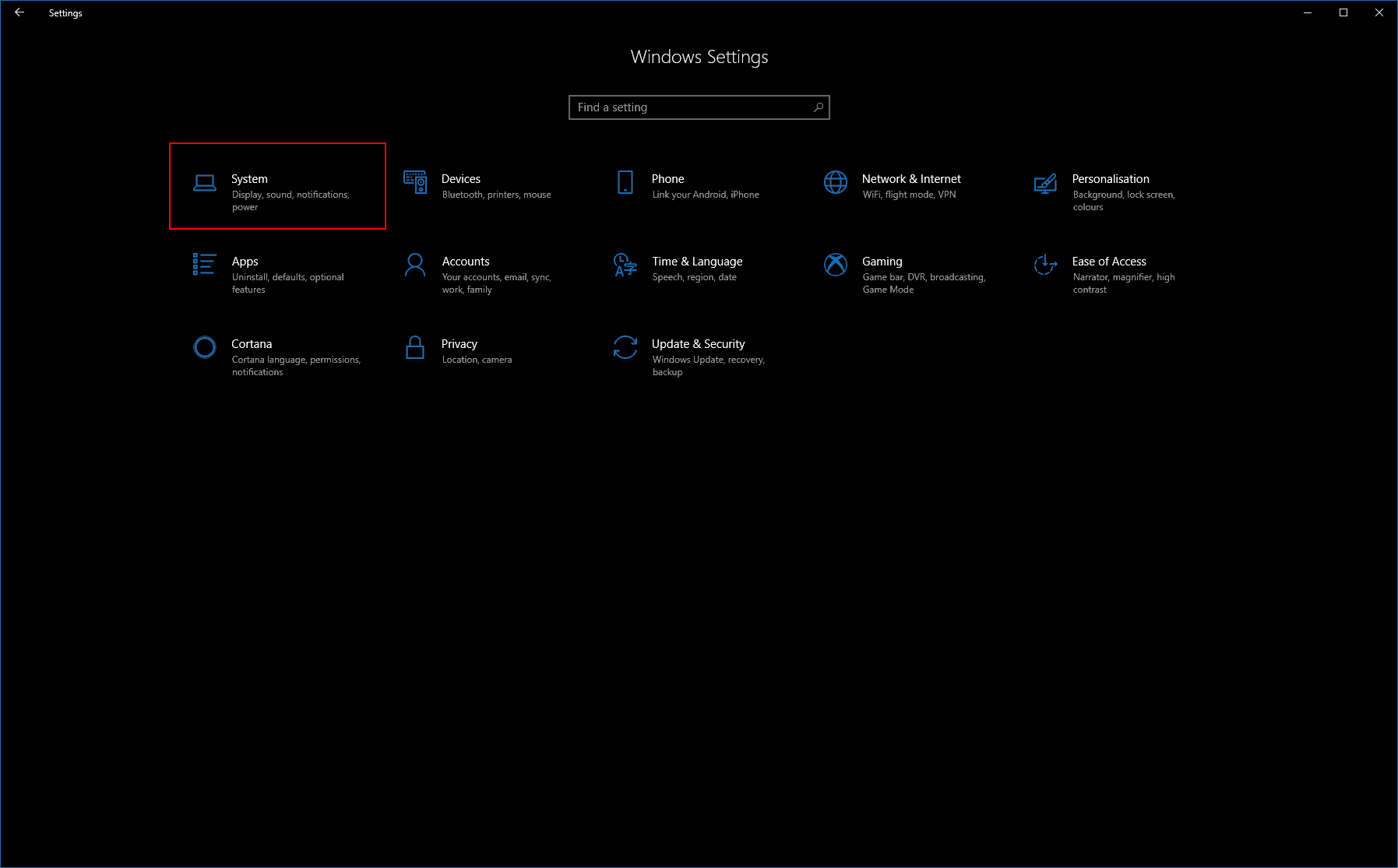
To find out which Windows 10 release you’ve got installed, open the Settings app (press the Start button in the bottom-left corner and start typing Settings).
\n

Windows 10 Settings About screenshot

\n

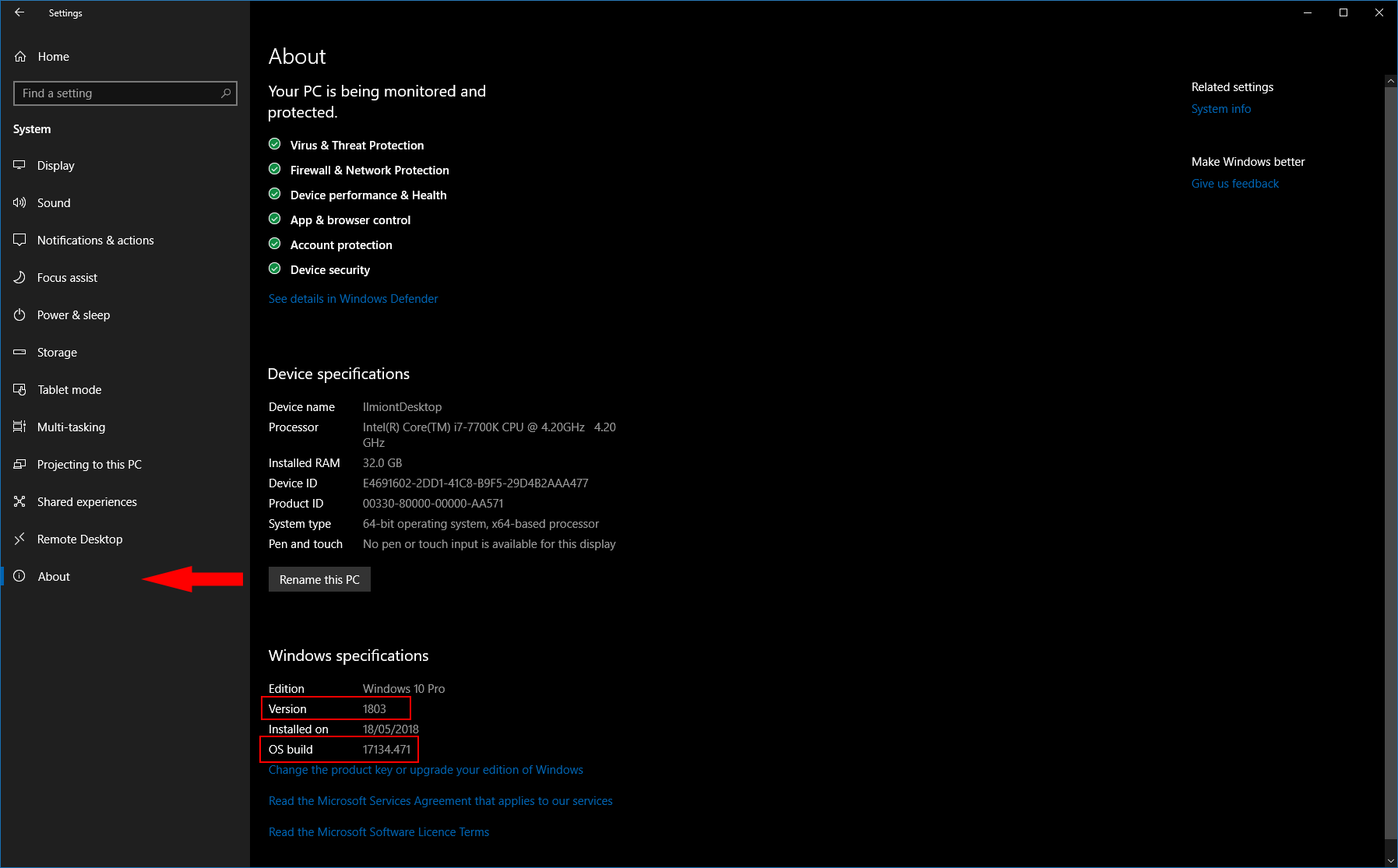
On the Settings homepage, click into the “System” category. From the menu on the left, click “About” at the bottom.
\n

Windows 10 Settings About screenshot

\n

At the bottom of this page, look for the “Windows specifications” header. You’ll see your version and build number listed, as well as the date on which you installed the current feature update.

\n

Read on to find out what these numbers mean.

\n

Feature update version numbers

\n

You’ll often see feature updates referred to by a four-digit number, such as 1809. These numbers are used within the Windows interface, in online articles and within Microsoft’s own documentation.

\n

The digits refer to the time window in which the update was released. For example, the “1809” above corresponds to the October 2018 Update and indicates it was finalised for release in the 9th month (September) of 2018. The April 2018 Update was 1803, since it was finalised in March 2018.

\n

While they may initially be confusing, you should now see these codes are a concise way to describe your installed Windows 10 release.

\n

Feature update build numbers

\n

Each new feature update also has a unique build number. These are normally used internally by the operating system, and as a user you don’t generally need to know your specific build number.

\n

Windows 10 1809, the October 2018 update, is 17763, while the April 2018 Update was 17134. The build number is incremented for each new “build” of Windows created by Microsoft’s engineers, so you’ll see it’s continually climbing higher with each new release. Windows 10’s launch day build number was 10240.

\n

Feature update names

\n

Microsoft markets feature updates to consumers using a unique name. The names are typically related to the time window in which the update was first released (although it may not be until several months later that your device gets the new release).

\n

For example, Microsoft released the “October 2018 Update” back in October. Prior to that, we had the “April 2018 Update”. In 2017, the “Creators Update” and “Fall Creators Update” were launched in April and October respectively.

\n

These names are no more descriptive than the version numbers and may be confusing to some – Microsoft has a history of using very similar names to describe consecutive releases. Windows 10 itself also makes light use of the names; you won’t find them advertised within the Settings app, as the four-digit version numbers are usually preferred.

\n

Too complicated?

\n

Most of the time, you’ll only ever need to remember one of these names or numbers – each one is unique to its specific feature update. You can use 1809, 17763 or the October 2018 Update quite interchangeably to describe the latest feature update – or 1803, 17134 or the April 2018 Update in the case of the previous one.

\n

It’s easy to identify any of the names or numbers from within Windows, but remember that just the name will usually suffice. The build numbers and release version numbers will only get larger going into the future, while the update names will continue to remain oriented around the release timeframe or included features.

\n\nFurther reading: howto, Windows 10

Share this article:
Tags:
howto Windows 10
James Walker
Written by

James Walker

I'm a web developer and technology journalist with a particular interest in Microsoft innovations. I'm the founder of Heron Web (heron-web.com), a UK digital agency for web design and development. When I'm not working, I'm a PC gamer and passionate transport enthusiast.

Previous Article Microsoft releases Windows 10 19H1 build 18305.1003 with fix for Internet Explorer flaw | On MSFT Next Article Microsoft kicks off massive Xbox Countdown Sale featuring more than 800 games

Related Articles

43 Microsoft Edge keyboard shortcuts to remember for stylish and speedy web surfing

October 31, 2023

How to use accessibility features in Microsoft 365 like Narrator, Read aloud and Voice Search easily

October 30, 2023

How to use Windows Backup on Windows 11 for efficient data protection

October 26, 2023

Leave a Comment Cancel reply

Your email address will not be published. Required fields are marked *

Recent Posts

  • PowerToys 0.75 released; Environment Variables editor is here
  • Former Halo developer Bungie announces layoffs in wake of game delays
  • Siemens and Microsoft partner to bring GenAI to industries worldwide
  • 43 Microsoft Edge keyboard shortcuts to remember for stylish and speedy web surfing
  • Here is what’s coming to (and leaving) Xbox Game Pass soon

Recent Comments

No comments to show.

Archives

  • October 2023
  • September 2023
  • August 2023
  • July 2023
  • June 2023
  • May 2023
  • April 2023
  • March 2023
  • February 2023
  • January 2023
  • December 2022
  • November 2022
  • October 2022
  • September 2022
  • August 2022
  • July 2022
  • June 2022
  • May 2022
  • April 2022
  • March 2022
  • February 2022
  • January 2022
  • December 2021
  • November 2021
  • October 2021
  • September 2021
  • August 2021
  • July 2021
  • June 2021
  • May 2021
  • April 2021
  • March 2021
  • February 2021
  • January 2021
  • December 2020
  • November 2020
  • October 2020
  • September 2020
  • August 2020
  • July 2020
  • June 2020
  • May 2020
  • April 2020
  • March 2020
  • February 2020
  • January 2020
  • December 2019
  • November 2019
  • October 2019
  • September 2019
  • August 2019
  • July 2019
  • June 2019
  • May 2019
  • April 2019
  • March 2019
  • February 2019
  • January 2019
  • December 2018
  • November 2018
  • October 2018
  • September 2018
  • August 2018
  • July 2018
  • June 2018
  • May 2018
  • April 2018
  • March 2018
  • February 2018
  • January 2018
  • December 2017
  • November 2017
  • October 2017
  • September 2017
  • August 2017
  • July 2017
  • June 2017
  • May 2017
  • April 2017
  • March 2017
  • February 2017
  • January 2017
  • December 2016
  • November 2016
  • October 2016
  • September 2016
  • August 2016
  • July 2016
  • June 2016
  • May 2016
  • April 2016
  • March 2016
  • February 2016
  • January 2016
  • December 2015
  • November 2015
  • October 2015
  • September 2015
  • August 2015
  • July 2015
  • June 2015
  • May 2015
  • April 2015
  • March 2015
  • February 2015
  • January 2015
  • December 2014
  • November 2014
  • October 2014
  • September 2014
  • August 2014
  • July 2014
  • June 2014
  • May 2014
  • April 2014
  • March 2014
  • February 2014
  • January 2014
  • December 2013
  • November 2013
  • October 2013
  • September 2013
  • August 2013
  • July 2013
  • June 2013
  • May 2013
  • April 2013
  • March 2013
  • February 2013
  • January 2013
  • December 2012
  • November 2012
  • October 2012
  • September 2012
  • August 2012
  • July 2012
  • June 2012
  • May 2012
  • April 2012
  • March 2012
  • February 2012
  • January 2012
  • December 2011
  • November 2011
  • October 2011
  • September 2011
  • August 2011
  • July 2011
  • June 2011
  • May 2011
  • April 2011
  • March 2011
  • February 2011
  • January 2011
  • December 2010
  • November 2010
  • October 2010
  • September 2010

Categories

  • Announcements
  • Deals
  • Developer
  • Editorial
  • Feature
  • Feature stories
  • Hero-post
  • Hotdeals
  • How-to
  • Latest news
  • Microsoft / office 365
  • News
  • Office 365
  • Onpodcast
  • Opinion
  • Our featured post
  • Polls
  • Review
  • Reviews
  • Videos
OnMSFT.com

OnMSFT.com covers Microsoft news, reviews, and how-to guides. Formerly known as WinBeta, we have been your source for Microsoft news since 1998.

Categories

  • Windows
  • Surface
  • Xbox
  • How-To
  • OnPodcast
  • Gaming
  • Edge
  • Teams

Recent Posts

  • PowerToys 0.75 released; Environment Variables editor is here
  • Former Halo developer Bungie announces layoffs in wake of game delays
  • Siemens and Microsoft partner to bring GenAI to industries worldwide
  • 43 Microsoft Edge keyboard shortcuts to remember for stylish and speedy web surfing
  • Here is what’s coming to (and leaving) Xbox Game Pass soon

Quick Links

  • About OnMSFT.com
  • Contact OnMSFT
  • Join Our Team
© 2010–2026 OnMSFT.com LLC. All rights reserved.
About OnMSFT.comContact OnMSFT
