Skip to content
OnMSFT.com
  • Home
  • About
  • Contact
  • Windows
  • Surface
  • Xbox
  • How-To
  • OnPodcast
  • Edge
  • Teams
  • Gaming
Menu
  • Home
  • About
  • Contact
  • Windows
  • Surface
  • Xbox
  • How-To
  • OnPodcast
  • Edge
  • Teams
  • Gaming
  1. Home
  2. How-to
  3. How to download offline maps in Windows 10

How to download offline maps in Windows 10

James Walker James Walker
June 20, 2017
3 min read

Windows-10-Mobile-Maps-Featured\n

One of the best navigation features of Windows 10 is the ability to download maps for offline use from within the operating system. Once you’ve downloaded maps, they’ll display within the built-in Maps app, even if your Internet connection goes down.

\n

Offline maps have been an important feature of Microsoft’s Windows Maps app since the early days of Windows Phone. It remains competitive today, letting you download entire countries at a time. Rivals like Google Maps on Android phones restrict you to small areas that only cover a single city.
\n

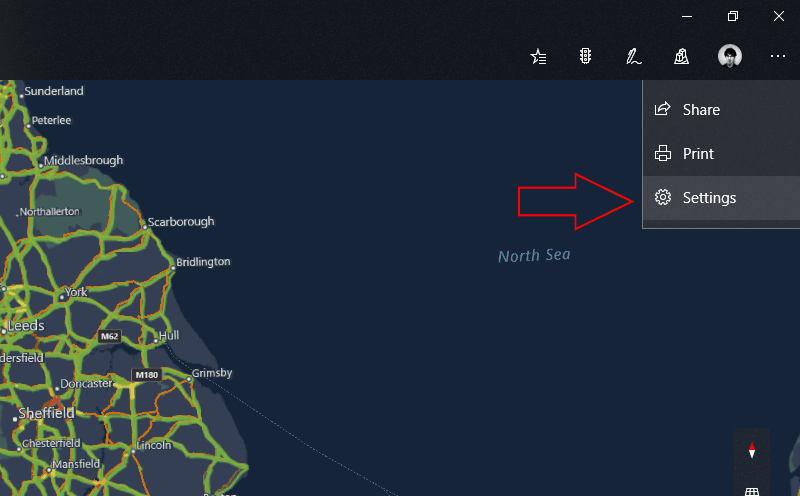
Screenshot of the Maps settings menu in Windows 10

\n

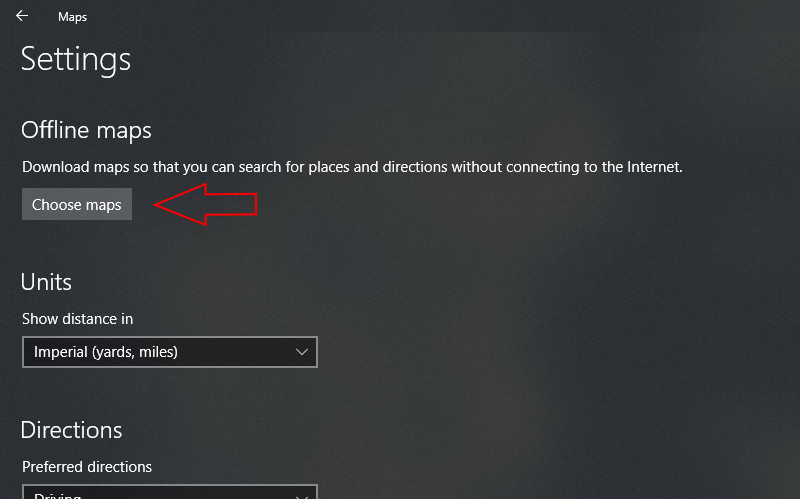
To download an offline map on Windows 10 or Windows 10 Mobile, open the Maps app and click the three dots in the top-right corner (bottom-right on phones). In the menu that appears, click “Settings” and then the “Choose maps” button under “Offline maps” on the screen that appears. Alternatively, you can open the Settings app, navigate to the “Apps” category and select the “Offline maps” page.
\n

Screenshot of the Maps Settings screen

\n

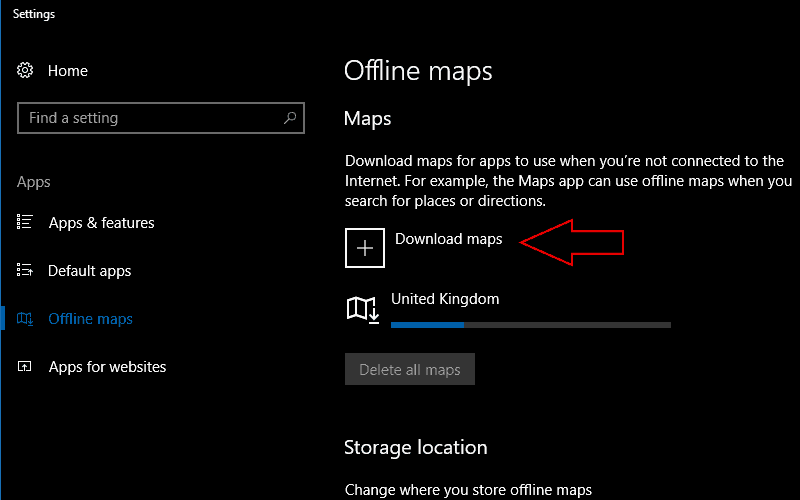
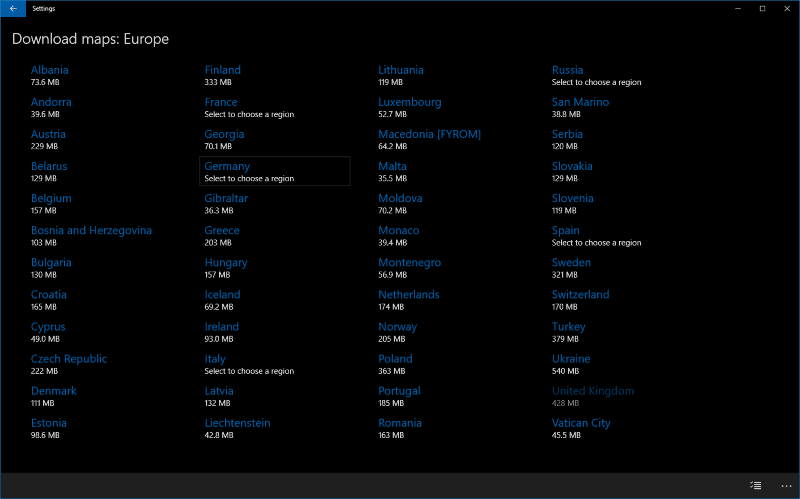
The Offline Maps settings screen lets you download new maps and manage your existing ones. To add another region to your offline maps, tap or click the “Download maps” button. Select a continent and then the country that you want to download. For nations that comprise several large regions, you can choose to download specific areas or the entire country.
\n

Screenshot of Windows 10 offline maps settings screen

\n

Once you’ve selected a country and region, the map will immediately begin to download. You should remember that map files are quite large, typically weighing in at several hundred megabytes for a typical country. The download could take some time to complete depending on your Internet connection. If you need to change the storage location that maps are downloaded to, you can select any of your connected drives from the “Storage location” dropdown menu on the main offline maps settings page.
\n

Screenshot of offline maps country options

\n

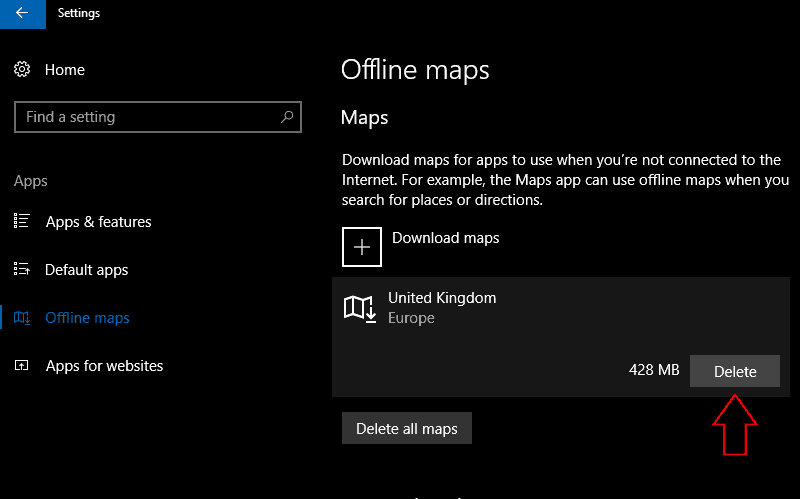
When the map has downloaded, you’ll see it appear in the Offline maps list. You can now access maps in this region when you’re offline, letting you browse the area, get directions and view basic business details without an Internet connection. To remove a map, click its name in the list and press the “Delete” button. You can remove all your maps with the “Delete all maps” button.
\n

Screenshot of Offline Maps 'Delete' button

\n

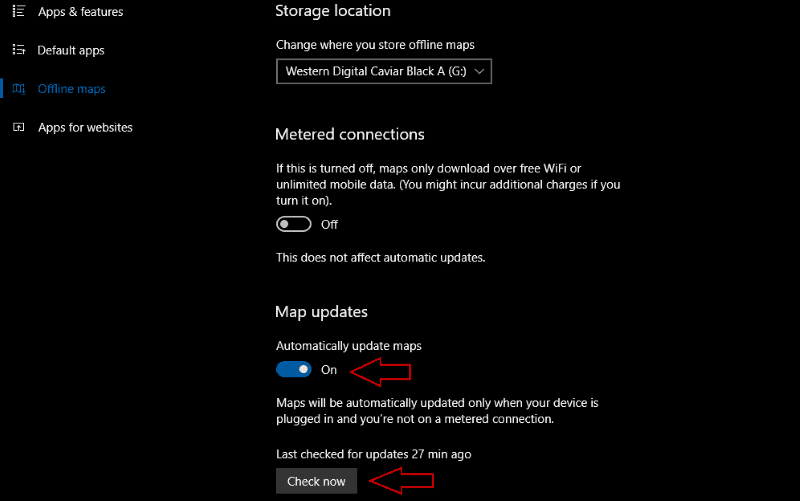
The Offline Maps settings page also provides a few other useful options. These include the option to enable map updates over metered connections, letting you download new files on mobile data, and a button to check for map updates.
\n

Screenshot of Windows 10 Maps auto update settings

\n

By default, Maps will regularly check for new updates to your offline maps when you’re not on a metered connection. You can change this behaviour with the “Automatically update maps” toggle button.

\n

Downloading offline maps on Windows 10 lets you navigate new towns without consuming mobile data. The ability to download entire countries at a time makes the feature more flexible than the offline maps options in rival apps. Being built into Windows, it’s available wherever you are, without the need to download any additional software.

\n\nFurther reading: Maps, Maps for Windows 10, Microsoft Maps, Windows 10, Windows 10 Mobile

Share this article:
Tags:
Maps Maps for Windows 10 Microsoft Maps Windows 10 Windows 10 Mobile
James Walker
Written by

James Walker

I'm a web developer and technology journalist with a particular interest in Microsoft innovations. I'm the founder of Heron Web (heron-web.com), a UK digital agency for web design and development. When I'm not working, I'm a PC gamer and passionate transport enthusiast.

Previous Article Microsoft officially releases Stream, the business video successor to Office 365 Video Next Article Microsoft redesigns Partner Network website

Related Articles

43 Microsoft Edge keyboard shortcuts to remember for stylish and speedy web surfing

October 31, 2023

How to use accessibility features in Microsoft 365 like Narrator, Read aloud and Voice Search easily

October 30, 2023

How to use Windows Backup on Windows 11 for efficient data protection

October 26, 2023

Leave a Comment Cancel reply

Your email address will not be published. Required fields are marked *

Recent Posts

  • PowerToys 0.75 released; Environment Variables editor is here
  • Former Halo developer Bungie announces layoffs in wake of game delays
  • Siemens and Microsoft partner to bring GenAI to industries worldwide
  • 43 Microsoft Edge keyboard shortcuts to remember for stylish and speedy web surfing
  • Here is what’s coming to (and leaving) Xbox Game Pass soon

Recent Comments

No comments to show.

Archives

  • October 2023
  • September 2023
  • August 2023
  • July 2023
  • June 2023
  • May 2023
  • April 2023
  • March 2023
  • February 2023
  • January 2023
  • December 2022
  • November 2022
  • October 2022
  • September 2022
  • August 2022
  • July 2022
  • June 2022
  • May 2022
  • April 2022
  • March 2022
  • February 2022
  • January 2022
  • December 2021
  • November 2021
  • October 2021
  • September 2021
  • August 2021
  • July 2021
  • June 2021
  • May 2021
  • April 2021
  • March 2021
  • February 2021
  • January 2021
  • December 2020
  • November 2020
  • October 2020
  • September 2020
  • August 2020
  • July 2020
  • June 2020
  • May 2020
  • April 2020
  • March 2020
  • February 2020
  • January 2020
  • December 2019
  • November 2019
  • October 2019
  • September 2019
  • August 2019
  • July 2019
  • June 2019
  • May 2019
  • April 2019
  • March 2019
  • February 2019
  • January 2019
  • December 2018
  • November 2018
  • October 2018
  • September 2018
  • August 2018
  • July 2018
  • June 2018
  • May 2018
  • April 2018
  • March 2018
  • February 2018
  • January 2018
  • December 2017
  • November 2017
  • October 2017
  • September 2017
  • August 2017
  • July 2017
  • June 2017
  • May 2017
  • April 2017
  • March 2017
  • February 2017
  • January 2017
  • December 2016
  • November 2016
  • October 2016
  • September 2016
  • August 2016
  • July 2016
  • June 2016
  • May 2016
  • April 2016
  • March 2016
  • February 2016
  • January 2016
  • December 2015
  • November 2015
  • October 2015
  • September 2015
  • August 2015
  • July 2015
  • June 2015
  • May 2015
  • April 2015
  • March 2015
  • February 2015
  • January 2015
  • December 2014
  • November 2014
  • October 2014
  • September 2014
  • August 2014
  • July 2014
  • June 2014
  • May 2014
  • April 2014
  • March 2014
  • February 2014
  • January 2014
  • December 2013
  • November 2013
  • October 2013
  • September 2013
  • August 2013
  • July 2013
  • June 2013
  • May 2013
  • April 2013
  • March 2013
  • February 2013
  • January 2013
  • December 2012
  • November 2012
  • October 2012
  • September 2012
  • August 2012
  • July 2012
  • June 2012
  • May 2012
  • April 2012
  • March 2012
  • February 2012
  • January 2012
  • December 2011
  • November 2011
  • October 2011
  • September 2011
  • August 2011
  • July 2011
  • June 2011
  • May 2011
  • April 2011
  • March 2011
  • February 2011
  • January 2011
  • December 2010
  • November 2010
  • October 2010
  • September 2010

Categories

  • Announcements
  • Deals
  • Developer
  • Editorial
  • Feature
  • Feature stories
  • Hero-post
  • Hotdeals
  • How-to
  • Latest news
  • Microsoft / office 365
  • News
  • Office 365
  • Onpodcast
  • Opinion
  • Our featured post
  • Polls
  • Review
  • Reviews
  • Videos
OnMSFT.com

OnMSFT.com covers Microsoft news, reviews, and how-to guides. Formerly known as WinBeta, we have been your source for Microsoft news since 1998.

Categories

  • Windows
  • Surface
  • Xbox
  • How-To
  • OnPodcast
  • Gaming
  • Edge
  • Teams

Recent Posts

  • PowerToys 0.75 released; Environment Variables editor is here
  • Former Halo developer Bungie announces layoffs in wake of game delays
  • Siemens and Microsoft partner to bring GenAI to industries worldwide
  • 43 Microsoft Edge keyboard shortcuts to remember for stylish and speedy web surfing
  • Here is what’s coming to (and leaving) Xbox Game Pass soon

Quick Links

  • About OnMSFT.com
  • Contact OnMSFT
  • Join Our Team
© 2010–2026 OnMSFT.com LLC. All rights reserved.
About OnMSFT.comContact OnMSFT
