Skip to content
OnMSFT.com
  • Home
  • About
  • Contact
  • News
  • How-to
  • Feature stories
  • Deals
  • Microsoft / office 365
  • Reviews
Menu
  • Home
  • About
  • Contact
  • News
  • How-to
  • Feature stories
  • Deals
  • Microsoft / office 365
  • Reviews
  1. Home
  2. How-to
  3. Excel gains support for data import from PDF tables; here’s how to use it

Excel gains support for data import from PDF tables; here’s how to use it

James Walker James Walker
August 12, 2020
2 min read

How to import data from a PDF in Microsoft Excel

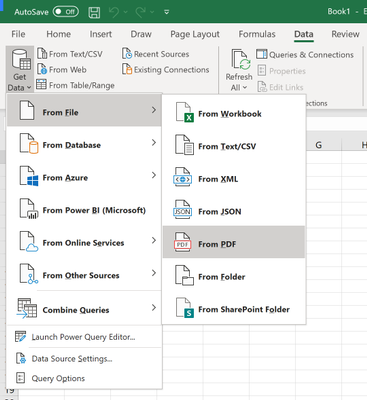
To import PDF table data into Excel:

  1. Click the Data tab in the Excel ribbon.
  2. Click Get Data > From File > From PDF.
  3. Choose your PDF file.
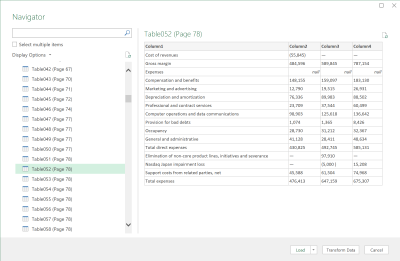
  4. Select the tables to import from the PDF.

Applies to All Windows 10 Versions

Microsoft Excel recently gained support for a new data import type which has been a long time in coming. Office 365 subscribers with the latest Office updates installed can now import data from tables in PDF files, removing the need for cumbersome intermediary steps.

The feature was announced on the Microsoft Tech Community blog earlier this month. To start using data in a PDF, first open your Excel workbook and switch to the Data tab on the ribbon.
Screenshot of importing PDF table data into Excel

Click the “Get Data” button to the left of the ribbon and then choose the “From File” category. Next, select “From PDF” and select your PDF file in the filepicker which will appear.

After you’ve found the file, a window will appear displaying all the tables within your PDF document. Use the prompt to select the tables you’d like to import. You can choose to import tables individally or as a multiple selection.
Screenshot of importing PDF table data into Excel

Once you’re done, press “Load” to add the data to your Excel worksheet. Data can also be customised before import using the Power Query Editor (click the “Transform Data” button in the Navigator window). You can find further information on the feature in the Pdf.Tables Power Query documentation.

Share This Post:

Tags: Microsoft Excel
Share this article:
Tags:
Microsoft Excel
Previous Article Ready to buy the Surface Duo? Here’s how to pre-order before the September 10 launch day Next Article Fast Company went hands on with the Surface Duo, came away with mixed impressions

Related Articles

How to Fix the Phone Link App Not Working on Windows 11 – onmsft.com

December 29, 2022

5 easy ways to make desktop shortcuts on Windows 11 – onmsft.com

December 29, 2022

How to customize precision touchpads on Windows – onmsft.com

December 22, 2022

Leave a Comment Cancel reply

Your email address will not be published. Required fields are marked *

Recent Posts

  • PlayStation’s PC Strategy Shift Came From Rising AAA Costs, Says Former Exec
  • iPhone 18 Could Bring 12GB RAM, 2nm A20 Chip and Price Freeze
  • Discord Nitro May Add Xbox Game Pass Starter Edition With 50+ Games and Cloud Gaming Access
  • Microsoft Drops ‘Microsoft Gaming’ Name, Brings Back Xbox Identity
  • Intel 14A Wins Tesla Deal, More Customers Show Interest

Recent Comments

  1. William on NZXT Responds to RTX 5090 Leak Claim, Disputes Redditor’s Version of Events
  2. Jenny Jones on Microsoft Publisher Will Shut Down in October 2026 and Users Are Not Happy
  3. XxRIVTYxX on Intel Says It Tried to Help Before Crimson Desert Dropped Arc Support
  4. Gaurav Kumar on Chrome Prepares Nudge to ‘Move Tabs to the Side’ as Vertical Tabs Near Release
OnMSFT.com

The Tech News Site

Categories

  • Windows
  • Surface
  • Xbox
  • How-To
  • OnPodcast
  • Gaming
  • Edge
  • Teams

Recent Posts

  • PlayStation’s PC Strategy Shift Came From Rising AAA Costs, Says Former Exec
  • iPhone 18 Could Bring 12GB RAM, 2nm A20 Chip and Price Freeze
  • Discord Nitro May Add Xbox Game Pass Starter Edition With 50+ Games and Cloud Gaming Access
  • Microsoft Drops ‘Microsoft Gaming’ Name, Brings Back Xbox Identity
  • Intel 14A Wins Tesla Deal, More Customers Show Interest

Quick Links

  • About OnMSFT.com
  • Contact OnMSFT
  • Join Our Team
  • Privacy Policy
© 2010–2026 OnMSFT.com LLC. All rights reserved.
About OnMSFT.comContact OnMSFTPrivacy Policy
