Skip to content
OnMSFT.com
  • Home
  • About
  • Contact
  • Windows
  • Surface
  • Xbox
  • How-To
  • OnPodcast
  • Edge
  • Teams
  • Gaming
Menu
  • Home
  • About
  • Contact
  • Windows
  • Surface
  • Xbox
  • How-To
  • OnPodcast
  • Edge
  • Teams
  • Gaming
  1. Home
  2. How-to
  3. 2 Ways to Scan QR code on a Windows Computer

2 Ways to Scan QR code on a Windows Computer

admin admin
October 24, 2023
3 min read

\n

\n

\n

In this article

\n

\n

  • 1. Scan a QR Code on Windows With the Camera App
  • 2. Use an Online QR Scanner
  • Scanning Your QR Code on Windows

\n

Unless you have been hiding under a rock, you know how to scan QR codes through your smartphone. And with their rise as a prominent payment tool, you will only see them more and more. But did you know you can also scan a QR code through your Windows PC itself?

\n

That’s right—you no longer have to rely solely on scanning apps on your smartphone for scanning. If you are on your Windows PC and you suddenly need to scan a code, you have some sleek alternate ways. We have rounded up the best ways from the internet. So lets look at all of them one by one.

\n

1. Scan a QR Code on Windows With the Camera App

\n

Microsoft added a QR code scanner to its native camera app on Windows back in 2021. So it’s no wonder the Camera app will be our first choice here.

\n

Of course, for this to work, you need to have a camera app on your PC in the first place. If you don’t, head to Microsoft Store and download the app from there. 

\n

If you have the Camera app, follow the below steps to scan your QR code on Windows:

\n

    \n

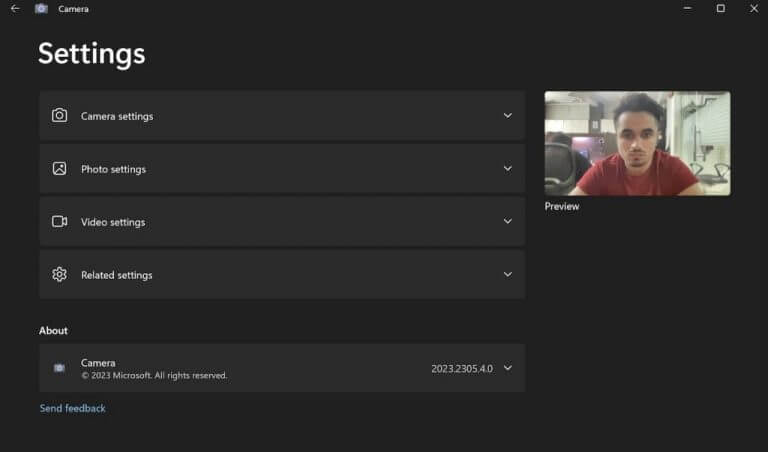
  1. Head to the Start menu search bar, type in ‘qr code’, and select the best match.
  2. \n

  3. Select the gear icon from the top-left corner of your app.
  4. \n

  5. Click on the Related setting option and toggle on the Try out new experimental feature option.  
  6. \n

\n

camera settings windows

\n

Restart the app as soon as you are done with the above steps. On the next boot-up, you should now find a QR code scanning mode, called ‘Barcode’, alongside video and photo mode on the home screen of your Camera app. 

\n

So select the Barcode mode and get your QR code close to your camera. That’s it—the app will scan the QR code in no time.

\n

2. Use an Online QR Scanner

\n

While the Camera app from Windows will work in most cases, you need something else to scan QR codes locally on your Windows.

\n

This is where online QR scanner apps come to your rescue. Making all the hassles of download and installation redundant, with an online scanner you only need to upload a file and then begin your scan. Here’s how:
\n

\n

For example, we will make use of ScanQR, a free online QR scanning app. You are, of course, free to try out other options if you so want. So head to the ScanQR website and click the Drag & Drop or Browse option to upload your QR code. As soon as you do this, the app will quickly scan the uploaded QR code and will give you a URL code to take further actions.
\n

\n
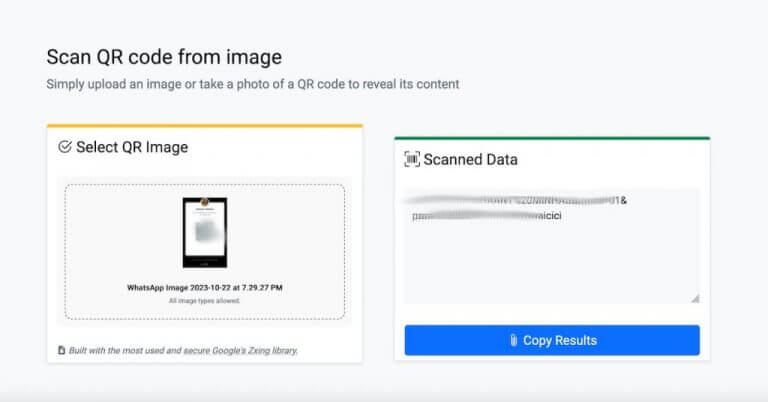
online qr code scanner

\n

Scanning Your QR Code on Windows

\n

As online payment (and similar often offline conducted transactions) transfer becomes part of the norm for more and more people, using scanning QR codes will become a regular affair for most people. But it serves other handy uses too. You can, for example, also use QR codes to share your WiFi passwords. 

\n

As a Windows user, you have straightforward methods to go about this. Depending on what’s more suitable for your individual situation, use one of the above process and you will be ready to go.
\n

\n

\n

Related

\n

Share this article:
Previous Article How to use Bing Chat with your Voice on PC in a easy steps Next Article How to seamlessly integrate Windows 11 Copilot with Microsoft Edge

Related Articles

43 Microsoft Edge keyboard shortcuts to remember for stylish and speedy web surfing

October 31, 2023

How to use accessibility features in Microsoft 365 like Narrator, Read aloud and Voice Search easily

October 30, 2023

How to use Windows Backup on Windows 11 for efficient data protection

October 26, 2023

Leave a Comment Cancel reply

Your email address will not be published. Required fields are marked *

Recent Posts

  • PowerToys 0.75 released; Environment Variables editor is here
  • Former Halo developer Bungie announces layoffs in wake of game delays
  • Siemens and Microsoft partner to bring GenAI to industries worldwide
  • 43 Microsoft Edge keyboard shortcuts to remember for stylish and speedy web surfing
  • Here is what’s coming to (and leaving) Xbox Game Pass soon

Recent Comments

No comments to show.

Archives

  • October 2023
  • September 2023
  • August 2023
  • July 2023
  • June 2023
  • May 2023
  • April 2023
  • March 2023
  • February 2023
  • January 2023
  • December 2022
  • November 2022
  • October 2022
  • September 2022
  • August 2022
  • July 2022
  • June 2022
  • May 2022
  • April 2022
  • March 2022
  • February 2022
  • January 2022
  • December 2021
  • November 2021
  • October 2021
  • September 2021
  • August 2021
  • July 2021
  • June 2021
  • May 2021
  • April 2021
  • March 2021
  • February 2021
  • January 2021
  • December 2020
  • November 2020
  • October 2020
  • September 2020
  • August 2020
  • July 2020
  • June 2020
  • May 2020
  • April 2020
  • March 2020
  • February 2020
  • January 2020
  • December 2019
  • November 2019
  • October 2019
  • September 2019
  • August 2019
  • July 2019
  • June 2019
  • May 2019
  • April 2019
  • March 2019
  • February 2019
  • January 2019
  • December 2018
  • November 2018
  • October 2018
  • September 2018
  • August 2018
  • July 2018
  • June 2018
  • May 2018
  • April 2018
  • March 2018
  • February 2018
  • January 2018
  • December 2017
  • November 2017
  • October 2017
  • September 2017
  • August 2017
  • July 2017
  • June 2017
  • May 2017
  • April 2017
  • March 2017
  • February 2017
  • January 2017
  • December 2016
  • November 2016
  • October 2016
  • September 2016
  • August 2016
  • July 2016
  • June 2016
  • May 2016
  • April 2016
  • March 2016
  • February 2016
  • January 2016
  • December 2015
  • November 2015
  • October 2015
  • September 2015
  • August 2015
  • July 2015
  • June 2015
  • May 2015
  • April 2015
  • March 2015
  • February 2015
  • January 2015
  • December 2014
  • November 2014
  • October 2014
  • September 2014
  • August 2014
  • July 2014
  • June 2014
  • May 2014
  • April 2014
  • March 2014
  • February 2014
  • January 2014
  • December 2013
  • November 2013
  • October 2013
  • September 2013
  • August 2013
  • July 2013
  • June 2013
  • May 2013
  • April 2013
  • March 2013
  • February 2013
  • January 2013
  • December 2012
  • November 2012
  • October 2012
  • September 2012
  • August 2012
  • July 2012
  • June 2012
  • May 2012
  • April 2012
  • March 2012
  • February 2012
  • January 2012
  • December 2011
  • November 2011
  • October 2011
  • September 2011
  • August 2011
  • July 2011
  • June 2011
  • May 2011
  • April 2011
  • March 2011
  • February 2011
  • January 2011
  • December 2010
  • November 2010
  • October 2010
  • September 2010

Categories

  • Announcements
  • Deals
  • Developer
  • Editorial
  • Feature
  • Feature stories
  • Hero-post
  • Hotdeals
  • How-to
  • Latest news
  • Microsoft / office 365
  • News
  • Office 365
  • Onpodcast
  • Opinion
  • Our featured post
  • Polls
  • Review
  • Reviews
  • Videos
OnMSFT.com

OnMSFT.com covers Microsoft news, reviews, and how-to guides. Formerly known as WinBeta, we have been your source for Microsoft news since 1998.

Categories

  • Windows
  • Surface
  • Xbox
  • How-To
  • OnPodcast
  • Gaming
  • Edge
  • Teams

Recent Posts

  • PowerToys 0.75 released; Environment Variables editor is here
  • Former Halo developer Bungie announces layoffs in wake of game delays
  • Siemens and Microsoft partner to bring GenAI to industries worldwide
  • 43 Microsoft Edge keyboard shortcuts to remember for stylish and speedy web surfing
  • Here is what’s coming to (and leaving) Xbox Game Pass soon

Quick Links

  • About OnMSFT.com
  • Contact OnMSFT
  • Join Our Team
© 2010–2026 OnMSFT.com LLC. All rights reserved.
About OnMSFT.comContact OnMSFT