
 \n
\n
Sync your Outlook.com or Office 365 content to an Android phone
\n
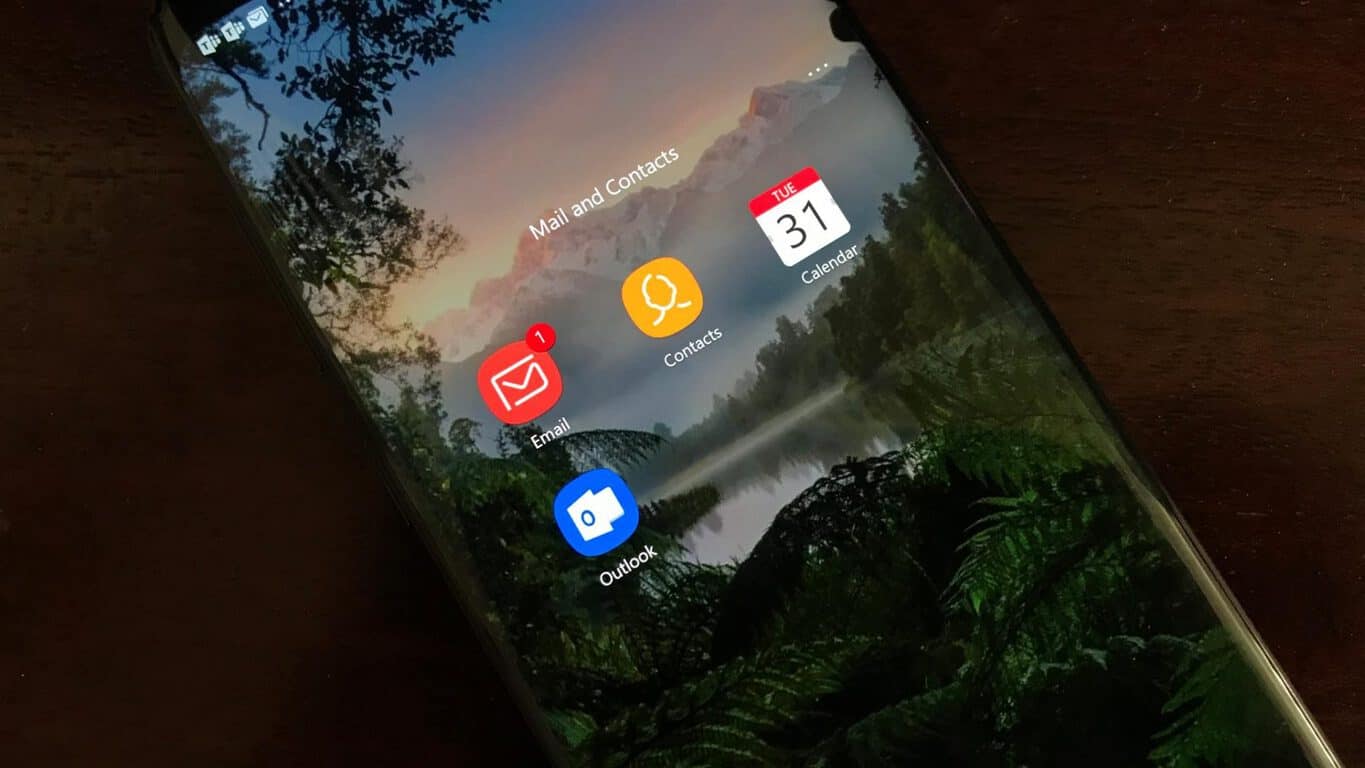
Here’s how you can get the best of the native apps on your Android Phone and sync your Outlook.com content without downloading the Outlook app.
\n
- \n
- Through Gmail App, add your Outlook as Exchange or Office 365 Account, and then choose “Use another Mail app instead” when prompted. Once added, press “allow” to sync.
- Through the Samsung Email App, Add your account and sign in, but choose Microsoft Exchange, ActiveSync. Once Added, choose “Use another Mail app” to allow for syncing.
- Check the native Calendar, Contacts apps on your phone to see if they’re syncing with Outlook.
- You can also sync contacts with the Outlook app by choosing “Sync contents” from the settings, though it won’t sync Calendars and emails.
\n
\n
\n
\n
\n
\n
Applies to
\n
\n
If you’ve finally moved on from Windows Phone or purchased an Android device, you’ll likely be wanting to port all the information from your Outlook.com/Office 365 account over on your new phone. Though using the Outlook app may appear to be the best way to leverage your Microsoft information, you can also sync your Outlook emails, calendars, and contacts using the native dedicated apps on your Android device.
\n
You may want to do that if you prefer task-focused apps over all-in-one apps like Outlook for Android. The latter is a solid email client, but Microsoft replacing the Contacts tab with a new Search tab in the app bar was a polarizing change. This adds an additional tap to access your full contact list, and using your phone’s native Contacts app is usually much faster. Now, the Outlook Android app can sync your Outlook.com/Office 365 contacts to your phone’s address book, but you actually don’t need to install the app to do that. Microsoft explained it all on this support page, but configuring your Outlook.com/Office 365 account on an Android handset is not as straightforward as it is on iOS and Windows Phone. So buckle in and follow along as I explain how to make the best of the native apps on your Android phone.
\n
On the Gmail App
\n
The Gmail app is the default mail application on most modern Android phones (and it’s not just for Gmail accounts), so we’ll be starting with this first. To get started with adding your Outlook.com or Office 365 account, first visit the Google Play Store and make sure that the Gmail app is updated to the latest version. Also, please keep in mind that your Gmail contacts (if you have some) will still show up after adding your Microsoft account, but you can easily switch between the two. Gmail accounts need to be added as part of Android set up, so you will have to deal with seeing your Gmail emails, calendars, and contacts no matter what settings you choose.
\n
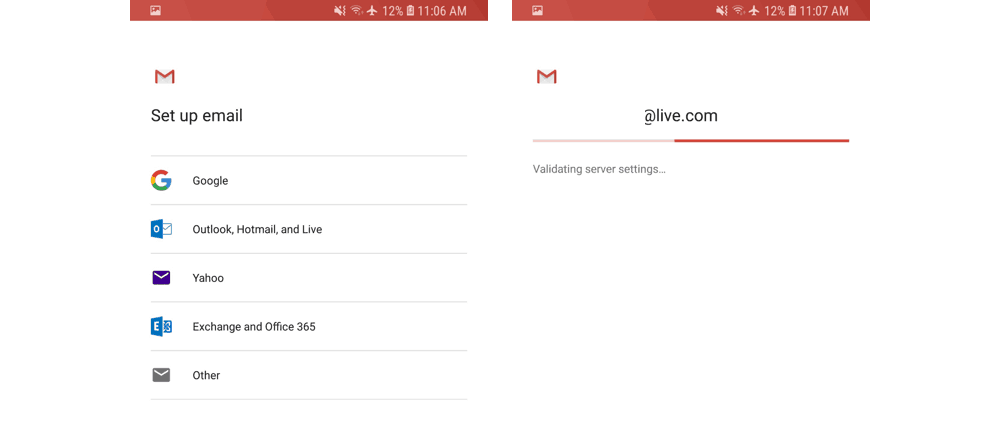
Anyway, after you do this first step, open up the Gmail app, then tap the menu icon in the upper left corner. Navigate to Settings, Add Account, and choose Exchange and Office 365. Please DO NOT choose Outlook, Hotmail, and Live, as this will just sync your emails and not your contacts. You can then enter in your Outlook.com/Office 365 email and password.
\n
\n
Next up, follow any prompts on the screen until you get to your inbox. From then on, open the message from Microsoft, and click “Use another Mail app instead.” This will grant Gmail the server permissions to read your Outlook account.
\n

Going through the Gmail settings
\n
If you’re on an older version of Android, you can also do this by pulling down from the Android notification bar, and tap the “Unable to sync calendar and contacts” message. Not everyone will see this message but if you do, please press on this and then “Allow” to allow for syncing. The sync process will take a few minutes, but once you’re done, you’ll be able to use Gmail as your mail client and Google’s Contacts and Calendar apps to manage your Outlook.com/Office365 address books and calendars.
\n
On the Samsung Email App
\n
Samsung’s Galaxy phones, the most popular brand of Android phones, come with a different default email application called “Samsung Email.” This application is a bit different from Google’s Gmail app, but the setup process is similar. Just as before, ensure that the Samsung Email app is updated to the latest version before you proceed.
\n
Next up, open the Samsung Email app and tap on “Add Account.” Alternatively, you can go to settings, and tap “Add account” if you already have other accounts set up. Anyway, you can then enter in your Outlook.com/Office 365 email and password, and then tap Sign in. After that, if you’re prompted, choose “Microsoft Exchange ActiveSync” from the list to proceed. You might not see this, so don’t worry if it does not show up.
\n

Setting up Outlook in Samsung Mail
\n
In the next few steps, you may also see the settings screen which asks you to change your settings or account name. You can tweak to your own liking to show all your mail and calendar from all time, and not just the last few months. Next up tap “Yes” or “Ok” to confirm the setting and permissions, and allow the syncing to proceed.
\n
If you’re on an older Samsung phone, you might see a message that says “Action Required to Sync,” so be sure to press on it and head to settings enable Syncing. Just as with the Gmail app, check the message from Microsoft, and choose “Use another Mail app instead” to proceed with syncing. Please be aware that syncing email, calendar, contacts, and tasks may take a few minutes.
\n
Just to double check…
\n
Once you’re up and running following these steps, you should be able to use the native Contacts, Calendar, and Mail apps on your Android phone to sync information from your Outlook.com or Office 365 account. You can now skip the trip to the Google Play Store and won’t need to download the dedicated Outlook Android app.
\n
On most phones, opening the Google Contacts app will list Gmail contacts, but you can press the hamburger menu and clicking on the Outlook icon to swap between Gmail and Outlook contacts.
\n
On Google’s Calendar app, all of your Calendars will appear on the right when you press the hamburger menu. You can hide the Google account and use ONLY your Outlook Calendar exclusively by unselecting the checkbox under the Google account name.
\n
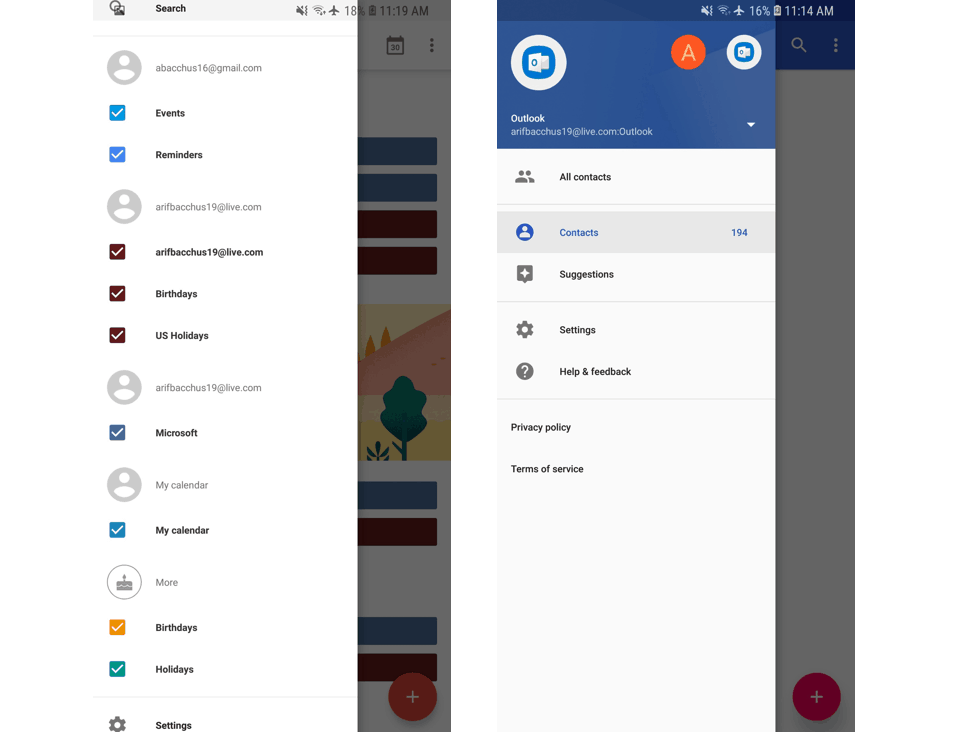
Samsung Calendar and Google Contacts
\n
On Samsung phones, things are a bit different and you can ONLY show your Microsoft Outlook Contacts. From Samsung Contacts, you can press on the (…) menu on the top, followed by Settings, then “Contacts to Show” and choose the button for Microsoft Exchange ActiveSync.
\n
Finally, with the Samsung Calendar app, you can manage your calendars by tapping the (…) menu on the top right, followed by Manage Calendars. This will let you unselect the Google Calendar, and use the Microsoft Outlook account exclusively.
\n
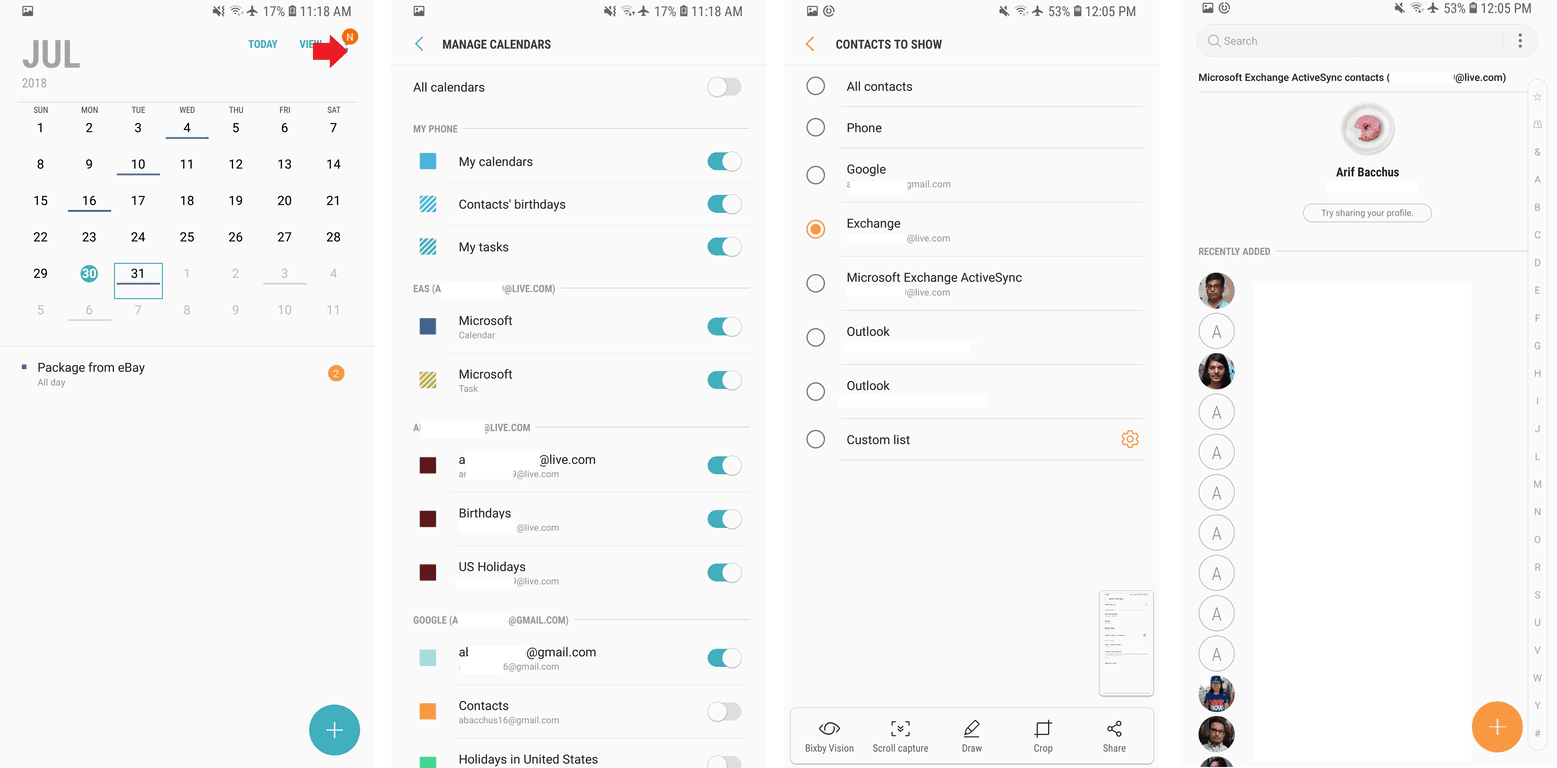
Samsung Calendar and Contacts
\n
Syncing with the Outlook App installed (and without following the above steps)
\n
If you’ve opted to install the Outlook app on your phone, you can obviously use it as an email client for your Outlook.com/office 365 account, but the app can also sync all your contacts in your phone’s native Contacts app without following the steps above. Simply go Outlook settings, choose the Outlook/Office 365 email account and enable “Sync contacts.” Unfortunately, going this route will NOT sync your Calendars or Emails, and you will still need to follow the steps above. Additionally, syncing contacts through the Outlook app will create double versions of contacts you’ve already added through the steps above.
\n
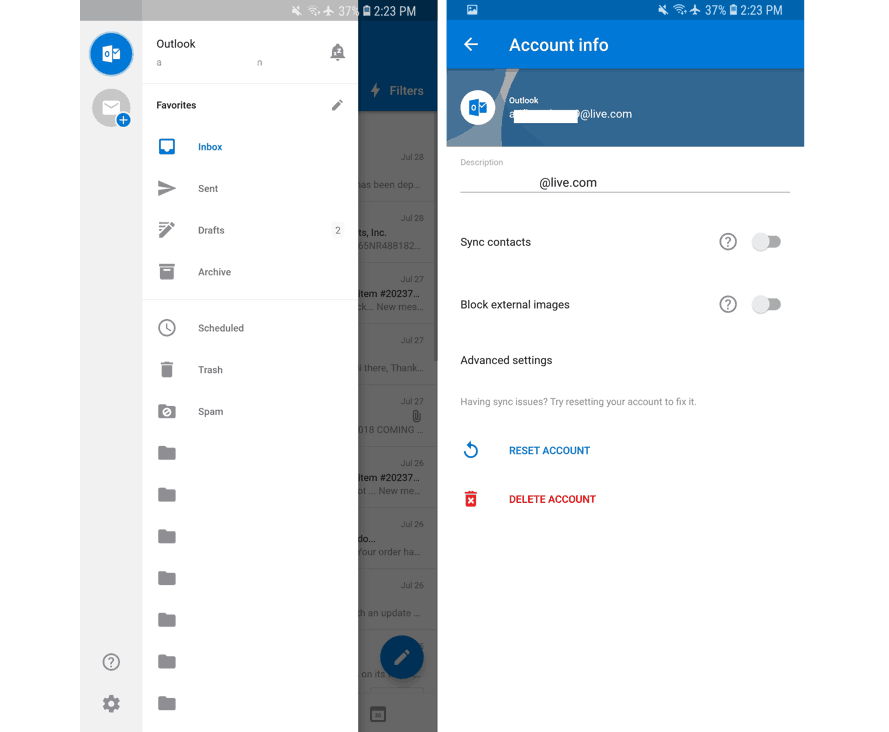
Changing Outlook sync settings
\n
At the end of the day, the support for setting up your Outlook.com/Office 365 account on an Android phone showcases the beauty of technologies built on open standards. You’re not being forced to use Microsoft’s all-in-one Outlook app to manage your emails, contacts, and calendars, and you should be fine using just the native apps on your Android phone. Microsoft’s Outlook Android app is perfect for power users, but the average Joe will likely be more comfortable with task-focused apps like on Windows Phone.
\n\nFurther reading: Android, Calendar, Contacts, Gmail, Google, Microsoft, Office 365, Outlook for Android, Outlook.com
