
In this article
\
\
\
With remote work now becoming a new paradigm of what it means to work, online communications have soared in popularity and business. Among such apps, Zoom has become one of the most popular options to connect with your teammates and stakeholders. It’s pretty popular for things outside of business as well; think speaking with friends or family, organizing your club activities, etc.
\
And if you’re an Outlook user, you can interestingly add Zoom to your account and use all its functionalities—right from the email account. Let’s see how.
\
How to add Zoom to your Outlook account
\
Adding Zoom to your account is a straightforward process that takes little effort. All you’ve to do is add a plug-in, and you’re good to go. Here’s how you can get started:
\
- \
- Launch the Outlook desktop client.
- Click on the File tab.
- Click on Info and then click on Manage Add-ins.
- In the Add-Ins for Outlook window, look for Zoom for Outlook and select Add.
\
\
\
\
\
The Zoom plug-in will be installed. Now, when you head back to the Outlook account before you can run the Zoom add-in, you’ll have to create a calendar event first. Enter all the calendar details and then click on the toggle next to your Zoom app.
\
Add Zoom to Outlook web
\
You can also add Zoom add into your Outlook web account. Here’s how:
\
- \
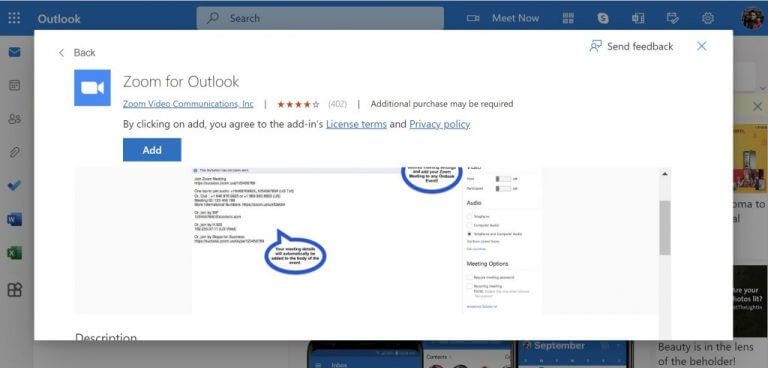
- Head to AppSource and grab the Zoom for Outlook add-in from there.
- Click on Get it now and enter your Microsoft account details.
- You’ll be taken to your Outlook account. From there, click on Add, and the Zoom plug-in will be downloaded.
- Head to the Calendar option to start using your Zoom on Outlook web. There, select schedule a new meeting, and while you’re doing that, click on More options.
- On the next window, click on Zoom. Then, click on Add a Zoom Meeting.
\
\
\
\
\
\
\
On the new dialog box, click on Allow to display a new window from Zoom. You’ll have to log in to your Zoom account now. Enter the username and password, and click on Sign in.
\
As soon as you do this, a new Zoom link with a Meeting ID and Passcode will be created and added to your Outlook meeting. Click on Save, and your Event will be saved for the future.
\

\
If you also want to edit, view, or remove your Outlook settings, head to the Outlook web calendar again and click on the three dots.
\
You can make changes to your Zoom meeting by going over Meeting ID, Security, Video, or Audio Settings. Then, if you click on Advanced options, you’ll see other options to make changes. When you’re done with the changes, click on Update, and your settings will be updated.
\
If you click on Remove, you can delete the Zoom meeting immediately.
\

\
Adding Zoom to your Outlook account
\
By adding Zoom to your Outlook account, you can schedule your Zoom meetings right from your account itself and also make any changes to your meeting settings right from the Outlook app. Microsoft is big on cross-compatibility, so this is only one of many workarounds.
\
For instance, on the one hand, you can connect Zoom with Microsoft Teams, while on the other, Microsoft also lets you connect Outlook with Google Calendar.
\


