

Microsoft highlights PicsArt as an excellent tool for working with photos
\
\
\
 \
\
\
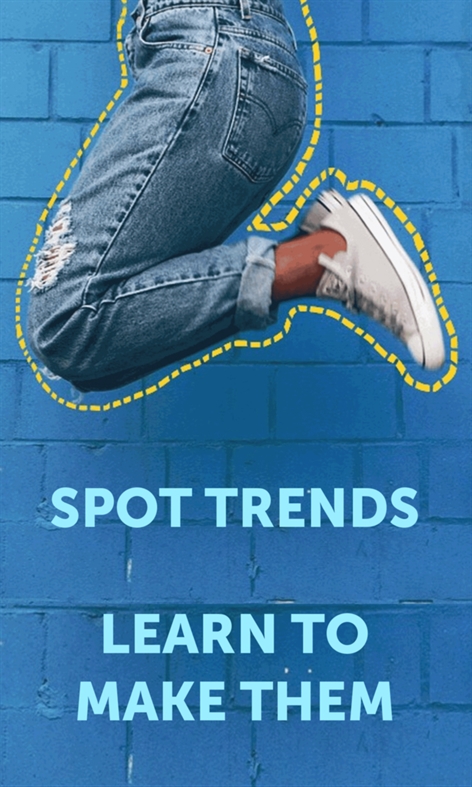
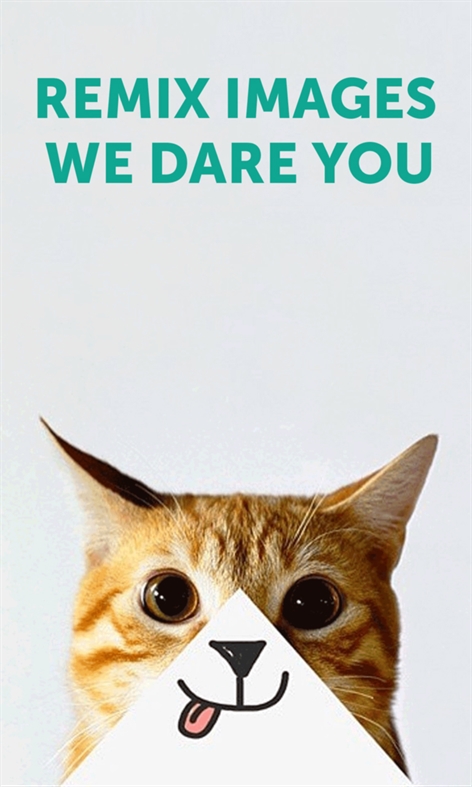
There are many photo editors currently out there in the market that can help you get your photographic creativity on. Microsoft, however, has worked with PicsArt to design a free and special Windows Platform app. The universal app means you can now get your photographic creativity on any Windows 10 device you own, be it a tablet, phone, or PC.
\

PicsArt photo editing app for Windows 10.
\
In a recent blog post, the company highlighted the give steps users can take to use the PicsArt app. The Steps are divided into finding, applying, adding, blending, and sharing.
\
Step one: Finding and editing Photos with Pics Art:
\
Let’s get started by searching our vast collection of #FreeToEdit images (this hashtag makes images freely available to the community to edit and is a feature unique to the PicsArt community).
\
Step two: Applying Masks to enhance photos
\
Next, let’s apply a Mask (a.k.a “filter) — we’ve got more than 120 to choose from. Whether it’s a vintage-style light leak, a grungy texture or a sprinkling of bokeh, you’ve got tons of options for making your photos stand out.
\
Step three: Adding a photo
\
Adding a Mask is probably the simplest creative edit you can make with PicsArt. But there’s a universe of additional creative options available to you
\
Step four:Blending two photos together
\
Tap on the paintbrush icon to the right and use your finger to erasetbackgrounds.
\
Step five: Sharing your photo with PicsArt
\
Click the sharing icon at the top to post an image to PicsArt and/or the social network of your choice.
\
PicsArt is a free app and can be downloaded by clicking the links below! If it sounds interesting to you, please do check it out and comment below.
\






\
\
\
Further reading: Microsoft, Photo Editing, Photography, Universal Windows App, Universal Windows Platform, Windows 10, Windows 10 Mobile
\
\
\
\
\
\
\\t
\
\
\
\
\\t
Read these stories next
\
 \\t
\\t\
\
 \\t
\\t\
Bethesda releases DOOM Bloodfall, the latest multiplayer DLC update is available now\
\
\
\
\
 \\t
\\t\
\
 \\t
\\t\
 \\t
\\t\
 \\t
\\t\
 \\t
\\t\
\
\
\
\
\
How do you edit your photos on Windows?