Skip to content
OnMSFT.com
  • Home
  • About
  • Contact
  • News
  • How-to
  • Feature stories
  • Deals
  • Microsoft / office 365
  • Reviews
Menu
  • Home
  • About
  • Contact
  • News
  • How-to
  • Feature stories
  • Deals
  • Microsoft / office 365
  • Reviews
  1. Home
  2. News
  3. How to create a USB Recovery Disk for your Surface RT

How to create a USB Recovery Disk for your Surface RT

Ron Ron
September 16, 2019
1 min read

Microsoft’s Surface RT is a great device but there is just one problem. How are we to recover from an operating system hiccup since there are no DVD or CD drives and no installation media to use to recover from an operating system error? Thankfully, this guide will help those who have a Thumb Drive (4GB minimum) create a USB Recovery Disk for your Surface RT.

  1. From the Start screen, tap the Desktop tile to open the Windows Desktop.
  2. Slide your finger in from the right to fetch the Charms bar, then tap the Settings icon.
  3. When the Settings Pane appears, tap the words Control Panel from the pane’s top edge.
  4. When the Desktop Control Panel appears, tap the System and Security section, then tap File History.
  5. When the File History window appears, shown below, tap Recovery in the bottom, left corner. Then tap Create a Recovery Drive when the Recovery window appears.

Once you are done creating the recovery thumb drive, insert it into your Surface RT. NOTE, this will wipe all data on your Surface RT. Proceed with caution.

  1. Turn off your Surface, then insert the Recovery Drive into your Surface RT’s USB port.
  2. While holding down the Volume Down switch, press and release the Surface RT’s Start button.

Thanks to http://www.andyrathbone.com for this guide!


Share this article:
Previous Article Windows Phone market share continues to decline, can Windows 10 for phones change things? Next Article Evidence of Cortana found in the Windows 9 (Threshold) Technical Preview Build 9834 resource files

Related Articles

Chrome tests Google Drive file uploads in the AI Mode compose box

April 14, 2026
Gemini image creation using right click desktop Chrome

Chrome lets you remake images with Gemini on desktop using just a right-click

April 13, 2026
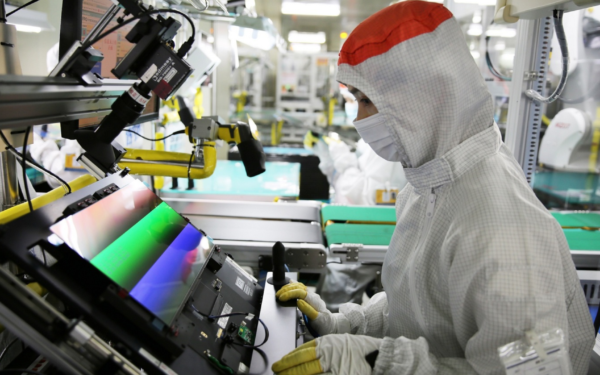
Samsung Display crosses 5 million QD-OLED monitor shipments as demand grows fast, with new panels and strong premium market expansion worldwide.

Samsung Display Ships 5 Million QD-OLED Monitor Panels in Four Years

April 9, 2026

Leave a Comment Cancel reply

Your email address will not be published. Required fields are marked *

Recent Posts

  • Chrome tests Google Drive file uploads in the AI Mode compose box
  • Chrome lets you remake images with Gemini on desktop using just a right-click
  • Samsung Display Ships 5 Million QD-OLED Monitor Panels in Four Years
  • Intel Arc Pro B70 Teardown Reveals Blower Cooler and Early Board Design Details
  • Users Modify RTX 5090 Lightning Z Hardware to Unlock MSI’s Restricted 2500W BIOS

Recent Comments

  1. XxRIVTYxX on Intel Says It Tried to Help Before Crimson Desert Dropped Arc Support
  2. Gaurav Kumar on Chrome Prepares Nudge to ‘Move Tabs to the Side’ as Vertical Tabs Near Release
OnMSFT.com

The Tech News Site

Categories

  • Windows
  • Surface
  • Xbox
  • How-To
  • OnPodcast
  • Gaming
  • Edge
  • Teams

Recent Posts

  • Chrome tests Google Drive file uploads in the AI Mode compose box
  • Chrome lets you remake images with Gemini on desktop using just a right-click
  • Samsung Display Ships 5 Million QD-OLED Monitor Panels in Four Years
  • Intel Arc Pro B70 Teardown Reveals Blower Cooler and Early Board Design Details
  • Users Modify RTX 5090 Lightning Z Hardware to Unlock MSI’s Restricted 2500W BIOS

Quick Links

  • About OnMSFT.com
  • Contact OnMSFT
  • Join Our Team
  • Privacy Policy
© 2010–2026 OnMSFT.com LLC. All rights reserved.
About OnMSFT.comContact OnMSFTPrivacy Policy