Skip to content
OnMSFT.com
  • Home
  • About
  • Contact
  • News
  • How-to
  • Feature stories
  • Deals
  • Microsoft / office 365
  • Reviews
Menu
  • Home
  • About
  • Contact
  • News
  • How-to
  • Feature stories
  • Deals
  • Microsoft / office 365
  • Reviews
  1. Home
  2. News
  3. Change Ugly Guy background login for Windows 8 – onmsft.com

Change Ugly Guy background login for Windows 8 – onmsft.com

Ron Ron
June 30, 2011
1 min read

Seems every body is having major problems telling how to change the Ugly Guy, I have found 5 different ways an none of them worked.
so here is my way to change Ugly Guy. 

The “ugly guy” image is stored as a resource inside %WinDir%\System32\AuthExt.dll. Thus, in order to change the picture, a resource editor such as Resource Hacker (known as ResHacker or ResHack) has to be used, also you have to first take ownership or it will not work.

1.) locate %WINDIR%\System32\AuthExt.dll file.
2.) takeownership
3.) Run Resource Hacker or any resource editor such as Restorator, ResEdit, XN Resource Editor and etc.
4.) Open %WINDIR%\System32\AuthExt.dll file.
5.) Expand Image tree.
6.) Expand 1001 tree.
7.) expand 1033 ( you should see the Ugly Guy)
8.) click action
9.) select Replace Resource.
Click on Open file with new resource, and select a JPG image which has the resolution of 1280×1024 pixels.

Then, enter the following information:

Resource Type: IMAGE
Resource Name: 1001
Resource Language: 1033 (depends on your OS’s language and should be the same with original code)

Click Replace to make the change. Now you should see your new Image. Click save and exit. C+A+D and select change user

You should see your new image instead of Ugly Guy.

Source: BetaArchive
Share This Post:

Share this article:
Previous Article Ballmer to Critics: Microsoft Is Doing Well Because Of Me | On MSFT Next Article News Highlights – June 2011 – onmsft.com

Related Articles

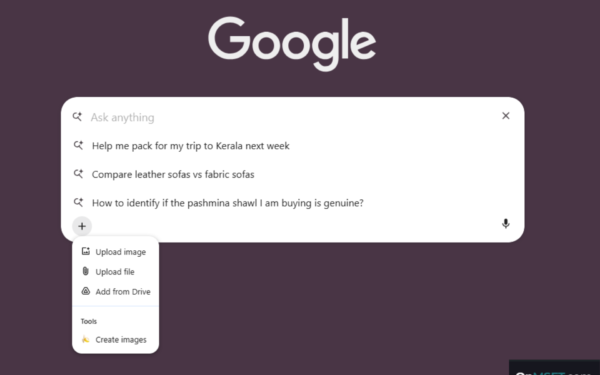
Chrome tests Google Drive file uploads in the AI Mode compose box

April 14, 2026
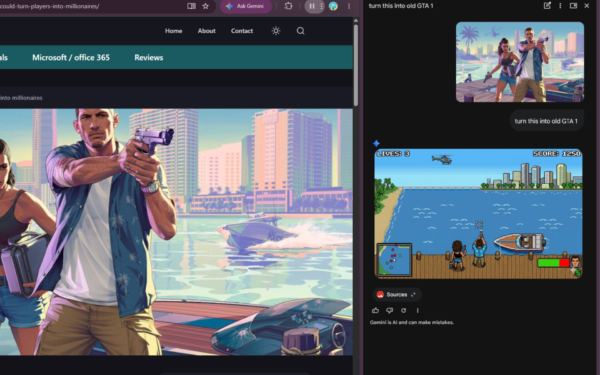
Gemini image creation using right click desktop Chrome

Chrome lets you remake images with Gemini on desktop using just a right-click

April 13, 2026
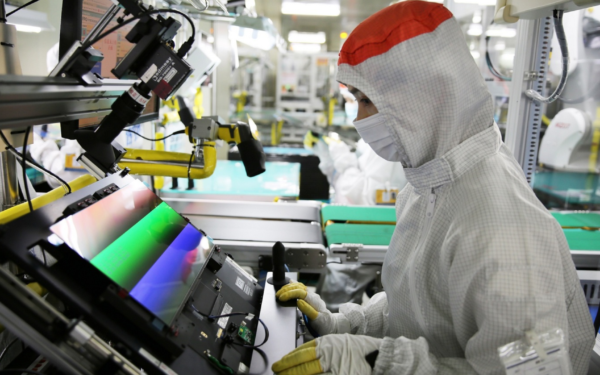
Samsung Display crosses 5 million QD-OLED monitor shipments as demand grows fast, with new panels and strong premium market expansion worldwide.

Samsung Display Ships 5 Million QD-OLED Monitor Panels in Four Years

April 9, 2026

Leave a Comment Cancel reply

Your email address will not be published. Required fields are marked *

Recent Posts

  • Chrome tests Google Drive file uploads in the AI Mode compose box
  • Chrome lets you remake images with Gemini on desktop using just a right-click
  • Samsung Display Ships 5 Million QD-OLED Monitor Panels in Four Years
  • Intel Arc Pro B70 Teardown Reveals Blower Cooler and Early Board Design Details
  • Users Modify RTX 5090 Lightning Z Hardware to Unlock MSI’s Restricted 2500W BIOS

Recent Comments

  1. XxRIVTYxX on Intel Says It Tried to Help Before Crimson Desert Dropped Arc Support
  2. Gaurav Kumar on Chrome Prepares Nudge to ‘Move Tabs to the Side’ as Vertical Tabs Near Release
OnMSFT.com

The Tech News Site

Categories

  • Windows
  • Surface
  • Xbox
  • How-To
  • OnPodcast
  • Gaming
  • Edge
  • Teams

Recent Posts

  • Chrome tests Google Drive file uploads in the AI Mode compose box
  • Chrome lets you remake images with Gemini on desktop using just a right-click
  • Samsung Display Ships 5 Million QD-OLED Monitor Panels in Four Years
  • Intel Arc Pro B70 Teardown Reveals Blower Cooler and Early Board Design Details
  • Users Modify RTX 5090 Lightning Z Hardware to Unlock MSI’s Restricted 2500W BIOS

Quick Links

  • About OnMSFT.com
  • Contact OnMSFT
  • Join Our Team
  • Privacy Policy
© 2010–2026 OnMSFT.com LLC. All rights reserved.
About OnMSFT.comContact OnMSFTPrivacy Policy