Skip to content
OnMSFT.com
  • Home
  • About
  • Contact
  • Windows
  • Surface
  • Xbox
  • How-To
  • OnPodcast
  • Edge
  • Teams
  • Gaming
Menu
  • Home
  • About
  • Contact
  • Windows
  • Surface
  • Xbox
  • How-To
  • OnPodcast
  • Edge
  • Teams
  • Gaming
  1. Home
  2. How-to
  3. How to use Emoji on your keyboard on Windows – onmsft.com

How to use Emoji on your keyboard on Windows – onmsft.com

kip@onmsft.com kip@onmsft.com
July 12, 2022
1 min read

Communication is difficult. And when you’re communicating through text, it’s not uncommon to misrepresent the things you want to say or do.

\

This is where Emojis can help. First introduced with mobile phones in Japan back in the 90s, Emojis can help you convey your ideas or emotions more clearly. Luckily, you can use the effect of Emojis on your Windows computer as well.

\

In what follows, we’ll cover the exact steps you need to follow for adding in and using emojis through your Windows keyboard. Let’s get started.

\

How to use emoji on Windows 10

\

You can easily add in emojis on your Windows through a simple keyboard shortcut. Here’s how.

\

    \

  1. Open any text editor app. For example: Word, PowerPoint, and Microsoft Edge are the related apps.
  2. \

  3. Now head to any area on the text editor and press the Windows key + ; or Windows key + . shortcut.
  4. \

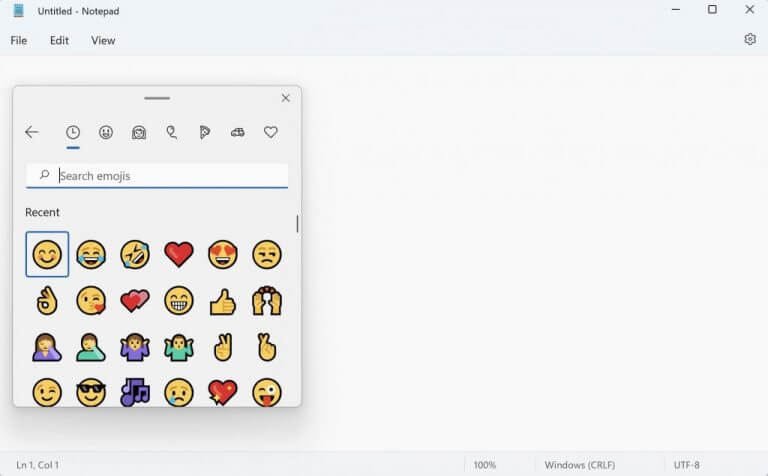
  5. Select the emoji tab and pick any emoji you’d like to insert in your computer.
  6. \

\

adding emojis to notepad

\

That’s it. Do this and your selected emoji will be inserted in your PC. Moreover, you can also look up an emoji by typing its name in the emoji search bar.

\

Some other fun stuff

\

Apart from emojis, you can also use symbols or kaomoji on your texts on Windows. The process will be the same up to the second point from above. From there, instead of the emoji icon, select the smiley or symbol tab.

\

You can then pick any style you want to choose by clicking on its tab and click on the specific emoticon.

\

kaomoji

\

Picking and choosing Emoji on your keyboard

\

Emojis and other symbols can make your texts or messages more lively. That’s why we’ve covered a guide on adding and using emojis on your Teams app as well. For your Windows PC, follow the methods above and you can easily include an emoji through your keyboard just the same. The only thing you then have to make sure is you’re using the correct emoji!

\

Share This Post:

Share this article:
Tags:
Emoji Keyboard Windows 10 Windows 10 Howto Windows 11
Previous Article How to turn off Delivery optimization on Windows 11 – onmsft.com Next Article Check out Microsoft’s Back to School Sales

Related Articles

How to Fix the Phone Link App Not Working on Windows 11 – onmsft.com

December 29, 2022

5 easy ways to make desktop shortcuts on Windows 11 – onmsft.com

December 29, 2022

How to customize precision touchpads on Windows – onmsft.com

December 22, 2022

Leave a Comment Cancel reply

Your email address will not be published. Required fields are marked *

Recent Posts

  • Chrome tests Gemini Live voice assistant in a floating overlay panel
  • Chrome’s Organizer feature may sync Gemini and AI conversations across devices
  • After Chrome, Edge tests launching the browser automatically when you sign into Windows
  • iPhone Fold Latest Rumors: Display, Cameras, RAM and Price Details Revealed
  • Samsung fears first mobile operating loss due to memory price surge

Recent Comments

No comments to show.
OnMSFT.com

OnMSFT.com covers Microsoft news, reviews, and how-to guides. Formerly known as WinBeta, we have been your source for Microsoft news since 1998.

Categories

  • Windows
  • Surface
  • Xbox
  • How-To
  • OnPodcast
  • Gaming
  • Edge
  • Teams

Recent Posts

  • Chrome tests Gemini Live voice assistant in a floating overlay panel
  • Chrome’s Organizer feature may sync Gemini and AI conversations across devices
  • After Chrome, Edge tests launching the browser automatically when you sign into Windows
  • iPhone Fold Latest Rumors: Display, Cameras, RAM and Price Details Revealed
  • Samsung fears first mobile operating loss due to memory price surge

Quick Links

  • About OnMSFT.com
  • Contact OnMSFT
  • Join Our Team
  • Privacy Policy
© 2010–2026 OnMSFT.com LLC. All rights reserved.
About OnMSFT.comContact OnMSFTPrivacy Policy