Skip to content
OnMSFT.com
  • Home
  • About
  • Contact
  • Windows
  • Surface
  • Xbox
  • How-To
  • OnPodcast
  • Edge
  • Teams
  • Gaming
Menu
  • Home
  • About
  • Contact
  • Windows
  • Surface
  • Xbox
  • How-To
  • OnPodcast
  • Edge
  • Teams
  • Gaming
  1. Home
  2. How-to
  3. Tip of the Week #6: Managing Screenshots

Tip of the Week #6: Managing Screenshots

admin admin
October 11, 2023
4 min read

\n

The SHIFT+WindowsKey+S shortcut key is one of the most useful for anyone who has to write end-user documentation or even just has to explain in email to a friend or relative, how to do stuff in Windows. That combination used to belong to a companion app for OneNote, but later was picked up as a way of invoking Windows’ built-in screenshots capture function.

\n
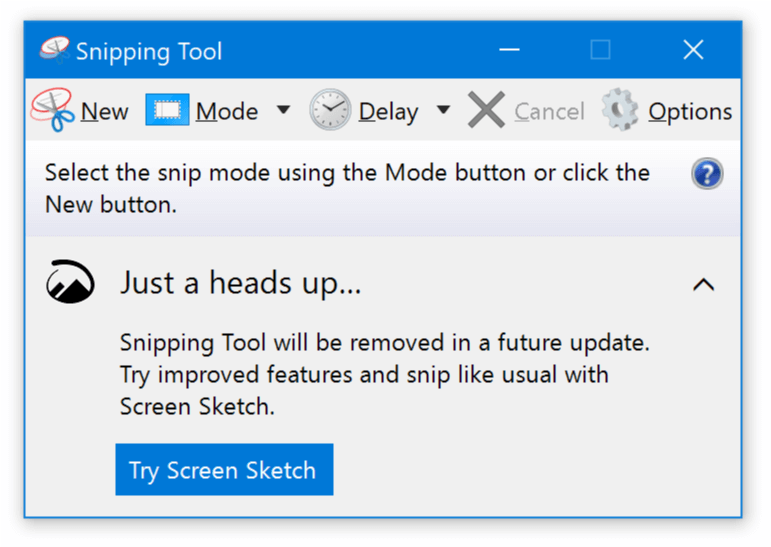
Old Snipping ToolWhen Microsoft announced years ago that the Snipping Tool was being removed, there was much gnashing of teeth from some commentators. It was due to be replaced by a tool that took elements of the Screen Sketch feature in the pen toolbox for Windows 10, and blended them with a refreshed-looking Snipping Tool, renaming it Snip & Sketch.

\n

Later, Snip and Sketch was further renamed to… Snipping Tool. It has gained additional functionality since, including taking over the venerable PrtScn key and is being improved further still. See Dave Shanahan‘s comprehensive guide on using the Snipping Tool, on Windows 11 unleashes effortless screen capturing magic and preview some of the upcoming changes on their way from Windows 11 Insiders get updates for Photos, Snipping Tool, and Phone Link in Canary and Dev Channels.

\n

One minor annoyance with the old Snipping Tool was that it worked differently depending on how it was invoked; if you liked to open the tool interactively from Start menu then you’d have a full app to control the initial snipping, then further cropping, annotating and saving the resulting screen grab as you saw fit.

\n

If, however, you just hit SHIFT+WIN+S then you’d get a reduced UI with the default being that you’d grab a screen area drawn by your mouse right then. This is often the most useful way to capture a screen area as you’re then just going to plop it into a Word doc or an email.

\n

Toast on completing a screen grab

\n

You’d get a “toast” popping up to say that you’d just completed that grab, and if you wanted to do some simple editing of the capture then save it, you’d click on that notification to open it in the full blown Snipping Tool.

\n

The problem was, you only had a few seconds to click on that toast to launch it in the tool, or your efforts were themselves toast; even though the capture was still in the clipboard, there was no way of launching the Snipping Tool app and pasting the grab back in, and it wasn’t saved to disk so you couldn’t even open up a file. The only option was to paste it into MSPAINT or similar, then edit/save from there.

\n

Bonus tip: if you do ever have to paste from clipboard to Paint, set the canvas size (File | Image Properties) to 1px x 1px before you hit paste, and the resulting image will be the size of whatever was in the clipboard before…

\n

Fortunately, this was resolved by subsequent updates to the Snipping Tool, as it now saves the screengrab to your computer by default, so even if you don’t click the toast in time, you can always open up the Snipping Tool app and use the … menu Options menu in Snipping Toolto get to the newly added Open file dialog, and other options or Settings. 

\n

If you have something open in the Snipping Tool already, you could click the toolbar to edit in Paint, or the same … menu also has a shortcut to jump to the folder where Screenshots are saved – by default it’s a subfolder of your main Pictures folder.

\n

Snipping Tool Settings

\n

If Move Screenshots to a different location you don’t like where Screenshots are being saved, open your Pictures folder in Windows Explorer, locate the Screenshots subfolder, right-click on it and choose Move.

\n

Should you find yourself using the Screenshots folder a lot, then it’s worth pinning that folder to Quick Access too (just right-click it and choose Pin to Quick Access), and if you go into the Sort menu in Explorer while looking at Screenshots, choose Group by > Date and you’ll always see the most recent ones at the top, thereby making it easier to locate screen grabs you’ve just taken when you now want to further manipulate or manage them.

\n

Whatever, if you use Snipping Tool a lot, it’s worth keeping an eye on that folder as it could easily pile up with thousands of files and run into GBs of contents…

\n


\n


\n

\n

Related

\n

Share this article:
Previous Article Microsoft drops dual Windows 11 Insider Beta Channel builds with 22635.2419 Next Article Microsoft OneNote to get Copilot features in November

Related Articles

43 Microsoft Edge keyboard shortcuts to remember for stylish and speedy web surfing

October 31, 2023

How to use accessibility features in Microsoft 365 like Narrator, Read aloud and Voice Search easily

October 30, 2023

How to use Windows Backup on Windows 11 for efficient data protection

October 26, 2023

Leave a Comment Cancel reply

Your email address will not be published. Required fields are marked *

Recent Posts

  • PowerToys 0.75 released; Environment Variables editor is here
  • Former Halo developer Bungie announces layoffs in wake of game delays
  • Siemens and Microsoft partner to bring GenAI to industries worldwide
  • 43 Microsoft Edge keyboard shortcuts to remember for stylish and speedy web surfing
  • Here is what’s coming to (and leaving) Xbox Game Pass soon

Recent Comments

No comments to show.

Archives

  • October 2023
  • September 2023
  • August 2023
  • July 2023
  • June 2023
  • May 2023
  • April 2023
  • March 2023
  • February 2023
  • January 2023
  • December 2022
  • November 2022
  • October 2022
  • September 2022
  • August 2022
  • July 2022
  • June 2022
  • May 2022
  • April 2022
  • March 2022
  • February 2022
  • January 2022
  • December 2021
  • November 2021
  • October 2021
  • September 2021
  • August 2021
  • July 2021
  • June 2021
  • May 2021
  • April 2021
  • March 2021
  • February 2021
  • January 2021
  • December 2020
  • November 2020
  • October 2020
  • September 2020
  • August 2020
  • July 2020
  • June 2020
  • May 2020
  • April 2020
  • March 2020
  • February 2020
  • January 2020
  • December 2019
  • November 2019
  • October 2019
  • September 2019
  • August 2019
  • July 2019
  • June 2019
  • May 2019
  • April 2019
  • March 2019
  • February 2019
  • January 2019
  • December 2018
  • November 2018
  • October 2018
  • September 2018
  • August 2018
  • July 2018
  • June 2018
  • May 2018
  • April 2018
  • March 2018
  • February 2018
  • January 2018
  • December 2017
  • November 2017
  • October 2017
  • September 2017
  • August 2017
  • July 2017
  • June 2017
  • May 2017
  • April 2017
  • March 2017
  • February 2017
  • January 2017
  • December 2016
  • November 2016
  • October 2016
  • September 2016
  • August 2016
  • July 2016
  • June 2016
  • May 2016
  • April 2016
  • March 2016
  • February 2016
  • January 2016
  • December 2015
  • November 2015
  • October 2015
  • September 2015
  • August 2015
  • July 2015
  • June 2015
  • May 2015
  • April 2015
  • March 2015
  • February 2015
  • January 2015
  • December 2014
  • November 2014
  • October 2014
  • September 2014
  • August 2014
  • July 2014
  • June 2014
  • May 2014
  • April 2014
  • March 2014
  • February 2014
  • January 2014
  • December 2013
  • November 2013
  • October 2013
  • September 2013
  • August 2013
  • July 2013
  • June 2013
  • May 2013
  • April 2013
  • March 2013
  • February 2013
  • January 2013
  • December 2012
  • November 2012
  • October 2012
  • September 2012
  • August 2012
  • July 2012
  • June 2012
  • May 2012
  • April 2012
  • March 2012
  • February 2012
  • January 2012
  • December 2011
  • November 2011
  • October 2011
  • September 2011
  • August 2011
  • July 2011
  • June 2011
  • May 2011
  • April 2011
  • March 2011
  • February 2011
  • January 2011
  • December 2010
  • November 2010
  • October 2010
  • September 2010

Categories

  • Announcements
  • Deals
  • Developer
  • Editorial
  • Feature
  • Feature stories
  • Hero-post
  • Hotdeals
  • How-to
  • Latest news
  • Microsoft / office 365
  • News
  • Office 365
  • Onpodcast
  • Opinion
  • Our featured post
  • Polls
  • Review
  • Reviews
  • Videos
OnMSFT.com

OnMSFT.com covers Microsoft news, reviews, and how-to guides. Formerly known as WinBeta, we have been your source for Microsoft news since 1998.

Categories

  • Windows
  • Surface
  • Xbox
  • How-To
  • OnPodcast
  • Gaming
  • Edge
  • Teams

Recent Posts

  • PowerToys 0.75 released; Environment Variables editor is here
  • Former Halo developer Bungie announces layoffs in wake of game delays
  • Siemens and Microsoft partner to bring GenAI to industries worldwide
  • 43 Microsoft Edge keyboard shortcuts to remember for stylish and speedy web surfing
  • Here is what’s coming to (and leaving) Xbox Game Pass soon

Quick Links

  • About OnMSFT.com
  • Contact OnMSFT
  • Join Our Team
© 2010–2026 OnMSFT.com LLC. All rights reserved.
About OnMSFT.comContact OnMSFT