
In this article
\
\
\
Accidental deletion of your files on Windows is super common. Be it an abrupt shutdown, a malicious cyber attack, or some other reason, you can lose all of your data anytime. Interestingly, this can also happen when you’re dealing with your Outlook account.
\
\
\
However, if your organization and its processes depend on dealing with huge swathes of data, then losing your data out of nowhere can prove very costly. It’s always best to prepare for the worst and that’s why we always recommend backing up your Outlook emails beforehand. But what if you don’t have the backup right now? This is where you’ll have to rely on a solid data recovery process. In this article, we’ll tell you how to recover your deleted folders on Outlook. Let’s get started.
\
How to recover deleted folders on Outlook
\
Let’s first look at how you can recover your deleted folders on the Outlook desktop app. To do that, head to the Deleted Items or the Trash folder on your Outlook app. You’ll find all the deleted folders and emails under this tab.
\
If you want to recover any deleted items, right-click on the individual file or folder you want to recover and select Move. From there, click on Other Folder.
\
Now, if you cannot find a folder in the Deleted Items folder, you’ll have to head to the Recoverable Items folder next. Although it’s a hidden folder, this is where all your deleted files go after you’ve permanently deleted all your files. So, to get started with recovering your files, follow the steps below:
\
\
\
- \
- On Outlook, select Deleted Items from the email folder.
- Now, from the Folder menu, choose Recover Deleted Items.
- Select the folder you want to recover, select the Restore Selected Items checkbox, and then click OK.
\
\
\
\
After your folders are recovered, they’ll go straight to the Deleted Items folder. You can then restore these folders from here.
\
Recovering deleted folders from Outlook web
\
On Outlook web, the process to restore your deleted items is pretty much the same.
\
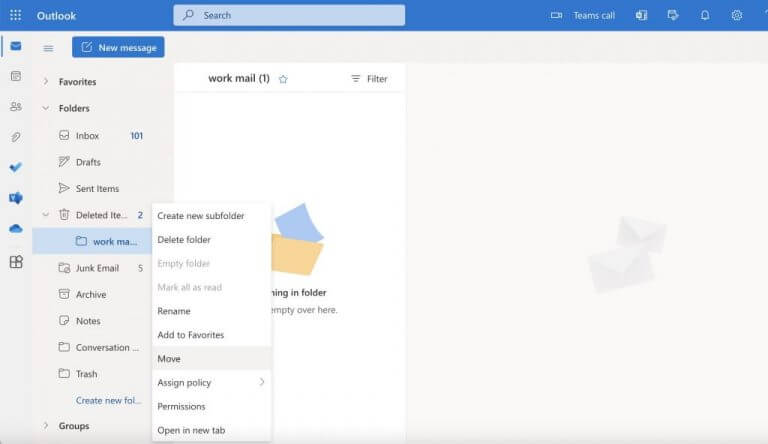
To get started, head to the Deleted Items folder, and expand. From there, select the folder you want to recover and right-click on it. Then select Move and choose the location you want to move your file to and click on Move.
\
\
\
\

\
Your deleted folder will be restored instantly.
\
Moreover, if you want to restore your deleted email files, the process will be almost similar. Simply click on the Deleted Items and you’ll see all the items you’ve so far deleted on Outlook.
\
Recovering deleted folders on Outlook
\
If you ended up accidentally deleting your Outlook folder or files, there’s still hope for you. Whether it’s the Outlook web or the Outlook desktop app, you can easily recover your deleted Outlook folders with ease—just follow the methods above and you’ll be good. However, if you can’t then it’s perhaps time to give a third-party Outlook data recovery tool a shot.
\


