
Locking your Windows keyboard has never been as crucial until the world went into work from home mode. Just ask any parent or pet owner; random disruptions in the workflow are a common affair in the home HQ.
\
If you’re a business manager, you’re likely to find yourself in a similar situation as well. You don’t want random people to use your PC out of the blue. That’s why Windows has a few ways that can help you lock your keyboard. Let’s look at them all.
\
How to lock your keyboard in Windows 10 or Windows 11
\
So, there are two main ways you can go about this. You can lock your Windows keyboard manually through the Device manager. Or, you can rely on a third-party locking tool that will do it for you.
\
Let’s first look at the Device Manger method.
\
Lock your Windows keyboard with Device Manager
\
The Device Manager is a Windows applet designed to view and manager the hardware connected to your computer. In other words, it’s made for this stuff like this. In fact, you can do a whole lot more with your Device Manger; update your drivers, disable Windows USB ports, and so on, but we digress.
\
To lock your keyboard with Device Manager, first head to the Start menu search bar, type in ‘device manager,’ and select the best match.
\
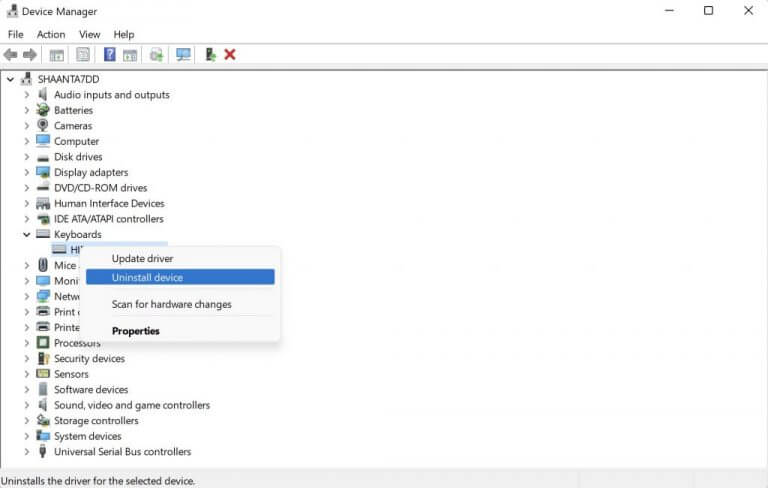
On the Device Manger, head to the keyboard icon, expand it, right-click on the keyboard you want to disable, and then select Uninstall device.
\
\
When the new dialog box pops open, click on Uninstall to go through the removal of the driver. That’s it, your keyboard will be disabled.
\
Whenever you wish to get your keyboard’s functionality back, simply reinstall the driver and everything will be back to normal. Of course, you won’t have access to your keyboard to aid in reinstalling it, so proceed with caution.
\
Third-party app
\
Removing the entire driver itself seems like a pretty long-winded way to go about locking your Windows keyboard. It is. But for many people, third-party apps are a no-go for a variety of reasons, so it’s helpful to have a manual method in your toolkit just in case.
\
However, if you’re fine with installing a third-party app, then you can use from the slew of options available to Windows users. One of them is the KeyboardLock app.
\
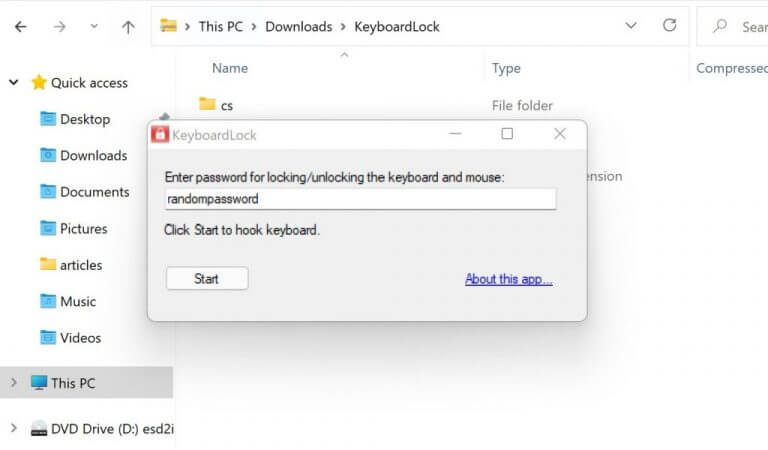
As its name suggest, the KeyboardLock can help you lock your keyboard with the help of a password. You don’t even have to install the app in the usual ways; simply unzip the downloaded file and launch the application.
\
As soon as you open the app, you’ll be asked to set up a password. Set it up and then click on Start. Now type in that password, and your keyboard and mouse will be successfully disabled. To enable it again later on, all you’ve to do is type in your password once again.
\
\
So that’s how you can disable your keyboard with a third-party app, folks.
\
Locking your keyboard in Windows PC
\
Locking your keyboard is a great way to prevent unauthorized access to your PC. Not only that, it will also protect you from any accidental actions through it by your kids or animals. We hope either of these methods helped you lock your PC’s keyboard.
\


