Skip to content
OnMSFT.com
  • Home
  • About
  • Contact
  • Windows
  • Surface
  • Xbox
  • How-To
  • OnPodcast
  • Edge
  • Teams
  • Gaming
Menu
  • Home
  • About
  • Contact
  • Windows
  • Surface
  • Xbox
  • How-To
  • OnPodcast
  • Edge
  • Teams
  • Gaming
  1. Home
  2. How-to
  3. How to change fonts on Outlook – onmsft.com

How to change fonts on Outlook – onmsft.com

kip@onmsft.com kip@onmsft.com
August 9, 2022
1 min read

Outlook comes with a default font setting that’s neat and easy to understand. However, you can get bored with your settings after a while.

\

Thankfully, Outlook also gives you many different features—the ability to pick from a host of fonts in one among them. When you change the font, you also have an option to tweak the color, size, and style of the new messages.

\

So let’s get started right away.

\

How to change fonts on Outlook

\

By default, the Outlook font is set to Calibri—with its font size set to 12. You can change your font on both Outlook web and Outlook app. Let’s first cover the process for Outlook web.

\

Head to your Outlook web account, sign in, and compose an email. From there, click on the drop-down for font and font size, and select your favorite options. Doing this will change your font settings for this specific instance.

\
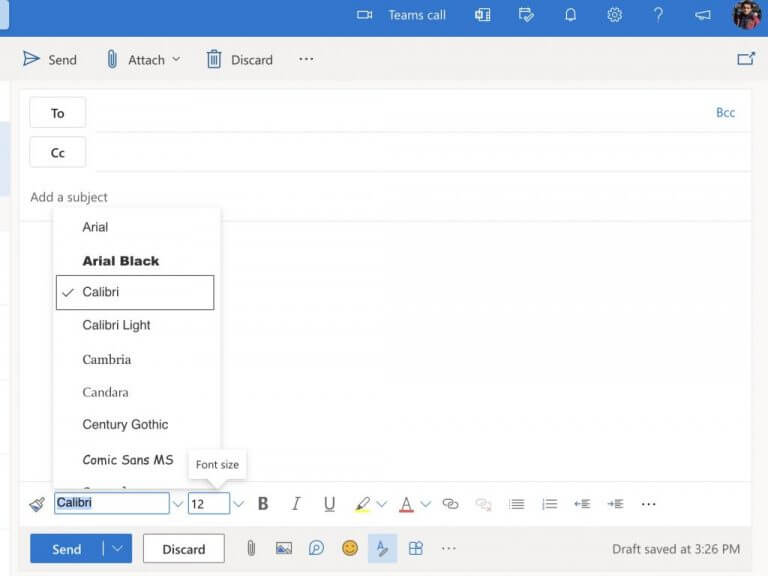
changing font on Outlook

\

However, if you want to change your Outlook fonts permanently, then you’ll have to change the font from the Outlook settings menu as well. Here’s how you can get started.

\

    \

  • Click on the settings option from the top-left corner (the gear icon).
  • \

  • Then head to Mail > Compose and reply.
  • \

  • Now select the Font icon to change your icons.
  • \

\

compose and reply menu

\

That’s it — your font settings will be changed.

\

Outlook app

\

Moving on to Outlook desktop, the process is almost similar. Launch the app and then follow the steps below:

\

    \

  1. Head to the File > Options menu.
  2. \

  3. From there, select the Mail category.
  4. \

  5. Click on Stationery and Fonts.
  6. \

  7. Finally, select the font for every field you want to change:
    \
    — New mail messages: Let’s you choose a default font for emails you create.
    \
    — Replying or forwarding messages: This option lets you set your fonts for the emails that you’re replying or forwarding.
    \
    — Composing and reading plain text messages: This feature changes the font of emails for you only.
  8. \

  9. Select other settings like font size, color, effect, and style.
  10. \

  11. Click on OK to finish making changes to your settings.
  12. \

\

Do this, and your Outlook desktop font settings will finally be changed.

\

Changing your fonts on Outlook

\

And these are just some of the ways you can tweak your fonts on Outlook, folks. Outlook is ancient, yet it continues to add new features that make using it a breeze for Microsoft users. We routinely cover everything related to Outlook, so check out our guide.

\

Share This Post:

Share this article:
Tags:
Microsoft Outlook Windows 10 Windows 11
Previous Article Latest Windows 10 and Windows 11 bug involves issues with XPS documents – onmsft.com Next Article Analyst expects 100 million Game Pass subscribers with Activision deal – onmsft.com

Related Articles

How to Fix the Phone Link App Not Working on Windows 11 – onmsft.com

December 29, 2022

5 easy ways to make desktop shortcuts on Windows 11 – onmsft.com

December 29, 2022

How to customize precision touchpads on Windows – onmsft.com

December 22, 2022

Leave a Comment Cancel reply

Your email address will not be published. Required fields are marked *

Recent Posts

  • Chrome’s Organizer feature may sync Gemini and AI conversations across devices
  • After Chrome, Edge tests launching the browser automatically when you sign into Windows
  • iPhone Fold Latest Rumors: Display, Cameras, RAM and Price Details Revealed
  • Samsung fears first mobile operating loss due to memory price surge
  • Elon Musk’s X to Change Verification in Europe Following EU Fine

Recent Comments

No comments to show.
OnMSFT.com

OnMSFT.com covers Microsoft news, reviews, and how-to guides. Formerly known as WinBeta, we have been your source for Microsoft news since 1998.

Categories

  • Windows
  • Surface
  • Xbox
  • How-To
  • OnPodcast
  • Gaming
  • Edge
  • Teams

Recent Posts

  • Chrome’s Organizer feature may sync Gemini and AI conversations across devices
  • After Chrome, Edge tests launching the browser automatically when you sign into Windows
  • iPhone Fold Latest Rumors: Display, Cameras, RAM and Price Details Revealed
  • Samsung fears first mobile operating loss due to memory price surge
  • Elon Musk’s X to Change Verification in Europe Following EU Fine

Quick Links

  • About OnMSFT.com
  • Contact OnMSFT
  • Join Our Team
  • Privacy Policy
© 2010–2026 OnMSFT.com LLC. All rights reserved.
About OnMSFT.comContact OnMSFTPrivacy Policy
