Skip to content
OnMSFT.com
  • Home
  • About
  • Contact
  • Windows
  • Surface
  • Xbox
  • How-To
  • OnPodcast
  • Edge
  • Teams
  • Gaming
Menu
  • Home
  • About
  • Contact
  • Windows
  • Surface
  • Xbox
  • How-To
  • OnPodcast
  • Edge
  • Teams
  • Gaming
  1. Home
  2. How-to
  3. How to enable Microsoft Copilot for Microsoft 365

How to enable Microsoft Copilot for Microsoft 365

admin admin
July 31, 2023
3 min read

\n

\n

\n

In this article

\n

\n

  • What is Microsoft Copilot?
  • How to Enable Microsoft Copilot on Microsoft Apps?
  • Microsoft Copilot for Teams
  • How to Enable Microsoft Copilot in Teams?

\n

Microsoft has been at the forefront of incorporating AI solutions into work collaboration and communication after branching out its partnership with Open AI. Microsoft Copilot, developed using the latest OpenAI LLM technology, is a prime example of this evolution. The AI assistant is designed to aid users across the Microsoft 365 productivity suite, from Word, Excel, and PowerPoint to the Teams collaboration platform, enhancing workflow efficiency.

\n

Since Copilot was introduced, Microsoft hasn’t taken its foot off the pedal, intending to extend its functionality into all its resources. Here’s a guide to help you understand and enable the AI assistant, Microsoft Copilot, for Microsoft 365 and Teams.

\n

\n

\n

\n

\n

\n

\n

\n

\n

\n

\n

\n

\n

\n

What is Microsoft Copilot?

\n

Microsoft Copilot is an exceptional AI assistant that enhances productivity. It is widely recognized as one of the most advanced productivity tools available worldwide and operates in two primary ways. Firstly, it assists users using popular daily applications such as Word, Excel, PowerPoint, Outlook, and the Power Platform. Secondly, through LLM technology, Microsoft has integrated ‘Business Chat,’ which allows users to initiate actions across all Microsoft 365 applications using natural language prompts.

\n

Here are some of the things Copilot can do for you:

\n

    \n

  • Word: Assists in drafting, revising, summarizing, and generating documents.
  • \n

  • Excel: Helps users spot patterns and create striking data visualizations.
  • \n

  • PowerPoint: Transforms ideas into comprehensive presentations.
  • \n

  • Outlook: Helps manage your inbox, summarizes conversations, and suggests responses.
  • \n

  • Power Platform: Supports developers to prototype and create low-code applications.
  • \n

  • Business Chat: A useful tool for content creation, work planning, and keeping track of important dates.
  • \n

\n

How to Enable Microsoft Copilot on Microsoft Apps?

\n

While Microsoft Copilot is already integrated into Microsoft 365 apps for some users, others may need to update their Microsoft applications to access these features. If you’re a beta channel member with Microsoft, you might not have instant access to Copilot as the company rolls out the solution gradually to gather insightful feedback.

\n

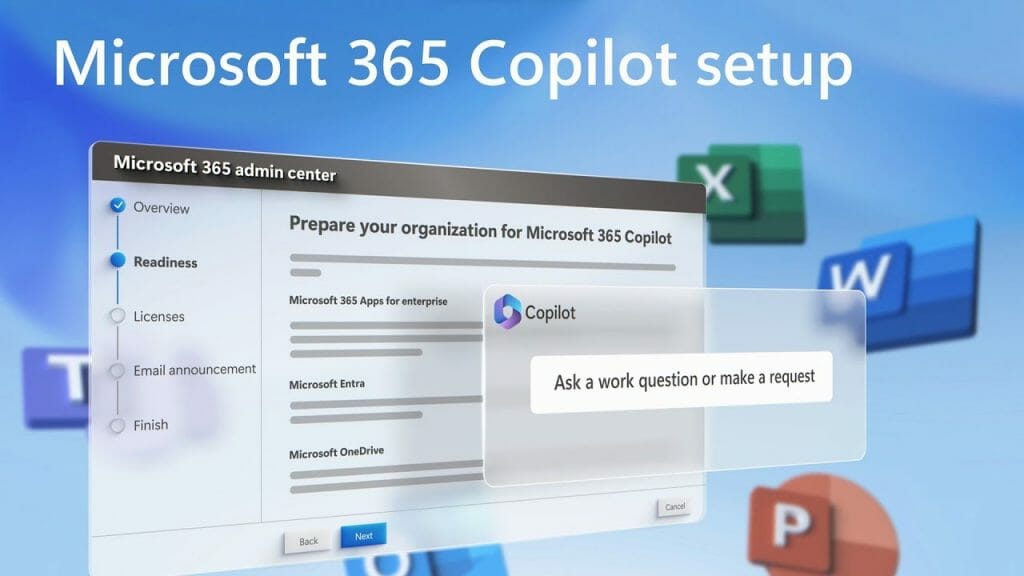
To activate Microsoft 365 Copilot, simply click on the Copilot icon on the ribbon menu of any integrated Microsoft app. This feature is only available to those who have access to Microsoft 365 Copilot. Once activated, Copilot can enhance your creativity, boost productivity, and help you improve your skills.

\n
How To Get Ready For Microsoft 3

\n

\n

\n

\n

\n

\n

\n

\n

\n

\n

\n

\n

\n

\n

Microsoft Copilot for Teams

\n

Teams users can take advantage of Microsoft Copilot to boost collaboration and communication. This feature enhances meeting effectiveness by offering real-time summaries and action items. Additionally, if a team member forgets to take notes during a meeting, they can request a conversation summary from Copilot, which will provide a comprehensive document containing important decisions and task assignments. Users can also ask Copilot to critique meetings, allowing for more productive future conversations. Teams also include the Business Chat solution, which provides new capabilities across all applications and data.

\n

How to Enable Microsoft Copilot in Teams?

\n

Similar to other Microsoft Copilot features, the Teams solution is currently only accessible to specific users. If you are part of the Microsoft 365 Copilot Early Access program, you can activate Copilot directly from the Teams meeting tab. Admins may need to enable Copilot from the Teams settings page, but once it is activated, you will notice a new icon at the bottom right corner of your channel or team chat. By clicking on the button, you will open a chat window with Copilot.

\n

Microsoft has announced that Copilot is now available for Teams Phone and Teams Chat. This has made Teams the first UCaaS solution to offer generative AI for phone calls. Also, the AI tool can be used for both PTSN and VoIP calls, providing real-time summarizations and notes. Additionally, for chat, the AI can outline conversations, create summaries, and extract important points.

\n

In conclusion, Microsoft Copilot is a powerful, AI-powered assistant designed to streamline workflows and boost productivity within the Microsoft ecosystem. The enabling process might currently be exclusive, but it promises to usher in a new paradigm of work, collaboration, and communication soon.

\n

\n

Related

\n

\n

Share this article:
Previous Article How to create images with word prompts on Bing Image Creator Next Article Microsoft ditches Xbox Console Companion App for new Xbox App

Related Articles

43 Microsoft Edge keyboard shortcuts to remember for stylish and speedy web surfing

October 31, 2023

How to use accessibility features in Microsoft 365 like Narrator, Read aloud and Voice Search easily

October 30, 2023

How to use Windows Backup on Windows 11 for efficient data protection

October 26, 2023

Leave a Comment Cancel reply

Your email address will not be published. Required fields are marked *

Recent Posts

  • PowerToys 0.75 released; Environment Variables editor is here
  • Former Halo developer Bungie announces layoffs in wake of game delays
  • Siemens and Microsoft partner to bring GenAI to industries worldwide
  • 43 Microsoft Edge keyboard shortcuts to remember for stylish and speedy web surfing
  • Here is what’s coming to (and leaving) Xbox Game Pass soon

Recent Comments

No comments to show.

Archives

  • October 2023
  • September 2023
  • August 2023
  • July 2023
  • June 2023
  • May 2023
  • April 2023
  • March 2023
  • February 2023
  • January 2023
  • December 2022
  • November 2022
  • October 2022
  • September 2022
  • August 2022
  • July 2022
  • June 2022
  • May 2022
  • April 2022
  • March 2022
  • February 2022
  • January 2022
  • December 2021
  • November 2021
  • October 2021
  • September 2021
  • August 2021
  • July 2021
  • June 2021
  • May 2021
  • April 2021
  • March 2021
  • February 2021
  • January 2021
  • December 2020
  • November 2020
  • October 2020
  • September 2020
  • August 2020
  • July 2020
  • June 2020
  • May 2020
  • April 2020
  • March 2020
  • February 2020
  • January 2020
  • December 2019
  • November 2019
  • October 2019
  • September 2019
  • August 2019
  • July 2019
  • June 2019
  • May 2019
  • April 2019
  • March 2019
  • February 2019
  • January 2019
  • December 2018
  • November 2018
  • October 2018
  • September 2018
  • August 2018
  • July 2018
  • June 2018
  • May 2018
  • April 2018
  • March 2018
  • February 2018
  • January 2018
  • December 2017
  • November 2017
  • October 2017
  • September 2017
  • August 2017
  • July 2017
  • June 2017
  • May 2017
  • April 2017
  • March 2017
  • February 2017
  • January 2017
  • December 2016
  • November 2016
  • October 2016
  • September 2016
  • August 2016
  • July 2016
  • June 2016
  • May 2016
  • April 2016
  • March 2016
  • February 2016
  • January 2016
  • December 2015
  • November 2015
  • October 2015
  • September 2015
  • August 2015
  • July 2015
  • June 2015
  • May 2015
  • April 2015
  • March 2015
  • February 2015
  • January 2015
  • December 2014
  • November 2014
  • October 2014
  • September 2014
  • August 2014
  • July 2014
  • June 2014
  • May 2014
  • April 2014
  • March 2014
  • February 2014
  • January 2014
  • December 2013
  • November 2013
  • October 2013
  • September 2013
  • August 2013
  • July 2013
  • June 2013
  • May 2013
  • April 2013
  • March 2013
  • February 2013
  • January 2013
  • December 2012
  • November 2012
  • October 2012
  • September 2012
  • August 2012
  • July 2012
  • June 2012
  • May 2012
  • April 2012
  • March 2012
  • February 2012
  • January 2012
  • December 2011
  • November 2011
  • October 2011
  • September 2011
  • August 2011
  • July 2011
  • June 2011
  • May 2011
  • April 2011
  • March 2011
  • February 2011
  • January 2011
  • December 2010
  • November 2010
  • October 2010
  • September 2010

Categories

  • Announcements
  • Deals
  • Developer
  • Editorial
  • Feature
  • Feature stories
  • Hero-post
  • Hotdeals
  • How-to
  • Latest news
  • Microsoft / office 365
  • News
  • Office 365
  • Onpodcast
  • Opinion
  • Our featured post
  • Polls
  • Review
  • Reviews
  • Videos
OnMSFT.com

OnMSFT.com covers Microsoft news, reviews, and how-to guides. Formerly known as WinBeta, we have been your source for Microsoft news since 1998.

Categories

  • Windows
  • Surface
  • Xbox
  • How-To
  • OnPodcast
  • Gaming
  • Edge
  • Teams

Recent Posts

  • PowerToys 0.75 released; Environment Variables editor is here
  • Former Halo developer Bungie announces layoffs in wake of game delays
  • Siemens and Microsoft partner to bring GenAI to industries worldwide
  • 43 Microsoft Edge keyboard shortcuts to remember for stylish and speedy web surfing
  • Here is what’s coming to (and leaving) Xbox Game Pass soon

Quick Links

  • About OnMSFT.com
  • Contact OnMSFT
  • Join Our Team
© 2010–2026 OnMSFT.com LLC. All rights reserved.
About OnMSFT.comContact OnMSFT