
In this article
\
\
\
A laptop’s touchpad is the default way users get things done on their system. And, like me, if you’ve retired yourself from PCs altogether, it’s easy to get cozy with them over time.
\
The touchpad doesn’t come without its fair share of troubles, though. One such trouble is the common occurrence of touching it accidentally and sending your cursor flying across the screen. In this article, we focus on the best ways to easily disable the touchpad on your Windows 10 or Windows 11 laptop.
\
So, let’s dive in.
\
How to disable the touchpad on Windows 10
\
There are many different ways to disable your touchpad on a Windows laptop. What might work in one case might fail in others, so lcukily, you have a lot of methods to try out.
\
Let’s go over all of them one by one.
\
1. Windows Settings
\
One of the easiest ways to turn off your Windows touchpad is through the Windows settings. Here’s how.
\
- \
- Head to Settings by pressing the Windows key + I. Alternatively, head to the Start menu search bar, type in ‘settings,’ and select the best match.
- From there, click on Devices.
- Select Touchpad, and then toggle off the switch for Touchpad.
\
\
\
\
That’s it. Your laptop touchpad will be turned off.
\
2. Device Manager
\
Device Manager is a Windows tool that lets you control and manage the hardware and software connected to it. You can also disable the touchpad with it. Here’s how.
\
- \
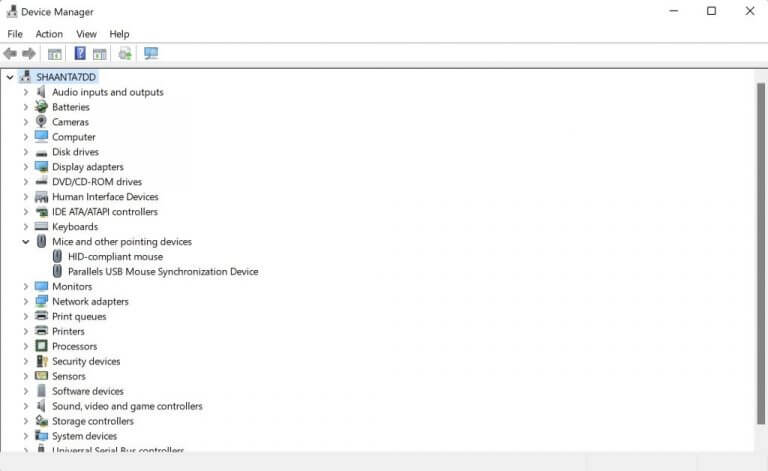
- Head to the Start menu search bar, type in ‘device manager,’ and select the best match.
- Click on the Mice and other pointing devices option.
- Right-click on your touchpad and select Disable device.
\
\
\
\
\
Do this, and your touchpad will be disabled.
\
3. Control Panel
\
Control Panel is another popular Windows tool that also lets you disable your touchpad. Interestingly, it offers multiple ways of disabling your touchpad. Let’s look at them all.
\
Disable the touchpad when an external device is connected
\
If you enable this feature, your touchpad will get disabled as soon as a new external device is plugged into your PC. Here’s how.
\
- \
- After you’ve launched the Control Panel, head to the Mouse section. Then go to the Mouse Properties, which is ELAN in this case.
- Click on ELAN touched, select the checkbox for Disable when external USB pointing device plug in, and select Stop Device.
\
\
\
Disable your touchpad completely
\
If you want to disable your touchpad for all cases, then all you’ve to do is leave the checkbox and disable the ELAN Touchpad usually.
\
Disable your touchpad (but keep the feature of scrolling)
\
Alternatively, you can disable your touchpad but keep the scrolling feature intact. Doing this will disable the clicking feature of your touchpad, but you’ll still be able to scroll things around freely.
\
- \
- Go to the Control Panel and click on the Touchpad section. From there, on the One-finger tab, select Tapping.
- Finally, uncheck the Enable checkbox, and your settings will be disabled.
\
\
\
Disabling the touchpad on your Windows PC
\
Disabling your Windows touchpad is a reasonably straightforward process. Just head to the settings, make some tweaks, and you’re done. Though no method is perfect, we know ways around it easily.
\


