
 \n
\n
Microsoft’s new and overarching strategy is to turn itself into the “cloud-first, mobile-first” productivity company, a massive transformation from being predominately “the Windows company” as it had been for decades. By offering a wide range of productivity solutions that run on every important platform, Microsoft is well on its way to becoming a truly ubiquitous purveyor of products and services that can help you get things done.
\n
The company’s solutions don’t function in a vacuum, however. A number of third-party options exist that can help make Microsoft’s various products even more effective. And because Microsoft is working hard to make sure things run on iOS and Android along with their own Windows 10 platform, there’s a good chance that you can use all of these various tools with your favorite Microsoft products no matter your chosen smartphone.
\n
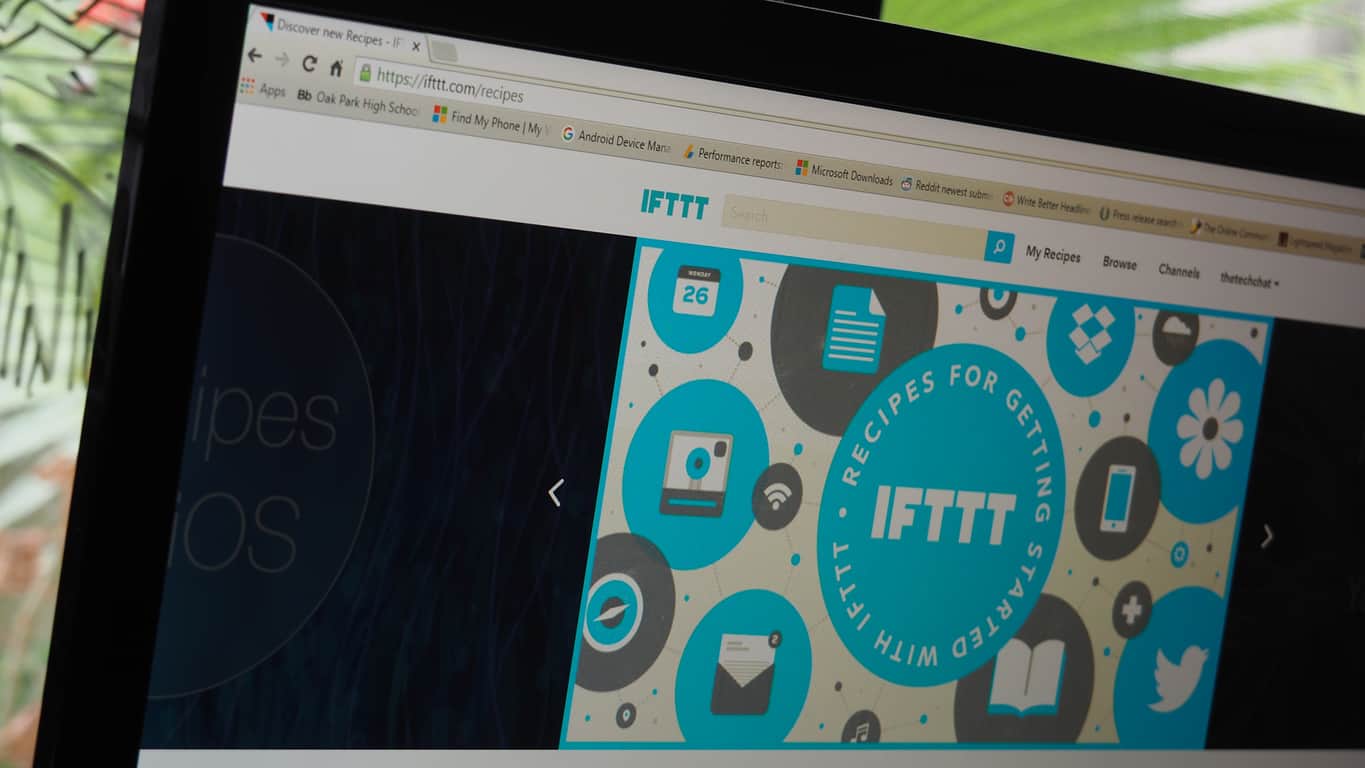
One such tool is IFTTT (which stands for IF This Then That), which works in the background to take various inputs, or “triggers,” process them, and then output them in one way or another to another device or sensor. While IFTTT has apps that run on iOS and Android, and not Windows 10 (PC or mobile), it’s primarily a service that supports a number of key Microsoft products on the backend.
\n
Here’s a list of the Microsoft products currently supported by IFTTT:
\n
- \n
- OneNote
- OneDrive
- OneDrive for Business
- Office 365 Business and Education (so non-consumer versions)\n
- \n
- Office 365 Calendar
- Office 365 Contacts
- Office 365 Mail
\n
\n
\n
\n
\n
\n
\n
\n
\n
Although IFTTT’s support for Microsoft’s product line might seem limited, there’s still a good deal that can be accomplished. IFTTT can support so many other services (a total of 305 channels are available as this post is written) that you might be surprised by what you can get done. For me, OneNote sticks out as a hugely important element of my productivity toolset–OneNote is where I eventually save everything–and so IFTTT fits into my workflow extremely well.
\n
The case of the surprise Windows Insider release
\n
Last night, I was reminded of one use for IFTTT that’s extremely helpful for me as a WinBeta editor. Microsoft inadvertently released Windows 10 Insider Preview build 13432, and it started pushing out to Insiders at around 7:30 pm or so PST. Presumably, nobody expected that build to be released and so, I wasn’t keeping an eye out for it.
\n
As an editor on this site, I’m responsible along with any other editors on duty for making sure that we announce these kinds of updates as they arrive. Sometimes, builds are released when I’m the only editor on the site, and sometimes that means I’ve stepped away from my desk at the precise moment that Gabe Aul pushes the Big Red Button (on purpose or not). In this case, I was eating a late dinner.
\n
At WinBeta, we like to get our initial announcements up as soon as possible after builds are released, because our audience expects it from us. If we wait 30 minutes to let you all know a new build is available, and what that build includes (and doesn’t), then we lose value. Anyone can let you know what’s going on hours later–we feel like a delay of 10 minutes is too long. It happens, of course, that we’re not first with the news, and that we’re sometimes delayed, but we certainly don’t like it.
\n
Now, even when I’m on the site, I’m not always focusing on Twitter, which is where Gabe first announces that a new build is available. I might be writing original material, checking RSS feeds, or Reddit, or PRNews, or any number of other sources for current stories–or completely away from any system, as I was last night. The last thing I want, though, is for someone to let me know that Gabe tweeted five minutes ago that a build was released–because then I have to write the initial story and get it published, which no matter how fast I might be at writing a post does take a couple of minutes. If I start immediately after the tweet is pushed, then I’m ahead of the game.
\n
IFTTT and my Band 2 come to the rescue
\n
And so, I asked myself one day, what’s the best way to know when Gabe tweets the news–particularly if I’m away from my desk, and especially if I don’t have my phone or anything else with me? The answer turned out to be simpler than I thought. The one thing that’s almost always with me–on me, in fact–is my Microsoft Band 2. The only time I take it off, pretty much, is when I take a shower and when it needs some time in the charger that’s sitting on the desk in my home office.
\n
That was the first part of the puzzle. If I step away from my desk during working hours, then I’m almost guaranteed to have my Band 2 on my wrist. The Band 2 is capable of passing along notifications as long as my phone is within Bluetooth range, which is pretty much everywhere in my house. While I don’t have that many notifications running on my Band 2, I do have notifications for phone calls, text messages, and Cortana reminders going all the time.
\n
That left me asking the next question–is there some way to get notified via phone call or text when Gabe tweets about a new build? Phone calls aren’t going to happen, at least not easily, and they’re disruptive. But text messages, now there’s an option that might work for me.
\n
How, then, can I get a text message when Gave tweets about a new build? That’s where IFTTT comes in, and the process is actually pretty simple. Here’s how I did it.
\n
Step 1: log into IFTTT
\n
That’s simple enough–I created an IFTTT account well over a year ago and have been using it productively ever since. One thing to remember about IFTTT is that the service requires connecting to various other services (e.g., see Step 2) and granting authorization to do things. If you’re worried about such things for security and/or privacy reasons, then IFTTT might not be for you.
\n

Start creating a free IFTTT by entering your email address and creating a password.
\n
Personally, I’m okay with it because as far as I can tell, the risks are limited. The OneNote channel, for example, appears to only be able to create pages, not access them, and so it doesn’t seem like someone could hack into OneNote through my IFTTT account and do anything other than create new notes. I’d be more concerned if IFTTT was able to read my personal notes and, even worse, copy or publish them somewhere else.
\n
Generally speaking, I’m not worried about what someone can do with the other channels I’ve connected, such as Facebook or Twitter. At most, those would be embarrassing if someone hacked in and posted something offensive. And of course, IFTTT is just one of many hacking vectors–if I think too much about such things, I’ll just stop using technology altogether.
\n
Nevertheless, it’s something to keep in mind
\n
Step 2: connect to IFTTT’s Twitter channel
\n
Channels are the backend services that IFTTT can interact with in order to accomplish tasks. Connecting to the Twitter channel required login into Twitter and then authorizing IFTTT to access my Twitter account. Note: again, using IFTTT requires access to accounts that you might not want to allow. If you’re at all concerned about enabling such access, then you can stop reading, because it’s required to do any of this cool stuff.
\n

Connecting to a Twitter account.
\n

Note what you’re allowing as you authorize IFTTT to use your Twitter account.
\n
Step 3: connect to IFTTT’s SMS channel
\n
The other IFTTT channel that I needed to authorize was the services SMS channel. That required simply entering my cell phone number and then entering a pin that IFTTT sent via text as confirmation. Then, I needed to click through the prompts notifying me that I’d get could charged for any text messages sent through IFTTT.
\n

Connecting to the SMS channel.
\n

Note the caveats to connecting to SMS.
\n
Step 4: create an IFTTT recipe.
\n
Here’s where the magic happens. Next, I created an IFTTT “recipe” that would monitor Twitter for a tweet from Gabe Aul’s Twitter account and then pass along the message to phone via text messages. The basic process is depicted below.
\n

The first step is to select Create a Recipe.
\n

Next, click on “this” and then choose a Trigger Channel. In this case, I chose Twitter.
\n

Choose what kind of Trigger you want to start the recipe.
\n

Complete the Trigger by entering in the criteria. In this case, I entered Gabeaul as the Twitter account.
\n

Next, click on “that” and then choose an Action Channel for the recipe’s output. I chose SMS in this case.
\n

Choose an action that you want the recipe to perform. I need IFTTT to send an SMS to my phone.
\n

Complete the Action by specifying what you want included. In this case, I want an SMS message that includes Gabe’s tweet.
\n

Finally, confirm that the recipe is correct.
\n

And here’s what the completed recipe looks like.
\n
Step 5: turn on text message notification on my Band 2
\n
As I mentioned, that part was already setup, and so I was good to go. The Band 2 provides just enough of a vibration on my wrist to get my attention, but not enough to, say, disrupt my family at dinner.
\n

I have the Messaging tile enabled in the Health app on my Nexus 6P. The result: I get buzzed on my wrist whenever Gabe send a tweet.
\n
Now, whenever Gabe publishes a tweet when the recipe is turned on, IFTTT sends a text message to my cell phone. My Band 2 then receives that notification and vibrates. I check my text message, see that it’s a tweet about a new build, and scurry back to my desk to get publishing.
\n

Here are some of the texts sent from IFTTT as Gabe was tweeting about the new build.
\n
I only turn the recipe on when it’s reasonable to expect a build (e.g., Gabe has hinted that a build might be coming), I’m the only editor, and I know I’ll be away from my desk, because otherwise I could get swamped with messages. I turned on the recipe on Monday because of hints that new builds might be coming this week, and so I was all set.
\n
But that’s not all
\n
Of course, there are any number of other recipes you can create. Some others that I use are the following:
\n
- \n
- Create a note in OneNote whenever a tweet of mine is liked.
- Create a note in OneNote whenever I’m tagged in Facebook.
- Create a note in OneNote whenever I create a new status message in Facebook.
- Create a Twitter hashtag that I can add to a tweet to automatically send a copy to OneNote.
- Create a note in OneNote whenever I favorite a Tweet.
\n
\n
\n
\n
\n
\n
Clearly, I use IFTTT with OneNote quite a bit, and I have a number of other, non-Microsoft IFTTT recipes that I’ve used. There are hundreds (or thousands?) of recipes published on the IFTTT site that you can tap into, in addition to creating your own.
\n
If you’re looking for a good way to automate some processes, then you might want to give IFTTT a try. It certainly helped out last night when build 14342 was accidentally released, and although my dinner got a little cold, the news was published. And that’s the kind of thing this technology is supposed to do, right?
\n\nFurther reading: IFTTT, Microsoft, OneNote, productivity, Productivity Tips, SMS, Twitter


