\n
\n
If you’re sporting an Android phone in 2019, there are so many synergies you can get between Windows 10 and your smartphone. Your text messages, recent photos, and notifications can all now sync up to your Windows 10 PC through the Your Phone app.
\n
And, if you’re a Windows Insider, you also can enjoy the ability to mirror your apps and get your phone calls on your PC. Lucky consumers with newer Samsung Galaxy phones can even enjoy similar built-in “Link to Windows” Android to Windows synergies.
\n
But before Microsoft realized the cross-platform potentials between Android and Windows 10, Dell technically went there first. We previously went hands-on with Dell’s Mobile Connect app with an iPhone, but now we’ll be revisiting the app on the Android side of things, and comparing it to Microsoft’s Your Phone experience. This is especially important with the recent news that Microsoft is “elevating” the Your Phone phone screen experience by removing its dependency on Bluetooth.
\n
A rant, and some quick tidbits before starting
\n
Before starting the comparison, there are some quick tidbits to note. Importantly, we want to point out that Microsoft’s Your Phone app is available on all PCs running the Windows 10 October 2018 Update or newer. Dell Mobile Connect, meanwhile, is an app that’s downloaded through the Microsoft Store, but with some important limitations to running on newer Dell PCs only.
\n
Your Phone, however, is a native app built into Windows 10, and everyone can experience some of its core functions (syncing texts, photos, and notifications from a phone with Android 7.0 or higher) regardless of what type of PC they own. Microsoft is also always tweaking the experience and tests new features with Windows Insiders first, so not everyone has access to new features like App mirroring, or phone calls.
\n
It’s also noteworthy to mention that the core Your Phone features depend on the WiFi or 4G LTE on your linked Android device to sync up to your PC through the Microsoft Cloud. With these features, you WON’T need your Android phone to be connected to your PC via Bluetooth, if configured via the settings.
\n
However, other features of Your Phone like the Android app mirroring used to require just Bluetooth to work, but now have become exclusive to phones with the “Link to Windows” functionality. As we discuss later, the app mirroring now only works on the devices seen below. It also requires a smartphone with Android 9 or higher.
\n
\n
\n
- Samsung Galaxy Fold
\n
- Samsung Galaxy Note 10/ Note 10+
\n
- Samsung Galaxy S10/S10+/S10e
\n
- Samsung Galaxy A30s/A50s/A90
\n
\n
\n

The Your Phone app in Windows 10
\n
On the other end of the spectrum, Dell’s Mobile Connect app is exclusive to newer Dell PCs. You only can install the app from the Microsoft Store if you’re using a new Dell XPS Inspiron, G Series, or Vostro purchased in January 2018 or later. It also is 100% dependent on Bluetooth and WiFi, so you’ll need to make sure your Android phone is always by your PC’s side. However, all features work with almost any modern Android device, unlike with Microsoft, where app mirroring ability now needs newer Android devices.
\n
For most consumers, both experiences also require a companion app to be downloaded to an Android or iOS device With Microsoft, it’s the Your Phone Companion app, except if you own one of the devices mentioned above, where the linking is done without the use of an app. With Dell, it’s the Dell Mobile Connect app.
\n
However, Dell Mobile Connect is a bit more cross-platform, as it works with iPhones, and allows you to make, accept, or send text messages from your iPhone to your Windows 10 PC. This is something that currently isn’t possible with Your Phone.
\n
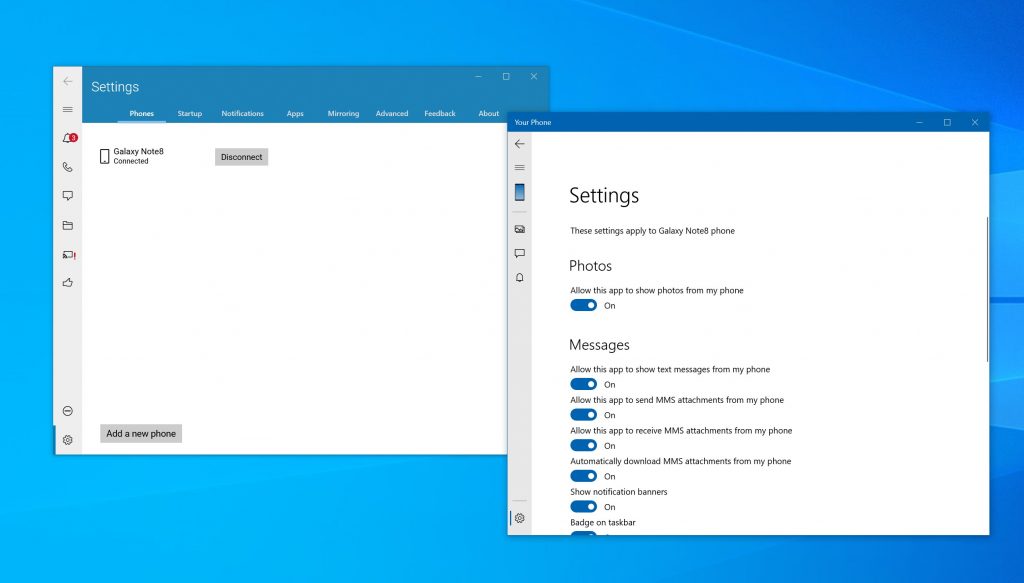
Settings for Your Phone and Dell Mobile Connect
\n
The core user interfaces
\n
Anyway, to begin our deep dive in the comparison, we’ll talk about the user interface. This the core aspect of any app, and between Dell Mobile Connect and Your Phone, both are fairly similar. Please note we won’t talk about Phone Calling or App Mirroring here, but rather in the sections below.
\n
Starting first with Your Phone, you’ll notice a column of icons on the right side of the app. For non- Windows Insiders, these include Photos, Messages, and Notifications.
\n
Clicking messages will show a thread of messages, just like on your Android Phone. You’ll then be able to expand it out and see the entire conversation on the right side of the screen. For photos, clicking the photos icon will expand out and show a list of the 25 most recent photos on your Android device. Finally, app notifications from Android phones will show up in a list with a plain white background.
\n
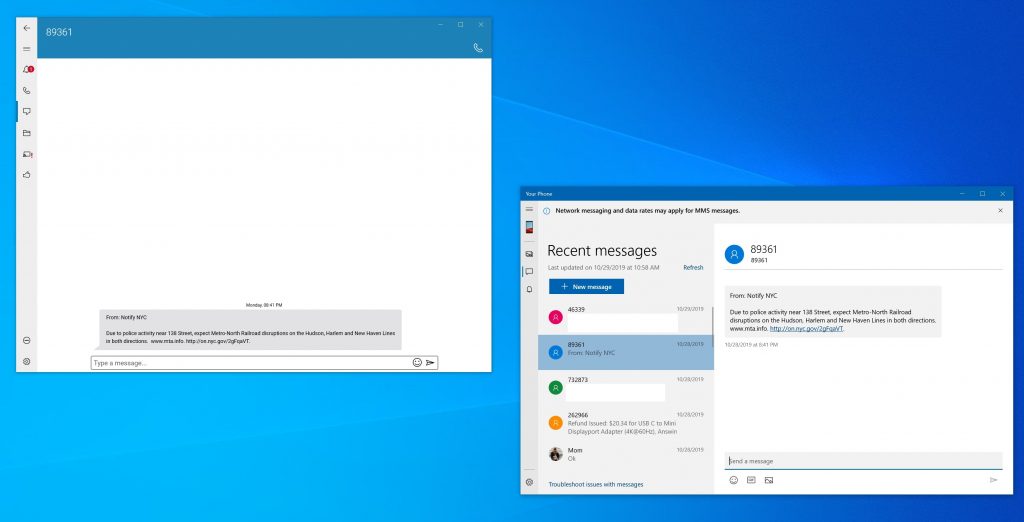
Texting on Dell Mobile Connect and Your Phone
\n
As for Dell Mobile Connect, the experience is a bit more complex. You’ll still see icons on the right side of the app, but when clicking on them, things are a bit different. When you click on the messages icon, it will show you a thread of messages. Once you click to a message, the thread disappears and you’ll be in the entire conversation. For photos, meanwhile, clicking through to photos will show you all your photos from your Android phone, and not just the last 25.
\n
There is also an ability to see videos, music, and documents from your Android Phone on Windows 10, something that currently isn’t possible in Your Phone. Finally, in the notification area, you’ll see them appear in a similar fashion to an Android Phone, with a gray backdrop.
\n

\n

\n

\n
\n
\n\n
The calling feature
\n
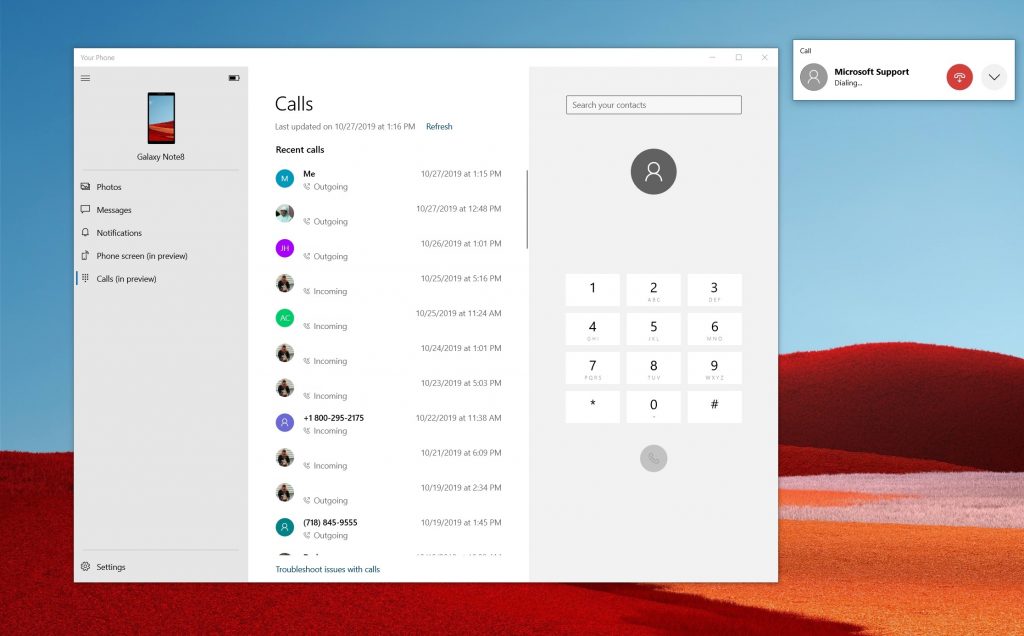
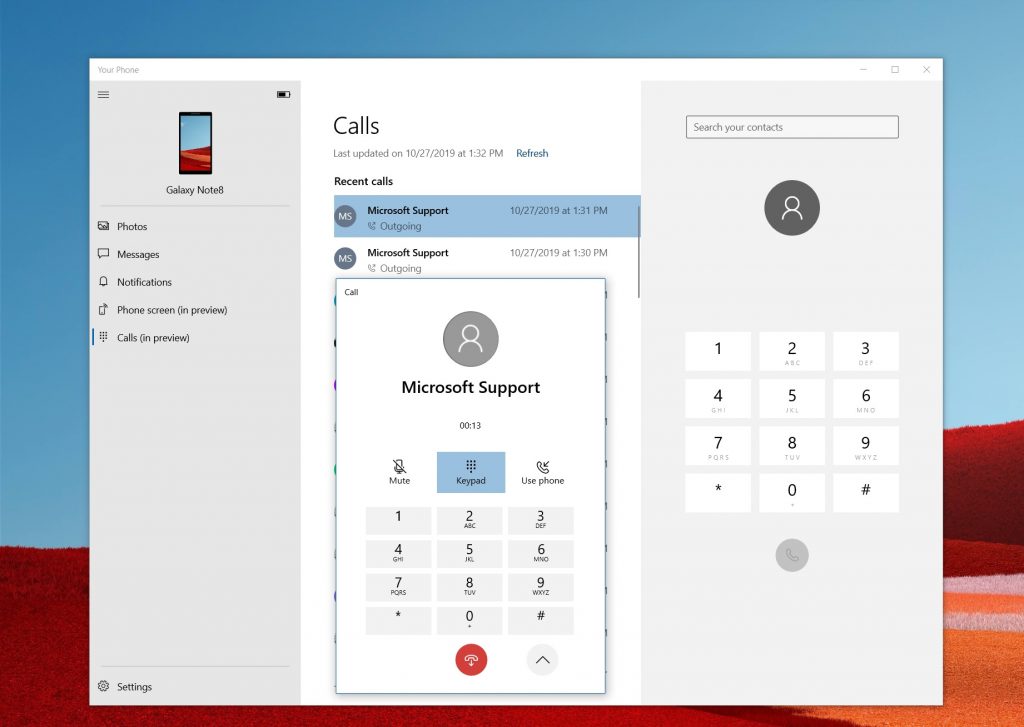
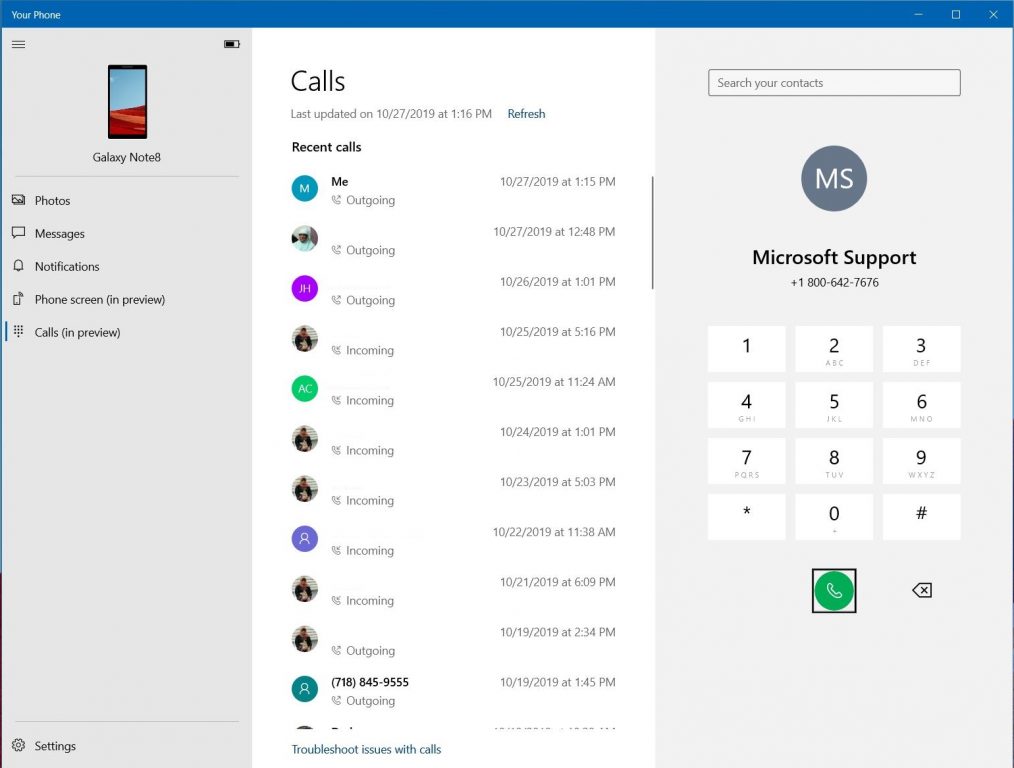
Now, for the calling feature. We’ll start this section first with Your Phone. As we previously detailed, it’s rather simplistic. You’ll see all your recent calls in the middle portion of the screen. On the right side, meanwhile, is a white-colored dial pad to place calls. Above that will be a search box, where you can search for your contacts. When calling, you’ll get a pop-out box with the ability to transfer the call back to your phone or see the dial-pad. This feature also doesn’t rely on WiFi, and once paired via Bluetooth, your PC won’t need to be on the same network as your Android Phone for it to work.
\n
\n
\n
\n
\n
\n\n
With the Dell Mobile Connect app, things are different. Pressing on Contacts in the Phone section of the app will list out your contacts, similar to how it is on your Android Phone. You also can search the list to find a specific contact. The dialer meanwhile, is significantly larger and is more prominent. Unfortunately, though, there is no pop-out box to control the calls, and everything happens in-app. You’ll also need to stay connected to Bluetooth and the same WiFi network as your phone for it to work. But, you can transfer calls made from your PC back to your Android phone, with the “Private” icon on the dialer pad.
\n

\n

\n
\n
\n\n
The texting features
\n
Moving onto the texting features, we again turn our attention to Your Phone. Your Phone shows the text messages in a thread and gives you the option to reply via a text box on the bottom. You can also reply to texts with GIFS, emojis, or a photo. MMS messages even appear in your thread, which isn’t possible with Dell Mobile Connect. Messages will even stay on your PC once you turn your Android phone off, which is something that Dell Mobile Connect also can’t do.
\n
On Dell Mobile Connect, however, the options to reply are a bit different. You’ll see an option to reply with emojis, or by text, but there is no GIF or photo option. The app, though, does have a bonus ability to call the contact directly, with a phone icon at the top of the screen.
\n
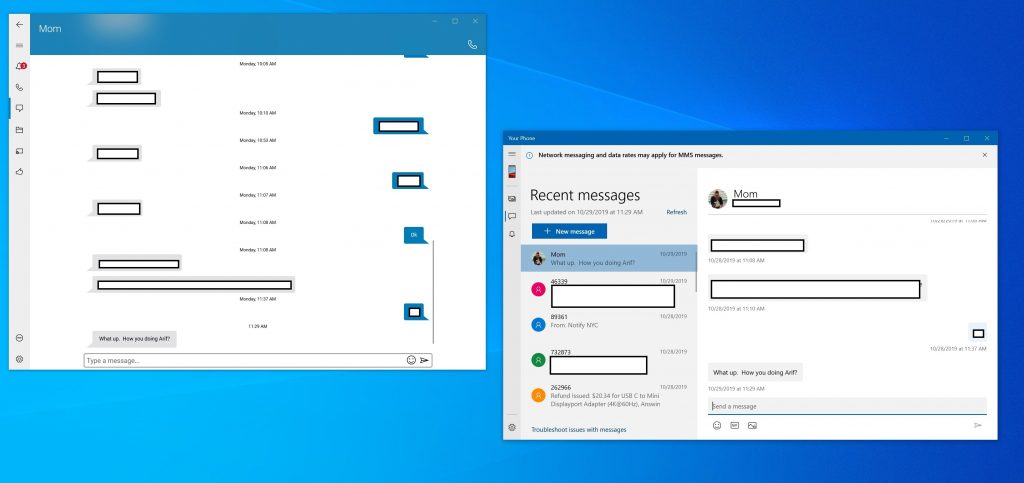
Messaging threads on Dell Mobile Connect and Your Phone
\n
The Android mirroring feature
\n
And now, for the coolest part of both apps. Previously, if you’re a Windows Insider, you were able to mirror your Android Phone over to Windows 10 with the Your Phone app if paired via Bluetooth and connected via WiFi. However, Microsoft is now planning to make this feature a bit more exclusive to select Samsung phones, with a new “Link to Windows” functionality built-in. If your Android device doesn’t support “Link to Windows,” you won’t see this feature in the Your Phone app.
\n
The same Android app mirroring can also be done with Dell Mobile Connect, but it’s a standard feature that anyone can use on a compatible Dell PC or any Android Phone with Android 6 or higher. Both work as expected, and you can mirror Android apps over to Windows 10, such as Snapchat, WhatApp, and more. However, The Dell Mobile Connect app has an extra button on the bottom, which gives you the Android controls buttons for going home, etc. These make navigation easier than Your Phone, which doesn’t have this.
\n

\n

\n
\n
\n\n
The Notifications
\n
Finally, there are notifications. On Dell Mobile Connect, you’ll be able to reply to texts and answer calls from notifications that appear on the top right of the screen. The same can be done from the Your Phone app, which integrates with the Action Center. However, Your Phone has an interesting ability when pressing on notifications from certain Android apps. If you get a notification from an app like Snapchat, it will automatically attempt to launch a mirror session and launch Snapchat or the respected app if you click the notification. This is quite cool.
\n
\n
Your Phone wins for now
\n
Despite Microsoft shutting out older Android phones from enjoying the app mirroring feature, Your Phone appears to be the better of the two apps on Windows 10. Compared to Dell Mobile Connect, its core functions work with all Windows 10 PCs, and almost any modern Android smartphone. However, some newer features like Phone Screen are reserved for newer Samsung phones with “Link to Windows” functionality.
\n
Still, though, the features of Your Phone aren’t reliant on Bluetooth or WiFi, and you can truly keep your phone in your pocket to enjoy your calls, texts, photos, and notifications on your Windows 10 PCs Plus, Microsoft is always tweaking the Your Phone experience, and is always looking for feedback and adding new features.
\n
But, if you have an iPhone, then Dell Mobile Connect wins hands-down. As we found in our original hands-on time, you’re able to use the app from an iPhone to text from your Windows 10 PC, accept and make phone calls. This currently isn’t possible with Your Phone in Windows 10 and gives Dell Mobile Connect one big advantage.
\n\nFurther reading: Android, Dell Mobile Connect, Windows 10, Your Phone