\n
\n
A few weeks ago I wrote that Microsoft was trying to get me to switch from iPhone to Android. Part of the problem for me was that Apple’s locked down ecosystem meant that my iPhone didn’t play well with Microsoft’s mobile experiences. Well, I’ve now had the chance to go hands-on with Dell’s Mobile Connect app, and I think that it’s what I was looking for all along, but with some limitations.
\n
Please be aware that this Microsoft Store app works with both iOS and Android phones, but it requires the download of a companion app on your phone in both cases. I’ll be focusing specifically on iOS and iPhone in this post, but I’ll also follow up with an Android-centric post later in this month. Also, this app is also only officially available on newer Dell PCs from 2018, but with the right AppX files, you can “unofficially” get it working on any PC, as I did with my Dell XPS 15 from 2015.
\n
Set up is easy with Bluetooth
\n
Asides from mentioning WiFi and the Microsoft Graph, Microsoft isn’t providing any specific details about how their own upcoming Your Phone sync client for Windows 10 would work. The company also says that the feature won’t be ready for Redstone 5 this year. It’s rather baffling to hear this, as Dell has managed to ship a similar Mobile Connect Microsoft Store app, and it has been available for well over a year now.
\n
Anyway, Dell’s Mobile Connect app is simple to set up. After downloading via the companion app, all you need to do is make sure that Bluetooth is enabled on both your iPhone and Windows 10 PC. After that, you can open Dell Mobile Connect and select iPhone, choose it from the list of available devices, and confirm the PIN. You must then go on your iPhone and enable access to show notifications and sync contents. From there on out, things are easy, but you must stay connected to Bluetooth for things to work.
\n
\n
You can text from your PC, but with limits
\n
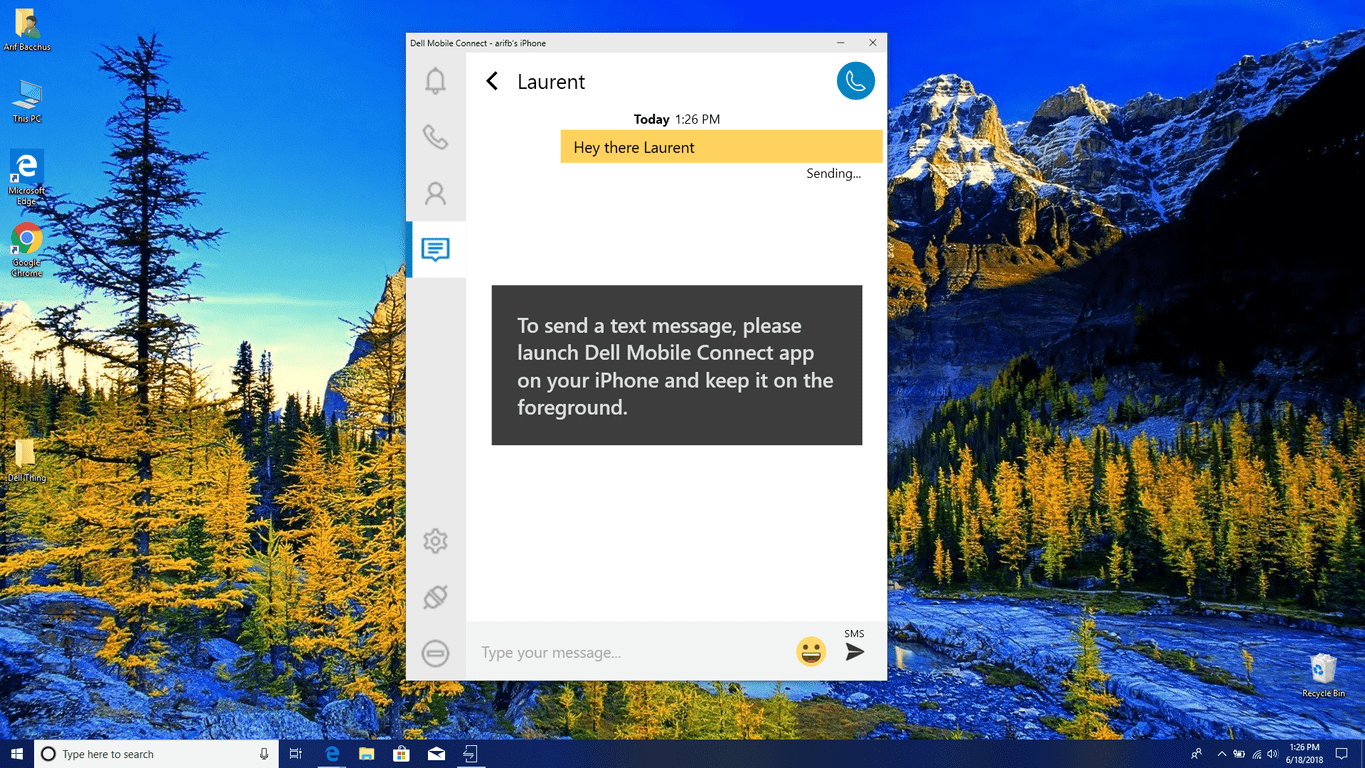
As I mentioned in my post from a few weeks ago, a big dream of mine was to be able to sync my SMS or iMessage from my iPhone to my PC. Unfortunately, Microsoft says that their Your Phone sync client won’t be able to sync text messages with iPhones because Apple won’t allow it. Dell, though, appears to have found a nice workaround for this via the use of Bluetooth and a dedicated app on iOS.
\n
This sounds great at first, but the companion iOS app will only sync your iMessages when your iPhone screen is turned on and unlocked. It essentially renders your iPhone a bit useless for other tasks (since you’ll need to open the app to have it sync and send or receive messages on your PC.) There’s also a toggle switch inside the Dell Mobile Companion iOS app which will do just this, and it will even dim your screen to save battery, but quitting will stop the sync.
\n
\n
Other problems with this experience include the fact that you won’t be able to SMS or iMessage photos from your Windows 10 PC via Dell Mobile Companion. You also won’t be able to receive photos either, and they won’t show up in any chats opened up on your PC. Additionally, any iMessages sent won’t stay on your PC when you force quit the app or restart your PC. Your entire conversation history with your other contacts also won’t show up. This likely a limit set by Apple, so only messages started from the Dell Mobile Companion app will show up on your PC (They’ll still sync to your iPhone though.)
\n
There are a few shortfalls, yes, but I can see some situations where this can be useful for iPhone users. For me, I kept my iPhone plugged into my PC and the companion Dell Mobile Connect app open when I was working. This ensured that I wasn’t killing my iPhone battery, and it also meant I could keep up to date with my texts without touching my iPhone.
\n
\n
Phone Calls can work too
\n
I’m more of a person that likes to text, but it’s interesting to see that Dell Mobile Connect lets you use place phone calls on your PC. There’s no need to have anything open on your iPhone for it work, and you have a dedicated dial pad, with your iPhone contacts on your PC. You can also use your PC as a Bluetooth speaker, and use your PC’s mic instead of the iPhone to speak. There is a button which lets you switch the input back to the iPhone, and it’s a pretty cool experience that I wish was built into Windows 10.
\n
\n
Notifications are cool, as is the contacts
\n
Notifications from any iPhone connected the Dell Mobile Connect app appear on the top right side of a screen and give you hover options to answer calls reply or see messages. Though my messages only appeared in the notifications section on the Dell Mobile connect, I wasn’t able to get notifications outside of the app. It’s likely due to the fact that I was using unsupported PC, but Dell mentions there are some settings toggles for it which can also help you adjust notification size or sounds.
\n
This brings me to the contacts section of the app, which is clean and simplistic. I was able to see icons for my contacts and click on it to call or text. Again, it’s something I wish was integrated on Windows 10, but I guess Microsoft’s Your Phone app might introduce it over time.
\n
\n
I’ll have a followup post next week explaining more about the Android side of the Dell Mobile Connect App, so be sure to keep tuned for more. The Android version works a bit differently and gives notifications for more apps, and the ability to mirror an Android phone to your PC.
\n
At the end of the day, the Dell Mobile Connect app is something that Microsoft can learn from. They might be working on their own integrations with iOS and Android devices, but it’s rather perplexing to see that it took the company this long to come up with the idea. And even though Dell Mobile Connect helps bring your iMessages to your Windows 10 PC, it still isn’t perfect, and I’m hoping for Microsoft can work with Apple to make the Your Phone app the perfect companion for iPhone and Windows 10.
\n
\n\nFurther reading: Dell, Microsoft, Windows 10