\n
\n
When it comes to online collaboration, there’s no doubt that both Slack and Microsoft Teams are two of the best services that any business can choose. With Teams being included with Office 365, we’ve already explained why we think that it is the better of the two. We’ve also dived deeper into the various apps and integrations available with the two services, as well as the price and privacy differences.
\n
But what about the most important thing of them all? How does Microsoft Teams look and feel different from Slack? And which one is better? In our final entry into the Teams vs Slack series, we’ll now take a comprehensive look at the user interface differences.
\n
Main layout and design
\n
Both Microsoft Teams and Slack feature a vertical style panel design. With Teams, this design is quite busy. Slack departs from that and is a bit more simplistic and visually efficient. Here’s how and why.
\n
Teams
\n
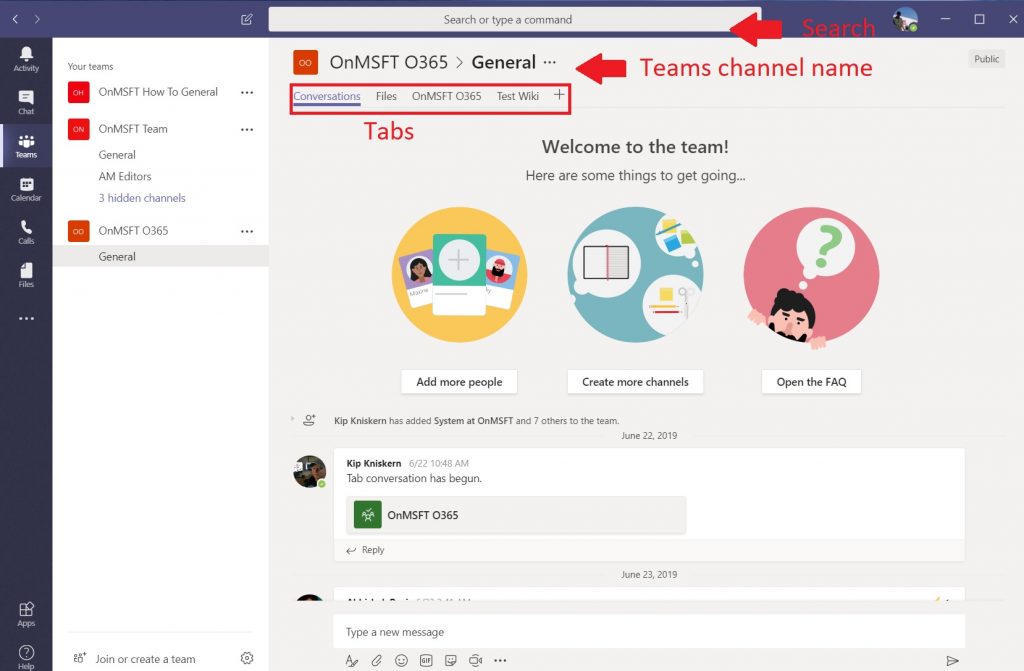
Starting with Teams, one of the first things you’ll notice that there’s a search bar on the top. This differs from what’s offered in Slack, as it also is home to shortcuts for messaging and people. That is then followed by an area underneath for the name of the Team Channel. You’ll then notice “Tabs” for Conversations, Files, OneDrive, and any other apps added by an administrator. Similar features are found in Slack, as we will discuss later.
\n
\n
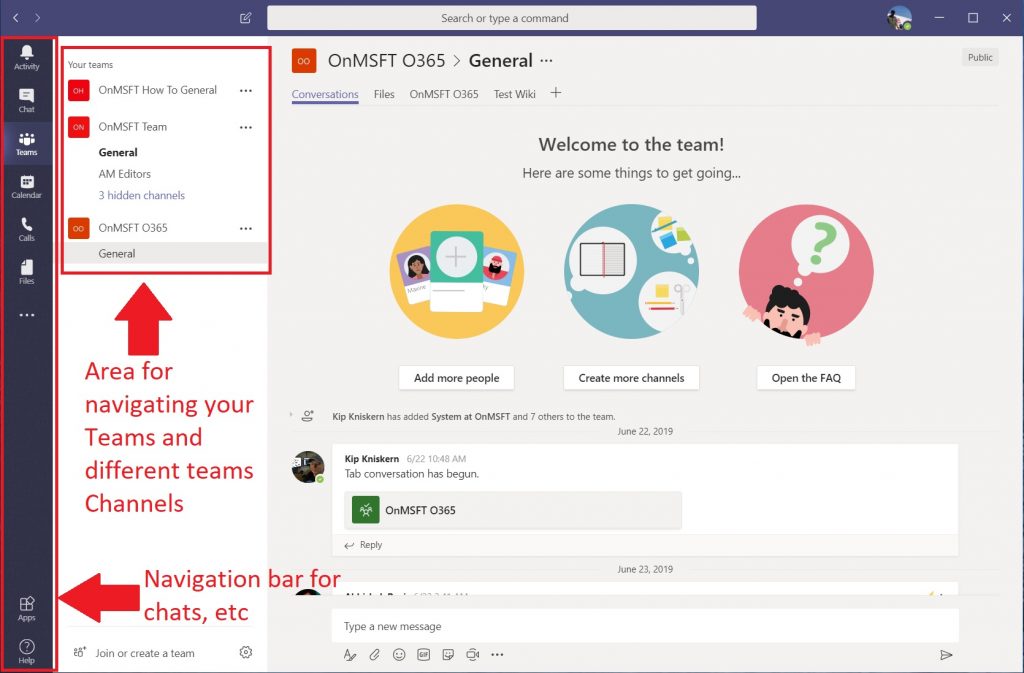
Moving on, in Teams, there is also a dedicated area on the middle-left side for navigating different Teams channels. The channels listed in this area will light up black when there’s unread messages. It should be noted that this list of Teams channels, is not collapsable. Unless the open Microsoft Teams window is put in a “mini” mode, this bar will always be visible. That can be quite annoying for some users who like simplicity.
\n
Finally, there is an extra navigation bar on the very far left of the Teams window. This is how you can jump between activities, chat, Teams, Calendar, Calls, Files, Apps, Help, and other apps.
\n
\n
Slack
\n
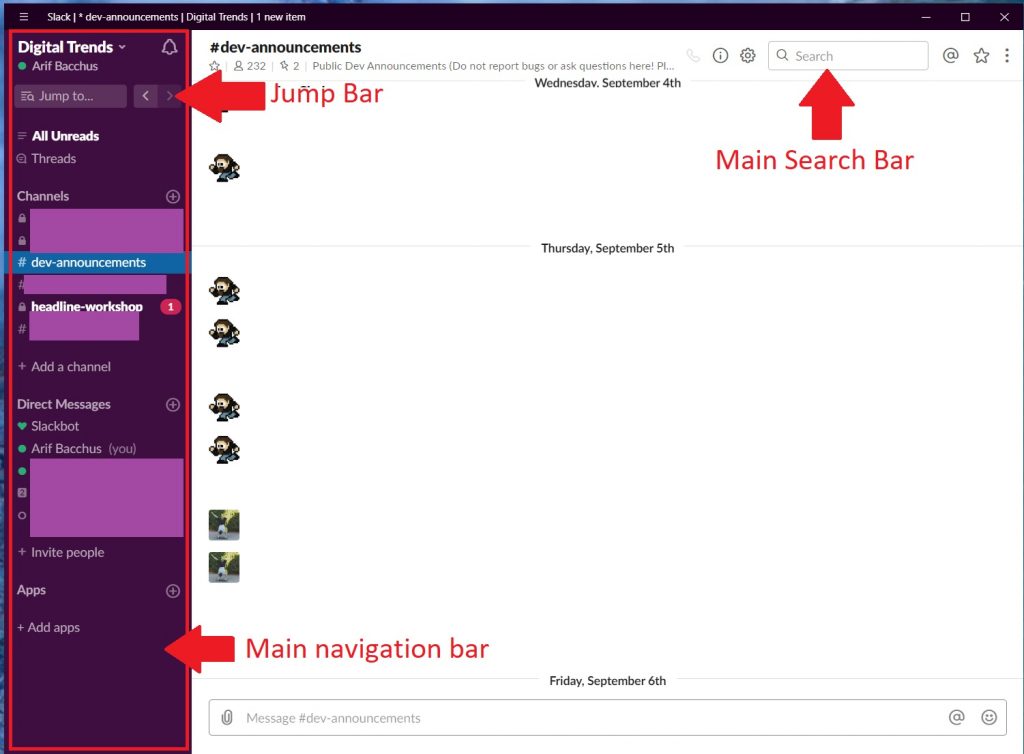
Now, there’s Slack. Running along the far left side of the Slack window will be the main navigation bar, known as the sidebar. Unlike with Teams, this list of channels is more compact and is out of the way from the user. There are many customization options for it available in the settings, as we will touch on later. Channel names in the bar will even light up in a white color whenever there’s an unread message, or show a red (1) if you’ve been mentioned or @hered.
\n
There’s also a separate mini search bar titled “Jump To” which allows users to search for content and move between areas of Slack they’ve previously visited. However, unlike Teams where the search bar is constantly universal across the UI, Slack’s search bar only appears in Channels and Direct Messages.
\n
\n
Pushing forward, under that, are two buttons dedicated to unread messages in any channels, and an area for any threads the user may be a part of. That’s then followed by an area for direct messages, and another area for apps. Users can add channels and start direct messages with a “+” sign, which is different from Teams where adding channels involves pressing a (…) menu.
\n
Wrapping things up, Slack also features some buttons running under the top of the window, near the name of a channel, or the person a user chatting with. These buttons are keen to the “tabs” in Teams. There’s a button for calls (only available in direct messages,) information, settings, activity, starred messages and downloads. From the information menu, you can see files that are shared, and members of the channel, as well as highlights. This ability to seem members in a channel isn’t as easily accessible in Teams.
\n
\n
Customization and colors
\n
Microsoft loves giving its users customization options in Windows 10, but with Teams, the customization options are a bit limited when compared to Slack. Slack offers many more ways to tweak the look of the app, as we will discuss here.
\n
Teams
\n
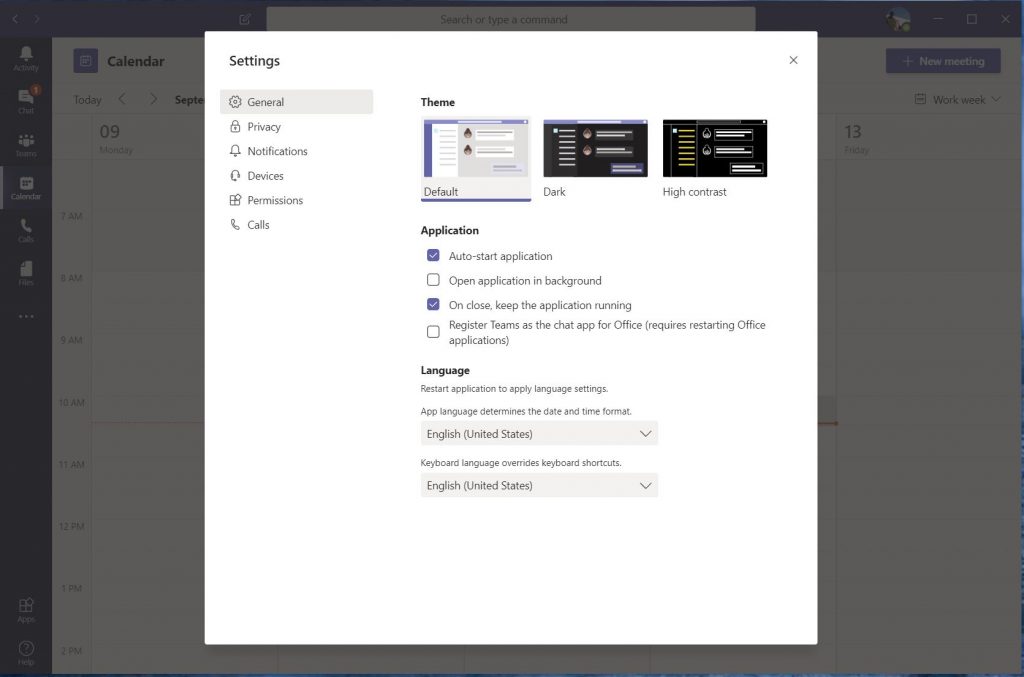
With Teams, there are just three theme options. The default is a light theme, but there are options for a dark theme as well. For users who need assistive technologies, Microsoft Teams also features a high-contrast theme.
\n
\n
Slack
\n
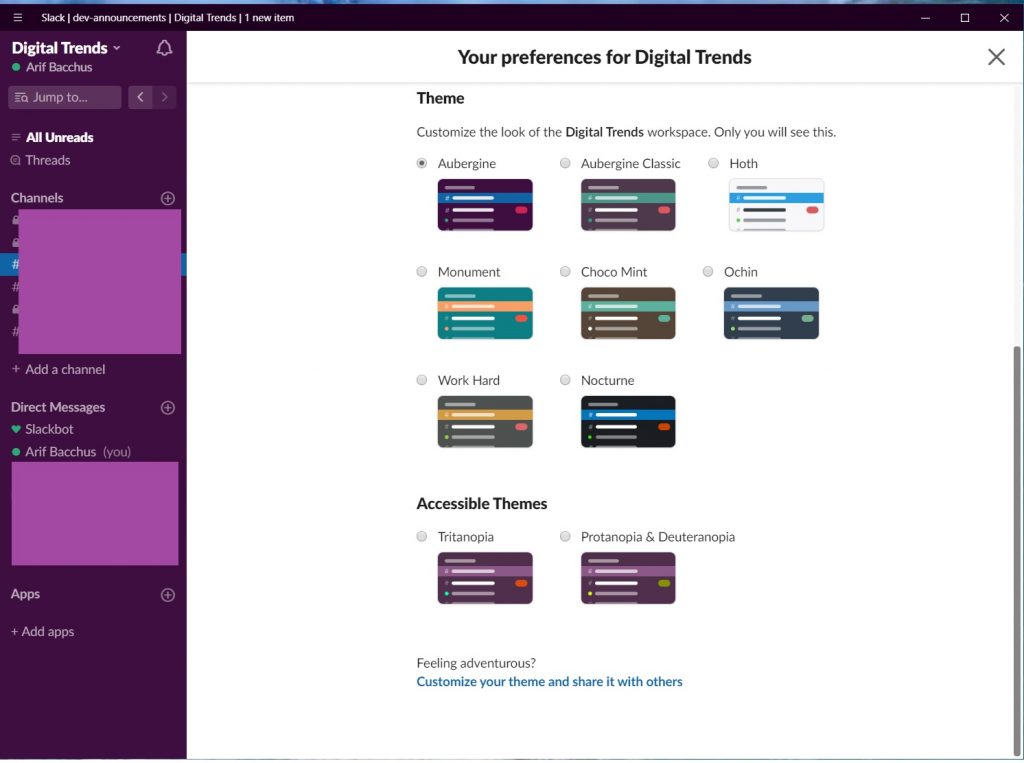
Slack, on the other hand, has fully customizable themes. You can choose from the classic Aubergine theme, a lighter Hoth theme, or a green an interesting Choco Mint theme. Just like Teams, there are also accessible themes and even an option for a Dark Mode. For even more customization, you can create your own theme, and share it with others.
\n
\n
The messaging system, threads, and notifications
\n
Coming down to the differences in messaging, Teams and Slack both feature group chats, threaded conversations, and private messages. Users on both platforms can also pin messages, edit messages, mention users, and more. However, Microsoft Teams is a bit more sophisticated when it comes to messaging.
\n
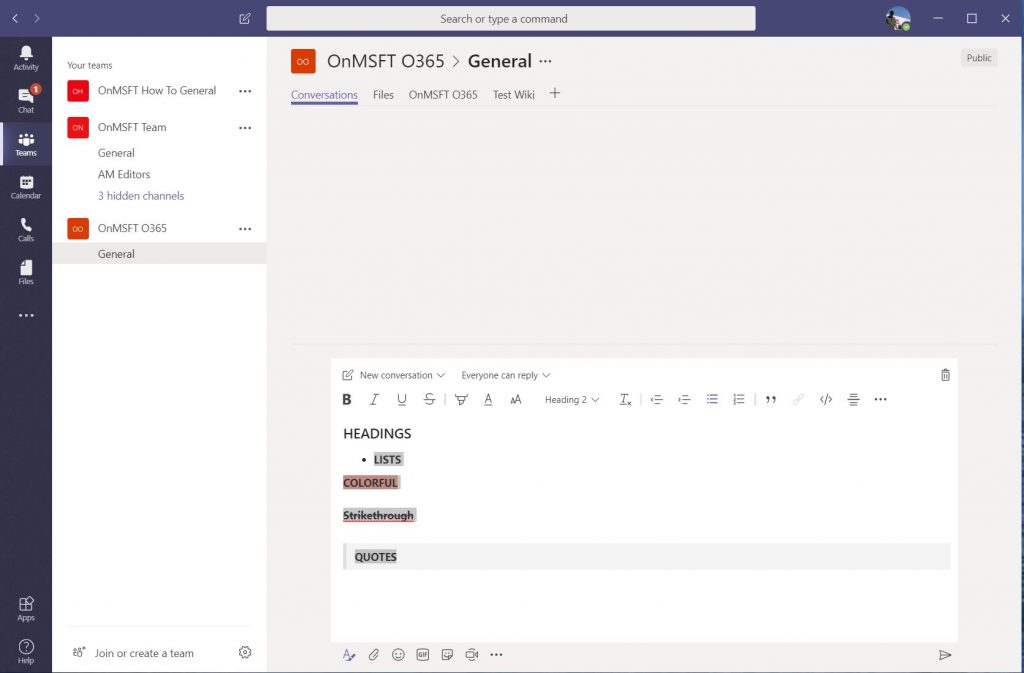
Why? With Microsoft Teams, you have full-on formatting options when creating a message. That includes a bulleted list, font color, inserting links, blockquotes, headlines, and more. Slack just limits you to standard text.
\n
\n
Coming down to notifications, both Teams and Slack will integrate with Windows 10’s Action Center. However, Teams has a special Activity area in the left navigation bar to see all your notifications, regardless if you’ve read them or not. With Slack, there’s no notification area. However, the Show Activity button will allow you to see message reactions.
\n
Finally, there are Threads. The Threads system lets you respond directly to any messages posted in an open channel, keeping the channel organized. In Teams, Threads are how you reply to a single message, but is a feature that is not available in private messages in Teams. It keeps things efficient and clean.
\n
However, with Slack, threads are more out of the way. To create a thread, you’ll have to hover over the message and click the “create thread” button. You’ll then see the thread open up in a window on the left. It’s rarely ever used in my other job, but something that is encouraged to be used here at OnMSFT.
\n

\n

\n
\n
\n\n
Reactions, emojis, and GIFS
\n
Everyone loves reacting to messages, and this is a feature available on both Teams and Slack. Teams limits you to a few reactions, including thumbs up, love, laugh, sad, and angry. However, with Slack, the possibilities are endless. You can react with an endless amount of emojis. And, if your company allows it, you can even react with custom created emojis. This is something not available in Teams as of yet, but Teams will allow you to create custom memes and stickers.
\n

\n
But not all is lost for Teams. With Slack, using GIFS is a bit complicated, as you’ll need to install an app, and then use keyboard commands to insert GIFS into a chat. With Teams, you just need to click the GIF button under the text bar to get started. Simplicity at its best!
\n

\n
It’s a draw between Slack and Teams
\n
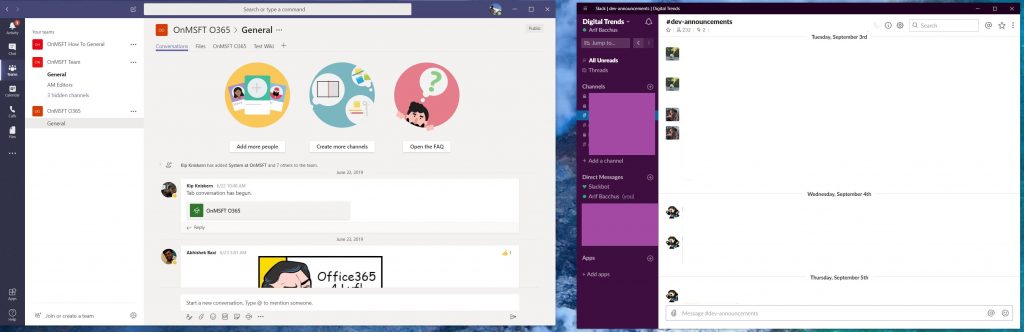
At the end of the day, both Slack and Teams have different user interfaces. For those who like a busy UI, Teams is the way to go. There are buttons and menus everywhere and you can format text, more easily send GIFS, and more. Then, for simplicity, there’s Slack. Coming down to design, each of the collaboration services has its own advantages and disadvantages. Despite the talk-up and hype from CEOs, it is up to you to choose which one is best, but remember, Teams is already included in Office 365 subscriptions!
\n\nFurther reading: Microsoft Teams, Office 365, Slack