Skip to content
OnMSFT.com
  • Home
  • About
  • Contact
  • Windows
  • Surface
  • Xbox
  • How-To
  • OnPodcast
  • Edge
  • Teams
  • Gaming
Menu
  • Home
  • About
  • Contact
  • Windows
  • Surface
  • Xbox
  • How-To
  • OnPodcast
  • Edge
  • Teams
  • Gaming
  1. Home
  2. What is Microsoft Safety Scanner, and how can you use it?

What is Microsoft Safety Scanner, and how can you use it?

admin admin
February 23, 2023
2 min read

\n

\n

\n

In this article

\n

\n

  • Microsoft Safety Scanner What is it really?
  • How to use Microsoft Safety Scanner
  • All about Microsoft Safety Scanner

\n

Windows computers are compatible with a horde of antivirus programs to help you fight every newly created malware. Microsoft even offers a built-in solution of its own, i.e., the Windows Security app.

\n

\n

\n

\n

But some malware programs are more sneaky than others and don’t leave as quickly as we’d like. This is where Microsoft Safety Scanner will come to your rescue.

\n

Released by Microsoft back in April 2011, the Microsoft Safety Scanner is software in your Windows toolkit that works by spotting and removing a plethora of viruses and other forms of malware. Here’s everything you need to know about it.

\n

Microsoft Safety Scanner: What is it really?

\n

Microsoft Safety Scanner is a free Windows tool that scans and removes any malware or other viruses from your Windows computer. The tool isn’t available on Windows by default, so you will have to download it from the official Microsoft website. Moreover, it comes in both 32-bit and 64-bit formats—so make sure you download the format relevant to your computer.

\n

Although I touched on this above briefly, it deserves to be repeated: Make sure you’re only using Microsoft Safety Scanner as just another handy addition for improving your cybersecurity, instead of treating it as a complete replacement for other Windows security options like a third-party antivirus program or Windows Security.

\n

One of the primary reasons for this is the lack of regular, security updates in the tool. In fact, after ten days, the Microsoft Safety Scanner expires on its own, forcing you to download it once again.

\n

How to use Microsoft Safety Scanner

\n

With the brief introduction to Microsoft Safety Scanner out of the way, let’s now look at how you can use the tool. First, you will have to download the Microsoft Safety Scanner .EXE file to get started. Here’s how:

\n

    \n

  • Head to the official Microsoft Safety Scanner download page and grab the .exe file from there.
  • \n

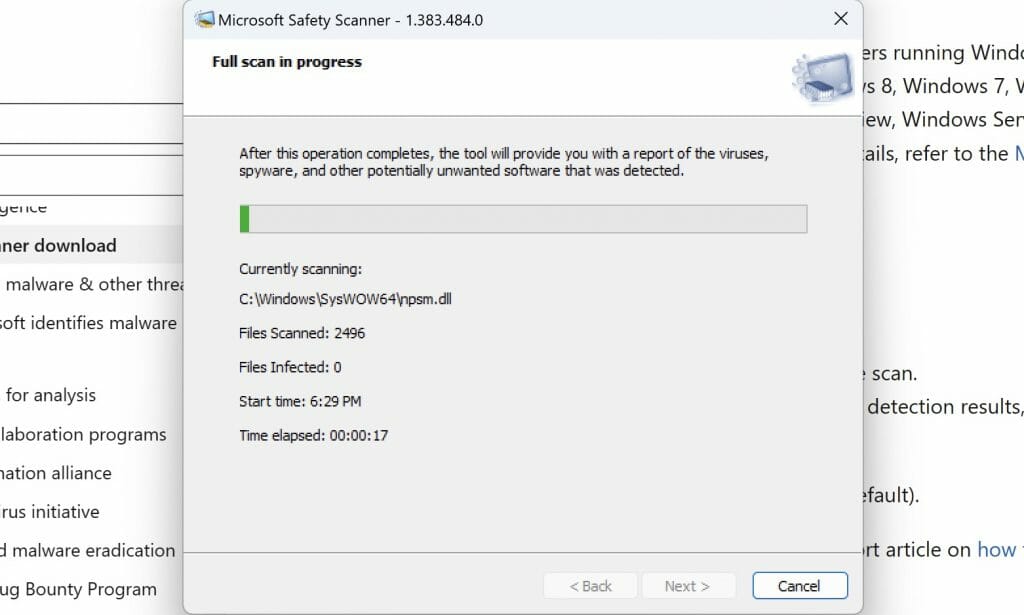
  • Launch the tool and choose a type of scan: Quick scan, Full scan, or Customized scan.
  • \n

  • Click on the Next button to go ahead with the scan.
  • \n

\n

microsoft safety scanner

\n

Microsoft Safety Scanner will begin scanning your system for malware. Now, depending on the type of scan you have chosen, the scanning process might take a while—so feel free to scoot around while the scan completes. 

Finally, click on Finish to finalize the scan and wrap everything up.

\n

All about Microsoft Safety Scanner

\n

Microsoft Safety Scanner is yet another insurance for you against eccentric malware attacks in the ever-complex and uncertain world of technological cybersecurity. While it is nowhere a standalone security tool, you can think of Microsoft Safety Scanner as your final recourse when all else fails.

\n\n

Share this article:
Previous Article A look ahead of Microsoft’s Windows 11 Moment 2 update Next Article No new Windows 11 Dev or Beta Channel builds this week

Related Articles

PowerToys 0.75 released; Environment Variables editor is here

October 31, 2023

Former Halo developer Bungie announces layoffs in wake of game delays

October 31, 2023

Siemens and Microsoft partner to bring GenAI to industries worldwide

October 31, 2023

Leave a Comment Cancel reply

Your email address will not be published. Required fields are marked *

Recent Posts

  • PowerToys 0.75 released; Environment Variables editor is here
  • Former Halo developer Bungie announces layoffs in wake of game delays
  • Siemens and Microsoft partner to bring GenAI to industries worldwide
  • 43 Microsoft Edge keyboard shortcuts to remember for stylish and speedy web surfing
  • Here is what’s coming to (and leaving) Xbox Game Pass soon

Recent Comments

No comments to show.

Archives

  • October 2023
  • September 2023
  • August 2023
  • July 2023
  • June 2023
  • May 2023
  • April 2023
  • March 2023
  • February 2023
  • January 2023
  • December 2022
  • November 2022
  • October 2022
  • September 2022
  • August 2022
  • July 2022
  • June 2022
  • May 2022
  • April 2022
  • March 2022
  • February 2022
  • January 2022
  • December 2021
  • November 2021
  • October 2021
  • September 2021
  • August 2021
  • July 2021
  • June 2021
  • May 2021
  • April 2021
  • March 2021
  • February 2021
  • January 2021
  • December 2020
  • November 2020
  • October 2020
  • September 2020
  • August 2020
  • July 2020
  • June 2020
  • May 2020
  • April 2020
  • March 2020
  • February 2020
  • January 2020
  • December 2019
  • November 2019
  • October 2019
  • September 2019
  • August 2019
  • July 2019
  • June 2019
  • May 2019
  • April 2019
  • March 2019
  • February 2019
  • January 2019
  • December 2018
  • November 2018
  • October 2018
  • September 2018
  • August 2018
  • July 2018
  • June 2018
  • May 2018
  • April 2018
  • March 2018
  • February 2018
  • January 2018
  • December 2017
  • November 2017
  • October 2017
  • September 2017
  • August 2017
  • July 2017
  • June 2017
  • May 2017
  • April 2017
  • March 2017
  • February 2017
  • January 2017
  • December 2016
  • November 2016
  • October 2016
  • September 2016
  • August 2016
  • July 2016
  • June 2016
  • May 2016
  • April 2016
  • March 2016
  • February 2016
  • January 2016
  • December 2015
  • November 2015
  • October 2015
  • September 2015
  • August 2015
  • July 2015
  • June 2015
  • May 2015
  • April 2015
  • March 2015
  • February 2015
  • January 2015
  • December 2014
  • November 2014
  • October 2014
  • September 2014
  • August 2014
  • July 2014
  • June 2014
  • May 2014
  • April 2014
  • March 2014
  • February 2014
  • January 2014
  • December 2013
  • November 2013
  • October 2013
  • September 2013
  • August 2013
  • July 2013
  • June 2013
  • May 2013
  • April 2013
  • March 2013
  • February 2013
  • January 2013
  • December 2012
  • November 2012
  • October 2012
  • September 2012
  • August 2012
  • July 2012
  • June 2012
  • May 2012
  • April 2012
  • March 2012
  • February 2012
  • January 2012
  • December 2011
  • November 2011
  • October 2011
  • September 2011
  • August 2011
  • July 2011
  • June 2011
  • May 2011
  • April 2011
  • March 2011
  • February 2011
  • January 2011
  • December 2010
  • November 2010
  • October 2010
  • September 2010

Categories

  • Announcements
  • Deals
  • Developer
  • Editorial
  • Feature
  • Feature stories
  • Hero-post
  • Hotdeals
  • How-to
  • Latest news
  • Microsoft / office 365
  • News
  • Office 365
  • Onpodcast
  • Opinion
  • Our featured post
  • Polls
  • Review
  • Reviews
  • Videos
OnMSFT.com

OnMSFT.com covers Microsoft news, reviews, and how-to guides. Formerly known as WinBeta, we have been your source for Microsoft news since 1998.

Categories

  • Windows
  • Surface
  • Xbox
  • How-To
  • OnPodcast
  • Gaming
  • Edge
  • Teams

Recent Posts

  • PowerToys 0.75 released; Environment Variables editor is here
  • Former Halo developer Bungie announces layoffs in wake of game delays
  • Siemens and Microsoft partner to bring GenAI to industries worldwide
  • 43 Microsoft Edge keyboard shortcuts to remember for stylish and speedy web surfing
  • Here is what’s coming to (and leaving) Xbox Game Pass soon

Quick Links

  • About OnMSFT.com
  • Contact OnMSFT
  • Join Our Team
© 2010–2026 OnMSFT.com LLC. All rights reserved.
About OnMSFT.comContact OnMSFT