
\n
\n
Back at CES 2021, Dell announced the Dell 27 Video Conferencing Monitor. If you missed it, this monitor was unlike any other in the company’s lineup. It was dubbed as the first 27-inch QHD video conferencing monitor certified for Microsoft Teams. You could simply tap the Teams button on the monitor, and pull up your chats and call, instantly.
\n
\n
The initial reveal happened in the middle of a pandemic, but the world hasn’t changed much since then, even with vaccines currently rolling out. Many people are still working from home, schooling from home, or depending on video calls in hybrid environments to keep in touch with family, friends, and coworkers. It’s become the new normal and the way to stay safe.
\n
\n
\n
\n
\n
\n
\n
All that said, video conferencing is still important in our current times, as is having a monitor on your desk can expand your productivity, too.
\n
That’s where the Dell 27 Video conferencing monitor comes into the picture. Dell was kind enough to send OnMSFT one for review. After spending a good two weeks with it, we’re certain it is a do-it-all monitor for work from home, and beyond.
\n
Design
\n

\n

\n

\n
\n
\n
\n
\n
\n
\n
\n

\n

\n
\n
\n\n
Like most modern Dell monitors, the Dell 27 Video Conferencing Monitor (which has a 2560 x 1440 resolution and 60 Hz refresh rate) sports a sleek design that fits in well with any desk or setup. I say this because the minute I took the display out of the box and set it up for our pictures, it felt quite welcoming.
\n
The trapezoid base is minimalistic, and the sleek (fairly thin) monitor arm snaps in easily into the back of the display during setup without any tools. There’s also a hole in the bottom of the arm so you can manage and direct your cables, too.
\n
Note that the arm even lets you swivel the monitor left and right (from 45 degrees in each direction) or up and down-facing (5 to 21 degrees in each direction) without having to move the base itself. You can pull the arm up and down to adjust the monitor to your setup as well (up to 120 mm,) and even pivot the entire display so that it’s vertical, rather than horizontal.
\n
Then there are the slim bezels. These are barely noticeable on the sides, appearing just as a thin black strip. Other than the fabric speaker grills, it is one of the first things I noticed after powering the monitor on. The monitor definitely has that XPS 13 look, with three-sided narrow borders (except for its bottom chin, that is.)
\n
\n
\n
\n
\n
\n
\n
Ports & buttons
\n
\n
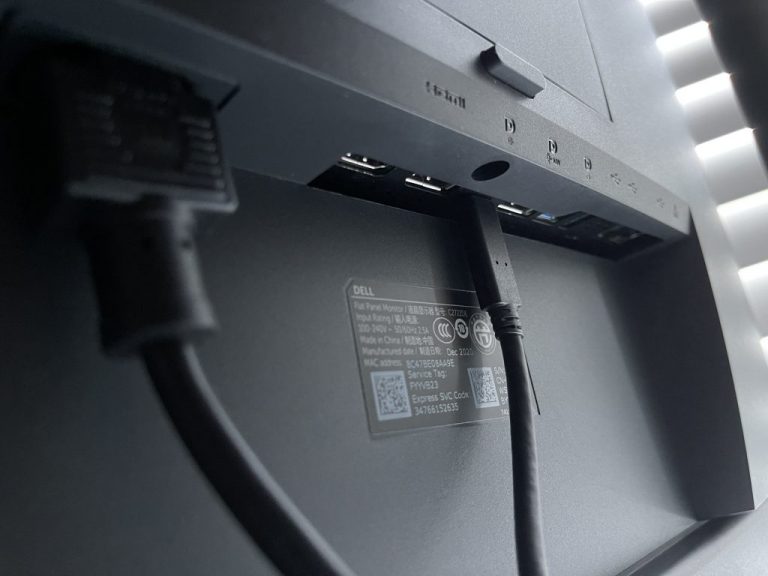
But what about the ports? Much like the design, this monitor’s ports do not disappoint. There is a port for everything you need and in almost every corner, too. It is one of the keys to making the monitor a do-it-all hub for work from home and beyond.
\n
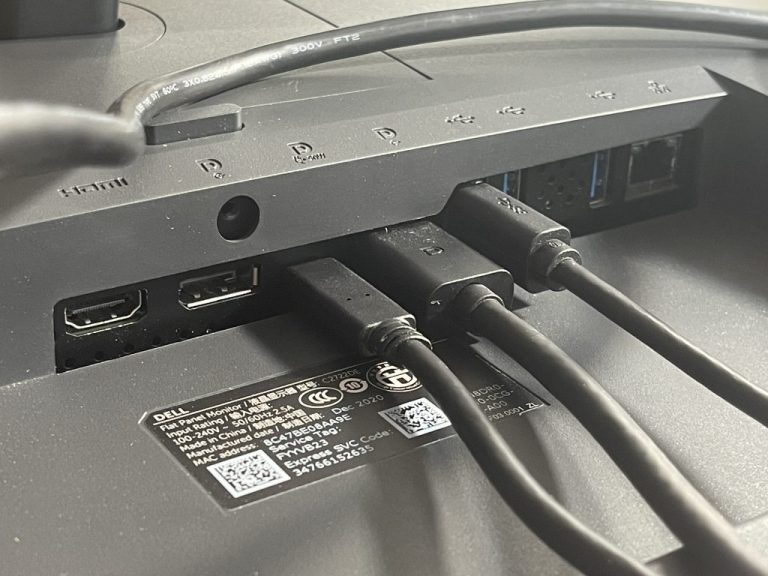
Starting on the back of the monitor, you’ll find a security lock and the power connector. There’s then an HDMI 1.4 port, DisplayPort in (with an audio jack above it,) USB-C upstream, DisplayPort out, a USB-B upstream port, a Superspeed USB 3.2 Gen 1 port, another Superspeed USB 3.2 port, and an RJ45 connector.
\n
There are two important notes here. First off, DisplayPort out can be used to daisy chain the monitor to another display if you want. The other note comes in relation to the USB-C port. It carries 90 watts of power and can charge some devices (like a Surface Pro or Go) that are attached via this cable, even when the monitor is off. The USB-C port can also be paired up with the RJ45 jack, too, so you can eliminate the need for hubs or dongles. This is what I ended up doing with my Surface Go 2.
\n
\n
The monitor became the “hub” for my main devices, thanks to its plethora of ports, especially on the front-end. That’s where, under the chin of the monitor, you’ll find Superspeed USB, a headphone jack, as well as a USB-C downstream port.
\n
I loved these extra ports on the front, as they proved useful for plugging in a mouse and also charging my phone when using the monitor with my Surface via USB-C. Again, another reason why the monitor functions as a hub for me. It cut out the need for my usual dongle.
\n
This is especially important when working from home, too. No one has the time to go looking for dongles for use with a laptop or monitor in the middle of meetings.
\n

\n

\n
\n
\n\n
Then there are the buttons. The power and control buttons are tucked away at the bottom right corner of the monitor, right behind the LED indicator light. I like the location, as it makes it obvious where to touch to get access to the controls, especially late at night or early in the morning when lighting is poor.
\n
The navigation button, meanwhile, is a joystick. I enjoyed this because it makes menus easy to navigate and switching between different inputs easy, without having to press multiple buttons. Note that the monitor has KVM support, too, as we’ll get into later on. This lets you connect two PC sources to the monitor and switch between them with a single keyboard and mouse.
\n
Microsoft Teams functionality
\n
\n
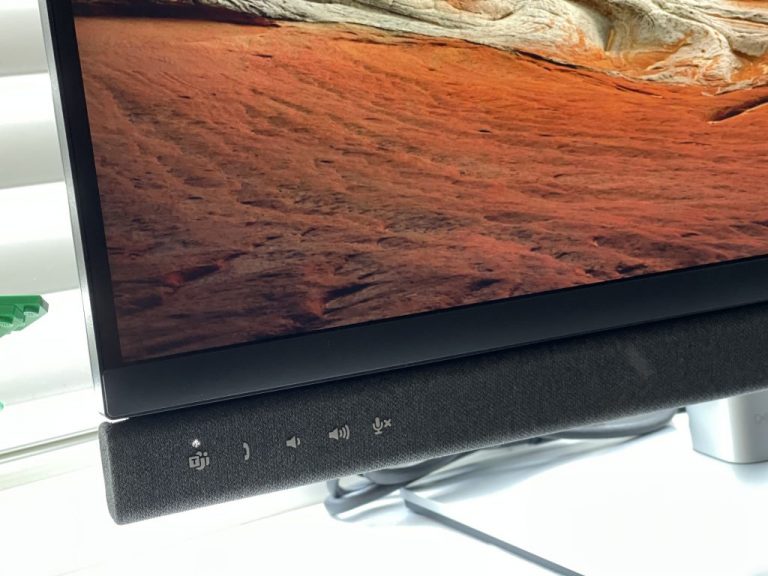
The real highlight of this monitor is the Microsoft Teams functionality. As I hinted, the monitor is one of the only certified for Microsoft Teams. That’s because of the Teams touch buttons built into the lower-left corner of the display, as well as the 5MP webcam which we’ll get into the next section. There’s a couple of ways these buttons come into play in the day-to-day use of the monitor for myself.
\n
The first way is being able to open Teams really easily. During my workday, Teams often will get sent to the background a lot, when I am working on articles, or browsing through web pages. When a notification comes in, instead of searching for the Teams window, I just pressed the Teams button on the monitor. It instantly pulls Teams up and to my attention. The button even flashes when I have a notification, too.
\n
A second way the Teams functionality comes into play is with the volume controls. During calls, you’d usually need to manually adjust the volume using Windows’ sliders or controls. With this monitor, you can easily control call volume without using your computer itself, even when connected via headphones on that headphone jack.
\n
Just set your finger on the touch controls on the front, and you’re good to go. The same goes for the microphone mute switch, too, which lets you mute your mic quickly on the fly. Just be aware, for the Teams controls to work, you’ll need to be plugged into USB-C, or have your PC connected to the display’s USB-B upstream port when using Displayport or HDMI. In our testing, without that USB-C or USB-B connection to your PC, the buttons will do nothing other than standard volume control.
\n
Webcam quality & sound quality
\n
\n
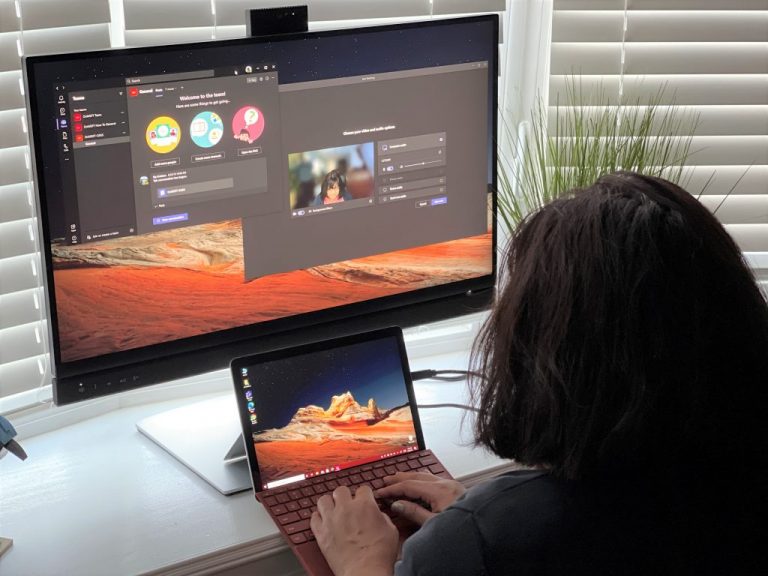
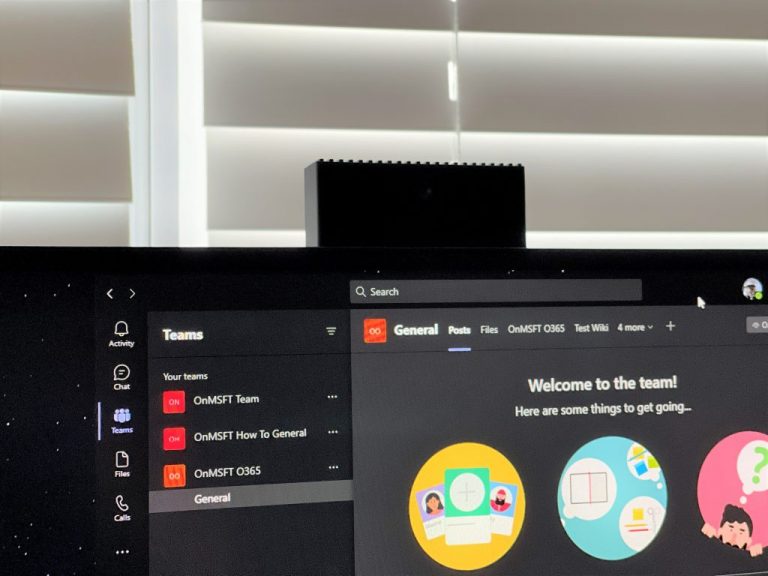
Other than the Teams buttons, the other big part of this Dell 27 Video Conferencing Monitor is the pop-up webcam. This webcam functions with the display via USB-C with a single cable, or when you plug the display into your PC via the HDMI or DisplayPort paired with the USB-B upstream port. You can push it into and out of the top of the monitor when you do and don’t need it.
\n
In technical specs, it’s a 5-megapixel wide-angle webcam, with IR and Windows Hello built-in for passwordless sign-in to your PC. Dell says you get 30 frames per second and 178 degrees of view from the video feed. As a 5 megapixel camera, you’ll get more than twice the details and zoom of traditional webcams that you find on laptops and tablets.
\n
\n
I tested the webcam in a Teams call, and though Teams had issues connecting to it on our main Surface Go 2 PC (it worked fine on a secondary PC,) the quality was definitely there. The person on the other end of the call could make out blemishes in my faces, as well as the colors of the brown leather sofa, and other details in the room around me thanks to the wide-angle lens. It’s hard to find a webcam of this high quality on a monitor, and I can see this monitor being useful for conference rooms for this reason. The webcam is definitely razer-sharp, as Dell puts it.
\n
Now, for the speakers and audio. Dell includes dual 5W integrated speakers onboard the monitor, as well as a noise-canceling microphone. During calls, the speakers definitely amplified the sound of the person on the other end of the call. On a test Teams call, my friend’s voices were crisp and clear, so much so I even heard the click-clack of her partner typing on the keyboard (he was sitting in the room adjacent to her.)
\n
The microphones, meanwhile, were able to mute out the music coming from outdoors, when I hopped on a Teams for Personal call with another friend. But don’t let that limit you to just Teams and video calls. Dell says you can use these microphones with Cortana, too, to improve your productivity as, well as other assistants like Amazon Alexa via the desktop app.
\n
Display quality
\n
\n
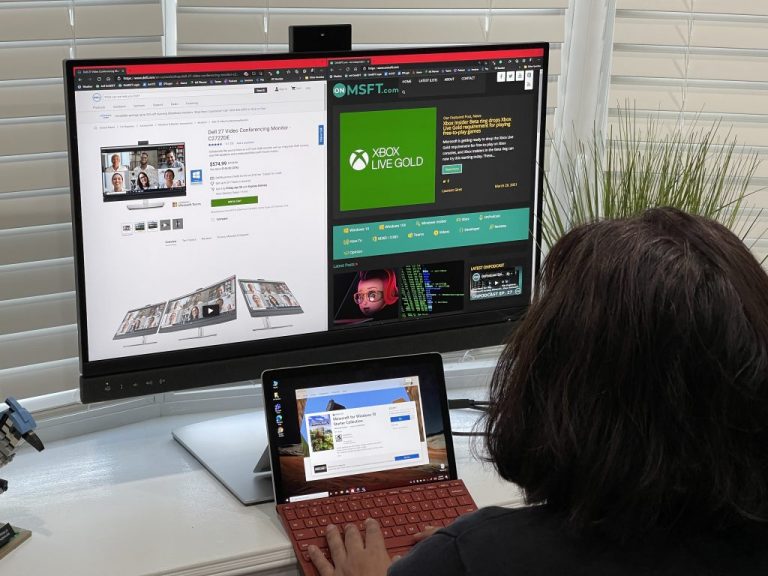
I want to end this review by mentioning the display quality. The contrast ratio on the LED panel gets up to 1000: 1, and the color support hits up to 16.78 million. The panel also has an anti-glare coating, an 8ms normal response time, and a 5ms ray to gray fast response time.
\n
The aspect ratio comes in at 16:9. According to our colorimeter, it also covered 99% of the Adobe sRGB spectrum and showed about 250 cd/m2 of brightness. Note that the resolution caps out 2560 x 1440, and the refresh rate at 60 Hz. For higher resolutions, you’ll have to check out the Dell 34 Curved WQHD monitor, which is the larger version of this smaller sibling.
\n
Naturally, this all means the monitor is technically intended solely for productivity and not for gaming. I was able to stack windows side by side and multitask on this monitor. Images appeared crisp and bright, especially when it comes to web pages and black-on-white text. I really enjoyed writing articles and getting work done.
\n
Videos, meanwhile, played nicely. I watched an episode of Spongebob Squarepants on this monitor, and the yellow in Spongebob’s skin and the blue in the sky were quite lively. Though catered for productivity, I also did hook up the monitor to my Google Chromecast Ultra and played Watch Dogs Legion. The visual experience was quite pleasing, especially with the integrated speakers. It felt like I was playing on my dedicated TV.
\n
\n
Day two and I just found out that this is also a pretty good monitor for Google Stadia too. Playing Watch Dogs Legion via the Chrome Cast Ultra and it's pretty 💯👀. Vibrant colors! The built in speakers also make it like a TV. Impressive stuff for a conference monitor. pic.twitter.com/qOERJrL6k7
\n
— Arif Bacchus (@abacjourn) March 31, 2021
\n
\n
I can see this monitor being used as a TV, when not in the office or home if need be. There are different presets in the settings to choose from accordingly that can work for this. You can either pick Movie, Game, Warm, Cool, or choose your own custom color. Sharpness Aspect Ratio, Contrast, brightness, and other settings can be changed via the menu, too. Dell is always great with this stuff.
\n
Extra features
\n
\n
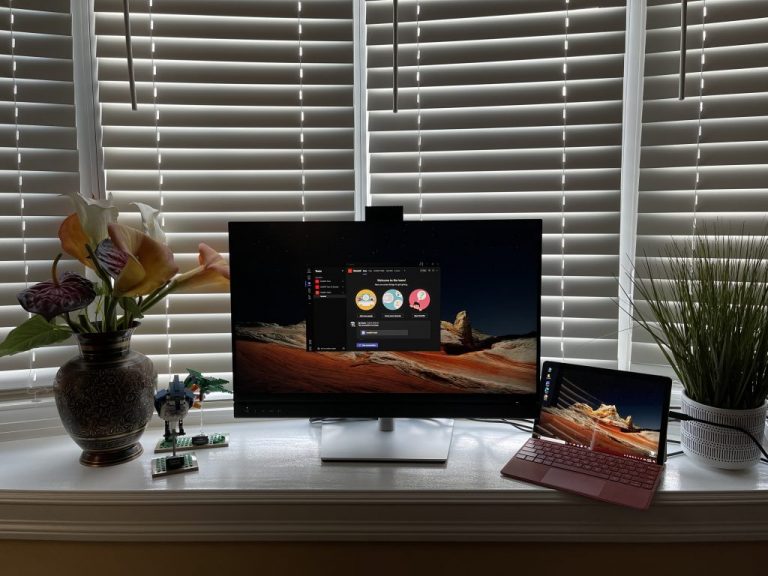
I mentioned multitasking multiple times throughout my review, but Dell does take things a bit further with this monitor. You can actually connect two PCs to the monitor and display the content at the same time with picture-by-picture support.
\n
You can also use the KVM (keyboard – video – mouse) functionality to edit content from two different PCs. Not to forget, Dell also has the Dell Easy Arrange feature, too, which can organize multiple applications into up to 38 preset templates and 5 customizable layouts with a single PC.
\n
This picture in picture support and KVM is done through Dell Display Manager and set up through a wizard. It’s quite cool to play with, especially if you own multiple PCs like me. You can plug two PCs into one, and enjoy both at the same time!
\n
Worth the money
\n
If you’re in need of a monitor for your home setup, then it’s hard to not suggest the Dell 27 Video Conferencing Monitor. The ease of use with Microsoft Teams, built-in high-quality webcam, sleek design, speakers, and noise-canceling microphones make it a monitor that you don’t want to pass on for work or school. Not to mention, USB-C compatibility and all the other software you can install on your PC to expand out the monitor’s use is great. You can buy it now via Dell for $719.
\n
\n