Skip to content
OnMSFT.com
  • Home
  • About
  • Contact
  • Windows
  • Surface
  • Xbox
  • How-To
  • OnPodcast
  • Edge
  • Teams
  • Gaming
Menu
  • Home
  • About
  • Contact
  • Windows
  • Surface
  • Xbox
  • How-To
  • OnPodcast
  • Edge
  • Teams
  • Gaming
  1. Home
  2. News
  3. Windows 10 build 10074 receives update rollup, adds bug fixes and enables Dolby Digital Plus codec

Windows 10 build 10074 receives update rollup, adds bug fixes and enables Dolby Digital Plus codec

Ron Ron
October 14, 2019
2 min read

Windows 10 build 10074 receives update rollup, adds bug fixes and enables Dolby Digital Plus codec

Microsoft has released an update rollup (KB3061161) for Windows 10 Insider Preview build 10074, fixing bugs and improving performance. On top of that, this update rollup also enables the Dolby Digital Plus codec. Here are the key improvements that come with this collection of fixes:

  • The Start menu and Cortana do not open on Windows 10 Insider Preview after upgrading from Windows 10 Technical Preview
  • Windows Error Reporting data remain in queue and are not uploaded
  • Updated versions of preinstalled apps might not install with error 0x8004264A after upgrading to Windows 10 Insider Preview
  • Qualcomm Atheros Bluetooth radio controllers might not function and indicate a Code 43 error in Device Manager
  • Automatic updates might not initiate on mobile devices if an app on the device is not in the Store catalog
  • Apps that are deployed to an SD card on mobile devices might not install or open
  • This update fixes a hang that can occur when updating battery status
  • This update enables the Dolby Digital Plus codec

This update was made available on Wednesday, April 29th, buried amidst the news of Build 2015. So if you are not seeing it, you likely have it installed thanks to auto-update. Remember, in order to apply this update, you will need to be running Windows 10 build 10074, which is the latest build available as part of the Insider Program. You will also be required to reboot after installing this update. Grab this update via Windows Update or via the Settings app.

How do you know if you already have this update rollup installed? Open the Settings app, go to Update & Security, under Windows Update select Advanced Options, then select “view your update history” and look for KB3061161. If you see it there, you have it installed.

Further reading: Microsoft, Windows 10

Share this article:
Tags:
Microsoft Windows 10
Previous Article Skype for Windows 8 leaks, check it out with this video Next Article Upcoming Windows 10 Insider build will be from RTM development branch “TH1”

Related Articles

Tencent steps in to support OpenClaw after creator complaints

March 17, 2026

Installing Web Apps in Chrome May Soon Take More Than One Click

March 17, 2026
Nvidia CEO Jensen Huang says demand for Blackwell and Rubin AI chips could reach $1 trillion as AI infrastructure spending grows rapidly.

Nvidia CEO Jensen Huang sees $1 trillion demand for Blackwell and Rubin AI chips

March 16, 2026

Leave a Comment Cancel reply

Your email address will not be published. Required fields are marked *

Recent Posts

  • Tencent steps in to support OpenClaw after creator complaints
  • Installing Web Apps in Chrome May Soon Take More Than One Click
  • Nvidia CEO Jensen Huang sees $1 trillion demand for Blackwell and Rubin AI chips
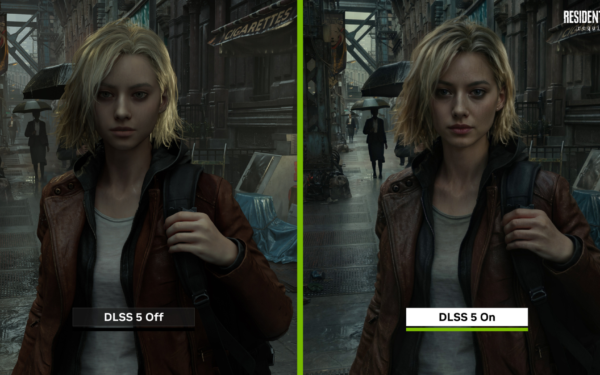
  • Nvidia introduces DLSS 5 to improve game realism with generative AI
  • Dictionary Publisher Files Copyright Lawsuit Against OpenAI

Recent Comments

No comments to show.
OnMSFT.com

The Tech News Site

Categories

  • Windows
  • Surface
  • Xbox
  • How-To
  • OnPodcast
  • Gaming
  • Edge
  • Teams

Recent Posts

  • Tencent steps in to support OpenClaw after creator complaints
  • Installing Web Apps in Chrome May Soon Take More Than One Click
  • Nvidia CEO Jensen Huang sees $1 trillion demand for Blackwell and Rubin AI chips
  • Nvidia introduces DLSS 5 to improve game realism with generative AI
  • Dictionary Publisher Files Copyright Lawsuit Against OpenAI

Quick Links

  • About OnMSFT.com
  • Contact OnMSFT
  • Join Our Team
  • Privacy Policy
© 2010–2026 OnMSFT.com LLC. All rights reserved.
About OnMSFT.comContact OnMSFTPrivacy Policy