Skip to content
OnMSFT.com
  • Home
  • About
  • Contact
  • Windows
  • Surface
  • Xbox
  • How-To
  • OnPodcast
  • Edge
  • Teams
  • Gaming
Menu
  • Home
  • About
  • Contact
  • Windows
  • Surface
  • Xbox
  • How-To
  • OnPodcast
  • Edge
  • Teams
  • Gaming
  1. Home
  2. How-to
  3. How to look up error codes in the Terminal on Windows 11

How to look up error codes in the Terminal on Windows 11

admin admin
January 26, 2023
4 min read

\n

\n

\n

In this article

\n

\n

  • What kinds of error codes?
  • Look up error codes in the Terminal
  • Windows 11 Event Viewer
  • Use the Microsoft Error Lookup Tool

\n

You can look up error codes in the Terminal on your Windows 11 PC, and there is a way to look up what the error codes mean with the NET HELPMSG command. The command was originally used to decipher network error codes on Windows, but it can sometimes be used to solve other Windows system error codes too.

\n

What kinds of error codes?

\n

Error codes can come from a variety of sources, such as system error messages, application error messages, or device driver error messages.

\n

\n

\n

\n

\n

\n

\n

\n

\n

\n

\n

\n

\n

\n

For example, when a system error occurs, Windows generates an error code that can be used to diagnose and troubleshoot the problem. These error codes are typically in the form of hexadecimal values and are listed in the event logs.

\n

Similarly, when an application or device driver encounters an error, it may generate an error code that can be used to troubleshoot the problem. These error codes are specific to the application or device driver and are typically documented in the application or device driver’s documentation.

\n

You can also find error codes by searching online for the specific error message, by searching for the error code in Microsoft documentation, or in other technical resources.

\n

Additionally, some software and application developers might provide a list of error codes specific to their product that can be found on their support website or via documentation.

\n

\n

\n

\n

\n

\n

\n

\n

\n

\n

\n

\n

\n

\n

Look up error codes in the Terminal

\n

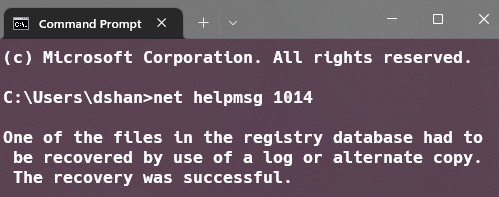
You can look up error codes in the Terminal if you use the NET HELPMSG command. To look up error codes in the Terminal on Windows 11, follow these steps:

\n

    \n

  1. Open the Terminal on Windows 11. You can do this by pressing the Windows key + R, typing wt in the Run box, and pressing Enter.
  2. \n

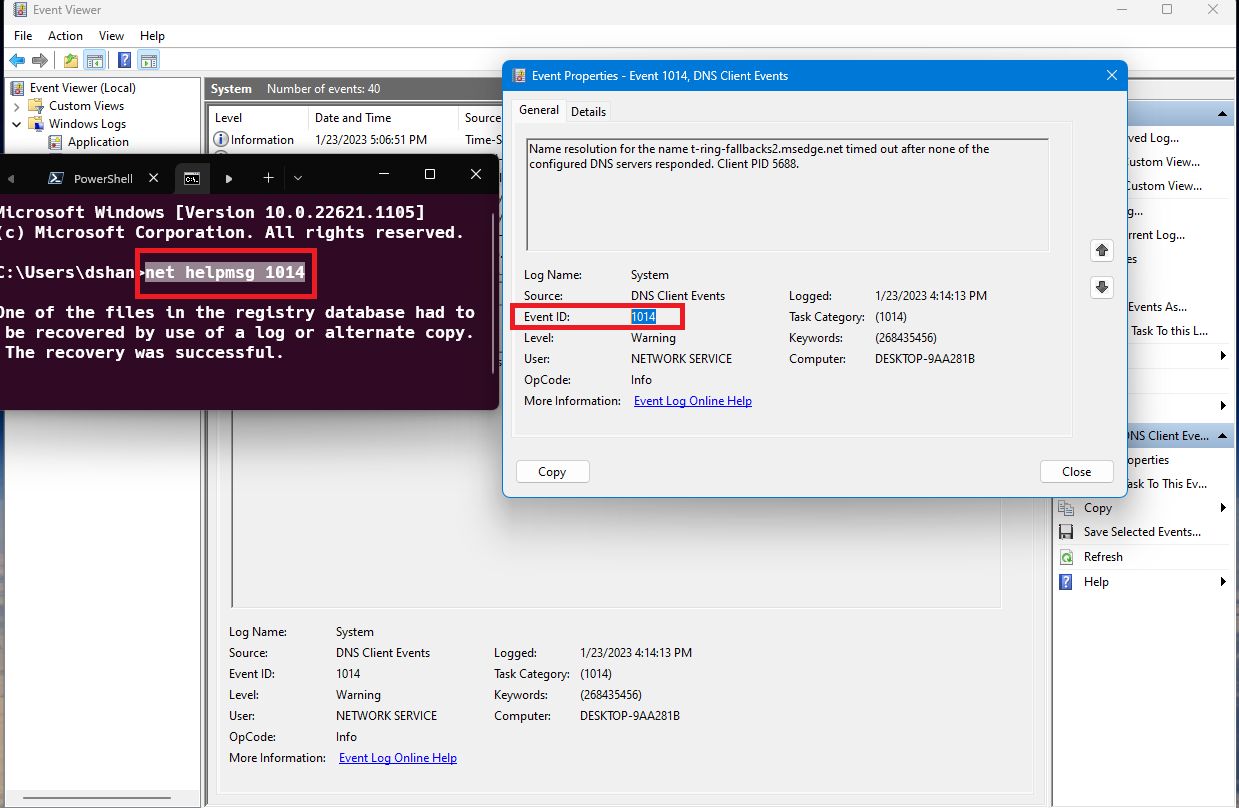
  3. In the Terminal, type the following command: NET HELPMSG {error_code}. Replace {error_code} with the Event ID  error code you are experiencing. error codes in the terminal
  4. \n

  5. Press Enter to run the command.
  6. \n

  7. The Terminal will display a brief description of the error codes, along with any troubleshooting steps or solutions.
  8. \n

  9. If you want to look up another error code, repeat steps 2-4, replacing the error code with a new one.
  10. \n

\n

Please note: Make sure you have the appropriate permissions to run the command. If the error code is not a system error code, you may not find a description of it.

\n

Windows 11 Event Viewer

\n

It’s worth noting that the Windows 11 Event Viewer is a powerful tool for monitoring and troubleshooting your system. It can help you identify and resolve problems with your operating system, applications, and devices. The Event Viewer tracks events at three levels:

\n

    \n

  1. Error: An error event is generated when a significant problem occurs that prevents a component or application from functioning correctly. These events usually indicate that there is a problem with the system or application and that action needs to be taken to resolve the issue.
  2. \n

  3. Warning: A warning event is generated when a potential problem is detected, but the system or application is still able to function correctly. These events indicate that an issue may arise in the future and that it should be monitored or addressed to prevent it from becoming a problem.
  4. \n

  5. Information: An information event is generated when a component or application performs a normal function or operation. These events provide information about the normal functioning of the system or application and are typically used for troubleshooting and monitoring purposes.
  6. \n

\n

To access the Event Viewer, simply search for “Event Viewer” by clicking the Start menu icon on your taskbar.

\n

\n

\n

\n

\n

\n

\n

\n

\n

\n

\n

\n

\n

\n

    \n

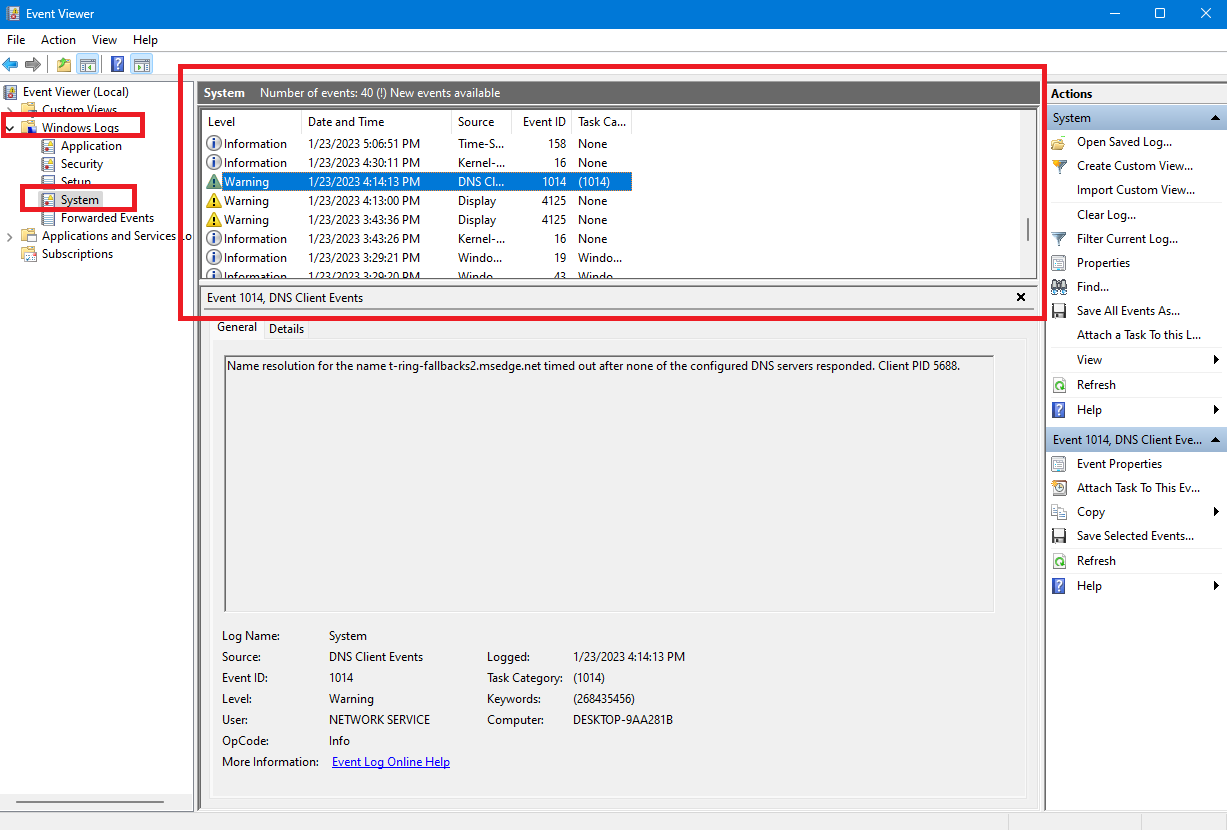
  1. The Event Viewer window will open, displaying a list of event logs on the left side panel.
  2. \n

  3. To view specific events, click on the log you are interested in. For example, to view system events, click on the Windows Logs folder and then click on System on the left-hand side.error codes in the terminal
  4. \n

  5. The events will be displayed in the center of the window. You can sort the events by date and time, severity, source, and other criteria by clicking on the column headers.
  6. \n

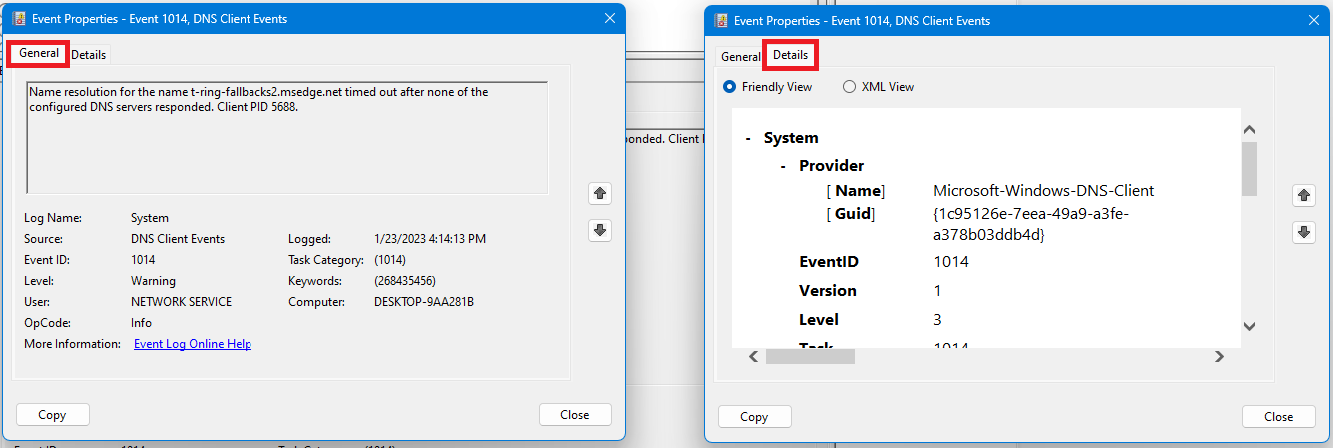
  7. To view more details about an event, double-click on the event. This will open a new window with detailed information about the event called “Event Properties.” You can switch between the two tabs (General and Details to see additional information. error codes in the terminal
  8. \n

\n

Event IDs can be used as error codes in the Terminal to look up, but they are specific to the Windows operating system and may not be recognized by other systems or terminals.

\n
error codes in the terminal

\n

Use the Microsoft Error Lookup Tool

\n

Another program that you can use to look up error codes in the Terminal is the Microsoft Error Lookup Tool (click to download), you just need to follow these steps:

\n

    \n

  1. Open up a new Terminal window and navigate to the loation where you downloaded the Error Lookup Tool.
  2. \n

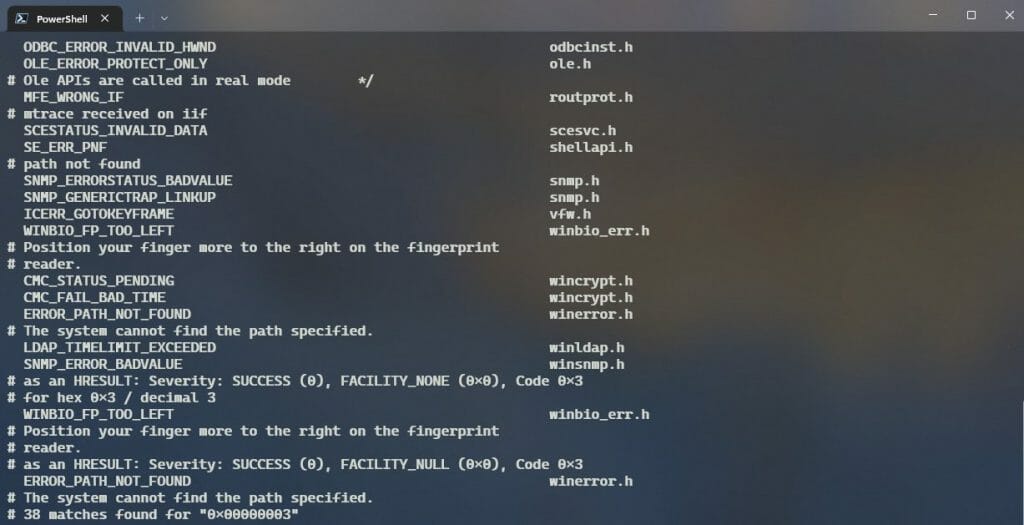
  3. To use the tool, type the following command and press Enter: C:\\ErrorTool\\Err_6.4.5.exe 0x00000003.
  4. \n

  5. After you press Enter, the tool will search and display the number of results of what may be causing the error code on your machine. error codes in the terminal
  6. \n

\n

Keep in mind that these error codes and messages may not provide a complete solution to the problem you’re experiencing. It’s always recommended to refer to the manufacturer’s website or contact their support for more information.

\n\n

Share this article:
Previous Article Microsoft’s working on its most significant update to File Explorer yet Next Article Latest Edge Dev build adds new features for Android users

Related Articles

43 Microsoft Edge keyboard shortcuts to remember for stylish and speedy web surfing

October 31, 2023

How to use accessibility features in Microsoft 365 like Narrator, Read aloud and Voice Search easily

October 30, 2023

How to use Windows Backup on Windows 11 for efficient data protection

October 26, 2023

Leave a Comment Cancel reply

Your email address will not be published. Required fields are marked *

Recent Posts

  • PowerToys 0.75 released; Environment Variables editor is here
  • Former Halo developer Bungie announces layoffs in wake of game delays
  • Siemens and Microsoft partner to bring GenAI to industries worldwide
  • 43 Microsoft Edge keyboard shortcuts to remember for stylish and speedy web surfing
  • Here is what’s coming to (and leaving) Xbox Game Pass soon

Recent Comments

No comments to show.

Archives

  • October 2023
  • September 2023
  • August 2023
  • July 2023
  • June 2023
  • May 2023
  • April 2023
  • March 2023
  • February 2023
  • January 2023
  • December 2022
  • November 2022
  • October 2022
  • September 2022
  • August 2022
  • July 2022
  • June 2022
  • May 2022
  • April 2022
  • March 2022
  • February 2022
  • January 2022
  • December 2021
  • November 2021
  • October 2021
  • September 2021
  • August 2021
  • July 2021
  • June 2021
  • May 2021
  • April 2021
  • March 2021
  • February 2021
  • January 2021
  • December 2020
  • November 2020
  • October 2020
  • September 2020
  • August 2020
  • July 2020
  • June 2020
  • May 2020
  • April 2020
  • March 2020
  • February 2020
  • January 2020
  • December 2019
  • November 2019
  • October 2019
  • September 2019
  • August 2019
  • July 2019
  • June 2019
  • May 2019
  • April 2019
  • March 2019
  • February 2019
  • January 2019
  • December 2018
  • November 2018
  • October 2018
  • September 2018
  • August 2018
  • July 2018
  • June 2018
  • May 2018
  • April 2018
  • March 2018
  • February 2018
  • January 2018
  • December 2017
  • November 2017
  • October 2017
  • September 2017
  • August 2017
  • July 2017
  • June 2017
  • May 2017
  • April 2017
  • March 2017
  • February 2017
  • January 2017
  • December 2016
  • November 2016
  • October 2016
  • September 2016
  • August 2016
  • July 2016
  • June 2016
  • May 2016
  • April 2016
  • March 2016
  • February 2016
  • January 2016
  • December 2015
  • November 2015
  • October 2015
  • September 2015
  • August 2015
  • July 2015
  • June 2015
  • May 2015
  • April 2015
  • March 2015
  • February 2015
  • January 2015
  • December 2014
  • November 2014
  • October 2014
  • September 2014
  • August 2014
  • July 2014
  • June 2014
  • May 2014
  • April 2014
  • March 2014
  • February 2014
  • January 2014
  • December 2013
  • November 2013
  • October 2013
  • September 2013
  • August 2013
  • July 2013
  • June 2013
  • May 2013
  • April 2013
  • March 2013
  • February 2013
  • January 2013
  • December 2012
  • November 2012
  • October 2012
  • September 2012
  • August 2012
  • July 2012
  • June 2012
  • May 2012
  • April 2012
  • March 2012
  • February 2012
  • January 2012
  • December 2011
  • November 2011
  • October 2011
  • September 2011
  • August 2011
  • July 2011
  • June 2011
  • May 2011
  • April 2011
  • March 2011
  • February 2011
  • January 2011
  • December 2010
  • November 2010
  • October 2010
  • September 2010

Categories

  • Announcements
  • Deals
  • Developer
  • Editorial
  • Feature
  • Feature stories
  • Hero-post
  • Hotdeals
  • How-to
  • Latest news
  • Microsoft / office 365
  • News
  • Office 365
  • Onpodcast
  • Opinion
  • Our featured post
  • Polls
  • Review
  • Reviews
  • Videos
OnMSFT.com

OnMSFT.com covers Microsoft news, reviews, and how-to guides. Formerly known as WinBeta, we have been your source for Microsoft news since 1998.

Categories

  • Windows
  • Surface
  • Xbox
  • How-To
  • OnPodcast
  • Gaming
  • Edge
  • Teams

Recent Posts

  • PowerToys 0.75 released; Environment Variables editor is here
  • Former Halo developer Bungie announces layoffs in wake of game delays
  • Siemens and Microsoft partner to bring GenAI to industries worldwide
  • 43 Microsoft Edge keyboard shortcuts to remember for stylish and speedy web surfing
  • Here is what’s coming to (and leaving) Xbox Game Pass soon

Quick Links

  • About OnMSFT.com
  • Contact OnMSFT
  • Join Our Team
© 2010–2026 OnMSFT.com LLC. All rights reserved.
About OnMSFT.comContact OnMSFT