Skip to content
OnMSFT.com
  • Home
  • About
  • Contact
  • Windows
  • Surface
  • Xbox
  • How-To
  • OnPodcast
  • Edge
  • Teams
  • Gaming
Menu
  • Home
  • About
  • Contact
  • Windows
  • Surface
  • Xbox
  • How-To
  • OnPodcast
  • Edge
  • Teams
  • Gaming
  1. Home
  2. How-to
  3. How to enable tabs on File Explorer

How to enable tabs on File Explorer

admin admin
February 13, 2023
3 min read

\n

\n

\n

In this article

\n

\n

  • How to enable tabs on File Explorer
  • Enable File Explorer tabs on your Windows 10
  • Enabling the File Explorer tab on Windows PC

\n

If you make use of an abnormal number of tabs on your browser (which you definitely shouldn’t), then you’d realize how handy tabs can be. If you’re a Windows user, you might be surprised the same feature is now available in your File explorer as well—at least for Windows 11.

\n

Introduced back in a Windows 11 build, the File Explorer tabs will help you quickly switch between your tasks with a few clicks of your cursor.

\n

\n

\n

\n

\n

\n

\n

\n

\n

\n

\n

\n

\n

\n

How to enable tabs on File Explorer

\n

File Explorer is one of the most useful GUIs on a Windows computer. It makes things easy to navigate and helps you easily manage your files and folders. And if you’re a Windows 11 user, then you are in luck, as back in 2022 Microsoft came out with a new update for File Explorer tabs—in Windows 11 Insider build 25136.

\n

With the launch of the new release, you can open multiple tabs in a single File Explorer window on your PC. If you have kept your PC updated, then the new tab feature should be enabled by default. But if you haven’t, then follow the steps below:

\n

    \n

  1. Head to the Settings menu on your Windows.
  2. \n

  3. Click on Windows Update.
  4. \n

  5. Now select the Check for updates button to download the feature drop  that enables File Explorer tabs.
  6. \n

  7. Click on Restart now button.
  8. \n

\n

windows explorer

\n

Now, wait for the download to finish. Once the installation is complete, multiple tabs will be enabled on File Explorer from here on.

\n

We also have a simple, no-filler video that takes you through a step-by-step explanation of using your File explorer tabs on Windows 11; don’t hesitate to take a quick look if anything looks confusing about tabs!

\n

\n

\n

\n

\n

\n

\n

\n

\n

\n

\n

\n

\n

\n

Enable File Explorer tabs on your Windows 10

\n

While there’s no in-built method to enable File Explorer tabs on Windows 10, alternate methods exist. One of the popular methods to enable File Explorer on your Windows 10 is XYplorer.

\n
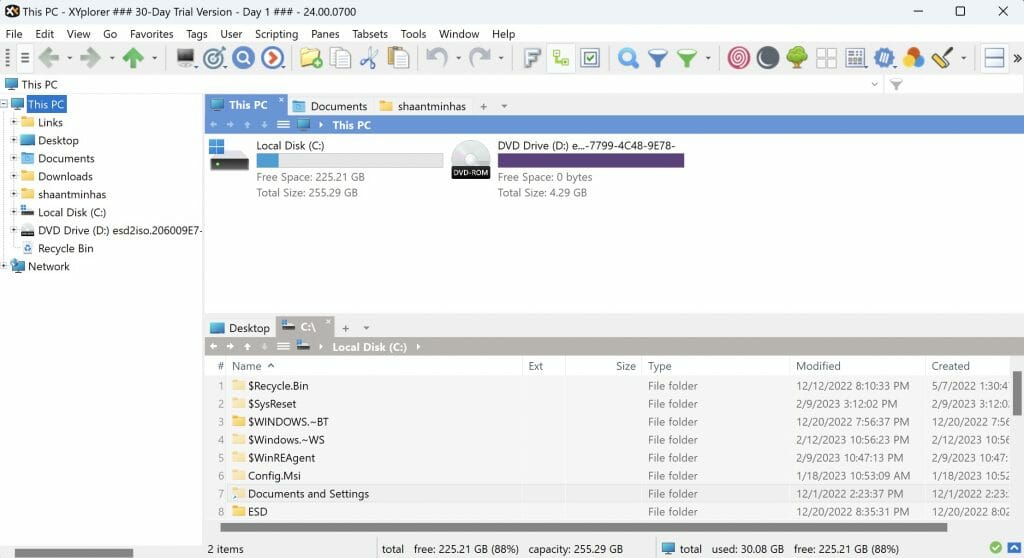
xyplayer

\n

XYplorer is an old player which has been in the market of Windows file managers for a while. Apart from File Explorer tabs, it offers a pack of other handy features like a preview option, tabbed browsing, a powerful file search, a super customizable interface, etc.

\n

XYplorer is available for a 30-day free trial, and you can purchase the complete app for $39.95. You can download the XYplorer from the official website, install it, and enable the tabs feature on our Widows 10 File Explorer as well.

\n

Enabling the File Explorer tab on Windows PC

\n

For most of us, using multiple tabs on our PC is an inevitable part of being a Windows user. While we enjoy the feature from our browsers, Windows File Explorer didn’t use to offer any such feature by default. However, starting with Windows 11 Build 25136, Microsoft has changed that forever. While it’s still not possible to have the tabs feature on Windows 10 through the official Windows way, you can use third-party apps like XYplorer that will give you a similar experience.

\n\n

Share this article:
Previous Article Microsoft’s reportedly showing a “System requirements not met” watermark in Windows 11 22H2 Next Article How to enable or disable indexing on Windows PC

Related Articles

43 Microsoft Edge keyboard shortcuts to remember for stylish and speedy web surfing

October 31, 2023

How to use accessibility features in Microsoft 365 like Narrator, Read aloud and Voice Search easily

October 30, 2023

How to use Windows Backup on Windows 11 for efficient data protection

October 26, 2023

Leave a Comment Cancel reply

Your email address will not be published. Required fields are marked *

Recent Posts

  • PowerToys 0.75 released; Environment Variables editor is here
  • Former Halo developer Bungie announces layoffs in wake of game delays
  • Siemens and Microsoft partner to bring GenAI to industries worldwide
  • 43 Microsoft Edge keyboard shortcuts to remember for stylish and speedy web surfing
  • Here is what’s coming to (and leaving) Xbox Game Pass soon

Recent Comments

No comments to show.

Archives

  • October 2023
  • September 2023
  • August 2023
  • July 2023
  • June 2023
  • May 2023
  • April 2023
  • March 2023
  • February 2023
  • January 2023
  • December 2022
  • November 2022
  • October 2022
  • September 2022
  • August 2022
  • July 2022
  • June 2022
  • May 2022
  • April 2022
  • March 2022
  • February 2022
  • January 2022
  • December 2021
  • November 2021
  • October 2021
  • September 2021
  • August 2021
  • July 2021
  • June 2021
  • May 2021
  • April 2021
  • March 2021
  • February 2021
  • January 2021
  • December 2020
  • November 2020
  • October 2020
  • September 2020
  • August 2020
  • July 2020
  • June 2020
  • May 2020
  • April 2020
  • March 2020
  • February 2020
  • January 2020
  • December 2019
  • November 2019
  • October 2019
  • September 2019
  • August 2019
  • July 2019
  • June 2019
  • May 2019
  • April 2019
  • March 2019
  • February 2019
  • January 2019
  • December 2018
  • November 2018
  • October 2018
  • September 2018
  • August 2018
  • July 2018
  • June 2018
  • May 2018
  • April 2018
  • March 2018
  • February 2018
  • January 2018
  • December 2017
  • November 2017
  • October 2017
  • September 2017
  • August 2017
  • July 2017
  • June 2017
  • May 2017
  • April 2017
  • March 2017
  • February 2017
  • January 2017
  • December 2016
  • November 2016
  • October 2016
  • September 2016
  • August 2016
  • July 2016
  • June 2016
  • May 2016
  • April 2016
  • March 2016
  • February 2016
  • January 2016
  • December 2015
  • November 2015
  • October 2015
  • September 2015
  • August 2015
  • July 2015
  • June 2015
  • May 2015
  • April 2015
  • March 2015
  • February 2015
  • January 2015
  • December 2014
  • November 2014
  • October 2014
  • September 2014
  • August 2014
  • July 2014
  • June 2014
  • May 2014
  • April 2014
  • March 2014
  • February 2014
  • January 2014
  • December 2013
  • November 2013
  • October 2013
  • September 2013
  • August 2013
  • July 2013
  • June 2013
  • May 2013
  • April 2013
  • March 2013
  • February 2013
  • January 2013
  • December 2012
  • November 2012
  • October 2012
  • September 2012
  • August 2012
  • July 2012
  • June 2012
  • May 2012
  • April 2012
  • March 2012
  • February 2012
  • January 2012
  • December 2011
  • November 2011
  • October 2011
  • September 2011
  • August 2011
  • July 2011
  • June 2011
  • May 2011
  • April 2011
  • March 2011
  • February 2011
  • January 2011
  • December 2010
  • November 2010
  • October 2010
  • September 2010

Categories

  • Announcements
  • Deals
  • Developer
  • Editorial
  • Feature
  • Feature stories
  • Hero-post
  • Hotdeals
  • How-to
  • Latest news
  • Microsoft / office 365
  • News
  • Office 365
  • Onpodcast
  • Opinion
  • Our featured post
  • Polls
  • Review
  • Reviews
  • Videos
OnMSFT.com

OnMSFT.com covers Microsoft news, reviews, and how-to guides. Formerly known as WinBeta, we have been your source for Microsoft news since 1998.

Categories

  • Windows
  • Surface
  • Xbox
  • How-To
  • OnPodcast
  • Gaming
  • Edge
  • Teams

Recent Posts

  • PowerToys 0.75 released; Environment Variables editor is here
  • Former Halo developer Bungie announces layoffs in wake of game delays
  • Siemens and Microsoft partner to bring GenAI to industries worldwide
  • 43 Microsoft Edge keyboard shortcuts to remember for stylish and speedy web surfing
  • Here is what’s coming to (and leaving) Xbox Game Pass soon

Quick Links

  • About OnMSFT.com
  • Contact OnMSFT
  • Join Our Team
© 2010–2026 OnMSFT.com LLC. All rights reserved.
About OnMSFT.comContact OnMSFT