Skip to content
OnMSFT.com
  • Home
  • About
  • Contact
  • Windows
  • Surface
  • Xbox
  • How-To
  • OnPodcast
  • Edge
  • Teams
  • Gaming
Menu
  • Home
  • About
  • Contact
  • Windows
  • Surface
  • Xbox
  • How-To
  • OnPodcast
  • Edge
  • Teams
  • Gaming
  1. Home
  2. Phone Link vs Intel Unison – Which is Better for YOU

Phone Link vs Intel Unison – Which is Better for YOU

admin admin
May 22, 2023
5 min read

\n

\n

\n

In this article

\n

\n

  • Phone Link vs Intel Unison – Compared
    • Windows Support
    • Getting Started
    • Pairing
    • Calling via Windows
    • Universal Clipboard
    • Files Transfer
    • Photo Gallery Access
    • Use Mobile Apps on PC
    • Staying Connected with Windows

\n

\n

\n

\n

If you are a Windows 10 or 11 user, you have the exciting option of connecting your mobile phone to your computer using the Phone Link app. In the past, there were alternative options available, such as Dell Mobile Connect, which allowed seamless access to your phone’s content on your PC. However, Dell Mobile Connect is no longer actively developed, making Phone Link the default choice for users seeking this functionality.

\n

\n

\n

\n

But wait, there’s another contender in town – the Intel Unison app for Windows. You might be wondering why do we need yet another app when Phone Link is already available. Let us take a closer looker and see how they stack against each other.

\n

Phone Link vs Intel Unison – Compared

\n

We take a closer look at their connectivity with an Android device. By the end, you will have a clear understanding of which one is the better fit for your needs. So, let’s get started and explore the world of phone-to-computer connectivity.

\n

\n

\n

\n

Windows Support

\n

\n

\n

Phone Link is available on both Windows 10 and 11. On the other hand, Intel Unison is catering to Windows 11 alone, so if you are on the earlier version, then Phone Link is the way to go.

\n

\n

\n

Getting Started

\n

Microsoft’s Phone Link is available for Android and iPhone, while you can download its Windows version from the Microsoft store. And to use it on an iOS device, you will need Windows 11 running on your computer.

\n\n

\n

Phone Link

\n

\nPhone Link\n

\n

\n

\nDownload\nQR-Code\n

\n

\n

\n

Phone Link

\n

\nDeveloper: \nMicrosoft Corporation\n

\n

\nPrice: \nFree\n

\n

\n

\n

\n

Similarly, you can find can get Intel Unison for Android and iPhone from their respective app stores. The Windows app is available on the Microsoft store. You can only install it on Windows 11 ( version 22621.0 or higher).

\n\n

\n

Intel® Unison™

\n

\nIntel® Unison™\n

\n

\n

\nDownload\nQR-Code\n

\n

\n

\n

Intel® Unison™

\n

\nDeveloper: \nINTEL CORP\n

\n

\nPrice: \nFree\n

\n

\n

\n

\n

Pairing

\n

\n

\n

\n

\n

\n

\n

Both of these apps have a similar pairing approach, but Intel Unison is the more user-friendly option. Setting up Intel Unison is incredibly simple – you just need to download the app on both your computer and mobile phone, then effortlessly pair the two devices by scanning a QR code. We didn’t encounter any errors during this process.

\n

In contrast, the Phone Link app adds an extra security layer to the setup process. You are required to log in using a Microsoft account on either device before proceeding with the pairing step.

\n

Calling via Windows

\n

\n

\n

\n

When it comes to accessing calls and notifications, the experience is quite comparable. Once you have granted the necessary permissions, you have the option to respond to notifications either through the app itself or using the Windows popup. Phone Link lets you to pin notifications while the remaining customization features remain unchanged.

\n

pinned notification in Phone link

\n

Both apps enable calling contacts through Bluetooth connectivity using your computer’s inbuilt mic and spear or plugged-in earphones/headphones.

\n

Calling in Phone link and Unison

\n

\n

\n

\n

\n

\n

\n

\n

\n

\n

Universal Clipboard

\n

When you are in the Apple ecosystem, the universal clipboard makes it incredibly easy to copy across devices. Phone Link has brought it to Duo, select Samsung and Honor devices. You can seamlessly transfer text and images between a supported Android device and Windows PC.

\n

cross device copy feature

\n

The same is not possible for Intel Unison, contrary to what made the headlines when it was first launched. There are no settings for it, as we checked thoroughly by installing it on three computers with Windows 11.

\n

Files Transfer

\n

This is where Phone Link adds extra steps to make it work while keeping it exclusive to select Samsung and Honor devices. First, you have to turn on the phone mirroring to see it on the Phone Link app on Windows. And do remember that this permission is not a one time as you have to request it and approve it on the phone for every session. Then it only covers photos from Gallery and files from the My Files app.

\n
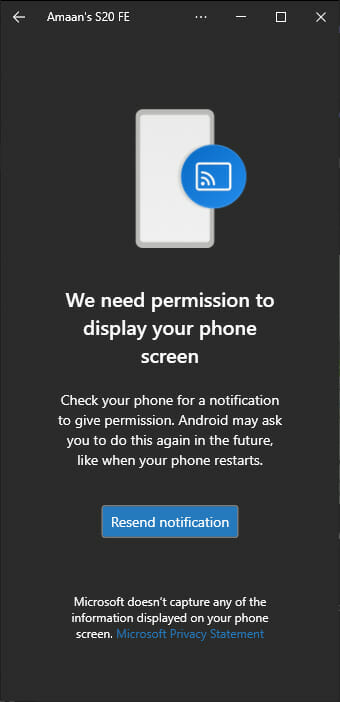
phone link mirroring for file transfer

\n


\n

Intel Unison really shines here, as you can simply transfer files between Android and PC. Use the Unison app on Windows to send and receive ones through a simple drag and drop. Their mobile app can do the same with an identical interface to keep things simple.

\n
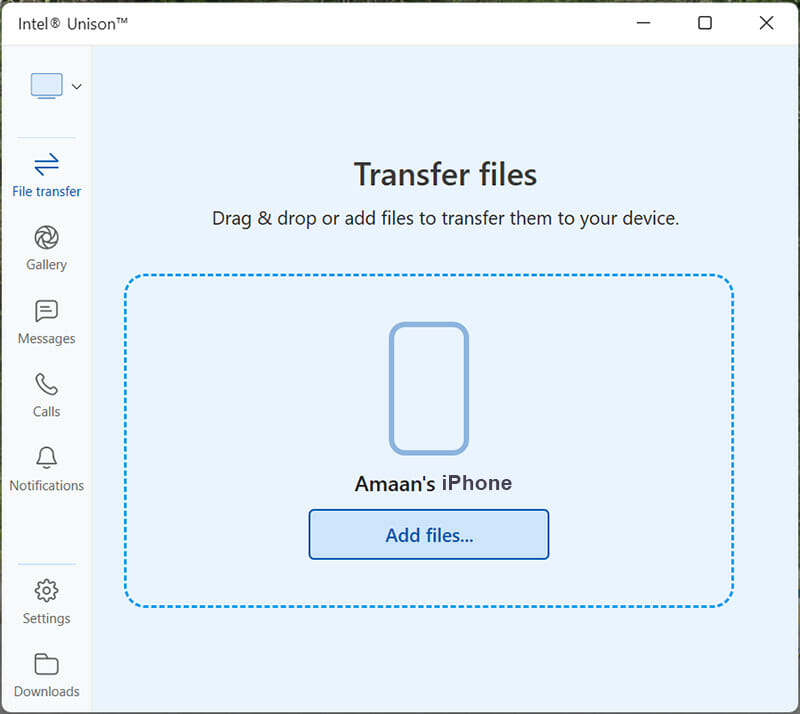
connect iphone to Windows 11

\n

Photo Gallery Access

\n

Your phone is connected to the laptop or PC and all the photos are available on Phone Link and Intel Unison in the gallery tab. When you disconnect the Bluetooth, then Phone Link will stop right there while Unison continues to work.

\n
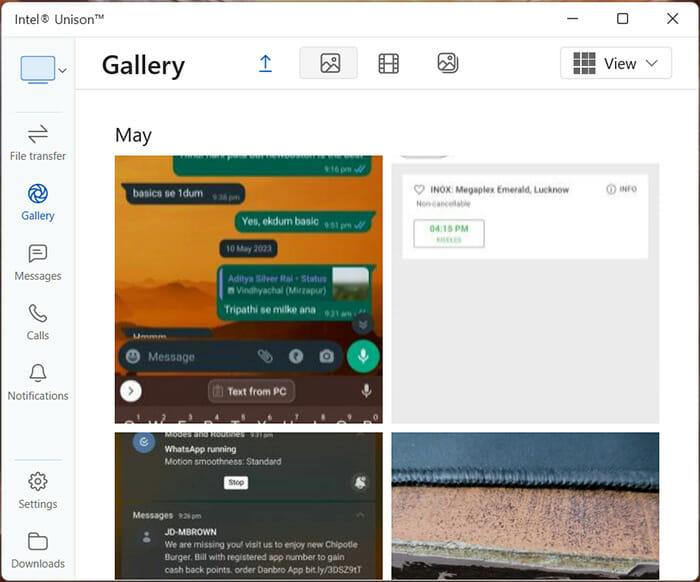
Intel Unison Gallery

\n

What it means is that you can click photos from your phone and they will instantly appear on the Intel Unison app on the Windows PC. On the other hand, Phone Link will need you to reconnect Bluetooth to update the gallery with the new photos.

\n

Phone Link also limits showing photos from the Android phone to the recent 2,000 items. So if you are going to dive deep into the gallery, then you might hit a wall. We could not find any similar media limit for Intel Unison.

\n

Use Mobile Apps on PC

\n

You can bid goodbye to Android emulators if you want to use apps on the PC. Again this is dependent upon the fact that you are using one of the supported Samsung or Honor devices.

Use the mirroring option and then use can the mobile apps on your Phone Link app on Windows. The frame rates are anywhere between 20 to 30 and inconsistent because it doesn’t feel very smooth on my monitor.

Phone Link App on PC

\n

Intel Unison currently does not offer this feature, so you can use Phone Link if using Android apps is important to you.

\n

Staying Connected with Windows

\n

Phone Link offers a feature-rich connectivity experience with Windows. That is only possible when you have a select Android device, so it is subjective. On the other hand, if you want to seamlessly transfer files between the phone and the Windows PC then Intel Unison is your best bet.

\n

\n

Check out more from OnMSFT.com!

\n

\n

Share this article:
Previous Article Microsoft news recap: China approves Activision Blizzard acquisition, iMessage can be accessed on Windows 11, and more Next Article Here’s how to edit images directly within Microsoft Edge

Related Articles

PowerToys 0.75 released; Environment Variables editor is here

October 31, 2023

Former Halo developer Bungie announces layoffs in wake of game delays

October 31, 2023

Siemens and Microsoft partner to bring GenAI to industries worldwide

October 31, 2023

Leave a Comment Cancel reply

Your email address will not be published. Required fields are marked *

Recent Posts

  • PowerToys 0.75 released; Environment Variables editor is here
  • Former Halo developer Bungie announces layoffs in wake of game delays
  • Siemens and Microsoft partner to bring GenAI to industries worldwide
  • 43 Microsoft Edge keyboard shortcuts to remember for stylish and speedy web surfing
  • Here is what’s coming to (and leaving) Xbox Game Pass soon

Recent Comments

No comments to show.

Archives

  • October 2023
  • September 2023
  • August 2023
  • July 2023
  • June 2023
  • May 2023
  • April 2023
  • March 2023
  • February 2023
  • January 2023
  • December 2022
  • November 2022
  • October 2022
  • September 2022
  • August 2022
  • July 2022
  • June 2022
  • May 2022
  • April 2022
  • March 2022
  • February 2022
  • January 2022
  • December 2021
  • November 2021
  • October 2021
  • September 2021
  • August 2021
  • July 2021
  • June 2021
  • May 2021
  • April 2021
  • March 2021
  • February 2021
  • January 2021
  • December 2020
  • November 2020
  • October 2020
  • September 2020
  • August 2020
  • July 2020
  • June 2020
  • May 2020
  • April 2020
  • March 2020
  • February 2020
  • January 2020
  • December 2019
  • November 2019
  • October 2019
  • September 2019
  • August 2019
  • July 2019
  • June 2019
  • May 2019
  • April 2019
  • March 2019
  • February 2019
  • January 2019
  • December 2018
  • November 2018
  • October 2018
  • September 2018
  • August 2018
  • July 2018
  • June 2018
  • May 2018
  • April 2018
  • March 2018
  • February 2018
  • January 2018
  • December 2017
  • November 2017
  • October 2017
  • September 2017
  • August 2017
  • July 2017
  • June 2017
  • May 2017
  • April 2017
  • March 2017
  • February 2017
  • January 2017
  • December 2016
  • November 2016
  • October 2016
  • September 2016
  • August 2016
  • July 2016
  • June 2016
  • May 2016
  • April 2016
  • March 2016
  • February 2016
  • January 2016
  • December 2015
  • November 2015
  • October 2015
  • September 2015
  • August 2015
  • July 2015
  • June 2015
  • May 2015
  • April 2015
  • March 2015
  • February 2015
  • January 2015
  • December 2014
  • November 2014
  • October 2014
  • September 2014
  • August 2014
  • July 2014
  • June 2014
  • May 2014
  • April 2014
  • March 2014
  • February 2014
  • January 2014
  • December 2013
  • November 2013
  • October 2013
  • September 2013
  • August 2013
  • July 2013
  • June 2013
  • May 2013
  • April 2013
  • March 2013
  • February 2013
  • January 2013
  • December 2012
  • November 2012
  • October 2012
  • September 2012
  • August 2012
  • July 2012
  • June 2012
  • May 2012
  • April 2012
  • March 2012
  • February 2012
  • January 2012
  • December 2011
  • November 2011
  • October 2011
  • September 2011
  • August 2011
  • July 2011
  • June 2011
  • May 2011
  • April 2011
  • March 2011
  • February 2011
  • January 2011
  • December 2010
  • November 2010
  • October 2010
  • September 2010

Categories

  • Announcements
  • Deals
  • Developer
  • Editorial
  • Feature
  • Feature stories
  • Hero-post
  • Hotdeals
  • How-to
  • Latest news
  • Microsoft / office 365
  • News
  • Office 365
  • Onpodcast
  • Opinion
  • Our featured post
  • Polls
  • Review
  • Reviews
  • Videos
OnMSFT.com

OnMSFT.com covers Microsoft news, reviews, and how-to guides. Formerly known as WinBeta, we have been your source for Microsoft news since 1998.

Categories

  • Windows
  • Surface
  • Xbox
  • How-To
  • OnPodcast
  • Gaming
  • Edge
  • Teams

Recent Posts

  • PowerToys 0.75 released; Environment Variables editor is here
  • Former Halo developer Bungie announces layoffs in wake of game delays
  • Siemens and Microsoft partner to bring GenAI to industries worldwide
  • 43 Microsoft Edge keyboard shortcuts to remember for stylish and speedy web surfing
  • Here is what’s coming to (and leaving) Xbox Game Pass soon

Quick Links

  • About OnMSFT.com
  • Contact OnMSFT
  • Join Our Team
© 2010–2026 OnMSFT.com LLC. All rights reserved.
About OnMSFT.comContact OnMSFT