Skip to content
OnMSFT.com
  • Home
  • About
  • Contact
  • Windows
  • Surface
  • Xbox
  • How-To
  • OnPodcast
  • Edge
  • Teams
  • Gaming
Menu
  • Home
  • About
  • Contact
  • Windows
  • Surface
  • Xbox
  • How-To
  • OnPodcast
  • Edge
  • Teams
  • Gaming
  1. Home
  2. Getting started with the new Teams – setup and some quirks

Getting started with the new Teams – setup and some quirks

admin admin
March 27, 2023
4 min read

\n

\n

\n

In this article

\n

\n

  • Enabling Teams from the Admin Center
  • New Chat behavior – which way to scroll?
  • Pop out a thread, or immerse yourself
  • Lots more for Calls and Meetings

\n

Microsoft released a public preview of the new Teams for desktop today, and as advertised, it’s much faster than the old, admittedly slow and somewhat clunky Teams. We’ve been kicking the tires on the new experience, and have noticed some differences, some of them quite a departure from the old Teams. Let’s take a look:

\n

Enabling Teams from the Admin Center

\n

Here at OnMSFT.com, we’ve been using Teams and Microsoft 365 for two years at least, running on a set of Microsoft 365 Business Basic plans. With this plan we get access to Teams, Planner, Loop, Exchange, SharePoint and OneDrive, but with web access only to Office. We also have full control of Admin settings for security and compliance, Azure Active Directory (AAD), Exchange, and Teams, as well as user, roles, groups, and billing settings.

\n

\n

\n

\n

\n

\n

\n

\n

\n

\n

\n

\n

\n

\n

So the first thing we had to do to enable the new Teams was to do a bit of setup on the back end. If you’re already in the Teams Public Preview program, you should be all set and see some prompts to try the new Teams. If not, your Teams Administrator (in our case, me) will have to make some changes by going to the Teams Admin Center>Teams>Teams Update Policies and either add a new policy or as we did, just amend the Global (Org-wide default) policy. Open the policy, and Enable “Allow public preview” and make sure that Use new Teams client is set to “Users can choose.”

\n
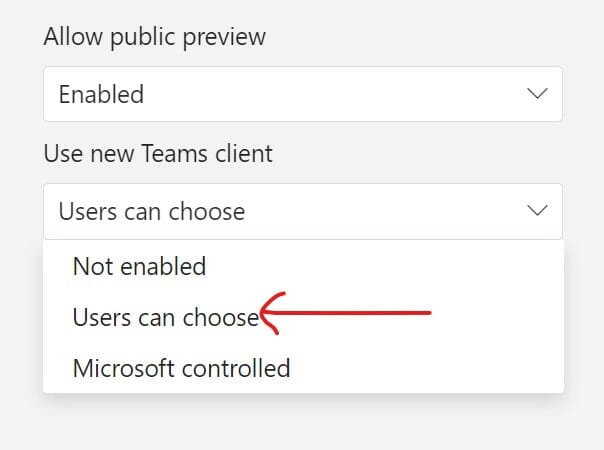
Getting started with the new Teams – setup and some quirks - OnMSFT.com - March 27, 2023

\n

Apply the policies, and your users should get a notification that they can try out the new Teams. Once the preview is downloaded, we’ve found that it’s easier to just open the new experience by clicking on the new Teams Preview shortcut (if you don’t have Teams set to launch at startup).

\n

Now, there are a lot of changes to Teams affecting Meetings and Calls, two important aspects of Teams that we rarely use here at OnMSFT.com. We use Teams almost exclusively as a chat client, and having used it for a couple of years we’ve developed some muscle memory.

\n

New Chat behavior – which way to scroll?

\n

So much so that one big (for us) change that didn’t get much play in the blog posts is that in the main chat window, posts are now organized with the most recent posts at the top. With the old slow Teams, it wasn’t uncommon to have to scroll a bit to get to the latest messages, and it took a while to realize that I was scrolling further and further back into history instead of getting to the latest messages. This isn’t necessarily a bad move, but it’s going to take some getting used to, especially as private chats are still ordered by newest at the bottom.

\n

\n

\n

\n

\n

\n

\n

\n

\n

\n

\n

\n

\n

\n

Pop out a thread, or immerse yourself

\n

Back in 2020, Microsoft introduced the ability to “pop out” a chat, that is, open a private chat in a floating window, making it easier to carry on multiple chats along with keeping up with general chat threads. With the new Teams Preview, Microsoft is expanding this ability to include threads in a general chat.

\n

Individual chats can be broken out from the main chat a couple of ways. First, by clicking on the three ellipses (…) at the top right of each thread in a main chat and selecting “Pop out conversation,” which opens the thread in a pop out window much like private chats.

\n

But you can also open an “immersive” conversation, which singles out a thread in the main chat window, focusing solely on that thread. So far, the way we’ve found to open this experience is to click on the Activity tab (the bell) in the left hand column and choose a segment of a thread. This will open the thread in this new immersive mode. You can then close the immersive mode by clicking on “Go To Channel” at the top (or pop out the thread as before into its own window):

\n

Getting started with the new Teams – setup and some quirks - OnMSFT.com - March 27, 2023

\n

Lots more for Calls and Meetings

\n

We’re admittedly not big Call or Meeting users here, but Microsoft made a number of changes to the way they work, too. Be sure to check out the Tech Community blog post for more.

\n

One and one more thing, when you install the new Teams Preview, it creates a shortcut icon you can find in your list of apps. Pin that to Start or the Taskbar to open directly into the new Teams, once you have it enabled, saving you from having to assure Teams that yes you do want to use the new Teams each time you open the app.

\n

\n

\n

\n

\n

\n

\n

\n

\n

\n

\n

\n

\n

\n

What’s your favorite new feature in the new Teams Preview? Let us know in the comments below.

\n\n

Share this article:
Previous Article 11 Essential steps to a clean installation of Windows 11 Next Article Microsoft’s Design team talks about rearchitecting Teams “from the ground up”

Related Articles

PowerToys 0.75 released; Environment Variables editor is here

October 31, 2023

Former Halo developer Bungie announces layoffs in wake of game delays

October 31, 2023

Siemens and Microsoft partner to bring GenAI to industries worldwide

October 31, 2023

Leave a Comment Cancel reply

Your email address will not be published. Required fields are marked *

Recent Posts

  • PowerToys 0.75 released; Environment Variables editor is here
  • Former Halo developer Bungie announces layoffs in wake of game delays
  • Siemens and Microsoft partner to bring GenAI to industries worldwide
  • 43 Microsoft Edge keyboard shortcuts to remember for stylish and speedy web surfing
  • Here is what’s coming to (and leaving) Xbox Game Pass soon

Recent Comments

No comments to show.

Archives

  • October 2023
  • September 2023
  • August 2023
  • July 2023
  • June 2023
  • May 2023
  • April 2023
  • March 2023
  • February 2023
  • January 2023
  • December 2022
  • November 2022
  • October 2022
  • September 2022
  • August 2022
  • July 2022
  • June 2022
  • May 2022
  • April 2022
  • March 2022
  • February 2022
  • January 2022
  • December 2021
  • November 2021
  • October 2021
  • September 2021
  • August 2021
  • July 2021
  • June 2021
  • May 2021
  • April 2021
  • March 2021
  • February 2021
  • January 2021
  • December 2020
  • November 2020
  • October 2020
  • September 2020
  • August 2020
  • July 2020
  • June 2020
  • May 2020
  • April 2020
  • March 2020
  • February 2020
  • January 2020
  • December 2019
  • November 2019
  • October 2019
  • September 2019
  • August 2019
  • July 2019
  • June 2019
  • May 2019
  • April 2019
  • March 2019
  • February 2019
  • January 2019
  • December 2018
  • November 2018
  • October 2018
  • September 2018
  • August 2018
  • July 2018
  • June 2018
  • May 2018
  • April 2018
  • March 2018
  • February 2018
  • January 2018
  • December 2017
  • November 2017
  • October 2017
  • September 2017
  • August 2017
  • July 2017
  • June 2017
  • May 2017
  • April 2017
  • March 2017
  • February 2017
  • January 2017
  • December 2016
  • November 2016
  • October 2016
  • September 2016
  • August 2016
  • July 2016
  • June 2016
  • May 2016
  • April 2016
  • March 2016
  • February 2016
  • January 2016
  • December 2015
  • November 2015
  • October 2015
  • September 2015
  • August 2015
  • July 2015
  • June 2015
  • May 2015
  • April 2015
  • March 2015
  • February 2015
  • January 2015
  • December 2014
  • November 2014
  • October 2014
  • September 2014
  • August 2014
  • July 2014
  • June 2014
  • May 2014
  • April 2014
  • March 2014
  • February 2014
  • January 2014
  • December 2013
  • November 2013
  • October 2013
  • September 2013
  • August 2013
  • July 2013
  • June 2013
  • May 2013
  • April 2013
  • March 2013
  • February 2013
  • January 2013
  • December 2012
  • November 2012
  • October 2012
  • September 2012
  • August 2012
  • July 2012
  • June 2012
  • May 2012
  • April 2012
  • March 2012
  • February 2012
  • January 2012
  • December 2011
  • November 2011
  • October 2011
  • September 2011
  • August 2011
  • July 2011
  • June 2011
  • May 2011
  • April 2011
  • March 2011
  • February 2011
  • January 2011
  • December 2010
  • November 2010
  • October 2010
  • September 2010

Categories

  • Announcements
  • Deals
  • Developer
  • Editorial
  • Feature
  • Feature stories
  • Hero-post
  • Hotdeals
  • How-to
  • Latest news
  • Microsoft / office 365
  • News
  • Office 365
  • Onpodcast
  • Opinion
  • Our featured post
  • Polls
  • Review
  • Reviews
  • Videos
OnMSFT.com

OnMSFT.com covers Microsoft news, reviews, and how-to guides. Formerly known as WinBeta, we have been your source for Microsoft news since 1998.

Categories

  • Windows
  • Surface
  • Xbox
  • How-To
  • OnPodcast
  • Gaming
  • Edge
  • Teams

Recent Posts

  • PowerToys 0.75 released; Environment Variables editor is here
  • Former Halo developer Bungie announces layoffs in wake of game delays
  • Siemens and Microsoft partner to bring GenAI to industries worldwide
  • 43 Microsoft Edge keyboard shortcuts to remember for stylish and speedy web surfing
  • Here is what’s coming to (and leaving) Xbox Game Pass soon

Quick Links

  • About OnMSFT.com
  • Contact OnMSFT
  • Join Our Team
© 2010–2026 OnMSFT.com LLC. All rights reserved.
About OnMSFT.comContact OnMSFT