
\n
\n
After getting renovated with the Chromium-based web engine, Microsoft Edge has emerged as a formidable contender among the major web browsers, boasting a sleek interface and a wealth of features. However, within this browser lies a hidden gem that often goes unnoticed—the Edge Browser Task Manager. Much like its Windows counterpart, this tool allows you to monitor and manage the performance of your browser, offering valuable insights into its inner workings.
\n
In this post, we will delve into what the Edge Browser Task Manager is, explore its features in intricate detail, discuss its key components, and guide you through its usage.
\n
What is Edge Browser Task Manager?
\n
The Edge Browser Task Manager, sometimes referred to as the Microsoft Edge Browser Manager, stands as an integral utility within Microsoft Edge. It provides users with the ability to gain insights into the performance of the Edge browser and actively manage processes, tabs, extensions, and more. This tool, often hidden in plain sight, functions as a resource hub, offering real-time information about the activities within the browser.
\n
What are the features of Edge Task Manager?
\n
- \n
- Process Monitoring: At the core of the Edge Task Manager lies the ability to monitor processes. It presents a comprehensive list of all active tasks within Microsoft Edge, making it straightforward to pinpoint which tabs, extensions, or components are running.
- Resource Utilization: The Task Manager offers a detailed breakdown of resource consumption by each process. You can quickly assess how much memory and CPU resources are being used, which is invaluable for identifying and addressing performance bottlenecks.
- Network Activity: In real-time, Edge Task Manager provides insights into network activities. It helps you discern which tabs or extensions are actively using network resources and allows you to gauge their data consumption.
\n
\n
\n
\n
Key Components of Browser Task Manager
\n

\n
To gain a comprehensive understanding of how the Edge Browser Task Manager functions, it’s essential to familiarize yourself with its key components:
\n
Task
\n
The Task component offers a concise list of all active tasks within Microsoft Edge. This encompasses open tabs, extensions, browser components, and various other elements contributing to the browser’s functionality.
\n
Memory
\n
The Memory column is dedicated to displaying the memory consumption of each task. It provides a visual representation of how much RAM a particular process is utilizing, aiding in the identification of memory-intensive operations.
\n
CPU
\n
In the CPU column, users can observe the CPU usage of tasks. This metric helps users pinpoint processes that are placing a significant strain on the system’s processor, potentially leading to a slowdown in performance.
\n
Network
\n
The Network section offers insights into network activities. It reports data sent and received by each task, enabling users to monitor which tabs or extensions are actively engaging with online content.
\n
Process ID
\n
Each task within Edge Task Manager is uniquely identified by a Process ID (PID). This numerical identifier is essential for referencing and managing specific processes, especially when dealing with multiple tasks simultaneously.
\n
How to use Edge Browser Task Manager
\n
Mastering the Edge Browser Task Manager is a straightforward process, and here’s how you can utilize it effectively:
\n
1. Accessing Task Manager:
\n
To open the Edge Task Manager, you have several options. You can either use the keyboard shortcut Shift + Esc or navigate to the menu icon, represented by three horizontal dots, located in the top-right corner. From there, access More tools and then choose the Browser task manager.
\n

\n
2. Understanding Task Manager:
\n
Upon launching the Task Manager, you’ll be greeted with a comprehensive list of processes. Each process is accompanied by essential details, including its name and, most importantly, the amount of memory and CPU resources it’s consuming. By selecting a specific process, you gain access to a wealth of information about its performance.
\n

\n
3. Ending Tasks:
\n
One of the primary functions of the Task Manager is to enable users to end tasks that are causing issues or consuming excessive resources. To close a particular tab, extension, or process, locate it in the Task Manager’s list and click the End Task button at the bottom right. This action terminates the process, subsequently freeing up system resources and resolving unresponsive tabs.
\n

\n
The Browser Task Manager also lets you select multiple tabs or processes at once and end them. Just press the Ctrl button and select all the processes you want to end using the arrow keys or left mouse click, and finally click the End Task button.
\n
4. Sorting and Filtering:
\n
The Task Manager provides users with the flexibility to sort processes based on various criteria, such as memory usage or CPU usage. Simply click on the column headers to rearrange the list according to your preference.
\n

\n
What more information does Edge Task Manager provide?
\n
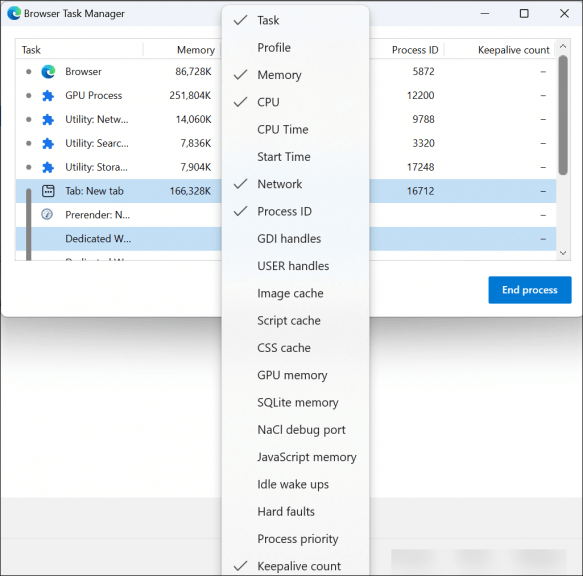
Apart from the 5 major components mentioned before, the Browser Task Manager has other components that give you even deeper information about the process running on your Edge browser. By default, only the above 5 components appear in 5 columns of the Task Manager window. But you can enable other components easily by right-clicking and selecting one.
\n
\n
These are the other components :
\n
- \n
- Profile: Profile refers to the user profile associated with a particular process. In a multi-profile browser like Microsoft Edge, different profiles may run concurrently, each with its settings, bookmarks, and extensions.
- CPU Time: CPU Time indicates the total amount of CPU processing time a particular task or process has consumed since it started. It’s a measure of how intensive a process is using the CPU.
- Start Time: Start Time represents the exact moment when a specific process or task within the browser was initiated. It helps in tracking when a particular operation began.
- GDI Handles: Graphics Device Interface (GDI) Handles are a resource used by Windows to manage graphical elements. This component measures the number of graphical elements or objects a process is utilizing.
- USER Handles: USER Handles are another type of Windows resource that helps manage graphical user interface elements. This component tracks the number of user interface elements a process is using.
- Image Cache: Image Cache keeps a record of images that have been loaded or cached by a process. It helps improve the loading speed of web pages that contain recurring images.
- Script Cache: Script Cache stores previously executed JavaScript code to enhance the performance of web pages. It reduces the need to reload scripts repeatedly.
- CSS Cache: CSS Cache stores Cascading Style Sheets (CSS) data used to format web pages. Like script caching, it reduces the redundant loading of CSS files.
- GPU Memory: Graphics Processing Unit (GPU) Memory reflects the amount of graphics memory a process is using. Modern web pages often incorporate GPU acceleration for smoother rendering.
- SQLite Memory: SQLite Memory pertains to the memory usage associated with SQLite databases used by web applications. SQLite is a popular database engine utilized by browsers for offline storage.
- NaCl Debug Port: NaCl (Native Client) Debug Port refers to the debugging interface for Native Client, a technology that enables running native code in web applications securely. This component assists developers in diagnosing issues.
- JavaScript Memory: JavaScript Memory represents the amount of memory a process is utilizing for executing JavaScript code, a core component of web page interactivity.
- Idle Wake Ups: Idle Wake Ups count the number of times a process has “woken up” from an idle state, which can impact power consumption and system responsiveness.
- Hard Faults: Hard Faults signify instances where a process requests data that is not in physical memory and must be fetched from storage (usually a hard drive). High hard fault counts can indicate memory management issues.
- Process Priority: Process Priority determines the order in which processes are scheduled by the operating system. Higher-priority processes get more CPU time.
- Keepalive Count: Keepalive Count is associated with network connections and indicates the number of times a network connection has been maintained to keep it active. It’s essential for efficient network communication.
\n
\n
\n
\n
\n
\n
\n
\n
\n
\n
\n
\n
\n
\n
\n
\n
\n
Manage Edge browser processes
\n
The Edge Browser Task Manager, though often overlooked, is a powerful tool that empowers users to take control of their browsing experience. Whether you need to identify resource-intensive tabs, troubleshoot unresponsive extensions, or optimize your browser’s performance, this tool stands ready to assist. By understanding how to use the Edge Task Manager effectively, you can ensure a smoother and more efficient browsing experience with Microsoft Edge. Don’t let browser clutter slow you down—take charge with the Edge Task Manager!
\n