Skip to content
OnMSFT.com
  • Home
  • About
  • Contact
  • Windows
  • Surface
  • Xbox
  • How-To
  • OnPodcast
  • Edge
  • Teams
  • Gaming
Menu
  • Home
  • About
  • Contact
  • Windows
  • Surface
  • Xbox
  • How-To
  • OnPodcast
  • Edge
  • Teams
  • Gaming
  1. Home
  2. How-to
  3. How to open the Snipping Tool to take a screenshot instantly on Windows 10 or Windows 11

How to open the Snipping Tool to take a screenshot instantly on Windows 10 or Windows 11

admin admin
February 16, 2023
3 min read

\n

\n

\n

In this article

\n

\n

  • Open the Snipping Tool
  • Use the Snipping Tool to take a screenshot
  • Paste screenshots or add a delay
  • Edit screenshots with the Snipping Tool
  • Save screenshots as different file formats

\n

Do you use the Snipping Tool to take a screenshot on Windows 11 or Windows 10? The Snipping Tool is a handy utility that comes pre-installed on Windows 10 and Windows 11. When you use the Snipping Tool, you can take a screenshot of anything that appears on your screen.

\n

Open the Snipping Tool

\n

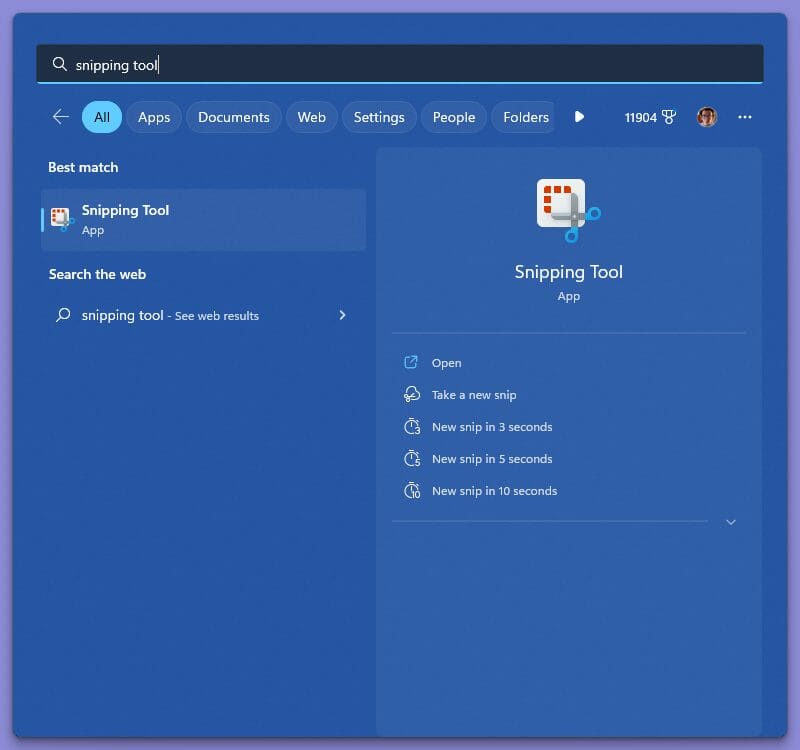
In order to use the Snipping Tool, you will need to open it first. There are two ways to open the Snipping Tool:

\n

\n

\n

\n

\n

\n

\n

\n

\n

\n

\n

\n

\n

\n

    \n

  1. Click on the Start button and type “Snipping Tool” in the search bar. Click on the app that appears in search. snipping tool to take screenshots
  2. \n

  3. Use the keyboard shortcut Windows key + Shift + S to open the Snipping Tool. You can change the keyboard shortcut to initiate.
  4. \n

\n

Once the Snipping Tool is open, you can start using it to capture, edit, and save screenshots on Windows 10 or Windows 11.

\n

Use the Snipping Tool to take a screenshot

\n

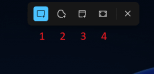
Once the Snipping Tool is open, you need to pick what mode, or area of the screen you want to capture. Here are your four options:

\n
snipping tool to take screenshots

\n


\n

    \n

  1. Rectangular mode: Click and drag your mouse to select a rectangular selection of the screen. Release the mouse button when you are finished to take the screenshot.
  2. \n

  3. Free-form mode: Left-click and drag your mouse to draw a custom shape around the object you want to capture. Release the mouse button to take the screenshot and the Snipping Tool will automatically save it to your clipboard.
  4. \n

  5. Windows mode: Click on the window you want to capture on your screen. The Snipping Tool will automatically capture the window and save it to your clipboard.
  6. \n

  7. Full-screen mode: Click the icon to take a screenshot of the entire screen. The Snipping Tool will automatically capture the entire screen and save it to your clipboard.
  8. \n

\n

Paste screenshots or add a delay

\n

After you have captured the screenshot, the Snipping Tool will automatically save the selection to your clipboard and from there you can paste it into any document or image editing software you might use. If you want to paste the screenshot, just use Ctrl + V on your keyboard for the screenshot to paste.

\n

\n

\n

\n

\n

\n

\n
\n

\n

\n

\n

\n

\n

\n

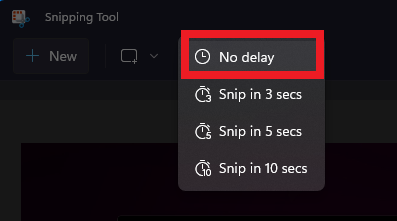
snipping tool to take screenshotsAdditionally, you can add a delay to of up to 10 seconds before the Snipping Tool takes a screenshot. Click the Delay button (the clock icon) and choose the number of seconds you want the Snipping Tool to take a screenshot.

\n

Edit screenshots with the Snipping Tool

\n
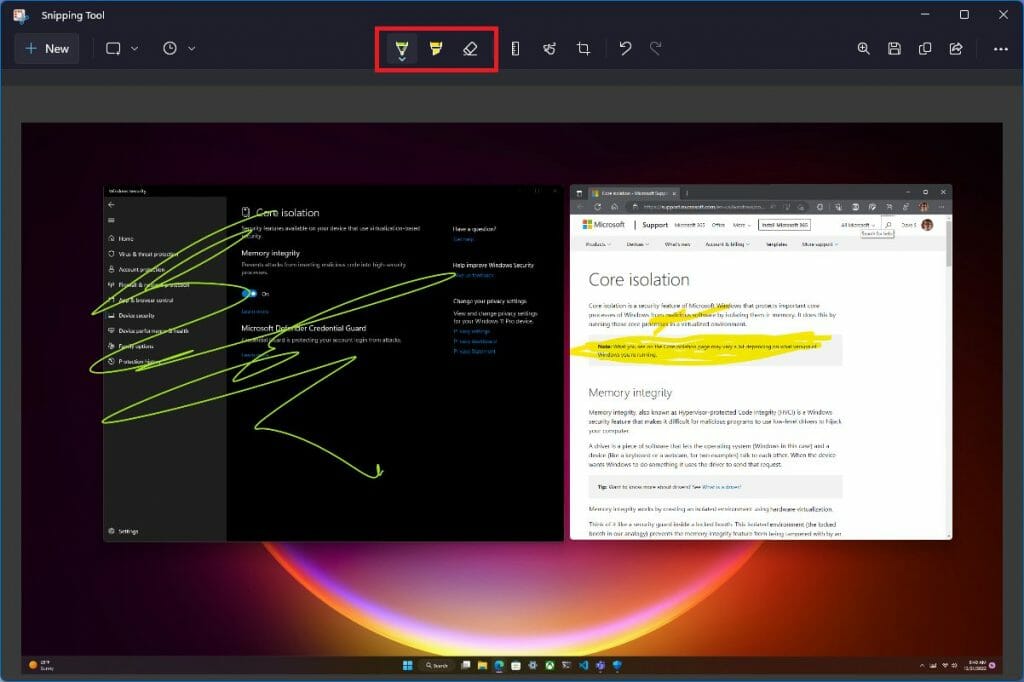
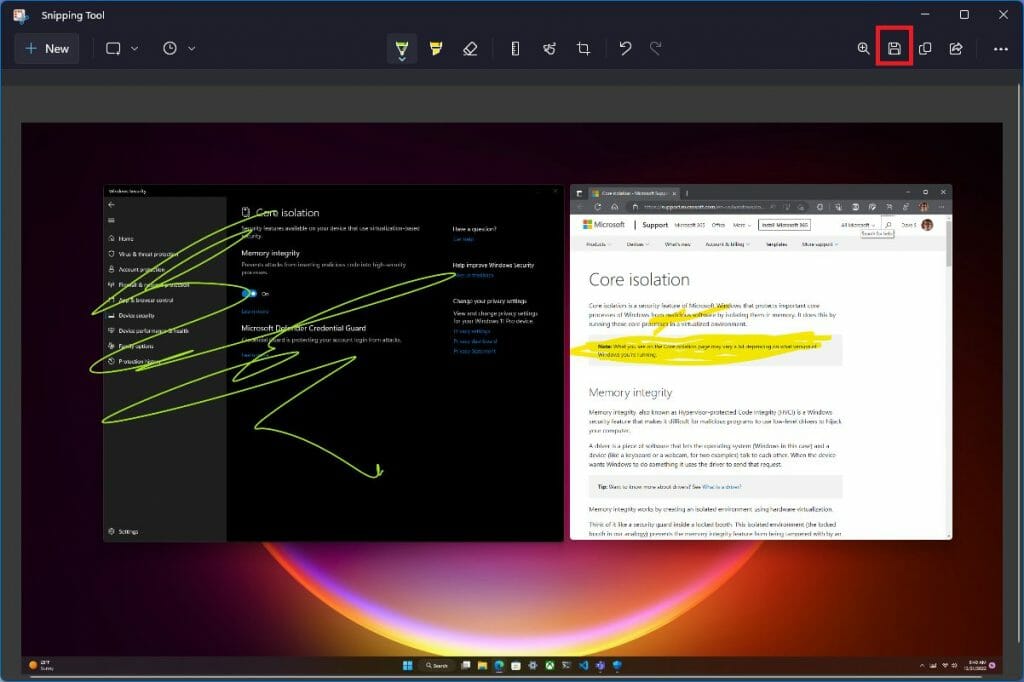
snipping tool to take screenshotsYou can also edit screenshots you take using the Snipping Tool’s built-in editing tools. You can use the pen tool to draw on the screenshot, the highlighter tool to highlight important parts, or the eraser tool to remove any drawings or highlighted parts you don’t want.

\n

Save screenshots as different file formats

\n

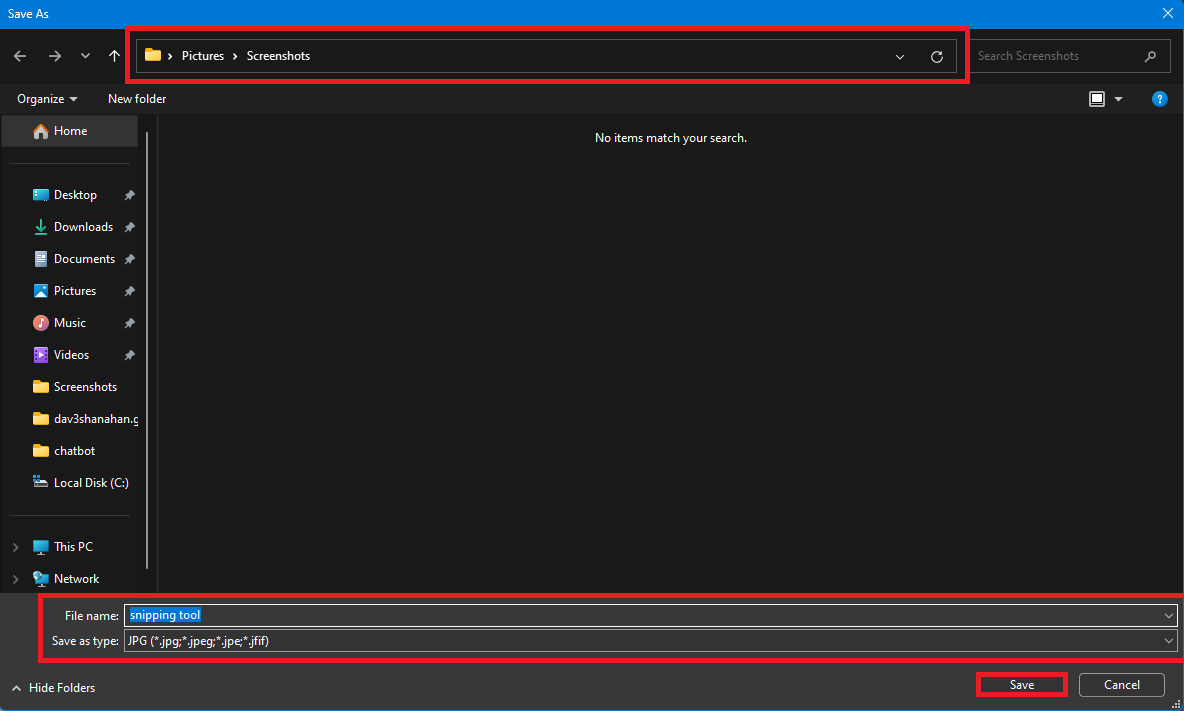
When you use the Snipping Tool to take a screenshot, you can save the screenshot in different file formats, including JPEG, PNG, and GIF. In order to save a screenshot in a different format, click on the Save As(Hard Disk icon) button in the top right of the Snipping Tool. snipping tool to take screenshotsOnce you choose the file location, file name, and file format you want, click Save again to save the file once you finish editing it.
\n
snipping tool to take screenshots

\n

The Snipping Tool is a simple yet powerful tool that can be used to capture screenshots instantly on Windows 10 or Windows 11. With just a few clicks, you can use the Snipping Tool to take a screenshot of anything on your screen, edit them using the app’s built-in editing tools, or paste and save them for later use.

\n\n

Share this article:
Previous Article Microsoft’s TechSpark program to help small communities turns 5 Next Article Microsoft’s Snap Assist feature in Windows 11 could get smarter with AI

Related Articles

43 Microsoft Edge keyboard shortcuts to remember for stylish and speedy web surfing

October 31, 2023

How to use accessibility features in Microsoft 365 like Narrator, Read aloud and Voice Search easily

October 30, 2023

How to use Windows Backup on Windows 11 for efficient data protection

October 26, 2023

Leave a Comment Cancel reply

Your email address will not be published. Required fields are marked *

Recent Posts

  • PowerToys 0.75 released; Environment Variables editor is here
  • Former Halo developer Bungie announces layoffs in wake of game delays
  • Siemens and Microsoft partner to bring GenAI to industries worldwide
  • 43 Microsoft Edge keyboard shortcuts to remember for stylish and speedy web surfing
  • Here is what’s coming to (and leaving) Xbox Game Pass soon

Recent Comments

No comments to show.

Archives

  • October 2023
  • September 2023
  • August 2023
  • July 2023
  • June 2023
  • May 2023
  • April 2023
  • March 2023
  • February 2023
  • January 2023
  • December 2022
  • November 2022
  • October 2022
  • September 2022
  • August 2022
  • July 2022
  • June 2022
  • May 2022
  • April 2022
  • March 2022
  • February 2022
  • January 2022
  • December 2021
  • November 2021
  • October 2021
  • September 2021
  • August 2021
  • July 2021
  • June 2021
  • May 2021
  • April 2021
  • March 2021
  • February 2021
  • January 2021
  • December 2020
  • November 2020
  • October 2020
  • September 2020
  • August 2020
  • July 2020
  • June 2020
  • May 2020
  • April 2020
  • March 2020
  • February 2020
  • January 2020
  • December 2019
  • November 2019
  • October 2019
  • September 2019
  • August 2019
  • July 2019
  • June 2019
  • May 2019
  • April 2019
  • March 2019
  • February 2019
  • January 2019
  • December 2018
  • November 2018
  • October 2018
  • September 2018
  • August 2018
  • July 2018
  • June 2018
  • May 2018
  • April 2018
  • March 2018
  • February 2018
  • January 2018
  • December 2017
  • November 2017
  • October 2017
  • September 2017
  • August 2017
  • July 2017
  • June 2017
  • May 2017
  • April 2017
  • March 2017
  • February 2017
  • January 2017
  • December 2016
  • November 2016
  • October 2016
  • September 2016
  • August 2016
  • July 2016
  • June 2016
  • May 2016
  • April 2016
  • March 2016
  • February 2016
  • January 2016
  • December 2015
  • November 2015
  • October 2015
  • September 2015
  • August 2015
  • July 2015
  • June 2015
  • May 2015
  • April 2015
  • March 2015
  • February 2015
  • January 2015
  • December 2014
  • November 2014
  • October 2014
  • September 2014
  • August 2014
  • July 2014
  • June 2014
  • May 2014
  • April 2014
  • March 2014
  • February 2014
  • January 2014
  • December 2013
  • November 2013
  • October 2013
  • September 2013
  • August 2013
  • July 2013
  • June 2013
  • May 2013
  • April 2013
  • March 2013
  • February 2013
  • January 2013
  • December 2012
  • November 2012
  • October 2012
  • September 2012
  • August 2012
  • July 2012
  • June 2012
  • May 2012
  • April 2012
  • March 2012
  • February 2012
  • January 2012
  • December 2011
  • November 2011
  • October 2011
  • September 2011
  • August 2011
  • July 2011
  • June 2011
  • May 2011
  • April 2011
  • March 2011
  • February 2011
  • January 2011
  • December 2010
  • November 2010
  • October 2010
  • September 2010

Categories

  • Announcements
  • Deals
  • Developer
  • Editorial
  • Feature
  • Feature stories
  • Hero-post
  • Hotdeals
  • How-to
  • Latest news
  • Microsoft / office 365
  • News
  • Office 365
  • Onpodcast
  • Opinion
  • Our featured post
  • Polls
  • Review
  • Reviews
  • Videos
OnMSFT.com

OnMSFT.com covers Microsoft news, reviews, and how-to guides. Formerly known as WinBeta, we have been your source for Microsoft news since 1998.

Categories

  • Windows
  • Surface
  • Xbox
  • How-To
  • OnPodcast
  • Gaming
  • Edge
  • Teams

Recent Posts

  • PowerToys 0.75 released; Environment Variables editor is here
  • Former Halo developer Bungie announces layoffs in wake of game delays
  • Siemens and Microsoft partner to bring GenAI to industries worldwide
  • 43 Microsoft Edge keyboard shortcuts to remember for stylish and speedy web surfing
  • Here is what’s coming to (and leaving) Xbox Game Pass soon

Quick Links

  • About OnMSFT.com
  • Contact OnMSFT
  • Join Our Team
© 2010–2026 OnMSFT.com LLC. All rights reserved.
About OnMSFT.comContact OnMSFT