Skip to content
OnMSFT.com
  • Home
  • About
  • Contact
  • Windows
  • Surface
  • Xbox
  • How-To
  • OnPodcast
  • Edge
  • Teams
  • Gaming
Menu
  • Home
  • About
  • Contact
  • Windows
  • Surface
  • Xbox
  • How-To
  • OnPodcast
  • Edge
  • Teams
  • Gaming
  1. Home
  2. How-to
  3. How to set up IFTTT on Microsoft Teams in 6 easy steps

How to set up IFTTT on Microsoft Teams in 6 easy steps

admin admin
January 26, 2023
2 min read

\n

IFTTT (If This Then That) is a service that enables users to create simple conditional statements, called applets, that trigger actions based on events. You can use IFTTT to automate tasks and connect different services and devices together. Microsoft Teams is a collaboration platform allowing users to communicate and work together.

\n

With the IFTTT on Microsoft Teams integration, you can set up applets that trigger actions in Teams based on events from other services such as weather, social media, and more.

\n

IFTTT on Microsoft Teams

\n

To do this, you will need to create an IFTTT account and then set up “applets” (IFTTT’s name for its automation recipes) that connect Microsoft Teams (or another service) to the other apps and services you want to use.

\n

\n

\n

\n

\n

\n

\n

\n

\n

\n

\n

\n

\n

\n

    \n

  1. Go to the IFTTT website (ifttt.com) and create an account if you don’t already have one.
  2. \n

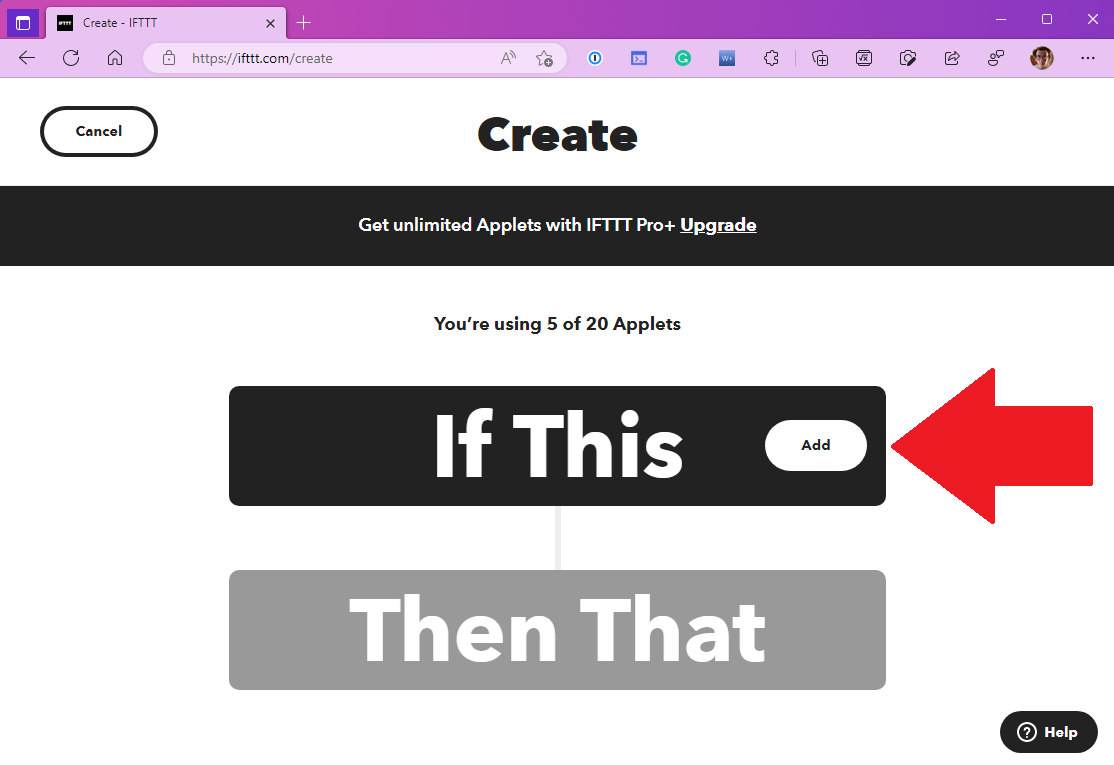
  3. Once you’re logged in, click the Create button to create a new IFTTT applet. Alternatively, you can find the applet (or service) you want to use by typing in the search box or picking one of the IFTTT on Microsoft Teams applets already provided.ifttt on microsoft teams
  4. \n

  5. In the “If This” section, click the Add button to add a trigger.  ifttt on microsoft teams
  6. \n

  7. Search for and find the trigger you want to use with IFTTT on Microsoft Teams. For example, you could use the “Weather” service to set the trigger to send the daily forecast weather report. Fill in the details for the trigger and click Create trigger to create the trigger. ifttt on microsoft teams
  8. \n

  9. In the “Then That” section, click the Add button to choose the action you want to take. For this example, and pick the Microsoft Teams service, configure the Teams action you want to take, or suggest a new one, then click Create action when you are finished. ifttt on microsoft teams
  10. \n

  11. Customize the settings for the Microsoft Teams applet and give it a name, then click the Finish button to create it.
  12. \n

\n

That’s it! Your applet is now set up and will run automatically in the background, triggering the event you specified whenever the conditions are met.

\n

At the time of this guide, there are no IFTTT triggers available for Microsoft Teams. However, there are plenty of Teams triggers available to use in Power Automate.

\n

If you want to customize the settings of your applet, you can go back to the “My Applets” tab in the top menu and select the applet you just created. From there, you can edit the settings, turn the applet on or off, or delete it entirely.

\n\n

Share this article:
Previous Article Smartphone shipping at an all-time low, says IDC report Next Article Microsoft is working on a new version of Edge, code named “Phoenix”

Related Articles

43 Microsoft Edge keyboard shortcuts to remember for stylish and speedy web surfing

October 31, 2023

How to use accessibility features in Microsoft 365 like Narrator, Read aloud and Voice Search easily

October 30, 2023

How to use Windows Backup on Windows 11 for efficient data protection

October 26, 2023

Leave a Comment Cancel reply

Your email address will not be published. Required fields are marked *

Recent Posts

  • PowerToys 0.75 released; Environment Variables editor is here
  • Former Halo developer Bungie announces layoffs in wake of game delays
  • Siemens and Microsoft partner to bring GenAI to industries worldwide
  • 43 Microsoft Edge keyboard shortcuts to remember for stylish and speedy web surfing
  • Here is what’s coming to (and leaving) Xbox Game Pass soon

Recent Comments

No comments to show.

Archives

  • October 2023
  • September 2023
  • August 2023
  • July 2023
  • June 2023
  • May 2023
  • April 2023
  • March 2023
  • February 2023
  • January 2023
  • December 2022
  • November 2022
  • October 2022
  • September 2022
  • August 2022
  • July 2022
  • June 2022
  • May 2022
  • April 2022
  • March 2022
  • February 2022
  • January 2022
  • December 2021
  • November 2021
  • October 2021
  • September 2021
  • August 2021
  • July 2021
  • June 2021
  • May 2021
  • April 2021
  • March 2021
  • February 2021
  • January 2021
  • December 2020
  • November 2020
  • October 2020
  • September 2020
  • August 2020
  • July 2020
  • June 2020
  • May 2020
  • April 2020
  • March 2020
  • February 2020
  • January 2020
  • December 2019
  • November 2019
  • October 2019
  • September 2019
  • August 2019
  • July 2019
  • June 2019
  • May 2019
  • April 2019
  • March 2019
  • February 2019
  • January 2019
  • December 2018
  • November 2018
  • October 2018
  • September 2018
  • August 2018
  • July 2018
  • June 2018
  • May 2018
  • April 2018
  • March 2018
  • February 2018
  • January 2018
  • December 2017
  • November 2017
  • October 2017
  • September 2017
  • August 2017
  • July 2017
  • June 2017
  • May 2017
  • April 2017
  • March 2017
  • February 2017
  • January 2017
  • December 2016
  • November 2016
  • October 2016
  • September 2016
  • August 2016
  • July 2016
  • June 2016
  • May 2016
  • April 2016
  • March 2016
  • February 2016
  • January 2016
  • December 2015
  • November 2015
  • October 2015
  • September 2015
  • August 2015
  • July 2015
  • June 2015
  • May 2015
  • April 2015
  • March 2015
  • February 2015
  • January 2015
  • December 2014
  • November 2014
  • October 2014
  • September 2014
  • August 2014
  • July 2014
  • June 2014
  • May 2014
  • April 2014
  • March 2014
  • February 2014
  • January 2014
  • December 2013
  • November 2013
  • October 2013
  • September 2013
  • August 2013
  • July 2013
  • June 2013
  • May 2013
  • April 2013
  • March 2013
  • February 2013
  • January 2013
  • December 2012
  • November 2012
  • October 2012
  • September 2012
  • August 2012
  • July 2012
  • June 2012
  • May 2012
  • April 2012
  • March 2012
  • February 2012
  • January 2012
  • December 2011
  • November 2011
  • October 2011
  • September 2011
  • August 2011
  • July 2011
  • June 2011
  • May 2011
  • April 2011
  • March 2011
  • February 2011
  • January 2011
  • December 2010
  • November 2010
  • October 2010
  • September 2010

Categories

  • Announcements
  • Deals
  • Developer
  • Editorial
  • Feature
  • Feature stories
  • Hero-post
  • Hotdeals
  • How-to
  • Latest news
  • Microsoft / office 365
  • News
  • Office 365
  • Onpodcast
  • Opinion
  • Our featured post
  • Polls
  • Review
  • Reviews
  • Videos
OnMSFT.com

OnMSFT.com covers Microsoft news, reviews, and how-to guides. Formerly known as WinBeta, we have been your source for Microsoft news since 1998.

Categories

  • Windows
  • Surface
  • Xbox
  • How-To
  • OnPodcast
  • Gaming
  • Edge
  • Teams

Recent Posts

  • PowerToys 0.75 released; Environment Variables editor is here
  • Former Halo developer Bungie announces layoffs in wake of game delays
  • Siemens and Microsoft partner to bring GenAI to industries worldwide
  • 43 Microsoft Edge keyboard shortcuts to remember for stylish and speedy web surfing
  • Here is what’s coming to (and leaving) Xbox Game Pass soon

Quick Links

  • About OnMSFT.com
  • Contact OnMSFT
  • Join Our Team
© 2010–2026 OnMSFT.com LLC. All rights reserved.
About OnMSFT.comContact OnMSFT