Skip to content
OnMSFT.com
  • Home
  • About
  • Contact
  • Windows
  • Surface
  • Xbox
  • How-To
  • OnPodcast
  • Edge
  • Teams
  • Gaming
Menu
  • Home
  • About
  • Contact
  • Windows
  • Surface
  • Xbox
  • How-To
  • OnPodcast
  • Edge
  • Teams
  • Gaming
  1. Home
  2. How-to
  3. How to Enable or Disable Password Expiration in Windows 11

How to Enable or Disable Password Expiration in Windows 11

admin admin
January 30, 2023
4 min read

\n

\n

\n

In this article

\n

\n

  • How to Enable or Disable Password Expiration for Your Microsoft Account
  • How to Enable or Disable Password Expiration in Windows 11 via the Command Prompt
  • How to Enable or Disable Password Expiration via Computer Management
  • Extend Your Password Expiration
    • Adjust Password Expiration Using Command Prompt
    • Adjust Password Expiration Using Group Policy
  • Protect Your PC’s Data

\n

Password expiration in Windows 11 is an important feature that allows you to enhance the security of your data. It helps you establish control over who has access to your device.

\n

It should be noted that the feature is disabled by default and exclusive to Pro, Education, and Enterprise editions of Windows 10 and Windows 11. While having a password set in your device helps secure your data, enabling the password expiration feature beefs it up even more.

\n

\n

\n

\n

\n

\n

\n

\n

\n

\n

\n

\n

\n

\n

This is because it allows you to place a timestamp on the passwords that you use on your user accounts ultimately keeping attackers or unauthorized users at bay. Once the duration you set for the feature lapses, you’ll need to change your password or even username if you want.

\n

You can use this feature to protect both your local users and Microsoft accounts. Here’s how:

\n

How to Enable or Disable Password Expiration for Your Microsoft Account

\n

First up, you can enable password expiration for your Microsoft Account via Microsoft’s Security page. Though you’ll need to change your password. Here’s what you need to do:

\n

    \n

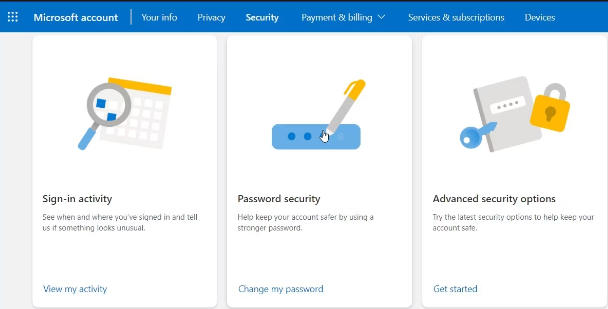
  1. Launch your browser, head to Microsoft’s Security page, and log in to your account.
  2. \n

  3. Click on Password security to change your password.password expiration in Windows 11
  4. \n

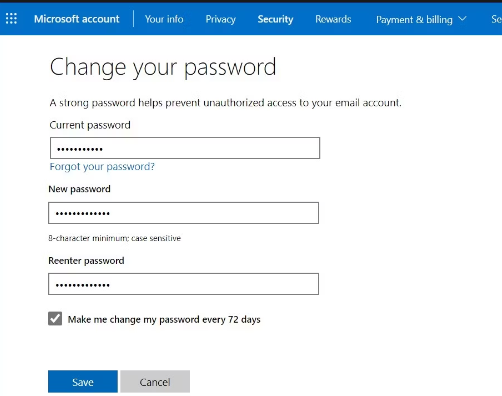
  5. You will need to enter your current password, create a new one and re-enter it to confirm.
  6. \n

  7. Then, check the Make me change my password every 72 days box.enable password expiration in msa
  8. \n

  9. Finally, click Save to confirm the changes.
  10. \n

\n

This will enable password expiration for your Microsoft account. Likewise, you can disable the feature by going through the process once again but this time don’t check the Make me change my password every 72 days box when you get to step 4.

\n

How to Enable or Disable Password Expiration in Windows 11 via the Command Prompt

\n

    \n

  1. Click on the Search icon on your taskbar, type cmd, and select the option to Run as administrator.
  2. \n

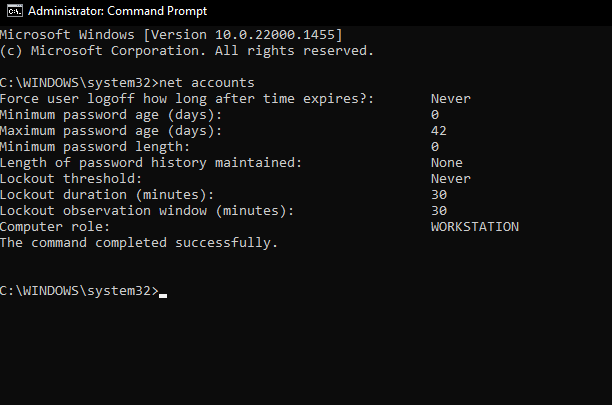
  3. Key in the following command and press Enter to see all the users registered on your device: net accountscommand prompt net accounts
  4. \n

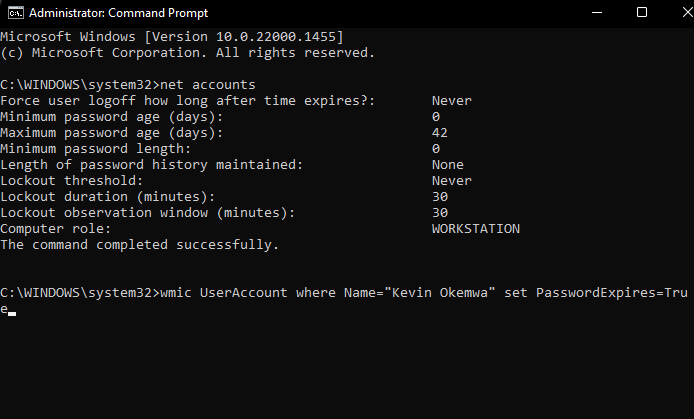
  5. Then, to enable password expiration key in the following command and press Enter: wmic UserAccount where Name=”user name” set PasswordExpires=Trueenable password expiration via cmd
  6. \n

\n

However, if you no longer find the feature useful, you can easily disable it:

\n

\n

\n

\n

\n

\n

\n

\n

\n

\n

\n

\n

\n

\n

    \n

  1. \n
      \n

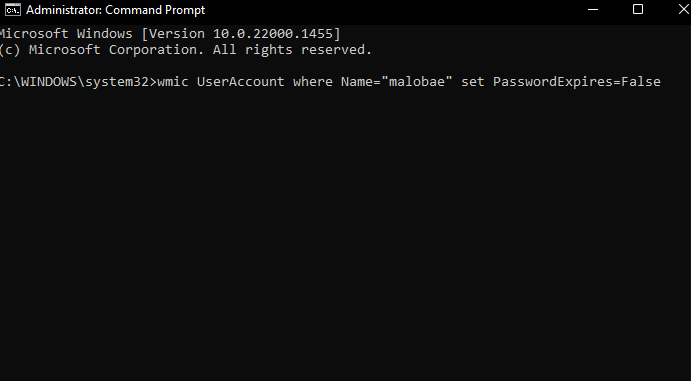
    1. Key in the following command and then replace the username with the user account you want to disable password expiration for and press Enter:wmic UserAccount where Name=”user name” set PasswordExpires=False (“user name” stands for the user account you want to disable password expiration feature)disable password expiration
    2. \n

    \n

  2. \n

\n

Bonus Tip: You can also disable password expiration in Windows 11 for all your accounts by keying in the following command and pressing Enter: wmic UserAccount set PasswordExpires=False

\n

How to Enable or Disable Password Expiration via Computer Management

\n

    \n

  1. Click on the Search icon, type lusrmgr.msc in the search bar then click on Open.
  2. \n

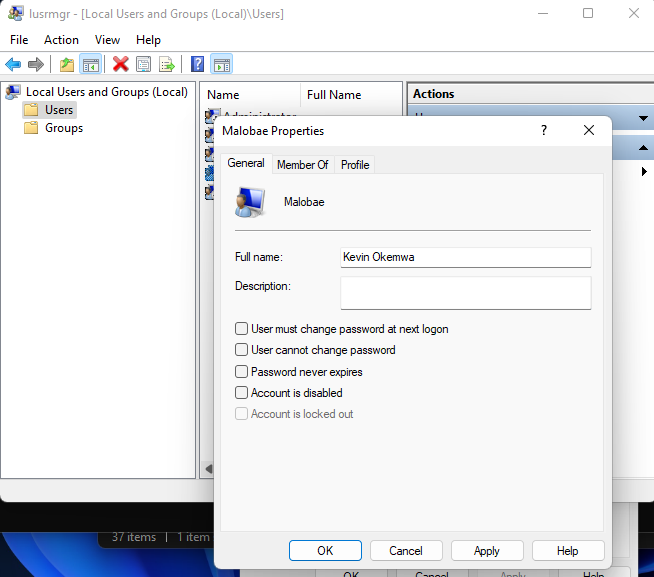
  3. Select Users on the left pane, then double-click on your user account and uncheck the Password never expires box to enable password expiration.password expiration via Computer Management
  4. \n

  5. Select Apply and click on OK to save the changes.
  6. \n

\n

To disable the password expiration feature, go through the process highlighted above but this time make sure you check the Password never expires box.

\n

Extend Your Password Expiration

\n

As you might already be aware, the default expiry duration for local accounts is 42 days while that of Microsoft accounts is set at 72 days. However, there is a provision that allows you to make adjustments to these days based on your preference. Here’s what you need to do:

\n

    \n

  • \n

    Adjust Password Expiration Using Command Prompt

    \n

  • \n

\n

    \n

  1. Click on the Search icon on your taskbar, type cmd, and select the option to Run as administrator.
  2. \n

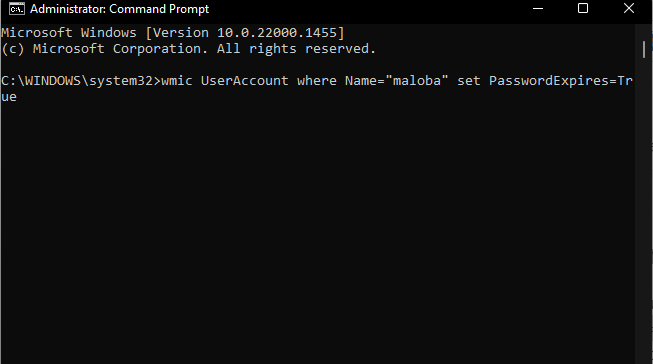
  3. Key in the following command and press Enter: wmic UserAccount where Name=”user account name” set PasswordExpires=True (you’ll need to replace “user account name” with the account you want to adjust)adjust password expiration
  4. \n

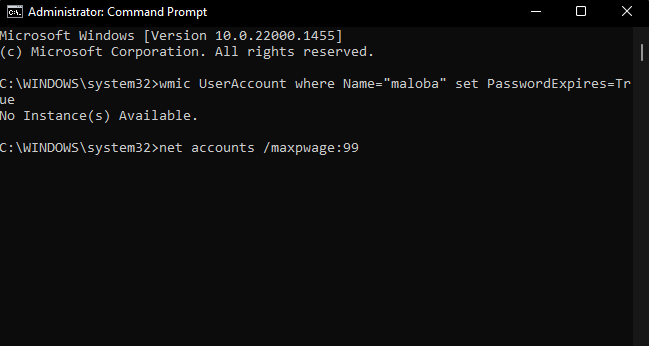
  5. Then, key in the following command and press Enter: net accounts /maxpwage:## (enter the number of days you would want the password expiration to last in place of the ## marks)How to Enable or Disable Password Expiration in Windows 11 - OnMSFT.com - January 30, 2023
  6. \n

\n

    \n

  • \n

    Adjust Password Expiration Using Group Policy

    \n

  • \n

\n

    \n

  1. Press Windows + R to launch the Run command.
  2. \n

  3. Type gpedit.msc and press Enter to launch Group Policy Editor.
  4. \n

  5. Navigate to the following path: Computer Configuration > Windows Settings > Security Settings > Account Policies > Password Policy
  6. \n

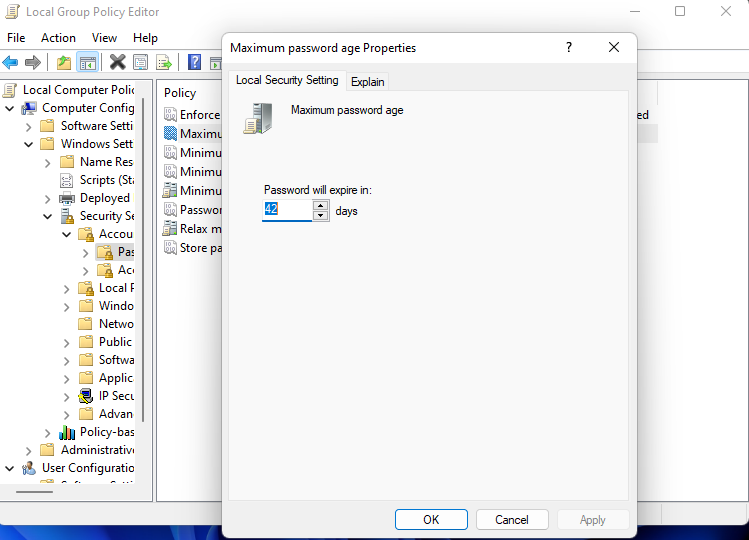
  7. Head to Maximum password age on the right pane, and right-click on to select Properties.
  8. \n

  9. You’ll now see that the default expiry time is currently set to 42 days in the Properties dialog. Here you can either increase or decrease the expiration period.adjust password expiration limit via group policy
  10. \n

\n

Note: Keep in mind that the maximum number of days is 999 days.

\n

Protect Your PC’s Data

\n

Password expiration in Windows 11 will help keep your data safe from unauthorized users as well as hackers. It also helps promote privacy. However, if you are looking for a more sophisticated and secure option then Windows Hello should be right up your alley. We invite you to check out our separate post that help you get started.

\n\n

Share this article:
Previous Article Microsoft set to continue supporting Halo despite 343 Industries layoffs Next Article How to remotely access Windows with your Android device

Related Articles

43 Microsoft Edge keyboard shortcuts to remember for stylish and speedy web surfing

October 31, 2023

How to use accessibility features in Microsoft 365 like Narrator, Read aloud and Voice Search easily

October 30, 2023

How to use Windows Backup on Windows 11 for efficient data protection

October 26, 2023

Leave a Comment Cancel reply

Your email address will not be published. Required fields are marked *

Recent Posts

  • PowerToys 0.75 released; Environment Variables editor is here
  • Former Halo developer Bungie announces layoffs in wake of game delays
  • Siemens and Microsoft partner to bring GenAI to industries worldwide
  • 43 Microsoft Edge keyboard shortcuts to remember for stylish and speedy web surfing
  • Here is what’s coming to (and leaving) Xbox Game Pass soon

Recent Comments

No comments to show.

Archives

  • October 2023
  • September 2023
  • August 2023
  • July 2023
  • June 2023
  • May 2023
  • April 2023
  • March 2023
  • February 2023
  • January 2023
  • December 2022
  • November 2022
  • October 2022
  • September 2022
  • August 2022
  • July 2022
  • June 2022
  • May 2022
  • April 2022
  • March 2022
  • February 2022
  • January 2022
  • December 2021
  • November 2021
  • October 2021
  • September 2021
  • August 2021
  • July 2021
  • June 2021
  • May 2021
  • April 2021
  • March 2021
  • February 2021
  • January 2021
  • December 2020
  • November 2020
  • October 2020
  • September 2020
  • August 2020
  • July 2020
  • June 2020
  • May 2020
  • April 2020
  • March 2020
  • February 2020
  • January 2020
  • December 2019
  • November 2019
  • October 2019
  • September 2019
  • August 2019
  • July 2019
  • June 2019
  • May 2019
  • April 2019
  • March 2019
  • February 2019
  • January 2019
  • December 2018
  • November 2018
  • October 2018
  • September 2018
  • August 2018
  • July 2018
  • June 2018
  • May 2018
  • April 2018
  • March 2018
  • February 2018
  • January 2018
  • December 2017
  • November 2017
  • October 2017
  • September 2017
  • August 2017
  • July 2017
  • June 2017
  • May 2017
  • April 2017
  • March 2017
  • February 2017
  • January 2017
  • December 2016
  • November 2016
  • October 2016
  • September 2016
  • August 2016
  • July 2016
  • June 2016
  • May 2016
  • April 2016
  • March 2016
  • February 2016
  • January 2016
  • December 2015
  • November 2015
  • October 2015
  • September 2015
  • August 2015
  • July 2015
  • June 2015
  • May 2015
  • April 2015
  • March 2015
  • February 2015
  • January 2015
  • December 2014
  • November 2014
  • October 2014
  • September 2014
  • August 2014
  • July 2014
  • June 2014
  • May 2014
  • April 2014
  • March 2014
  • February 2014
  • January 2014
  • December 2013
  • November 2013
  • October 2013
  • September 2013
  • August 2013
  • July 2013
  • June 2013
  • May 2013
  • April 2013
  • March 2013
  • February 2013
  • January 2013
  • December 2012
  • November 2012
  • October 2012
  • September 2012
  • August 2012
  • July 2012
  • June 2012
  • May 2012
  • April 2012
  • March 2012
  • February 2012
  • January 2012
  • December 2011
  • November 2011
  • October 2011
  • September 2011
  • August 2011
  • July 2011
  • June 2011
  • May 2011
  • April 2011
  • March 2011
  • February 2011
  • January 2011
  • December 2010
  • November 2010
  • October 2010
  • September 2010

Categories

  • Announcements
  • Deals
  • Developer
  • Editorial
  • Feature
  • Feature stories
  • Hero-post
  • Hotdeals
  • How-to
  • Latest news
  • Microsoft / office 365
  • News
  • Office 365
  • Onpodcast
  • Opinion
  • Our featured post
  • Polls
  • Review
  • Reviews
  • Videos
OnMSFT.com

OnMSFT.com covers Microsoft news, reviews, and how-to guides. Formerly known as WinBeta, we have been your source for Microsoft news since 1998.

Categories

  • Windows
  • Surface
  • Xbox
  • How-To
  • OnPodcast
  • Gaming
  • Edge
  • Teams

Recent Posts

  • PowerToys 0.75 released; Environment Variables editor is here
  • Former Halo developer Bungie announces layoffs in wake of game delays
  • Siemens and Microsoft partner to bring GenAI to industries worldwide
  • 43 Microsoft Edge keyboard shortcuts to remember for stylish and speedy web surfing
  • Here is what’s coming to (and leaving) Xbox Game Pass soon

Quick Links

  • About OnMSFT.com
  • Contact OnMSFT
  • Join Our Team
© 2010–2026 OnMSFT.com LLC. All rights reserved.
About OnMSFT.comContact OnMSFT