Skip to content
OnMSFT.com
  • Home
  • About
  • Contact
  • Windows
  • Surface
  • Xbox
  • How-To
  • OnPodcast
  • Edge
  • Teams
  • Gaming
Menu
  • Home
  • About
  • Contact
  • Windows
  • Surface
  • Xbox
  • How-To
  • OnPodcast
  • Edge
  • Teams
  • Gaming
  1. Home
  2. How-to
  3. How to enable or disable indexing on Windows PC

How to enable or disable indexing on Windows PC

admin admin
February 13, 2023
3 min read

\n

\n

\n

In this article

\n

\n

  • How to enable or disable indexing on Windows PC
    • Enable indexing on your Windows PC
  • Disabling indexing on your Window computer
  • Enabling or disabling indexing on your Windows PC

\n

Indexing is a process through which you can make your search results appear quicker than they otherwise would. In brief, it works by categorizing all the information about your files, email messages, and other content of your PC, into a single index. So the next time you search for anything, your Windows will look straight through the index instead of looking all over your PC.

\n

In this article, we’ll cover how to enable (or disable) indexing on your Windows PC and make the most of your searches.

\n

\n

\n

\n

\n

\n

\n

\n

\n

\n

\n

\n

\n

\n

How to enable or disable indexing on Windows PC

\n

Indexing speeds up searches and gives you search results almost instantly. If it has been disabled on your PC for some reason, enabling it right away makes perfect sense.

\n

But before you do that, setting an indexing category is important. Here’s how you can do that on a Windows PC:

\n

    \n

  1. Launch the Windows Settings by pressing the Windows key + I.
  2. \n

  3. Select Privacy & security.
  4. \n

  5. Click on Searching Windows.
  6. \n

\n

Expand the Find my files option, and you will get two options to pick from here: Classic or Enhanced. The Classic option for your Windows works only by indexing your Documents, Pictures, Music, and desktop folders. On the other hand, the Enhanced option is a feature that will go over your entire PC and look for your files.

\n
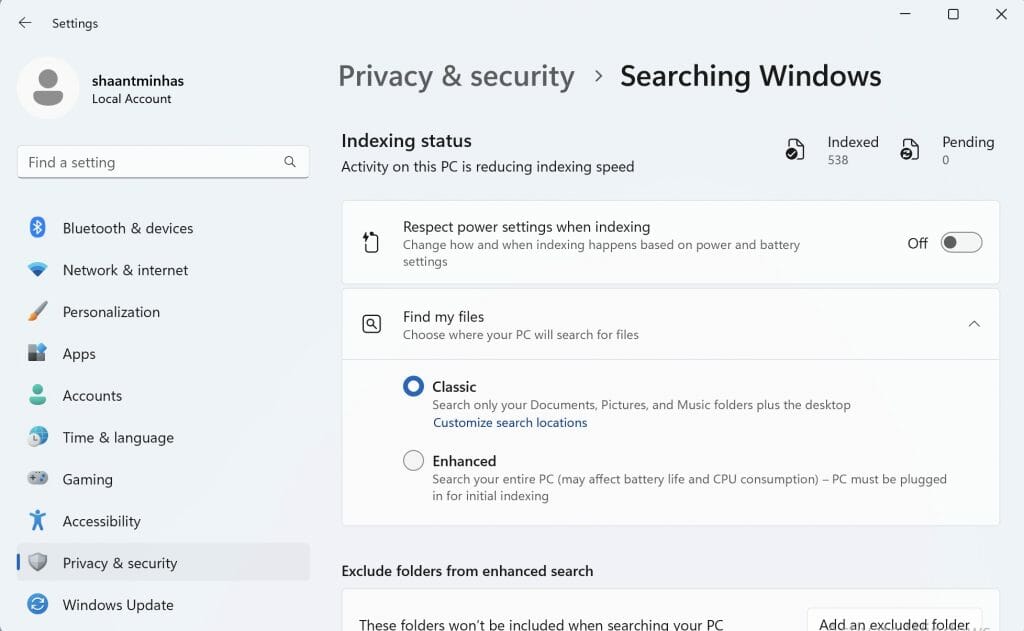
searching windows

\n

Depending on your preference, pick one of the options and jump over to the next section, where we get down to enabling indexing.

\n

\n

\n

\n

\n

\n

\n

\n

\n

\n

\n

\n

\n

\n

Enable indexing on your Windows PC

\n

Although indexing comes pre-enabled on almost all Windows operating systems, learning how to enable it on your own can come in handy; especially when it has become disabled for some reason. In the above section, we discussed the type or category of indexing you’d like to follow, not the actual steps to enable indexing. We’ll cover it below.

\n

Here’s how you can enable indexing on your Windows PC:

\n

    \n

  1. Launch the Run dialog box. Type in ‘run’ in the Start menu search bar, and select the best match.
  2. \n

  3. Type in ‘services.msc’ in the Run dialog box and hit Enter.
  4. \n

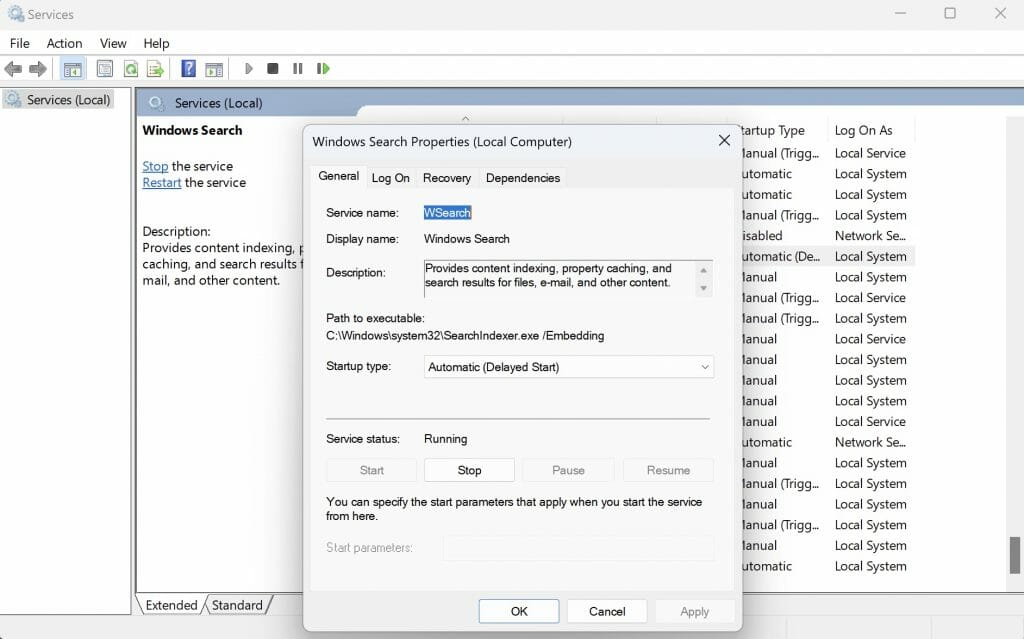
  5. Look for Windows Search and launch it.
  6. \n

  7. In the Windows Search Properties box, head to the General tab.
  8. \n

  9. Click on Start under the Service Status section to enable indexing on your PC.
  10. \n

\n

windows search properties

\n

That’s it. As soon as you do, your Windows will start indexing all your Windows files (if you have chosen the Enhanced versions of indexing).

\n

Disabling indexing on your Window computer

\n

Now, as fantastic as the indexing feature is, like anything in life, it naturally comes with its own costs—one of the major ones being its relatively high consumption of CPU resources.

\n

So if you’re short on power or facing some other miscellaneous difficulties with your PC, disabling the indexing feature is worth a shot. 

Here’s how you can disable indexing on Windows PC:

\n

\n

\n

\n

\n

\n

\n

\n

\n

\n

\n

\n

\n

\n

    \n

  • Head to the Windows Search Properties dialog box, following the above section.
  • \n

  • In the General tab, click on Stop (under the Service status).
  • \n

\n

Finally, click on Apply, and the indexing feature will be disabled on your PC.

\n

And while we are discussing disabling the indexing feature, you might have to hide all your files and folders from your PC on rare occasions; we recommend going through our Windows 10 file/folder hiding guide just for those cases.

\n

Enabling or disabling indexing on your Windows PC

\n

By enabling the indexing features, you will get faster search results for all types of files on your Windows computer. You don’t have to take our word for it—go ahead and try it out and see if enabling (or disabling) makes a dent in your PC’s performance.

\n\n

Share this article:
Previous Article How to enable tabs on File Explorer Next Article Some notes on the new Bing and Bing Chat – Edge Dev, privacy, Image Creator, more

Related Articles

43 Microsoft Edge keyboard shortcuts to remember for stylish and speedy web surfing

October 31, 2023

How to use accessibility features in Microsoft 365 like Narrator, Read aloud and Voice Search easily

October 30, 2023

How to use Windows Backup on Windows 11 for efficient data protection

October 26, 2023

Leave a Comment Cancel reply

Your email address will not be published. Required fields are marked *

Recent Posts

  • PowerToys 0.75 released; Environment Variables editor is here
  • Former Halo developer Bungie announces layoffs in wake of game delays
  • Siemens and Microsoft partner to bring GenAI to industries worldwide
  • 43 Microsoft Edge keyboard shortcuts to remember for stylish and speedy web surfing
  • Here is what’s coming to (and leaving) Xbox Game Pass soon

Recent Comments

No comments to show.

Archives

  • October 2023
  • September 2023
  • August 2023
  • July 2023
  • June 2023
  • May 2023
  • April 2023
  • March 2023
  • February 2023
  • January 2023
  • December 2022
  • November 2022
  • October 2022
  • September 2022
  • August 2022
  • July 2022
  • June 2022
  • May 2022
  • April 2022
  • March 2022
  • February 2022
  • January 2022
  • December 2021
  • November 2021
  • October 2021
  • September 2021
  • August 2021
  • July 2021
  • June 2021
  • May 2021
  • April 2021
  • March 2021
  • February 2021
  • January 2021
  • December 2020
  • November 2020
  • October 2020
  • September 2020
  • August 2020
  • July 2020
  • June 2020
  • May 2020
  • April 2020
  • March 2020
  • February 2020
  • January 2020
  • December 2019
  • November 2019
  • October 2019
  • September 2019
  • August 2019
  • July 2019
  • June 2019
  • May 2019
  • April 2019
  • March 2019
  • February 2019
  • January 2019
  • December 2018
  • November 2018
  • October 2018
  • September 2018
  • August 2018
  • July 2018
  • June 2018
  • May 2018
  • April 2018
  • March 2018
  • February 2018
  • January 2018
  • December 2017
  • November 2017
  • October 2017
  • September 2017
  • August 2017
  • July 2017
  • June 2017
  • May 2017
  • April 2017
  • March 2017
  • February 2017
  • January 2017
  • December 2016
  • November 2016
  • October 2016
  • September 2016
  • August 2016
  • July 2016
  • June 2016
  • May 2016
  • April 2016
  • March 2016
  • February 2016
  • January 2016
  • December 2015
  • November 2015
  • October 2015
  • September 2015
  • August 2015
  • July 2015
  • June 2015
  • May 2015
  • April 2015
  • March 2015
  • February 2015
  • January 2015
  • December 2014
  • November 2014
  • October 2014
  • September 2014
  • August 2014
  • July 2014
  • June 2014
  • May 2014
  • April 2014
  • March 2014
  • February 2014
  • January 2014
  • December 2013
  • November 2013
  • October 2013
  • September 2013
  • August 2013
  • July 2013
  • June 2013
  • May 2013
  • April 2013
  • March 2013
  • February 2013
  • January 2013
  • December 2012
  • November 2012
  • October 2012
  • September 2012
  • August 2012
  • July 2012
  • June 2012
  • May 2012
  • April 2012
  • March 2012
  • February 2012
  • January 2012
  • December 2011
  • November 2011
  • October 2011
  • September 2011
  • August 2011
  • July 2011
  • June 2011
  • May 2011
  • April 2011
  • March 2011
  • February 2011
  • January 2011
  • December 2010
  • November 2010
  • October 2010
  • September 2010

Categories

  • Announcements
  • Deals
  • Developer
  • Editorial
  • Feature
  • Feature stories
  • Hero-post
  • Hotdeals
  • How-to
  • Latest news
  • Microsoft / office 365
  • News
  • Office 365
  • Onpodcast
  • Opinion
  • Our featured post
  • Polls
  • Review
  • Reviews
  • Videos
OnMSFT.com

OnMSFT.com covers Microsoft news, reviews, and how-to guides. Formerly known as WinBeta, we have been your source for Microsoft news since 1998.

Categories

  • Windows
  • Surface
  • Xbox
  • How-To
  • OnPodcast
  • Gaming
  • Edge
  • Teams

Recent Posts

  • PowerToys 0.75 released; Environment Variables editor is here
  • Former Halo developer Bungie announces layoffs in wake of game delays
  • Siemens and Microsoft partner to bring GenAI to industries worldwide
  • 43 Microsoft Edge keyboard shortcuts to remember for stylish and speedy web surfing
  • Here is what’s coming to (and leaving) Xbox Game Pass soon

Quick Links

  • About OnMSFT.com
  • Contact OnMSFT
  • Join Our Team
© 2010–2026 OnMSFT.com LLC. All rights reserved.
About OnMSFT.comContact OnMSFT