Skip to content
OnMSFT.com
  • Home
  • About
  • Contact
  • Windows
  • Surface
  • Xbox
  • How-To
  • OnPodcast
  • Edge
  • Teams
  • Gaming
Menu
  • Home
  • About
  • Contact
  • Windows
  • Surface
  • Xbox
  • How-To
  • OnPodcast
  • Edge
  • Teams
  • Gaming
  1. Home
  2. How-to
  3. How to change the default browser on Windows 11 and why it’s important that you do

How to change the default browser on Windows 11 and why it’s important that you do

admin admin
February 9, 2023
2 min read

\n

Some things are a little different when it comes to changing your default browser on Windows 11. One of the key features that Windows 11 offers is the ability to change the default web browser. This can come in handy if you prefer to use a different browser other than Microsoft’s Edge browser that comes pre-installed.

\n

However, many users are not satisfied with Microsoft Edge and prefer using other browsers such as Google Chrome, Mozilla Firefox, or Safari. Here’s how you can change the default browser to whatever browser you want to use on Windows 11.

\n

Why it’s important to change the default browser

\n

The primary reason to change your default browser is that it may not meet your browsing needs. Every browser has its own unique features and performance. For example, some people believe that Google Chrome offers a faster browsing experience and numerous extensions, while Mozilla Firefox has a focus on privacy and security. So, if you are not satisfied with the default browser, maybe it’s time to switch to a browser that better meets your needs.

\n

\n

\n

\n

\n

\n

\n

\n

\n

\n

\n

\n

\n

\n

Change the default browser on Windows 11

\n

Change the default browser on Windows 11 is a fairly simple process, just follow these steps:

\n

    \n

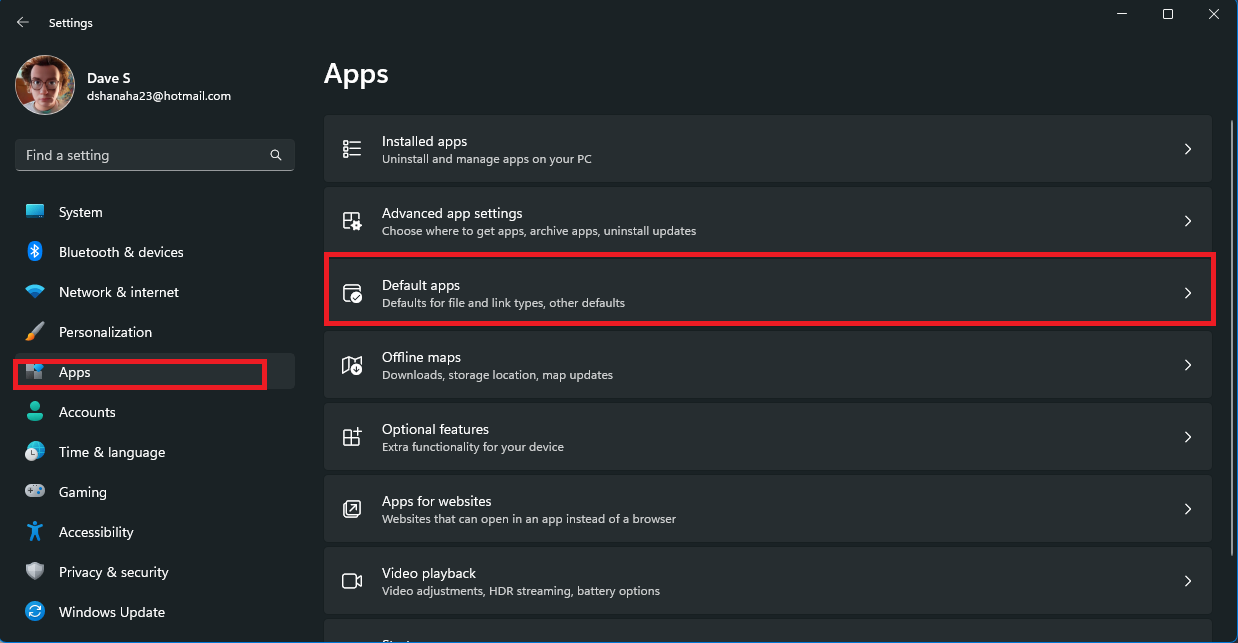
  1. Open the Settings app (Windows key + i keyboard shortcut)
  2. \n

  3. Navigate to the following location within Settings: Apps > Default Apps. change the default browser
  4. \n

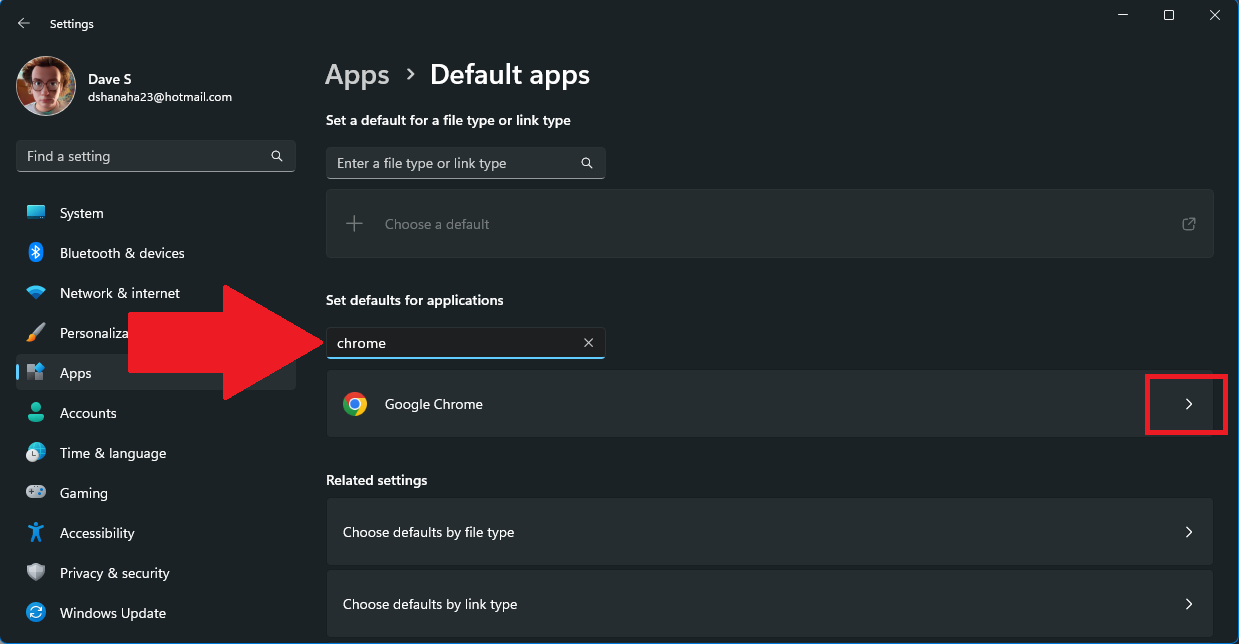
  5. Scroll down to find the browser you want to use or search for it in the box provided and click on it. change the default browser
  6. \n

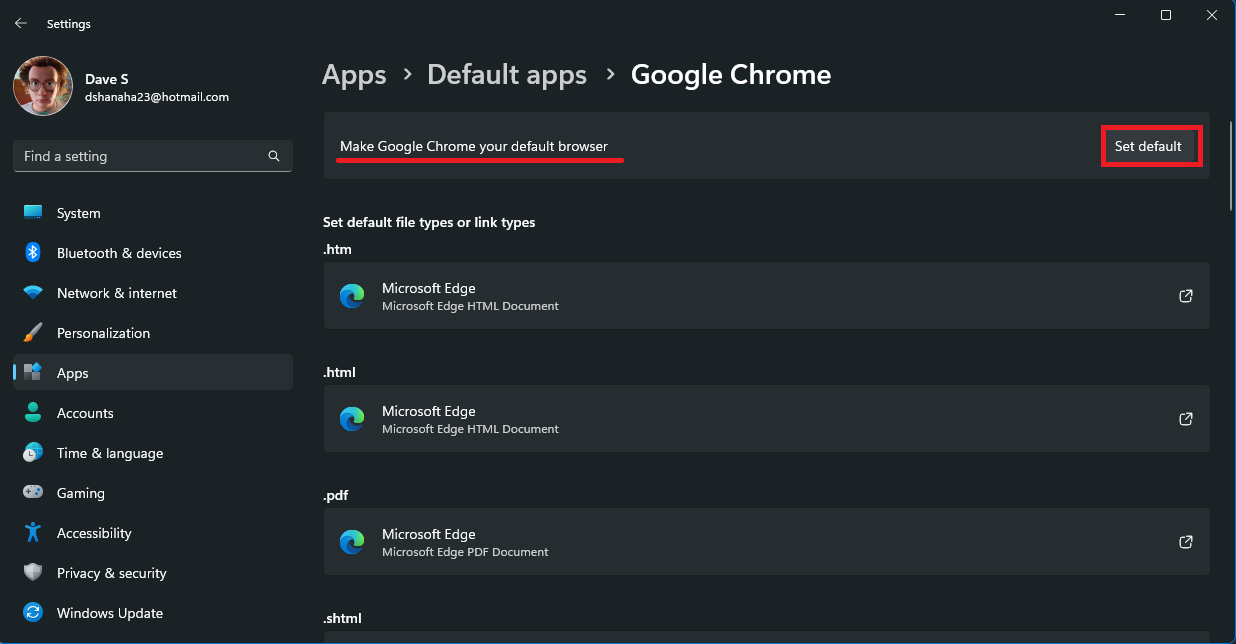
  7. Click the Set default to set the browser you want to use as the default browser on Windows 11. default browser on Windows 11
  8. \n

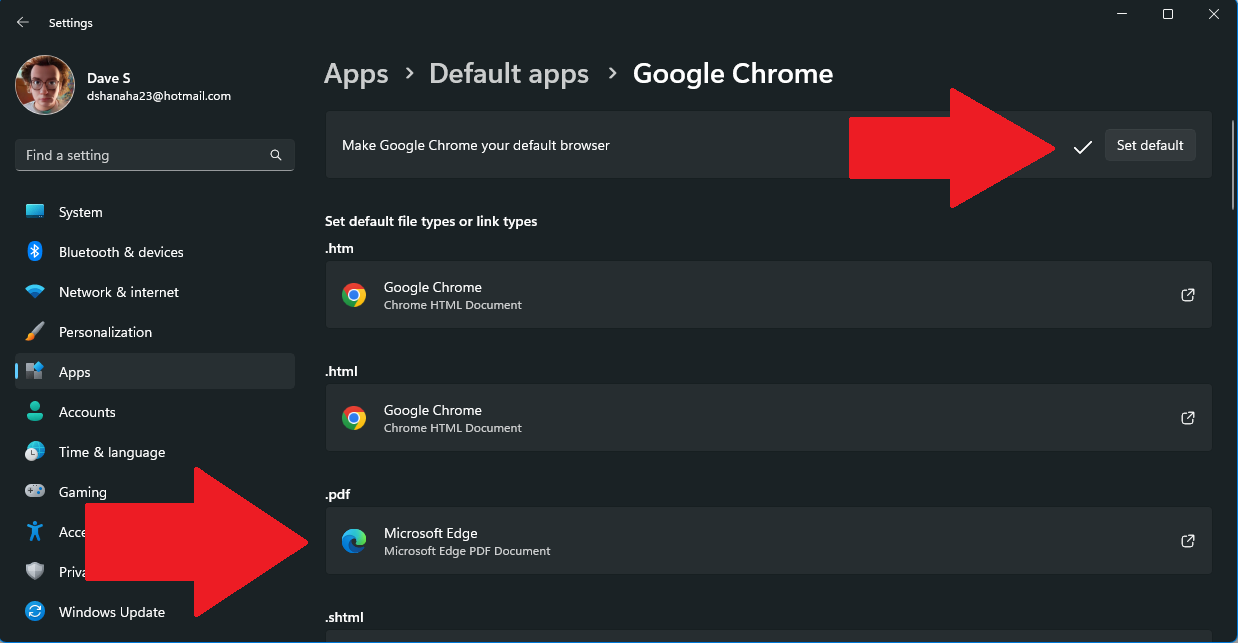
  9. Now, you have changed the default browser on Windows 11. Keep in mind that when changing from the default browser, Microsoft Edge, to another browser, you may scroll down the list to verify that the browser you want to use is set as the default browser for every file or link type anytime you need to access the web. change the default browser
  10. \n

\n

That’s it! The changes will be effective immediately. You have successfully changed the default browser on Windows 11.

\n

If you don’t change your default browser on Windows 11, you will continue to use Microsoft Edge, but it may not meet all of your needs. If you change the default browser, you can change it back at any time by following the steps mentioned above.

\n

Changing the default browser on Windows 11 is a straightforward process that can greatly improve your browsing experience. By switching to a different browser that better suits your needs and workflow, you can enjoy faster and more efficient browsing. So, if you are one of those people who don’t like using Edge, take a moment to change it and see what a little change can do for you!

\n\n

Share this article:
Previous Article Try these three games with Xbox Free Play Days, February 9-12 Next Article Microsoft unveils Learning Accelerators for better personalized learning

Related Articles

43 Microsoft Edge keyboard shortcuts to remember for stylish and speedy web surfing

October 31, 2023

How to use accessibility features in Microsoft 365 like Narrator, Read aloud and Voice Search easily

October 30, 2023

How to use Windows Backup on Windows 11 for efficient data protection

October 26, 2023

Leave a Comment Cancel reply

Your email address will not be published. Required fields are marked *

Recent Posts

  • PowerToys 0.75 released; Environment Variables editor is here
  • Former Halo developer Bungie announces layoffs in wake of game delays
  • Siemens and Microsoft partner to bring GenAI to industries worldwide
  • 43 Microsoft Edge keyboard shortcuts to remember for stylish and speedy web surfing
  • Here is what’s coming to (and leaving) Xbox Game Pass soon

Recent Comments

No comments to show.

Archives

  • October 2023
  • September 2023
  • August 2023
  • July 2023
  • June 2023
  • May 2023
  • April 2023
  • March 2023
  • February 2023
  • January 2023
  • December 2022
  • November 2022
  • October 2022
  • September 2022
  • August 2022
  • July 2022
  • June 2022
  • May 2022
  • April 2022
  • March 2022
  • February 2022
  • January 2022
  • December 2021
  • November 2021
  • October 2021
  • September 2021
  • August 2021
  • July 2021
  • June 2021
  • May 2021
  • April 2021
  • March 2021
  • February 2021
  • January 2021
  • December 2020
  • November 2020
  • October 2020
  • September 2020
  • August 2020
  • July 2020
  • June 2020
  • May 2020
  • April 2020
  • March 2020
  • February 2020
  • January 2020
  • December 2019
  • November 2019
  • October 2019
  • September 2019
  • August 2019
  • July 2019
  • June 2019
  • May 2019
  • April 2019
  • March 2019
  • February 2019
  • January 2019
  • December 2018
  • November 2018
  • October 2018
  • September 2018
  • August 2018
  • July 2018
  • June 2018
  • May 2018
  • April 2018
  • March 2018
  • February 2018
  • January 2018
  • December 2017
  • November 2017
  • October 2017
  • September 2017
  • August 2017
  • July 2017
  • June 2017
  • May 2017
  • April 2017
  • March 2017
  • February 2017
  • January 2017
  • December 2016
  • November 2016
  • October 2016
  • September 2016
  • August 2016
  • July 2016
  • June 2016
  • May 2016
  • April 2016
  • March 2016
  • February 2016
  • January 2016
  • December 2015
  • November 2015
  • October 2015
  • September 2015
  • August 2015
  • July 2015
  • June 2015
  • May 2015
  • April 2015
  • March 2015
  • February 2015
  • January 2015
  • December 2014
  • November 2014
  • October 2014
  • September 2014
  • August 2014
  • July 2014
  • June 2014
  • May 2014
  • April 2014
  • March 2014
  • February 2014
  • January 2014
  • December 2013
  • November 2013
  • October 2013
  • September 2013
  • August 2013
  • July 2013
  • June 2013
  • May 2013
  • April 2013
  • March 2013
  • February 2013
  • January 2013
  • December 2012
  • November 2012
  • October 2012
  • September 2012
  • August 2012
  • July 2012
  • June 2012
  • May 2012
  • April 2012
  • March 2012
  • February 2012
  • January 2012
  • December 2011
  • November 2011
  • October 2011
  • September 2011
  • August 2011
  • July 2011
  • June 2011
  • May 2011
  • April 2011
  • March 2011
  • February 2011
  • January 2011
  • December 2010
  • November 2010
  • October 2010
  • September 2010

Categories

  • Announcements
  • Deals
  • Developer
  • Editorial
  • Feature
  • Feature stories
  • Hero-post
  • Hotdeals
  • How-to
  • Latest news
  • Microsoft / office 365
  • News
  • Office 365
  • Onpodcast
  • Opinion
  • Our featured post
  • Polls
  • Review
  • Reviews
  • Videos
OnMSFT.com

OnMSFT.com covers Microsoft news, reviews, and how-to guides. Formerly known as WinBeta, we have been your source for Microsoft news since 1998.

Categories

  • Windows
  • Surface
  • Xbox
  • How-To
  • OnPodcast
  • Gaming
  • Edge
  • Teams

Recent Posts

  • PowerToys 0.75 released; Environment Variables editor is here
  • Former Halo developer Bungie announces layoffs in wake of game delays
  • Siemens and Microsoft partner to bring GenAI to industries worldwide
  • 43 Microsoft Edge keyboard shortcuts to remember for stylish and speedy web surfing
  • Here is what’s coming to (and leaving) Xbox Game Pass soon

Quick Links

  • About OnMSFT.com
  • Contact OnMSFT
  • Join Our Team
© 2010–2026 OnMSFT.com LLC. All rights reserved.
About OnMSFT.comContact OnMSFT