Skip to content
OnMSFT.com
  • Home
  • About
  • Contact
  • Windows
  • Surface
  • Xbox
  • How-To
  • OnPodcast
  • Edge
  • Teams
  • Gaming
Menu
  • Home
  • About
  • Contact
  • Windows
  • Surface
  • Xbox
  • How-To
  • OnPodcast
  • Edge
  • Teams
  • Gaming
  1. Home
  2. How-to
  3. How to change locations for default folders in Windows 11

How to change locations for default folders in Windows 11

admin admin
April 28, 2023
4 min read

\n

\n

\n

In this article

\n

\n

    • Change locations for default folders via File Explorer
    • Change locations for default folders via Windows Settings
    • Change locations for default folders via the Registry Editor
    • How to restore default folders location in Windows
  • Save on space by changing locations for default folders

\n

The default folders in your Windows PC usually include Documents, Pictures, Music, Videos, Desktop, and Downloads which are located on the C drive.

\n

And while these folders make it easy for the user to navigate through the operating system and find what they are looking for, over time, as more items continue to be included in the folders, the disk space starts running out.

\n

In turn, your Windows PC to become slower especially if your device is running on limited storage space. We’re all acquainted with how stressful and mind-boggling it is to use a slow device.

\n

\n

\n

\n

\n

\n

\n

\n

\n

\n

\n

\n

\n

\n

An easy fix for this issue would be to change locations for default folders in your Windows PC. There are several reasons that can cause you to change the location of these folders:

\n

    \n

  • Poor performance – If your device keeps on crashing or isn’t booting up well, it means that your drive C’s storage space has been overwhelmed, thus impacting the device’s performance negatively.
  • \n

  • Clean install – moving your default folders off the C drive makes it easier to perform a clean install (for example, to install a Windows Insider build from an ISO). Move your folders, wipe the C drive, perform a clean install, and then point your folders to your new locations from the new installation.
  • \n

  • Backup – Moving your folders to another location could be a great way of creating a backup for your important files and documents.
  • \n

\n

In this guide, we’ll show you how to change locations for default folders in Windows. Here’s what you need to do:

\n

Change locations for default folders via File Explorer

\n

    \n

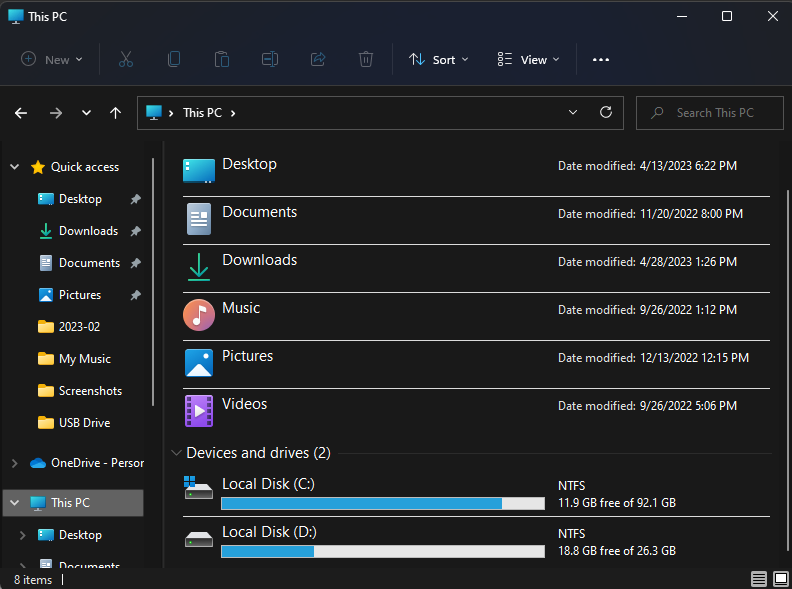
  1. Launch the File Explorer, click on This PC, and select Device and Drivers.change locations for default folders
  2. \n

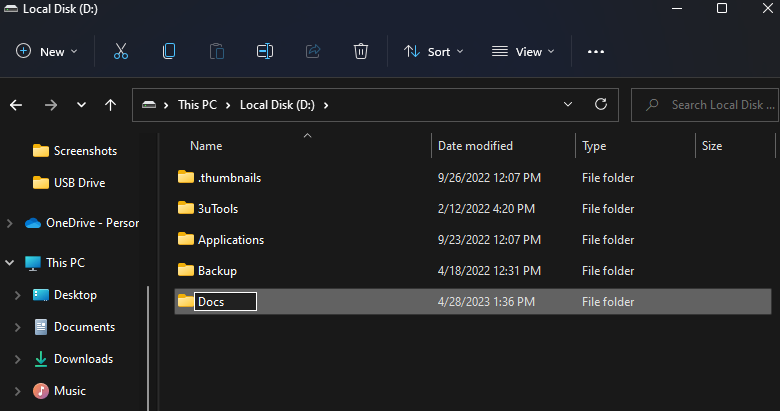
  3. Select the new drive location and head to the new location where you’d prefer to move your default folders to.
  4. \n

  5. Create a new folder and name it.
  6. \n

  7. Next, press the Windows + R keys to launch the Run dialog box.
  8. \n

  9. Key in the following command to launch the location with the user account default folders: %HOMEPATH%
  10. \n

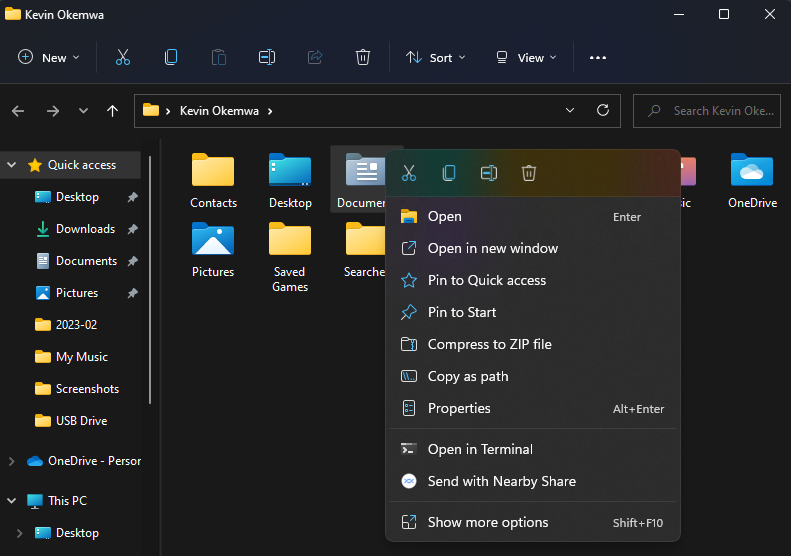
  11. Now, right-click on the folder you’d like to move to another location and select Properties.
  12. \n

  13. Click on the Location tab, click the Move button, and select the folder in the new location.
  14. \n

  15. Finally, click on the Select Folder button, select Apply, and click on the Yes button.
  16. \n

\n

Change locations for default folders via Windows Settings

\n

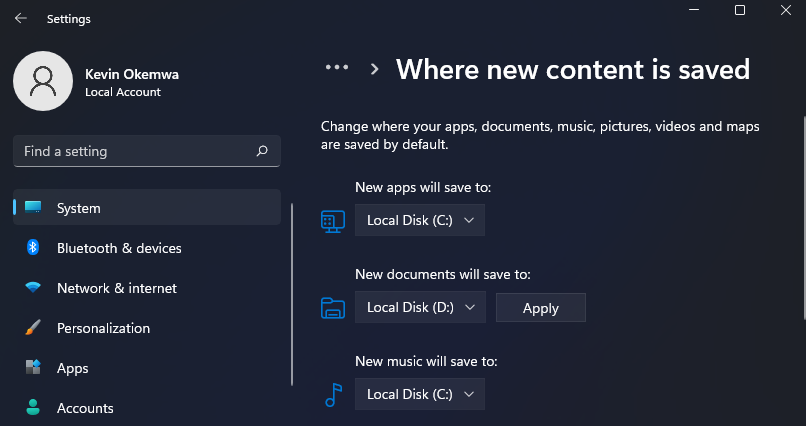
You can also use the Windows settings to easily change the default location for folders and files in Windows 11. Here’s how:

\n

    \n

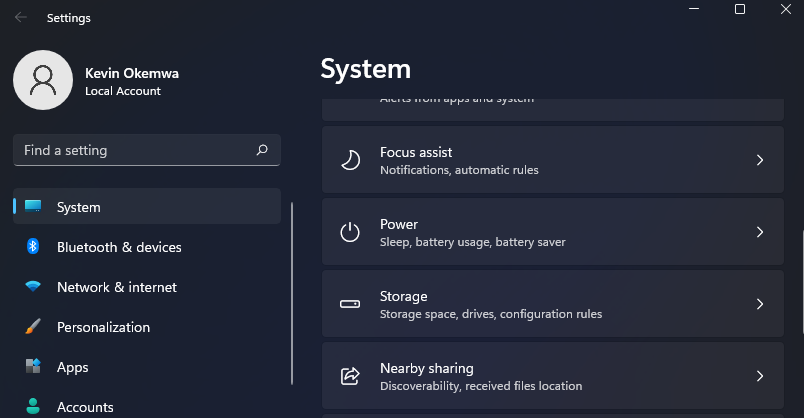
  1. Head to the Windows Settings, click on Systems, and select Storage.Windows settings
  2. \n

  3. Under the storage management category, click on the Advanced storage settings dropdown menu, and select where new content is saved.
  4. \n

  5. Select the new save location and click on Apply save the changes.
  6. \n

\n

Change locations for default folders via the Registry Editor

\n

Alternatively, you can use the Registry Editor to change locations for default folders. Here’s how to do it:

\n

    \n

  1. Launch the Run dialog box by pressing Windows + R keys, then type regedit.
  2. \n

  3. Navigate through this path: HKEY_CURRENT_USER\\SOFTWARE\\Microsoft\\Windows\\CurrentVersion\\Explorer\\User Shell Folders
  4. \n

  5. Right-click on the file that you’d one to move to another location.
  6. \n

  7. Next, in the Value data section of the Edit String window of your PC, enter the new location or path and click on OK.Registry Editor
  8. \n

  9. You’ll need to restart your Windows PC for the changes made to be applied.
  10. \n

\n

Bonus tip

\n

How to restore default folders location in Windows

\n

There might be an instance where you might be required to restore the default folders to their original location. For whatever reason that might be, here’s what you need to do:

\n

\n

\n

\n

\n

\n

\n

\n

\n

\n

\n

\n

\n

\n

    \n

  1. Launch the File Explorer and head to the current set default folder location.
  2. \n

  3. Click on the folder and select the Properties option.restore original location for folders in Windows
  4. \n

  5. Click on the Location tab, and select the Restore Default button.restore default location
  6. \n

  7. Finally, click on the Yes button to restore the folder to its original location.
  8. \n

\n

Save on space by changing locations for default folders

\n

Hopefully, with these methods, you’ve been able to change locations for default folders. This will not only help you save up on space and generally improve the performance of your device but also promote equal disk partition.

\n

This will also help you prevent booting problems. Be sure to let us know which method worked for you in the comments below.

\n

Featured Image via Bing Image Creator

\n

\n

Check out more from OnMSFT.com!

\n

\n

Share this article:
Previous Article Microsoft Loop app now supports personal accounts on iOS and Android Next Article Microsoft shifts focus of Microsoft-branded accessories to the Surface brand

Related Articles

43 Microsoft Edge keyboard shortcuts to remember for stylish and speedy web surfing

October 31, 2023

How to use accessibility features in Microsoft 365 like Narrator, Read aloud and Voice Search easily

October 30, 2023

How to use Windows Backup on Windows 11 for efficient data protection

October 26, 2023

Leave a Comment Cancel reply

Your email address will not be published. Required fields are marked *

Recent Posts

  • PowerToys 0.75 released; Environment Variables editor is here
  • Former Halo developer Bungie announces layoffs in wake of game delays
  • Siemens and Microsoft partner to bring GenAI to industries worldwide
  • 43 Microsoft Edge keyboard shortcuts to remember for stylish and speedy web surfing
  • Here is what’s coming to (and leaving) Xbox Game Pass soon

Recent Comments

No comments to show.

Archives

  • October 2023
  • September 2023
  • August 2023
  • July 2023
  • June 2023
  • May 2023
  • April 2023
  • March 2023
  • February 2023
  • January 2023
  • December 2022
  • November 2022
  • October 2022
  • September 2022
  • August 2022
  • July 2022
  • June 2022
  • May 2022
  • April 2022
  • March 2022
  • February 2022
  • January 2022
  • December 2021
  • November 2021
  • October 2021
  • September 2021
  • August 2021
  • July 2021
  • June 2021
  • May 2021
  • April 2021
  • March 2021
  • February 2021
  • January 2021
  • December 2020
  • November 2020
  • October 2020
  • September 2020
  • August 2020
  • July 2020
  • June 2020
  • May 2020
  • April 2020
  • March 2020
  • February 2020
  • January 2020
  • December 2019
  • November 2019
  • October 2019
  • September 2019
  • August 2019
  • July 2019
  • June 2019
  • May 2019
  • April 2019
  • March 2019
  • February 2019
  • January 2019
  • December 2018
  • November 2018
  • October 2018
  • September 2018
  • August 2018
  • July 2018
  • June 2018
  • May 2018
  • April 2018
  • March 2018
  • February 2018
  • January 2018
  • December 2017
  • November 2017
  • October 2017
  • September 2017
  • August 2017
  • July 2017
  • June 2017
  • May 2017
  • April 2017
  • March 2017
  • February 2017
  • January 2017
  • December 2016
  • November 2016
  • October 2016
  • September 2016
  • August 2016
  • July 2016
  • June 2016
  • May 2016
  • April 2016
  • March 2016
  • February 2016
  • January 2016
  • December 2015
  • November 2015
  • October 2015
  • September 2015
  • August 2015
  • July 2015
  • June 2015
  • May 2015
  • April 2015
  • March 2015
  • February 2015
  • January 2015
  • December 2014
  • November 2014
  • October 2014
  • September 2014
  • August 2014
  • July 2014
  • June 2014
  • May 2014
  • April 2014
  • March 2014
  • February 2014
  • January 2014
  • December 2013
  • November 2013
  • October 2013
  • September 2013
  • August 2013
  • July 2013
  • June 2013
  • May 2013
  • April 2013
  • March 2013
  • February 2013
  • January 2013
  • December 2012
  • November 2012
  • October 2012
  • September 2012
  • August 2012
  • July 2012
  • June 2012
  • May 2012
  • April 2012
  • March 2012
  • February 2012
  • January 2012
  • December 2011
  • November 2011
  • October 2011
  • September 2011
  • August 2011
  • July 2011
  • June 2011
  • May 2011
  • April 2011
  • March 2011
  • February 2011
  • January 2011
  • December 2010
  • November 2010
  • October 2010
  • September 2010

Categories

  • Announcements
  • Deals
  • Developer
  • Editorial
  • Feature
  • Feature stories
  • Hero-post
  • Hotdeals
  • How-to
  • Latest news
  • Microsoft / office 365
  • News
  • Office 365
  • Onpodcast
  • Opinion
  • Our featured post
  • Polls
  • Review
  • Reviews
  • Videos
OnMSFT.com

OnMSFT.com covers Microsoft news, reviews, and how-to guides. Formerly known as WinBeta, we have been your source for Microsoft news since 1998.

Categories

  • Windows
  • Surface
  • Xbox
  • How-To
  • OnPodcast
  • Gaming
  • Edge
  • Teams

Recent Posts

  • PowerToys 0.75 released; Environment Variables editor is here
  • Former Halo developer Bungie announces layoffs in wake of game delays
  • Siemens and Microsoft partner to bring GenAI to industries worldwide
  • 43 Microsoft Edge keyboard shortcuts to remember for stylish and speedy web surfing
  • Here is what’s coming to (and leaving) Xbox Game Pass soon

Quick Links

  • About OnMSFT.com
  • Contact OnMSFT
  • Join Our Team
© 2010–2026 OnMSFT.com LLC. All rights reserved.
About OnMSFT.comContact OnMSFT