
\n
\n
Have you ever found yourself spending endless hours brainstorming ideas, creating documents, and collaborating with others? Microsoft Copilot is here to make your life easier and more efficient.
\n
With its versatile features and seamless integration with popular Microsoft applications, Copilot is a powerful AI tool that can help you stay in sync, generate formulas, summarize emails, organize meetings, create drafts, and much more. Copilot is available to Microsoft 365 business users for an additional $30 per user per month.
\n
Let’s explore the 7 things you can do with Microsoft Copilot and understand why you should start using it today.
\n

\n
What is Microsoft Copilot and Why Should You Use It?
\n
Microsoft Copilot is an innovative AI-powered assistant that aims to simplify your workflow and boost your productivity. Whether you are working on a project, collaborating with team members, or writing a document, it is designed to provide intelligent suggestions, generate insights, and automate repetitive tasks.
\n
By leveraging AI and machine learning, Copilot can understand context, learn from your behavior, and deliver personalized assistance that fits your needs. By using Microsoft Copilot, you can save time, enhance your creativity, and achieve better results.
\n
Microsoft Copilot in Loop Plan, Brainstorm, Create and Collaborate Easier to Stay in Sync
\n
One of the most valuable features of Microsoft Copilot is its ability to help you plan, brainstorm, create, and collaborate seamlessly. With Copilot, you can stay in sync with your team members and ensure everyone is on the same page. Whether you are working on a project plan, brainstorming new ideas, or creating a document, Copilot provides intelligent suggestions, offers templates, and assists you in generating content. It eliminates the need for constant back-and-forth communication and helps you save time and effort.
\n
Microsoft Copilot in Excel Go Deeper with Data, Identify Insights, Generate Formulas, and More
\n
Excel is a powerful tool for analyzing and managing data, but it can be overwhelming and time-consuming to work with. Microsoft Copilot comes to the rescue by providing intelligent suggestions, generating formulas, and identifying insights that may have gone unnoticed. With Copilot, you can go deeper with your data analysis, automate repetitive tasks, and improve the accuracy of your calculations. Whether you are a beginner or an advanced user, Copilot can enhance your Excel experience and make your work more efficient.
\n
Copilot in Microsoft Outlook – Be More Efficient in Email Management
\n
Emails can be a constant source of distraction and time consumption. Microsoft Copilot integrates seamlessly with Microsoft Outlook to help you be more efficient in email management. Copilot can summarize long email chains, allowing you to quickly grasp the main points without spending precious time reading through every message. It also assists you in composing responses, ensuring that your tone and wording are appropriate. Additionally, Copilot allows you to quickly flag important messages, organize your inbox, and create reminders, making email management a breeze.
\n

\n
Microsft Copilot in Teams – Efficient Collaboration and Meeting Planning
\n
Microsoft Teams is a popular platform for collaboration and communication among teams. With Copilot, you can enhance your experience in Teams by efficiently organizing meetings, setting agendas, and formulating action points. Copilot can help you create meeting summaries for team members unable to attend, ensuring that everyone is updated and on track. By leveraging the power of Copilot in Microsoft Teams, you can streamline your collaboration efforts and improve the overall productivity of your team.
\n
Copilot in Word – Drafting, Rewriting, and Enhancing Your Writing
\n
Writing documents and articles can sometimes be a daunting task, especially when you are faced with writer’s block or struggling to find the right words. Microsoft Copilot can be your writing companion, helping you create drafts, rewrite sections, and improve the overall tone of your writing. Copilot offers intelligent suggestions, synonyms, and alternative phrasing to enhance the quality of your content. The AI can be your trusted writing assistant, whether you are a student, professional, or content creator.
\n
Copilot in PowerPoint – Transforming Ideas into Engaging Presentations
\n
Producing powerful presentations can be particularly difficult when aiming to communicate intricate concepts and captivate your listeners. Copilot simplifies this process by effortlessly converting your ideas into captivating PowerPoint presentations. Copilot can help you generate slide decks, suggest visuals, and even add speaker notes for more effective presentation delivery. Harnessing the potential of Copilot within PowerPoint allows for time savings, streamlining the creation process, and ensuring lasting impressions.
\n
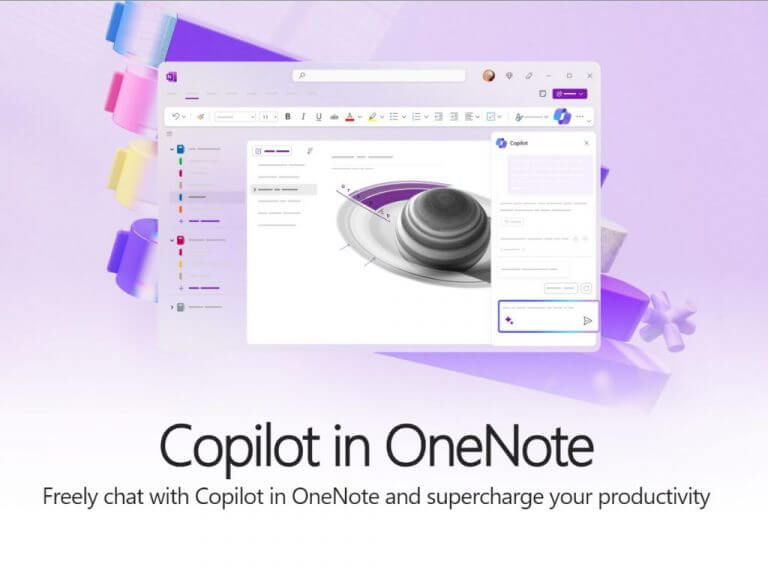
Copilot in OneNote – Efficient Note Summarization, Planning, and More
\n
OneNote is a powerful tool for note-taking and information organization. With Copilot, you can take your note-taking experience to the next level. Copilot can summarize your notes, create to-do lists, design plans, and perform various other tasks seamlessly. By utilizing Copilot in OneNote, you can better organize your thoughts, improve productivity, and retrieve information more efficiently.
\n
\n
In summary, Microsoft Copilot represents a robust AI-assisted aide capable of transforming your work environment. Through the utilization of its advanced functionalities within Loop, Excel, Outlook, Teams, Word, PowerPoint, and OneNote, this tool enables time-saving measures, heightened productivity, and improved outcomes.
\n
Irrespective of whether you are a student, professional, or team member, Microsoft Copilot provides valuable offerings to streamline and optimize your workflow. So, why wait? Start using Microsoft Copilot today and experience the power of AI assistance in your everyday tasks.
\n