Microsoft has announced that the new Approvals app is now generally available in Microsoft Teams. The new workflow tool was first announced back in September 2020, and it started rolling out earlier this week. As the name suggests, it streamlines requests and processes with partners and helps to create and manage requests within the Teams collaboration platform.
“Approvals in Microsoft Teams lets you easily create, manage, and share approvals directly from your hub for teamwork. You can quickly start an approval flow from the same place you send a chat, in a channel conversation, or from the Approvals app itself. Just select an approval type, add details, attach files, and choose approvers. Once submitted, approvers are notified and can review and act on the request,” the company explained.
Microsoft says that Approvals is a native Teams application, and it’s turned on by default if Power Automate is already enabled in your organization. To be clear, these approvals leverage the Power Automate infrastructure to trigger an approvals action directly and doesn’t require a flow to work within the Teams app.
For those of you who are interested in trying out the new Approvals app, users need to have an F3 license to be able to use this feature. To access the app in Teams, click the three dots icon (. . .) available on the sidebar, type “Approvals” in the search box, and click on it to open the app. Here’s how users can create, view, track, and manage their approval requests directly from Microsoft Teams:
Create an approval request

To create an approval in a chat or a channel conversation, click the “Approvals” icon and enter all the required details. These details include the name of the request, approver, and relevant information. Finally, upload an attachment if needed and click the “Send” button.
Approve or reject a request
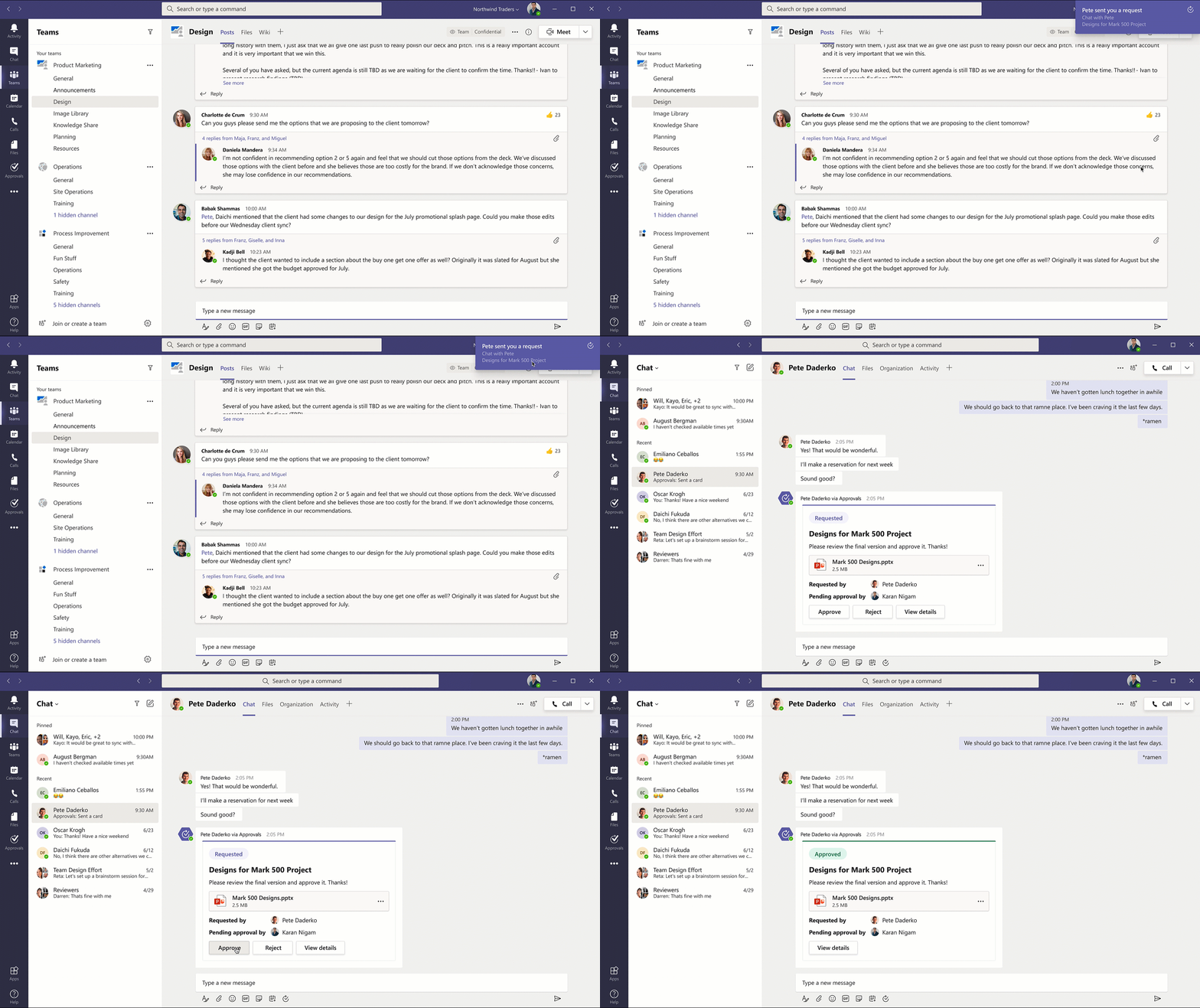
Once a request is submitted by the user, Microsoft Teams will automatically notify the approvers to take appropriate actions. They will be able to quickly review the details and relevant attachments included in the approval request to approve or reject it. The approvers will see an approvals card along with all the relevant actions related to the requests that are submitted in a chat or a channel.
Track and manage approvals
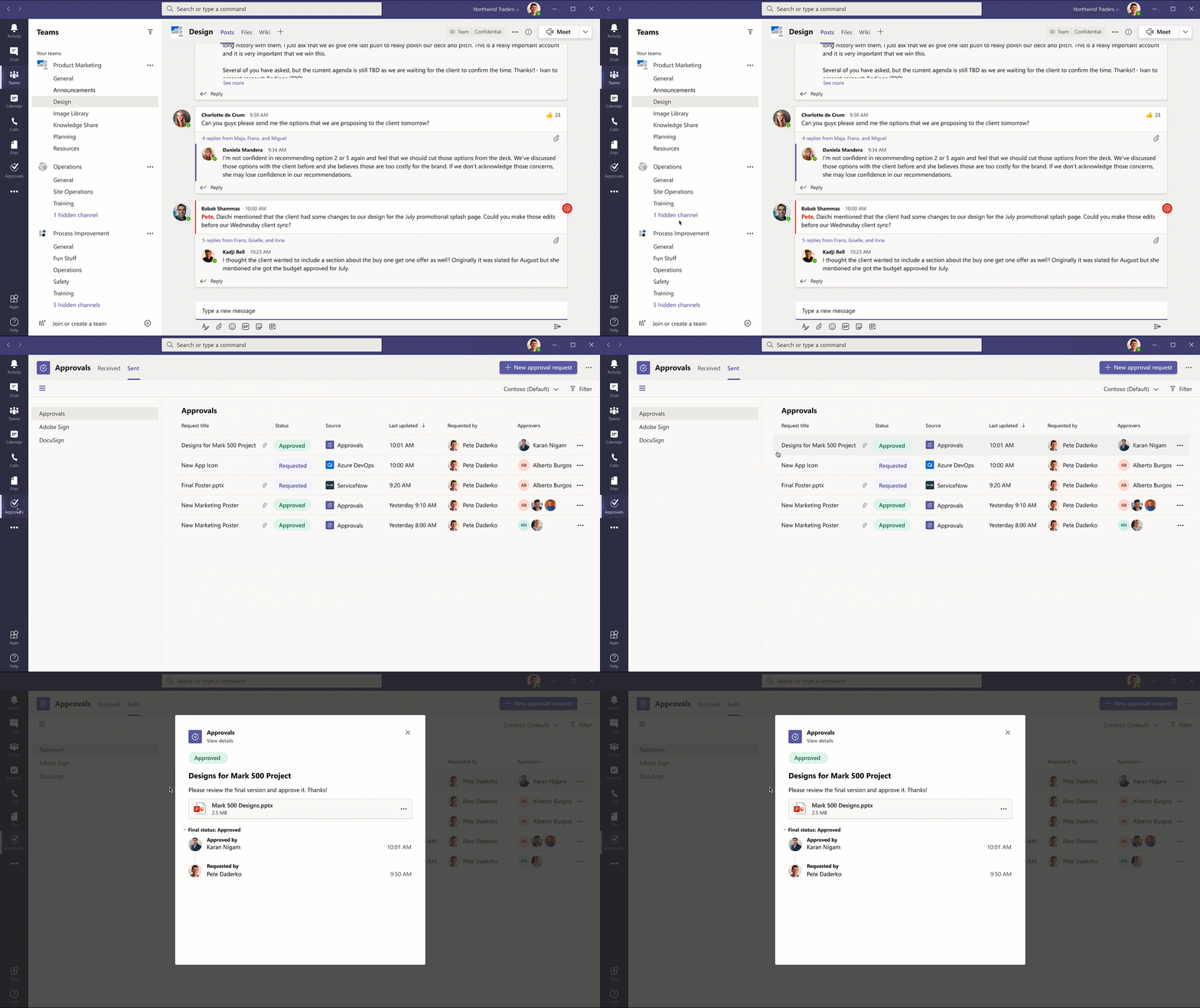
As mentioned above, the Approvals app in Teams will allow users to view and manage all your approvals from one place. Users will be able to see important details, including the status, source, along with the name of the requestor, and approvers with each request. However, they need to click on a specific approval request to track its progress and see additional details.
The ability to use Approvals in Teams is a welcome addition, and it can help to improve productivity in the workplace. The company is also planning to add an option to create an electronic signature approval natively within the Approval app, and the feature will be available in the coming months. We invite you to check out this support article for additional details on managing the Approvals app in Teams.