Skip to content
OnMSFT.com
  • Home
  • About
  • Contact
  • Windows
  • Surface
  • Xbox
  • How-To
  • OnPodcast
  • Edge
  • Teams
  • Gaming
Menu
  • Home
  • About
  • Contact
  • Windows
  • Surface
  • Xbox
  • How-To
  • OnPodcast
  • Edge
  • Teams
  • Gaming
  1. Home
  2. News
  3. Microsoft Updates OneNote Clipper: Redesigned UI, Location Picker, More – onmsft.com

Microsoft Updates OneNote Clipper: Redesigned UI, Location Picker, More – onmsft.com

Kip Kniskern Kip Kniskern
March 12, 2015
2 min read

Microsoft updates OneNote Clipper: redesigned UI, location picker, more

Microsoft has just announced its latest in a steady string of updates to OneNote, this time updating Clipper, a browser add-in that helps to capture and enhance content from around the web and gather it in to OneNote.

Clipper 2.0 is a major step forward for the OneNote accessory, and includes a revamped UI that takes up less space and offers a clean new look, but perhaps the biggest improvement to Clipper 2.0 is the inclusion of a location picker.  With the previous version, any clipped content was sent by default to your Quick Notes section in OneNote.  Now, however, you can choose from any of your notebooks and sections, making organizing your clippings easier.

Clipper 2.0 location picker

Once you set a location, Clipper 2.0 will remember it for the next time, useful if you’re clipping a lot of recipes, or clippings for a research project you’re storing in one notebook section.  You can even set a shared notebook with the location picker, making it easy to share clippings with others.

Another new feature of Clipper 2.0 is its ability to clip and save certain types of content, currently Articles, Recipes, or Products, and only save a cleaned up version of that content.  To use it, Clipper 2.0 will automatically detect if you’re browsing a page containing an Article, Recipe, or Product.  Just click on the appropriate button on the right side of the Clipper, and it will show you a preview of the content, without all the clutter.  Then just select Clip, and save the now all cleaned up content to OneNote.

Here’s an example, with the contents of the article pulled cleanly out of the website, saving a lot of steps in removing all the unnecessary stuff:

OneNote Clipper 2.0 Article picker

Clipper 2.0 also includes a new Region clipper, available for Chrome. With the Chrome extension installed, you can save regions of the web page you’re clipping, rather than the full page or the article/recipe/product clippings.

You can download OneNote Clipper for your browser from the download link below.

OneNote Clipper

Share This Post:

Share this article:
Tags:
OneNote
Previous Article Brainy Studios’ TurnOn is a 2014 Imagine Cup winner and available on Windows Phone | On MSFT Next Article It’s Official: Microsoft Is About To Speed Up The Frequency Of Windows 10 Build Drops – onmsft.com

Related Articles

Chrome and Gemini icons representing Gemini Live voice assistant integration in Chrome

Chrome tests Gemini Live voice assistant in a floating overlay panel

March 14, 2026

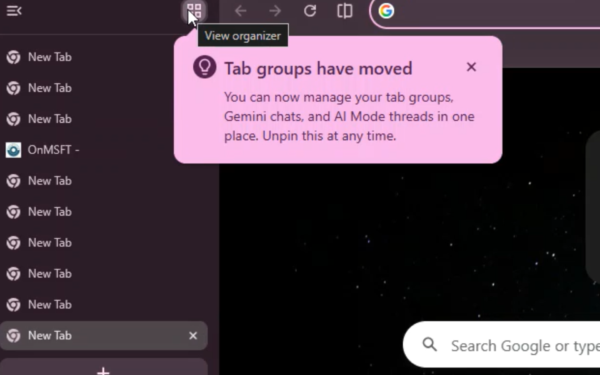
Chrome’s Organizer feature may sync Gemini and AI conversations across devices

March 14, 2026

After Chrome, Edge tests launching the browser automatically when you sign into Windows

March 13, 2026

Leave a Comment Cancel reply

Your email address will not be published. Required fields are marked *

Recent Posts

  • Chrome tests Gemini Live voice assistant in a floating overlay panel
  • Chrome’s Organizer feature may sync Gemini and AI conversations across devices
  • After Chrome, Edge tests launching the browser automatically when you sign into Windows
  • iPhone Fold Latest Rumors: Display, Cameras, RAM and Price Details Revealed
  • Samsung fears first mobile operating loss due to memory price surge

Recent Comments

No comments to show.
OnMSFT.com

OnMSFT.com covers Microsoft news, reviews, and how-to guides. Formerly known as WinBeta, we have been your source for Microsoft news since 1998.

Categories

  • Windows
  • Surface
  • Xbox
  • How-To
  • OnPodcast
  • Gaming
  • Edge
  • Teams

Recent Posts

  • Chrome tests Gemini Live voice assistant in a floating overlay panel
  • Chrome’s Organizer feature may sync Gemini and AI conversations across devices
  • After Chrome, Edge tests launching the browser automatically when you sign into Windows
  • iPhone Fold Latest Rumors: Display, Cameras, RAM and Price Details Revealed
  • Samsung fears first mobile operating loss due to memory price surge

Quick Links

  • About OnMSFT.com
  • Contact OnMSFT
  • Join Our Team
  • Privacy Policy
© 2010–2026 OnMSFT.com LLC. All rights reserved.
About OnMSFT.comContact OnMSFTPrivacy Policy