Skip to content
OnMSFT.com
  • Home
  • About
  • Contact
  • News
  • How-to
  • Feature stories
  • Deals
  • Microsoft / office 365
  • Reviews
Menu
  • Home
  • About
  • Contact
  • News
  • How-to
  • Feature stories
  • Deals
  • Microsoft / office 365
  • Reviews
  1. Home
  2. News
  3. Love it or hate it: Quick Access on Windows 10 is easy to customize or hide

Love it or hate it: Quick Access on Windows 10 is easy to customize or hide

Joseph Finney Joseph Finney
September 30, 2020
2 min read

Love it or hate it: Quick Access is easy to customize or hide

Windows 10 has introduced a huge number of features and tweaks to Windows, some which are good and others not so good. Quick Access falls into the controversial category and many users are not to happy about the feature. The idea behind Quick Access makes sense, a dynamic folder which saves popular locations and lets users pin files and folders for streamlining common tasks.

One common criticizing of the Quick Access revolves around privacy concerns when Windows auto selects frequently used folders making them easy to find. People who don’t want certain files or folders to be easy to discover may not like the idea. For example if someone had a file for their passwords or usernames which they access often anyone could open their computer, open Quick Access and find the file in no time. Obviously people shouldn’t be storing sensitive information on their computer without password protecting access, but many users don’t have good security habits.

Luckily Microsoft makes it easy to disable Quick Access and also makes it easy to customize what is showing and what isn’t. By right clicking on a file or folder users can select ‘pin to Quick Access’ or alternatively ‘remove from Quick Access’ depending on what they want to do. Quick Access has also replaced the Favorites section on the Explorer bar which means dragging a file over to the quick access menu in any folder will add the folder to Quick Access.

The default open behavior can be a powerful option and currently Quick Access holds that spot. Although Microsoft does enable users to change the default open behavior of Explorer the default will usually reign supreme. To change the default launch behavior choose ‘This PC’ or ‘Quick Access’ from the top of the general tab in Folder Options. This open behavior affects launching Explorer from the taskbar or WIN+E.

Share This Post:

Tags: Microsoft | privacy | Windows 10
Share this article:
Tags:
Microsoft privacy Windows 10
Previous Article Microsoft reveals the faster, more efficient DirectX 12 Next Article LA Live’s Nokia Theater rebranded as Microsoft takes naming rights – now Microsoft Theater

Related Articles

Chrome tests Google Drive file uploads in the AI Mode compose box

April 14, 2026
Gemini image creation using right click desktop Chrome

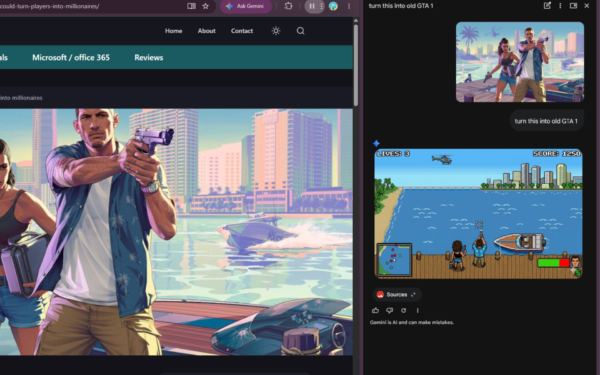
Chrome lets you remake images with Gemini on desktop using just a right-click

April 13, 2026
Samsung Display crosses 5 million QD-OLED monitor shipments as demand grows fast, with new panels and strong premium market expansion worldwide.

Samsung Display Ships 5 Million QD-OLED Monitor Panels in Four Years

April 9, 2026

Leave a Comment Cancel reply

Your email address will not be published. Required fields are marked *

Recent Posts

  • Chrome tests Google Drive file uploads in the AI Mode compose box
  • Chrome lets you remake images with Gemini on desktop using just a right-click
  • Samsung Display Ships 5 Million QD-OLED Monitor Panels in Four Years
  • Intel Arc Pro B70 Teardown Reveals Blower Cooler and Early Board Design Details
  • Users Modify RTX 5090 Lightning Z Hardware to Unlock MSI’s Restricted 2500W BIOS

Recent Comments

  1. XxRIVTYxX on Intel Says It Tried to Help Before Crimson Desert Dropped Arc Support
  2. Gaurav Kumar on Chrome Prepares Nudge to ‘Move Tabs to the Side’ as Vertical Tabs Near Release
OnMSFT.com

The Tech News Site

Categories

  • Windows
  • Surface
  • Xbox
  • How-To
  • OnPodcast
  • Gaming
  • Edge
  • Teams

Recent Posts

  • Chrome tests Google Drive file uploads in the AI Mode compose box
  • Chrome lets you remake images with Gemini on desktop using just a right-click
  • Samsung Display Ships 5 Million QD-OLED Monitor Panels in Four Years
  • Intel Arc Pro B70 Teardown Reveals Blower Cooler and Early Board Design Details
  • Users Modify RTX 5090 Lightning Z Hardware to Unlock MSI’s Restricted 2500W BIOS

Quick Links

  • About OnMSFT.com
  • Contact OnMSFT
  • Join Our Team
  • Privacy Policy
© 2010–2026 OnMSFT.com LLC. All rights reserved.
About OnMSFT.comContact OnMSFTPrivacy Policy