Skip to content
OnMSFT.com
  • Home
  • About
  • Contact
  • Windows
  • Surface
  • Xbox
  • How-To
  • OnPodcast
  • Edge
  • Teams
  • Gaming
Menu
  • Home
  • About
  • Contact
  • Windows
  • Surface
  • Xbox
  • How-To
  • OnPodcast
  • Edge
  • Teams
  • Gaming
  1. Home
  2. How-to
  3. How to solve problems with attachments in Outlook in Windows 10

How to solve problems with attachments in Outlook in Windows 10

Arif Bacchus Arif Bacchus
October 31, 2019
3 min read

Outlook Windows 10\n

\n

How to solve problems with attachments in Outlook in Windows 10

\n

If you’re having an issue with attaching a file in Outlook Windows 10, there’s no need to worry. Here’s how you can resolve your problem.

\n

    \n

  1. Check to see if you’re sending a file that Outlook thinks is unsafe. If so, attach it as a compressed or zipped folder
  2. \n

  3. See if you’re using the Rich Text Format. And switch it to HTML or Plaintext
  4. \n

\n

\n

Applies to All Windows 10 Versions

\n

\n

Inserting attachments is a key part of emailing in Outlook. But, sometimes, not everything might go as planned. You might not be able to attach a file to Outlook at all, or attachments might not show up in the body of emails, or as you intended. In this guide, we’ll help you solve some common problems with attachments in Outlook, and help stop the fretting.

\n

Outlook says that files my are unsafe, or that the file is too big

\n

One of the most common problems with attachments in Outlook is that it might block file types that it thinks are unsafe. Or, the file size might be too big. This is because Outlook blocks certain file types that it thinks might spread computer viruses. And, also because Outlook has a size limit for files. You can work your way around this by zipping the file and then attaching it. Here’s how.

\n

    \n

  1. Head to where the file you want to attach is located
  2. \n

  3. Right-click on the file and choose to Send to compressed (zipped) folder
  4. \n

  5. Head back into Outlook and attach and send the new zipped folder instead
  6. \n

\n

Some file types that are blocked by Outlook include .ade, .adp, .app. .bat, .com, .jar, .inf, and .ops. The full list is available here. If you’re unable to zip, or if the file type is still too big, you can always upload the file to the cloud, and then share the link instead.

\n
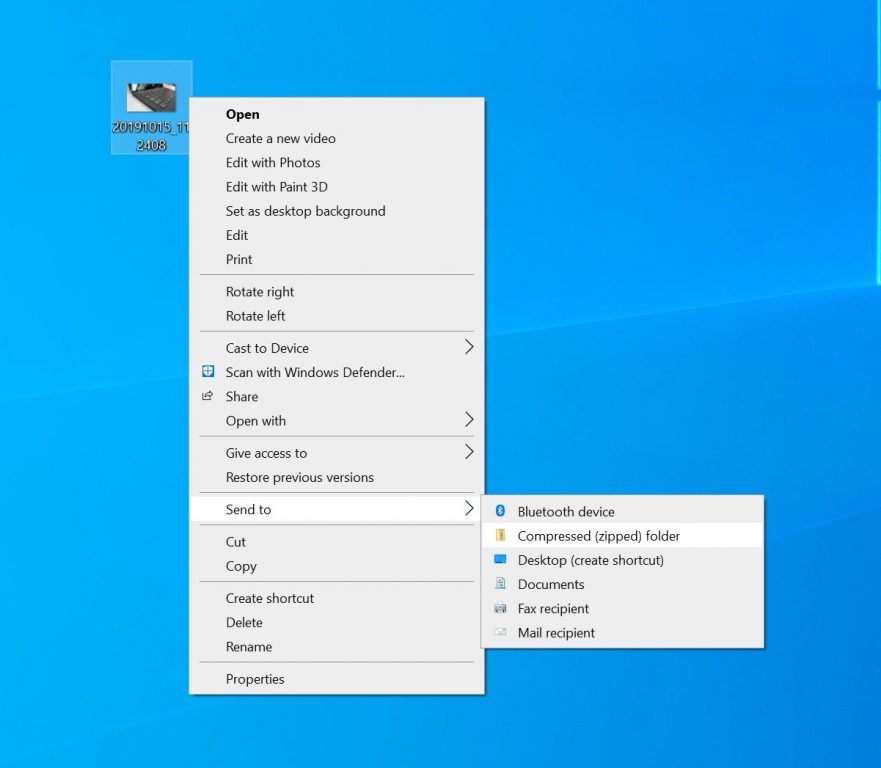
Sending a file to a zipped folder

\n

My attachments show up in the message body and not below the subject line

\n

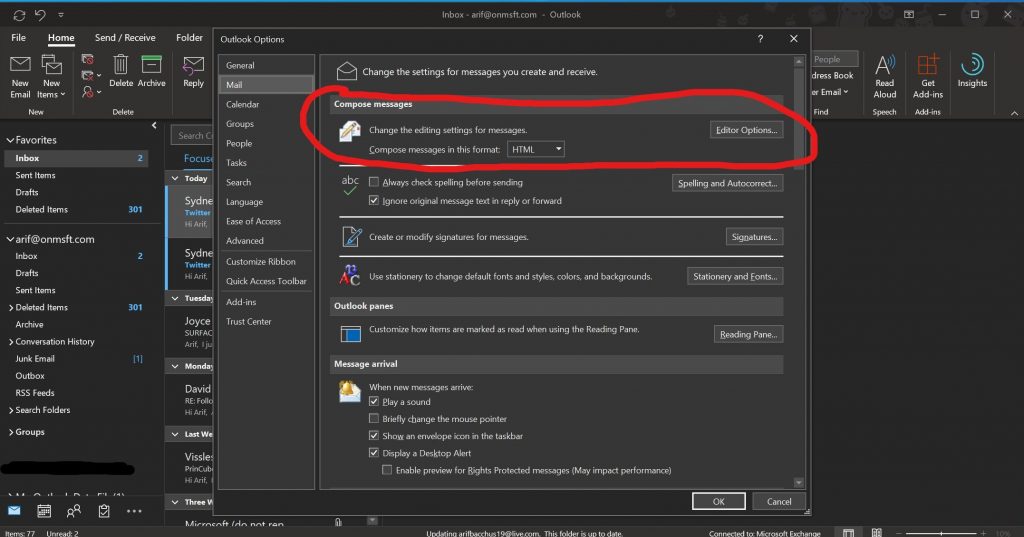
If your attachments are showing up in the body of a message and not below the subject line, then, the issue is because of the file type of the email you’re sending. If you’re replying to or using the Rich Text format for your email, all attachments will show up in the body of the message. Here’s how you can switch the format of all outbound emails back to HTML or Plaintext.

\n

    \n

  1. Head to the File tab on Outlook
  2. \n

  3. Choose Options and then click Mail
  4. \n

  5. Under Compose Messages look for the Compose messages in this format option
  6. \n

  7. Choose HTML or Plain Text
  8. \n

\n

Switching emails to HTML format

\n

When composing your email, you can look out for what format the email is by looking at the title bar of Outlook. You’ll typically see the subject of the message, along with (Rich Text) or (HTML.) Keep an eye out, to avoid having errors with attachments

\n

I can’t insert Pictures into my email and switching individual emails into HTML or Rich Text formats

\n

Finally, if you can’t insert pictures using the Insert tab in the Outlook ribbon, then again, you’re probably using the wrong format of email. You only can insert pictures info emails when using the HTML or Rich Text formats. Follow the steps above to switch the email format, or you can follow the steps below to switch an individual message into HTML or Rich Text formats.

\n

    \n

  1. Click Reply, Reply All, or Forward in the message
  2. \n

  3. If you’re working from the Reading Pane, click Pop Out
  4. \n

  5. Click the Format Text ribbon on the top
  6. \n

  7. Choose HTML or Rich Text under where it says Format
  8. \n

\n

Resolving the issue where you can’t send pictures with the insert button

\n

Did these solve your problems?

\n

Did these solutions to common problems with Outlook attachments solve your problems? If so, feel free to let us know in the comments below. Also, feel free to check out our other Outlook themed guides. We’ve explained our tips and tricks for attaching files in Outlook, and have detailed how you can set up and manage your email accounts in Outlook in Office 365.

\n\nFurther reading: Microsoft, Office 365, Outlook

Share this article:
Tags:
Microsoft Outlook
Previous Article Leaked Microsoft video shows how Cortana will integrate with Windows 10 and Outlook Next Article New mobile app from Microsoft Research uses AI for driver license testing in India

Related Articles

How to Fix the Phone Link App Not Working on Windows 11 – OnMSFT.com

December 29, 2022

5 easy ways to make desktop shortcuts on Windows 11 – OnMSFT.com

December 29, 2022

How to customize precision touchpads on Windows – OnMSFT.com

December 22, 2022

Leave a Comment Cancel reply

Your email address will not be published. Required fields are marked *

Recent Posts

  • Microsoft is no longer manufacturing the Windows RT powered Surface 2
  • Microsoft treats Windows Phone owners with extra 20GB of free SkyDrive storage for one year
  • Bing now showcases professional and celebrity Klout scores during search results
  • Bing now lets you search and browse for your friends’ Facebook photos
  • Bing now lets you explore free online courses and helps you find books to read

Recent Comments

No comments to show.

Archives

  • February 2026
  • December 2022
  • November 2022
  • October 2022
  • September 2022
  • August 2022
  • July 2022
  • June 2022
  • May 2022
  • April 2022
  • March 2022
  • February 2022
  • January 2022
  • December 2021
  • November 2021
  • October 2021
  • September 2021
  • August 2021
  • July 2021
  • June 2021
  • May 2021
  • April 2021
  • March 2021
  • February 2021
  • January 2021
  • December 2020
  • November 2020
  • October 2020
  • September 2020
  • August 2020
  • July 2020
  • June 2020
  • May 2020
  • April 2020
  • March 2020
  • February 2020
  • January 2020
  • December 2019
  • November 2019
  • October 2019
  • September 2019
  • August 2019
  • July 2019
  • June 2019
  • May 2019
  • April 2019
  • March 2019
  • February 2019
  • January 2019
  • December 2018
  • November 2018
  • October 2018
  • September 2018
  • August 2018
  • July 2018
  • June 2018
  • May 2018
  • April 2018
  • March 2018
  • February 2018
  • January 2018
  • December 2017
  • November 2017
  • October 2017
  • September 2017
  • August 2017
  • July 2017
  • June 2017
  • May 2017
  • April 2017
  • March 2017
  • February 2017
  • January 2017
  • December 2016
  • November 2016
  • October 2016
  • September 2016
  • August 2016
  • July 2016
  • June 2016
  • May 2016
  • April 2016
  • March 2016
  • February 2016
  • January 2016
  • December 2015
  • November 2015
  • October 2015
  • September 2015
  • August 2015
  • July 2015
  • June 2015
  • May 2015
  • April 2015
  • March 2015
  • February 2015
  • January 2015
  • December 2014
  • November 2014
  • October 2014
  • September 2014
  • August 2014
  • July 2014
  • June 2014
  • May 2014
  • April 2014
  • March 2014
  • February 2014
  • January 2014
  • December 2013
  • November 2013
  • October 2013
  • September 2013
  • August 2013
  • July 2013
  • June 2013
  • May 2013
  • April 2013
  • March 2013
  • February 2013
  • January 2013
  • December 2012
  • November 2012
  • October 2012
  • September 2012
  • August 2012
  • July 2012
  • June 2012
  • May 2012
  • April 2012
  • March 2012
  • February 2012
  • January 2012
  • December 2011
  • November 2011
  • October 2011
  • September 2011
  • August 2011
  • July 2011
  • June 2011
  • May 2011
  • April 2011
  • March 2011
  • February 2011
  • January 2011
  • December 2010
  • November 2010
  • October 2010
  • September 2010

Categories

  • Announcements
  • Deals
  • Developer
  • Editorial
  • Feature
  • Feature stories
  • Hero-post
  • Hotdeals
  • How-to
  • Latest news
  • Microsoft / office 365
  • News
  • Office 365
  • Onpodcast
  • Opinion
  • Our featured post
  • Polls
  • Review
  • Reviews
  • Videos
OnMSFT.com

OnMSFT.com covers Microsoft news, reviews, and how-to guides. Formerly known as WinBeta, we have been your source for Microsoft news since 1998.

Categories

  • Windows
  • Surface
  • Xbox
  • How-To
  • OnPodcast
  • Gaming
  • Edge
  • Teams

Recent Posts

  • Microsoft is no longer manufacturing the Windows RT powered Surface 2
  • Microsoft treats Windows Phone owners with extra 20GB of free SkyDrive storage for one year
  • Bing now showcases professional and celebrity Klout scores during search results
  • Bing now lets you search and browse for your friends’ Facebook photos
  • Bing now lets you explore free online courses and helps you find books to read

Quick Links

  • About OnMSFT.com
  • Contact OnMSFT
  • Join Our Team
© 2010–2026 OnMSFT.com LLC. All rights reserved.
About OnMSFT.comContact OnMSFT