Skip to content
OnMSFT.com
  • Home
  • About
  • Contact
  • Windows
  • Surface
  • Xbox
  • How-To
  • OnPodcast
  • Edge
  • Teams
  • Gaming
Menu
  • Home
  • About
  • Contact
  • Windows
  • Surface
  • Xbox
  • How-To
  • OnPodcast
  • Edge
  • Teams
  • Gaming
  1. Home
  2. How-to
  3. How to password protect notebook sections in OneNote on Windows, iOS, Android, and MacOS

How to password protect notebook sections in OneNote on Windows, iOS, Android, and MacOS

Arif Bacchus Arif Bacchus
February 11, 2020
4 min read

OneNote UWP\n

\n

How to password protect notebook sections in OneNote

\n

In some cases, you might want to password protect a specific section of your OneNote notebook to keep it out of the hands of those who you don’t want to access it. Here’s how.

\n

    \n

  • On Windows 10: Double click on the name of the notebook in the sidebar to open it. Then, right-click the section, and choose the option that says Password Protection.
  • \n

  • On MacOS: Open the section of the notebook you want to add a password to. Once done, right-click the name of the section, and choose Password Protection.
  • \n

  • On Android: Hold down the name of the section till you see a bullet point. After that, head to the top right corner and click the … menu. Choose to Protect Section and enter your password.
  • \n

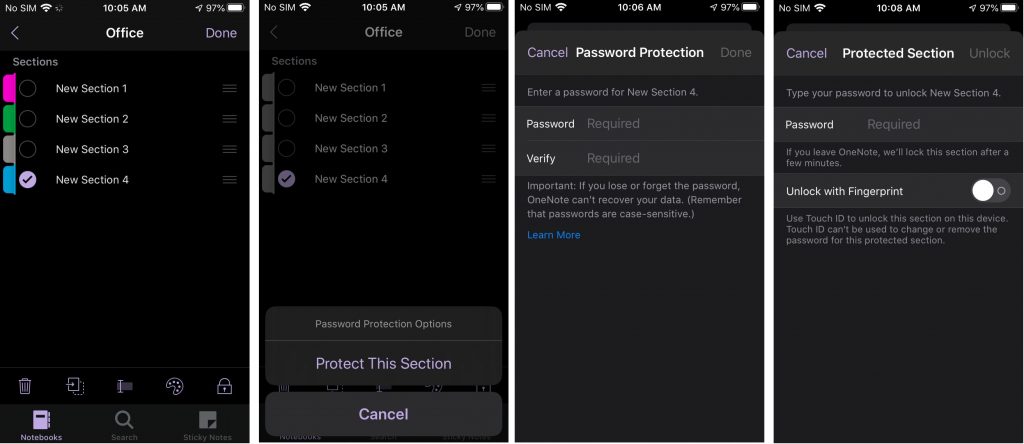
  • On iOS: Select the section you’d like to protect. You’ll then want to click the lock icon in the bottom right corner of your screen. Choose Protect This Section and enter your password.
  • \n

\n

\n

Applies to

\n

\n

OneNote is an excellent tool to take notes, but it also can be a great journaling app too. In this case, and in other instances, you might want to password protect a specific section of your notebook to keep it out of the hands of those who you don’t want to access it. In our latest guide, we’ll show you how you can protect those notebooks with a password.

\n

Be aware, though, we’ll be talking about the OneNote app downloaded through the Microsoft Store, or your respected app store. We won’t be touching on OneNote 2016, which is still here to stay. You can easily password protect sections there too if you want by right-clicking the section tab and choosing Password Protect this Section. But, here’s a deeper look at how you can do this in the modern OneNote app.

\n

The workflow of a password-protected section in OneNote

\n

Before diving into how to password protect sections, we’ll touch on it changes your workflow. Once a section is password-protected, you’ll need to enter the password each time to unlock it. Although supported on iOS and Android, OneNote on Windows and MacOS don’t support fingerprint authentication. This means you’ll need to take a few extra sections to input the password in OneNote. Also, be aware that the password doesn’t encrypt your notebook like Bitlocker in Windows 10. It’s just there to make it harder for others to access as the notebook can’t be opened without the password. Lose the password, lose the notebook. With that explained, it’s time to move on!

\n

On Windows 10

\n

\n

To password protect a notebook section in OneNote on Windows 10, you’ll first need to double click on the name of the notebook in the sidebar to open it. This will then open up a list of sections, and you can right-click on the one that needs protection. Once you do that, look for the option that says Password Protection. You’ll want to click that and choose Add Password. Enter in the password, and click OK. Your notebook section is now protected!

\n

On MacOS

\n

\n

The process of password protecting a section of a notebook in OneNote on MacOS is a bit similar. Make sure you’ve double-clicked the section name in the sidebar and opened up the section of the notebook you want to add a password to. Once done, right-click the name of the section, and choose Password Protection. You’ll then want to choose to Protect this Section and enter your password and verify it.

\n

On Android

\n

\n

As Android is a mobile platform, password protecting a section of a notebook in OneNote will be different. To do this, open up the section of the notebook you want to protect. You’ll then want to hold down the name of the section, till you see a bullet point. After that, head to the top right corner, and click the … menu. Choose to Protect Section and enter your password and click OK. When done, you can lock the section again from the … menu. When unlocking next time, you’ll be prompted to enter the password. You can also check the toggle to unlock with fingerprint next time to speed up the process.

\n

On iOS

\n
\n

The process of password protecting a section in OneNote on iOS is a bit similar to Android, but there are more icons to help you understand the process. To begin, you’ll want to select the section you’d like to protect. You’ll then want to click the lock icon in the bottom right corner of your screen. Choose Protect This Section and enter your password. The section will automatically lock after a period of inactivity. You can unlock by tapping it and entering the password. Just like on Android, you can unlock by fingerprint by choosing the option the first time you unlock after putting in a password.

\n

How do you use OneNote?

\n

As we said before, OneNote is a fairly powerful tool. It has dark mode support, image features, and even integration in Microsoft Teams. OneNote is a topic we’ve covered extensively, so check out our news hub here for more. And, feel free to let us know how OneNote is working for you by dropping us a comment in the section below.

\n\nFurther reading: Microsoft, Office 365, OneNote

Share this article:
Tags:
Microsoft OneNote
Previous Article Learn more about Microsoft’s dual screen devices plans during Microsoft Developer Day, starting at 8:30am PT Next Article Word, Excel, and Powerpoint are getting a new look on iOS

Related Articles

How to Fix the Phone Link App Not Working on Windows 11 – OnMSFT.com

December 29, 2022

5 easy ways to make desktop shortcuts on Windows 11 – OnMSFT.com

December 29, 2022

How to customize precision touchpads on Windows – OnMSFT.com

December 22, 2022

Leave a Comment Cancel reply

Your email address will not be published. Required fields are marked *

Recent Posts

  • Microsoft is no longer manufacturing the Windows RT powered Surface 2
  • Microsoft treats Windows Phone owners with extra 20GB of free SkyDrive storage for one year
  • Bing now showcases professional and celebrity Klout scores during search results
  • Bing now lets you search and browse for your friends’ Facebook photos
  • Bing now lets you explore free online courses and helps you find books to read

Recent Comments

No comments to show.

Archives

  • February 2026
  • December 2022
  • November 2022
  • October 2022
  • September 2022
  • August 2022
  • July 2022
  • June 2022
  • May 2022
  • April 2022
  • March 2022
  • February 2022
  • January 2022
  • December 2021
  • November 2021
  • October 2021
  • September 2021
  • August 2021
  • July 2021
  • June 2021
  • May 2021
  • April 2021
  • March 2021
  • February 2021
  • January 2021
  • December 2020
  • November 2020
  • October 2020
  • September 2020
  • August 2020
  • July 2020
  • June 2020
  • May 2020
  • April 2020
  • March 2020
  • February 2020
  • January 2020
  • December 2019
  • November 2019
  • October 2019
  • September 2019
  • August 2019
  • July 2019
  • June 2019
  • May 2019
  • April 2019
  • March 2019
  • February 2019
  • January 2019
  • December 2018
  • November 2018
  • October 2018
  • September 2018
  • August 2018
  • July 2018
  • June 2018
  • May 2018
  • April 2018
  • March 2018
  • February 2018
  • January 2018
  • December 2017
  • November 2017
  • October 2017
  • September 2017
  • August 2017
  • July 2017
  • June 2017
  • May 2017
  • April 2017
  • March 2017
  • February 2017
  • January 2017
  • December 2016
  • November 2016
  • October 2016
  • September 2016
  • August 2016
  • July 2016
  • June 2016
  • May 2016
  • April 2016
  • March 2016
  • February 2016
  • January 2016
  • December 2015
  • November 2015
  • October 2015
  • September 2015
  • August 2015
  • July 2015
  • June 2015
  • May 2015
  • April 2015
  • March 2015
  • February 2015
  • January 2015
  • December 2014
  • November 2014
  • October 2014
  • September 2014
  • August 2014
  • July 2014
  • June 2014
  • May 2014
  • April 2014
  • March 2014
  • February 2014
  • January 2014
  • December 2013
  • November 2013
  • October 2013
  • September 2013
  • August 2013
  • July 2013
  • June 2013
  • May 2013
  • April 2013
  • March 2013
  • February 2013
  • January 2013
  • December 2012
  • November 2012
  • October 2012
  • September 2012
  • August 2012
  • July 2012
  • June 2012
  • May 2012
  • April 2012
  • March 2012
  • February 2012
  • January 2012
  • December 2011
  • November 2011
  • October 2011
  • September 2011
  • August 2011
  • July 2011
  • June 2011
  • May 2011
  • April 2011
  • March 2011
  • February 2011
  • January 2011
  • December 2010
  • November 2010
  • October 2010
  • September 2010

Categories

  • Announcements
  • Deals
  • Developer
  • Editorial
  • Feature
  • Feature stories
  • Hero-post
  • Hotdeals
  • How-to
  • Latest news
  • Microsoft / office 365
  • News
  • Office 365
  • Onpodcast
  • Opinion
  • Our featured post
  • Polls
  • Review
  • Reviews
  • Videos
OnMSFT.com

OnMSFT.com covers Microsoft news, reviews, and how-to guides. Formerly known as WinBeta, we have been your source for Microsoft news since 1998.

Categories

  • Windows
  • Surface
  • Xbox
  • How-To
  • OnPodcast
  • Gaming
  • Edge
  • Teams

Recent Posts

  • Microsoft is no longer manufacturing the Windows RT powered Surface 2
  • Microsoft treats Windows Phone owners with extra 20GB of free SkyDrive storage for one year
  • Bing now showcases professional and celebrity Klout scores during search results
  • Bing now lets you search and browse for your friends’ Facebook photos
  • Bing now lets you explore free online courses and helps you find books to read

Quick Links

  • About OnMSFT.com
  • Contact OnMSFT
  • Join Our Team
© 2010–2026 OnMSFT.com LLC. All rights reserved.
About OnMSFT.comContact OnMSFT

