Skip to content
OnMSFT.com
  • Home
  • About
  • Contact
  • Windows
  • Surface
  • Xbox
  • How-To
  • OnPodcast
  • Edge
  • Teams
  • Gaming
Menu
  • Home
  • About
  • Contact
  • Windows
  • Surface
  • Xbox
  • How-To
  • OnPodcast
  • Edge
  • Teams
  • Gaming
  1. Home
  2. How-to
  3. How to manage updates for Office 365

How to manage updates for Office 365

Arif Bacchus Arif Bacchus
October 23, 2019
3 min read

Microsoft Office 365 icons\n

\n

How to manage updates for Office 365

\n

If you don’t like receiving automatic updates in Office 365, there is an easy way to disable and manage it.  Here’s how.

\n

    \n

  • Open up any Office 365 app
  • \n

  • Head to the File menu and then choose Account
  • \n

  • Click Account Options
  • \n

  • Click Update Options
  • \n

  • Click the down arrow and choose Disable Updates
  • \n

\n

\n

Applies to

\n

\n

One of the benefits of having an Office 365 subscription is always getting the updated versions of the core Office 365 apps. However, if you’re not a fan of having the automatic updates, it is very easy to turn off or manage your settings for it. In this guide, we’ll show you how you can do just that.

\n

If you’ve installed via a classic .exe installer

\n

If your PC didn’t come with Office 365 preinstalled as a Microsoft Store app, or if you had to manually download Office through your web browser, disabling Office 365 Auto Updates is a lengthy task. You’ll need to first open up any Office 365 app and the File menu and then choose Account. In the bottom right-hand corner, you’ll then notice an option for Update Options. You’ll want to click that and then choose the down arrow. You’ll have a couple of options to choose from here. We’ll describe them for you below, but you’ll want to choose the Disable Updates option and then click the Yes button.

\n

    \n

  • Update Now: Checks for updates
  • \n

  • Disable Updates: Will disable security, performance, and reliability updates
  • \n

  • View Updates: Will let you see the update you’ve already installed.
  • \n

\n

It’s important to note that by going this route, you’re only disabling the automatic security performance, and reliability updates. You’re not disabling the major updates to new Office versions, say from Office 2016 to Office 2019, as covered under your subscription. To do this, you’ll need to visit your Windows Update settings, click on Advanced Options, and uncheck the option for Recieve updates for other Microsoft products when you update Windows. 

\n

\n

If you’ve installed via the Microsoft Store

\n

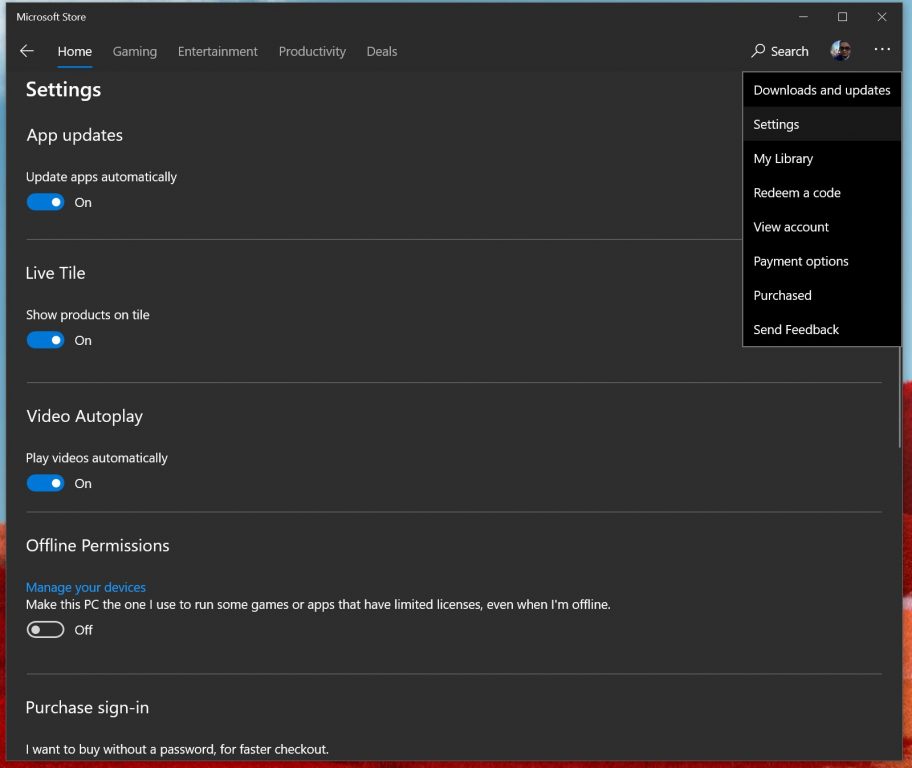
Now, if you’re using any of the pre-installed Office 365 apps on your PC, which are usually found from the Microsoft Store, the process will be a bit different. You’ll need to first close all your Office apps, and then visit the Microsoft Store. From there, you’ll then need to click the … icon that appears next to your profile photo. Next, choose Settings and then make sure the toggle switch for Update apps automatically is turned off.

\n

Please be aware that by going this route, you’ll now have to manage all your app updates manually by going to Downloads and Updates and choosing all the apps you want to update. Turning off automatic app updates from the Microsoft Store not only impacts not only Office 365 apps but also the stock apps on your system, like the Game Bar, Calendar, Weather apps, and more.

\n
\n

Not seeing these options? Here’s why

\n

In the event that you’re not seeing these options, there is a reason why. Your Office 365 version could be covered by volume licensing, and your company is using a group policy to update the office. If this is the case, then usually, you’re set with the rules put forth by your IT department. This means that you’ve likely already been opted out of Auto Updates, as your IT department typically will test updates first, before deciding if to roll it out to everyone. That’s usually the safest way to go, assuring a quality experience for everyone covered under your company’s Office 365 plans.

\n\nFurther reading: Microsoft, Office, Office 365

Share this article:
Tags:
Microsoft Office
Previous Article Microsoft To Host “Cascadia Rail Summit” To Promote A Portland-Seattle-Vancouver, B.C. High Speed Train – OnMSFT.com Next Article Untangling the Windows 10 Insider Rings situation: where we are and where you need to be

Related Articles

How to Fix the Phone Link App Not Working on Windows 11 – OnMSFT.com

December 29, 2022

5 easy ways to make desktop shortcuts on Windows 11 – OnMSFT.com

December 29, 2022

How to customize precision touchpads on Windows – OnMSFT.com

December 22, 2022

Leave a Comment Cancel reply

Your email address will not be published. Required fields are marked *

Recent Posts

  • Microsoft is no longer manufacturing the Windows RT powered Surface 2
  • Microsoft treats Windows Phone owners with extra 20GB of free SkyDrive storage for one year
  • Bing now showcases professional and celebrity Klout scores during search results
  • Bing now lets you search and browse for your friends’ Facebook photos
  • Bing now lets you explore free online courses and helps you find books to read

Recent Comments

No comments to show.

Archives

  • February 2026
  • December 2022
  • November 2022
  • October 2022
  • September 2022
  • August 2022
  • July 2022
  • June 2022
  • May 2022
  • April 2022
  • March 2022
  • February 2022
  • January 2022
  • December 2021
  • November 2021
  • October 2021
  • September 2021
  • August 2021
  • July 2021
  • June 2021
  • May 2021
  • April 2021
  • March 2021
  • February 2021
  • January 2021
  • December 2020
  • November 2020
  • October 2020
  • September 2020
  • August 2020
  • July 2020
  • June 2020
  • May 2020
  • April 2020
  • March 2020
  • February 2020
  • January 2020
  • December 2019
  • November 2019
  • October 2019
  • September 2019
  • August 2019
  • July 2019
  • June 2019
  • May 2019
  • April 2019
  • March 2019
  • February 2019
  • January 2019
  • December 2018
  • November 2018
  • October 2018
  • September 2018
  • August 2018
  • July 2018
  • June 2018
  • May 2018
  • April 2018
  • March 2018
  • February 2018
  • January 2018
  • December 2017
  • November 2017
  • October 2017
  • September 2017
  • August 2017
  • July 2017
  • June 2017
  • May 2017
  • April 2017
  • March 2017
  • February 2017
  • January 2017
  • December 2016
  • November 2016
  • October 2016
  • September 2016
  • August 2016
  • July 2016
  • June 2016
  • May 2016
  • April 2016
  • March 2016
  • February 2016
  • January 2016
  • December 2015
  • November 2015
  • October 2015
  • September 2015
  • August 2015
  • July 2015
  • June 2015
  • May 2015
  • April 2015
  • March 2015
  • February 2015
  • January 2015
  • December 2014
  • November 2014
  • October 2014
  • September 2014
  • August 2014
  • July 2014
  • June 2014
  • May 2014
  • April 2014
  • March 2014
  • February 2014
  • January 2014
  • December 2013
  • November 2013
  • October 2013
  • September 2013
  • August 2013
  • July 2013
  • June 2013
  • May 2013
  • April 2013
  • March 2013
  • February 2013
  • January 2013
  • December 2012
  • November 2012
  • October 2012
  • September 2012
  • August 2012
  • July 2012
  • June 2012
  • May 2012
  • April 2012
  • March 2012
  • February 2012
  • January 2012
  • December 2011
  • November 2011
  • October 2011
  • September 2011
  • August 2011
  • July 2011
  • June 2011
  • May 2011
  • April 2011
  • March 2011
  • February 2011
  • January 2011
  • December 2010
  • November 2010
  • October 2010
  • September 2010

Categories

  • Announcements
  • Deals
  • Developer
  • Editorial
  • Feature
  • Feature stories
  • Hero-post
  • Hotdeals
  • How-to
  • Latest news
  • Microsoft / office 365
  • News
  • Office 365
  • Onpodcast
  • Opinion
  • Our featured post
  • Polls
  • Review
  • Reviews
  • Videos
OnMSFT.com

OnMSFT.com covers Microsoft news, reviews, and how-to guides. Formerly known as WinBeta, we have been your source for Microsoft news since 1998.

Categories

  • Windows
  • Surface
  • Xbox
  • How-To
  • OnPodcast
  • Gaming
  • Edge
  • Teams

Recent Posts

  • Microsoft is no longer manufacturing the Windows RT powered Surface 2
  • Microsoft treats Windows Phone owners with extra 20GB of free SkyDrive storage for one year
  • Bing now showcases professional and celebrity Klout scores during search results
  • Bing now lets you search and browse for your friends’ Facebook photos
  • Bing now lets you explore free online courses and helps you find books to read

Quick Links

  • About OnMSFT.com
  • Contact OnMSFT
  • Join Our Team
© 2010–2026 OnMSFT.com LLC. All rights reserved.
About OnMSFT.comContact OnMSFT

