Skip to content
OnMSFT.com
  • Home
  • About
  • Contact
  • Windows
  • Surface
  • Xbox
  • How-To
  • OnPodcast
  • Edge
  • Teams
  • Gaming
Menu
  • Home
  • About
  • Contact
  • Windows
  • Surface
  • Xbox
  • How-To
  • OnPodcast
  • Edge
  • Teams
  • Gaming
  1. Home
  2. How-to
  3. How to communicate effectively with the Wiki tab in Microsoft Teams

How to communicate effectively with the Wiki tab in Microsoft Teams

Arif Bacchus Arif Bacchus
July 25, 2019
3 min read

Teams Wiki\n

\n

How to communicate effectively with the Wiki tab in Microsoft Teams

\n

You can enjoy the Wiki Tab as an alternate way of communicating effectively in Microsoft Teams in the following ways

\n

    \n

  • Add a Wiki as a tab to your channel
  • \n

  • Add pages and sections to Wikis to stay organized by topic
  • \n

  • Collaborate inside Wikis with “@” mentions, and with section conversations.
  • \n

\n

\n

Applies to All Windows 10 Versions

\n

\n

If you’re already using Microsoft Teams, you’ve likely found it as a great way to efficiently keep in touch with people across your organization. But, did you know that there’s another way to communicate in Teams other than main channels, threads, and chats?

\n

You might not notice it, but tucked away on the top bar of any given channel in Microsoft Teams is the Wiki tab. In this guide, we’ll talk a bit more about how you can use it as a smart editor to chat, edit, and collaborate on projects.

\n

Adding a Wiki Tab

\n

Similar to adding the YouTube app, you can create a Wiki Tab with the “Add a Tab” button in your channel. Once you do that, you can select “Wiki” from the tab gallery. You can then name your Wiki tab as you please, and get started with collaboration. There’s even an option to post to the channel so everyone can see your new Wiki.

\n

Adding a Wiki in Teams

\n

Writing in Wiki Tabs

\n

Once you’ve added a Wiki tab, you can treat it similar to Microsoft Word, or even Notepad. You can write text, and enjoy formatting like bold, italics, and underlining. Keep in mind, that anything you write in the Wiki Tab will be available for everyone to see.

\n

You can also add multiple documents to Wiki tabs for more effective communication. Each document on a WikiTab is called a page, and you can find different sections. As you add more pages and sections you can summon a table of contents with the hamburger menu on the right to help keep things organized. For convenience, you can even link to sections by clicking on “More options” and “Get link.”

\n
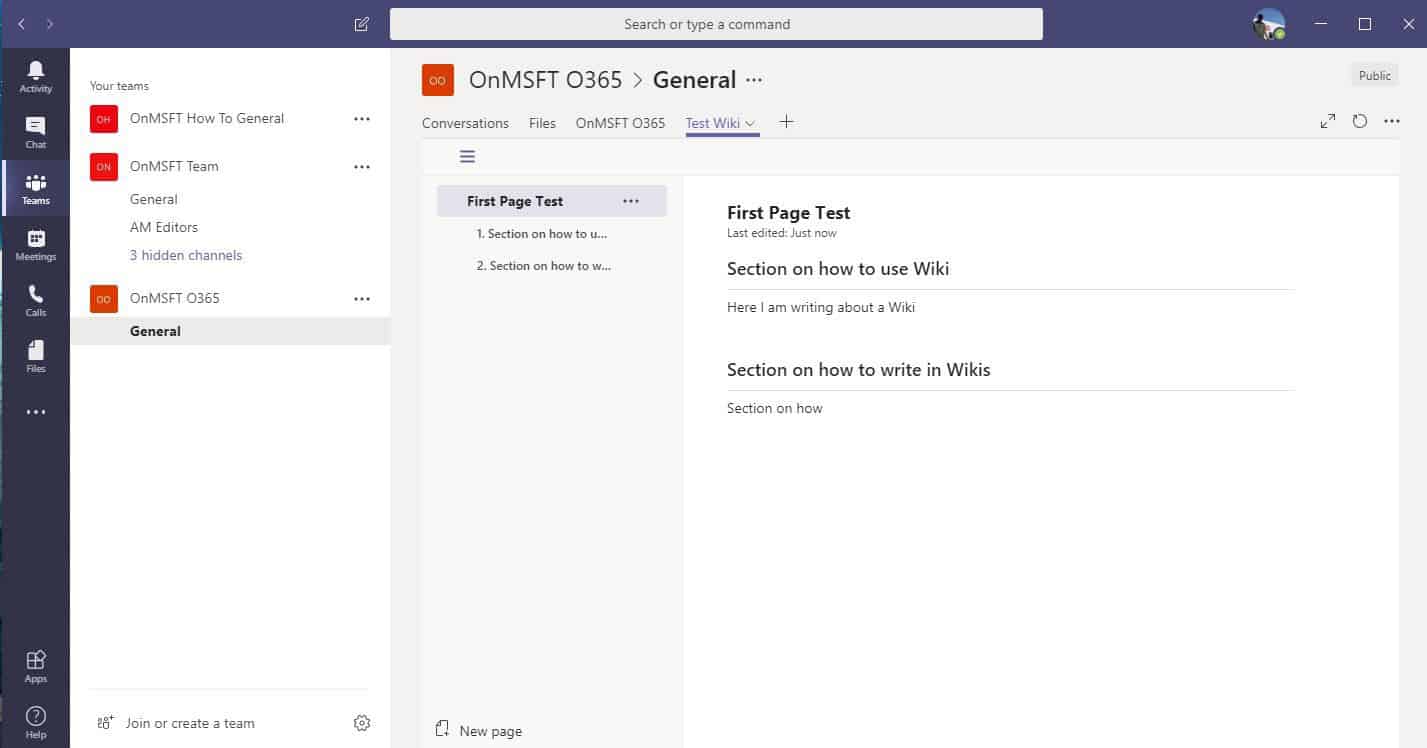
Writing in Wiki in Teams

\n

Collaborating in Wiki Tabs

\n

Along with writing in Wiki Tabs, you can collaborate directly and get your coworker’s attention to keep things effective in several ways. The first is through @mentions. You can chat with someone about the page by “@’ them with their name. This is a cool way to get feedback on whatever is being worked on. When someone is “@” they’ll get notified in Teams, and taken directly to the Wiki once clicked.

\n

You also can start chats directly from within Wiki Tabs. You can press on “Show section conversation” alongside the right of a section to start a chat about the Wiki. This is an excellent way to leave questions and comments on projects and get direct feedback from your teammates.

\n

\n

There are other ways to collaborate!

\n

The Wiki Tab is just one way that you can collaborate with your coworkers and cohorts in Microsoft Teams. Other methods include sharing a OneNote notebook or even adding and integrating an app like Asana. Of course, we also have a collection of our own tips and tricks for Teams which you can check out to help boost your collaboration too.

\n\nFurther reading: Microsoft Teams, Office 365, Wiki

Share this article:
Tags:
Microsoft Teams Wiki
Previous Article Microsoft Launcher updates on Android tablets and smartphones with new adaptive icons Next Article Can Project xCloud save Microsoft’s Mixer, or will it become another Windows Phone? – OnMSFT.com

Related Articles

How to Fix the Phone Link App Not Working on Windows 11 – OnMSFT.com

December 29, 2022

5 easy ways to make desktop shortcuts on Windows 11 – OnMSFT.com

December 29, 2022

How to customize precision touchpads on Windows – OnMSFT.com

December 22, 2022

Leave a Comment Cancel reply

Your email address will not be published. Required fields are marked *

Recent Posts

  • Microsoft is no longer manufacturing the Windows RT powered Surface 2
  • Microsoft treats Windows Phone owners with extra 20GB of free SkyDrive storage for one year
  • Bing now showcases professional and celebrity Klout scores during search results
  • Bing now lets you search and browse for your friends’ Facebook photos
  • Bing now lets you explore free online courses and helps you find books to read

Recent Comments

No comments to show.

Archives

  • February 2026
  • December 2022
  • November 2022
  • October 2022
  • September 2022
  • August 2022
  • July 2022
  • June 2022
  • May 2022
  • April 2022
  • March 2022
  • February 2022
  • January 2022
  • December 2021
  • November 2021
  • October 2021
  • September 2021
  • August 2021
  • July 2021
  • June 2021
  • May 2021
  • April 2021
  • March 2021
  • February 2021
  • January 2021
  • December 2020
  • November 2020
  • October 2020
  • September 2020
  • August 2020
  • July 2020
  • June 2020
  • May 2020
  • April 2020
  • March 2020
  • February 2020
  • January 2020
  • December 2019
  • November 2019
  • October 2019
  • September 2019
  • August 2019
  • July 2019
  • June 2019
  • May 2019
  • April 2019
  • March 2019
  • February 2019
  • January 2019
  • December 2018
  • November 2018
  • October 2018
  • September 2018
  • August 2018
  • July 2018
  • June 2018
  • May 2018
  • April 2018
  • March 2018
  • February 2018
  • January 2018
  • December 2017
  • November 2017
  • October 2017
  • September 2017
  • August 2017
  • July 2017
  • June 2017
  • May 2017
  • April 2017
  • March 2017
  • February 2017
  • January 2017
  • December 2016
  • November 2016
  • October 2016
  • September 2016
  • August 2016
  • July 2016
  • June 2016
  • May 2016
  • April 2016
  • March 2016
  • February 2016
  • January 2016
  • December 2015
  • November 2015
  • October 2015
  • September 2015
  • August 2015
  • July 2015
  • June 2015
  • May 2015
  • April 2015
  • March 2015
  • February 2015
  • January 2015
  • December 2014
  • November 2014
  • October 2014
  • September 2014
  • August 2014
  • July 2014
  • June 2014
  • May 2014
  • April 2014
  • March 2014
  • February 2014
  • January 2014
  • December 2013
  • November 2013
  • October 2013
  • September 2013
  • August 2013
  • July 2013
  • June 2013
  • May 2013
  • April 2013
  • March 2013
  • February 2013
  • January 2013
  • December 2012
  • November 2012
  • October 2012
  • September 2012
  • August 2012
  • July 2012
  • June 2012
  • May 2012
  • April 2012
  • March 2012
  • February 2012
  • January 2012
  • December 2011
  • November 2011
  • October 2011
  • September 2011
  • August 2011
  • July 2011
  • June 2011
  • May 2011
  • April 2011
  • March 2011
  • February 2011
  • January 2011
  • December 2010
  • November 2010
  • October 2010
  • September 2010

Categories

  • Announcements
  • Deals
  • Developer
  • Editorial
  • Feature
  • Feature stories
  • Hero-post
  • Hotdeals
  • How-to
  • Latest news
  • Microsoft / office 365
  • News
  • Office 365
  • Onpodcast
  • Opinion
  • Our featured post
  • Polls
  • Review
  • Reviews
  • Videos
OnMSFT.com

OnMSFT.com covers Microsoft news, reviews, and how-to guides. Formerly known as WinBeta, we have been your source for Microsoft news since 1998.

Categories

  • Windows
  • Surface
  • Xbox
  • How-To
  • OnPodcast
  • Gaming
  • Edge
  • Teams

Recent Posts

  • Microsoft is no longer manufacturing the Windows RT powered Surface 2
  • Microsoft treats Windows Phone owners with extra 20GB of free SkyDrive storage for one year
  • Bing now showcases professional and celebrity Klout scores during search results
  • Bing now lets you search and browse for your friends’ Facebook photos
  • Bing now lets you explore free online courses and helps you find books to read

Quick Links

  • About OnMSFT.com
  • Contact OnMSFT
  • Join Our Team
© 2010–2026 OnMSFT.com LLC. All rights reserved.
About OnMSFT.comContact OnMSFT

