Skip to content
OnMSFT.com
  • Home
  • About
  • Contact
  • Windows
  • Surface
  • Xbox
  • How-To
  • OnPodcast
  • Edge
  • Teams
  • Gaming
Menu
  • Home
  • About
  • Contact
  • Windows
  • Surface
  • Xbox
  • How-To
  • OnPodcast
  • Edge
  • Teams
  • Gaming
  1. Home
  2. How-to
  3. How to add contacts to Outlook in Windows 10

How to add contacts to Outlook in Windows 10

Arif Bacchus Arif Bacchus
November 5, 2019
3 min read

Outlook for Mac\n

\n

How to add contacts to Outlook in Windows 10

\n

If you’re constantly sending emails out to the same person, it makes sense to add them as a contact. Here’s how you can do that in the Outlook app in Windows 10

\n

    \n

  1. Right-click the email address of the person you want to add as a contact and choose the Add to Outlook Contacts option.
  2. \n

  3. Click the People icon at the side of the screen and choose the New Contact option
  4. \n

  5. Import contacts from a .CSV or .PST file
  6. \n

\n

\n

Applies to All Windows 10 Versions

\n

\n

If you’re constantly sending emails out to the same person, it makes sense to add them as a contact so they’re right within your reach. Similar to sending attachments, the process is relatively easy in Outlook. You can add contacts directly from an email, from scratch, from a file, Excel, and much more. In this guide, we’ll explain how you can do just that.

\n

Adding an Outlook Contact from an email message

\n

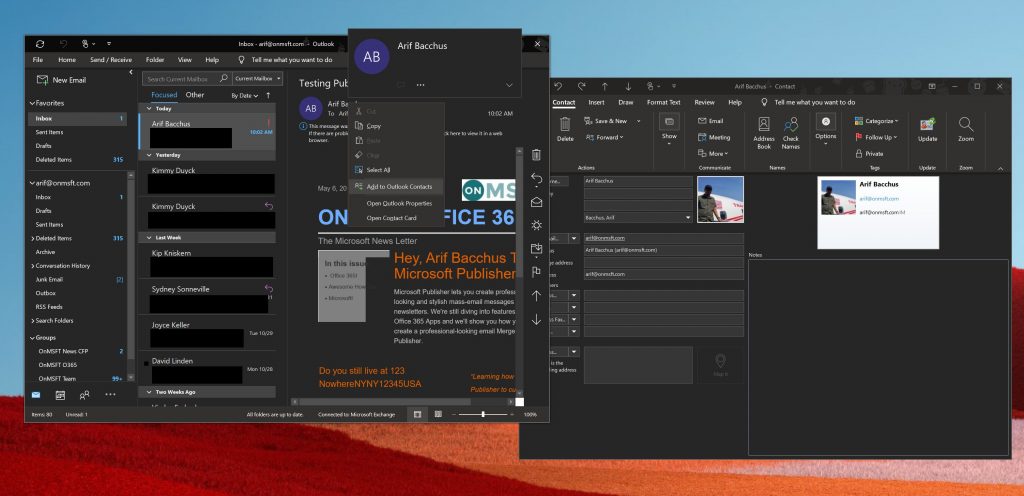
To add a contact from an Outlook message, you’ll first need to open the message so that the person’s name is shown in either the From, To, CC, or BCC line. You can then right-click on the name and choose the Add to Outlook Contacts option. From the window that opens, you can then fill in all the details that you want to save. Outlook will automatically fill in the contact email address in the email box, and other information about the contact that was fetched from the email. You can end then process by pressing Save.

\n
\n

Adding a contact from scratch

\n

Although adding a contact from an email message is the easiest way to do things, you can also add a contact from scratch. To do so, you can click the People icon at the side of the screen, where your list of accounts is located. You can then click the New Contact option at the top of the sidebar, and add your contact manually by entering in the information you want to include. When you’re done, click Save & Close.

\n

\n

Other ways to add contacts

\n

Like with many things in Office 365, there’s more than one way you can add a contact. As an alternative way to add contacts on Outlook, you can import contacts from a .CSV or .PST file. The .CSV file typically contains contacts exported into a text file, where each contact information is separated by a comma. The .PST file meanwhile, is exported from Outlook and can move your contacts between computers. Here’s how you can do that.

\n

    \n

  • Choose File from the ribbon at the top
  • \n

  • Choose Open & Export 
  • \n

  • Choose Import/Export
  • \n

  • To import a .CSV or .PST choose Import from another program or file and choose Next
  • \n

  • Choose your option
  • \n

  • In the Import a File box, browse to your contacts file, and then double-click to select it.
  • \n

\n

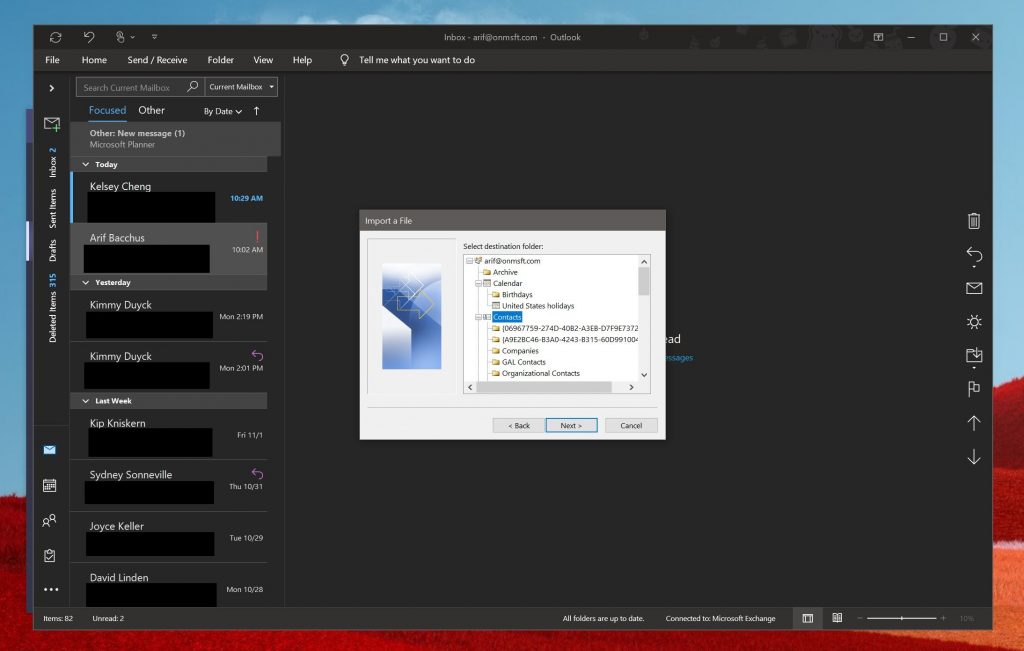
Once this option is chosen, you can select a folder to save your contacts to. Be sure to choose the account you’re using, and select its subfolder and choose Contacts. Once done, you can press finish.

\n
\n

Once you’ve added a contact via either of the methods above, there’s so much you can do with it. You’re in total control of what information is added to it. You can change the photo for your contact, change how names are displayed, update information, add extension numbers, and more.

\n

You even can forward a contact card to colleagues by clicking the card, choosing the Actions group in the contact tab, and choosing the As an Outlook contact option from the forward list menu. Did you find this guide helpful? Let us know in the comments below.

\n\nFurther reading: Microsoft, Office 365, Outlook

Share this article:
Tags:
Microsoft Outlook
Previous Article Cortana may soon disappear from the Microsoft Launcher on Android Next Article How to shutdown Windows 10 during first-run setup

Related Articles

How to Fix the Phone Link App Not Working on Windows 11 – OnMSFT.com

December 29, 2022

5 easy ways to make desktop shortcuts on Windows 11 – OnMSFT.com

December 29, 2022

How to customize precision touchpads on Windows – OnMSFT.com

December 22, 2022

Leave a Comment Cancel reply

Your email address will not be published. Required fields are marked *

Recent Posts

  • Microsoft is no longer manufacturing the Windows RT powered Surface 2
  • Microsoft treats Windows Phone owners with extra 20GB of free SkyDrive storage for one year
  • Bing now showcases professional and celebrity Klout scores during search results
  • Bing now lets you search and browse for your friends’ Facebook photos
  • Bing now lets you explore free online courses and helps you find books to read

Recent Comments

No comments to show.

Archives

  • February 2026
  • December 2022
  • November 2022
  • October 2022
  • September 2022
  • August 2022
  • July 2022
  • June 2022
  • May 2022
  • April 2022
  • March 2022
  • February 2022
  • January 2022
  • December 2021
  • November 2021
  • October 2021
  • September 2021
  • August 2021
  • July 2021
  • June 2021
  • May 2021
  • April 2021
  • March 2021
  • February 2021
  • January 2021
  • December 2020
  • November 2020
  • October 2020
  • September 2020
  • August 2020
  • July 2020
  • June 2020
  • May 2020
  • April 2020
  • March 2020
  • February 2020
  • January 2020
  • December 2019
  • November 2019
  • October 2019
  • September 2019
  • August 2019
  • July 2019
  • June 2019
  • May 2019
  • April 2019
  • March 2019
  • February 2019
  • January 2019
  • December 2018
  • November 2018
  • October 2018
  • September 2018
  • August 2018
  • July 2018
  • June 2018
  • May 2018
  • April 2018
  • March 2018
  • February 2018
  • January 2018
  • December 2017
  • November 2017
  • October 2017
  • September 2017
  • August 2017
  • July 2017
  • June 2017
  • May 2017
  • April 2017
  • March 2017
  • February 2017
  • January 2017
  • December 2016
  • November 2016
  • October 2016
  • September 2016
  • August 2016
  • July 2016
  • June 2016
  • May 2016
  • April 2016
  • March 2016
  • February 2016
  • January 2016
  • December 2015
  • November 2015
  • October 2015
  • September 2015
  • August 2015
  • July 2015
  • June 2015
  • May 2015
  • April 2015
  • March 2015
  • February 2015
  • January 2015
  • December 2014
  • November 2014
  • October 2014
  • September 2014
  • August 2014
  • July 2014
  • June 2014
  • May 2014
  • April 2014
  • March 2014
  • February 2014
  • January 2014
  • December 2013
  • November 2013
  • October 2013
  • September 2013
  • August 2013
  • July 2013
  • June 2013
  • May 2013
  • April 2013
  • March 2013
  • February 2013
  • January 2013
  • December 2012
  • November 2012
  • October 2012
  • September 2012
  • August 2012
  • July 2012
  • June 2012
  • May 2012
  • April 2012
  • March 2012
  • February 2012
  • January 2012
  • December 2011
  • November 2011
  • October 2011
  • September 2011
  • August 2011
  • July 2011
  • June 2011
  • May 2011
  • April 2011
  • March 2011
  • February 2011
  • January 2011
  • December 2010
  • November 2010
  • October 2010
  • September 2010

Categories

  • Announcements
  • Deals
  • Developer
  • Editorial
  • Feature
  • Feature stories
  • Hero-post
  • Hotdeals
  • How-to
  • Latest news
  • Microsoft / office 365
  • News
  • Office 365
  • Onpodcast
  • Opinion
  • Our featured post
  • Polls
  • Review
  • Reviews
  • Videos
OnMSFT.com

OnMSFT.com covers Microsoft news, reviews, and how-to guides. Formerly known as WinBeta, we have been your source for Microsoft news since 1998.

Categories

  • Windows
  • Surface
  • Xbox
  • How-To
  • OnPodcast
  • Gaming
  • Edge
  • Teams

Recent Posts

  • Microsoft is no longer manufacturing the Windows RT powered Surface 2
  • Microsoft treats Windows Phone owners with extra 20GB of free SkyDrive storage for one year
  • Bing now showcases professional and celebrity Klout scores during search results
  • Bing now lets you search and browse for your friends’ Facebook photos
  • Bing now lets you explore free online courses and helps you find books to read

Quick Links

  • About OnMSFT.com
  • Contact OnMSFT
  • Join Our Team
© 2010–2026 OnMSFT.com LLC. All rights reserved.
About OnMSFT.comContact OnMSFT

