Skip to content
OnMSFT.com
  • Home
  • About
  • Contact
  • Windows
  • Surface
  • Xbox
  • How-To
  • OnPodcast
  • Edge
  • Teams
  • Gaming
Menu
  • Home
  • About
  • Contact
  • Windows
  • Surface
  • Xbox
  • How-To
  • OnPodcast
  • Edge
  • Teams
  • Gaming
  1. Home
  2. How-to
  3. How to move the on screen keyboard in Windows 10 and Windows 10 Mobile

How to move the on screen keyboard in Windows 10 and Windows 10 Mobile

Kellogg Brengel Kellogg Brengel
December 22, 2015
2 min read

Lumia 950 XL infront of a christmas hearth\n

With the rise of phablets like the Lumia 950 XL, it is always welcome when an operating system takes advantage of moving objects around all of that real estate that comes with having a larger screen. Thankfully Windows 10 Mobile comes with a few tricks to make it easier to navigate and manipulate the layout of your phone’s interface with helpful capabilities like one handed mode when you hold down the Start button.

\n

Microsoft has also built in the ability to move around the onscreen keyboard so you can slide the keyboard up and down to reveal different parts the content on your screen. A helpful tool for when the on screen keyboard pops up only to block the key part of a website or app. And this feature works in non-native apps too, like Facebook or Whatsapp, pretty much you can move the keyboard whenever it pops up. Here is a quick guide for how to quickly move around the keyboard with just a single long press.

\n

Windows 10 Mobile On Screen Keyboard

When the keyboard appears and you want to move it, just press and hold the spacebar with your thumb or whichever digit you prefer.

\n
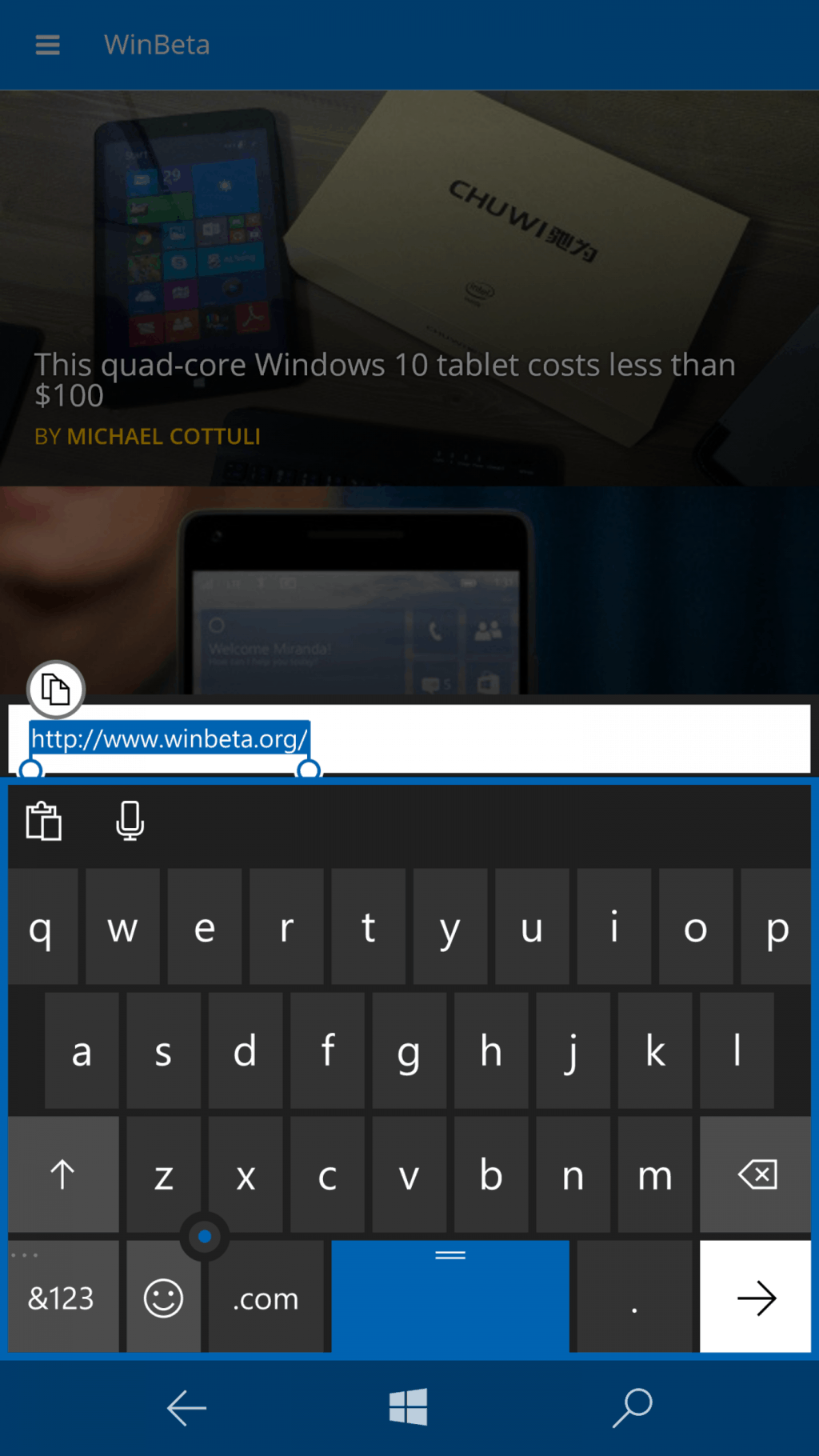
wp_ss_20151222_0003

After you’ve held it down for a second, the keyboard will become highlighted with the accent color you’ve chosen, letting you know you can now slide the keyboard up and down the screen.

\n
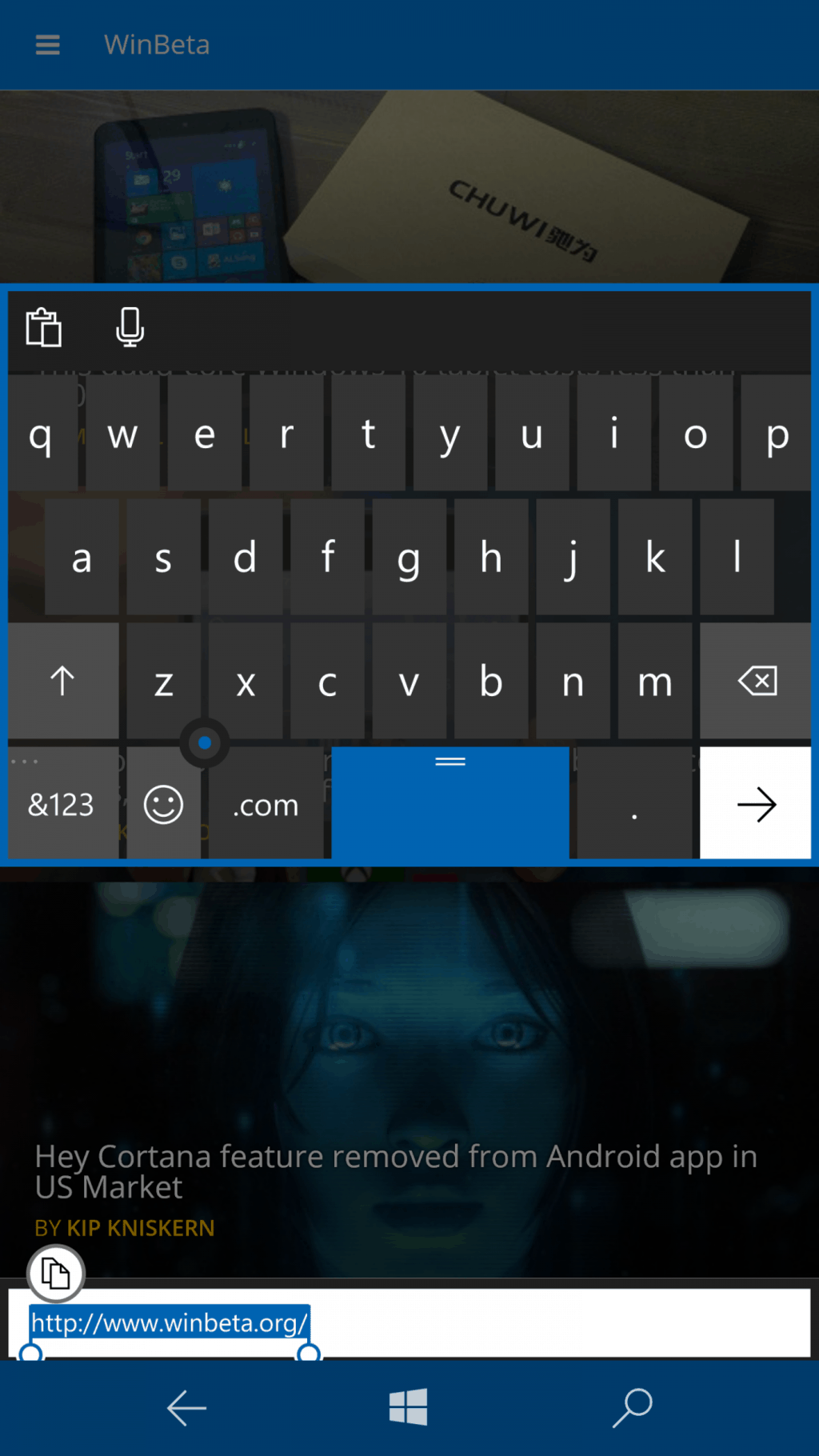
wp_ss_20151222_0004

With your thumb or finger still pressing the keyboard, just slide it up or down. Once you have it in the desired position, just release your thumb or finger.

\n

You can now type on your keyboard per normal, with all of the same functionality, just in a different location. One note is that whatever position you leave the keyboard in is where the keyboard will appear the next time you use it, regardless of which other app or screen you are in when you need to use the keyboard again.

\n

Windows 10 uses a different method than Windows 10 Mobile to move the keyboard around. To move around that larger on-screen keyboard, all you have to do is click the dedicated four arrow button on the top right corner of the keyboard to move it all around the screen, not just sliding it up and down like on Windows 10 Mobile. Just press and hold the arrow, and proceed to drag the keyboard to wherever you wish.

\n

windows 10 keyboard

\n

For more how-to guides to get the most out of your new Windows 10 device you unwrap this holiday season, head over to our Feature Stories section which covers everything from importing playlists into Groove Music, sending emails with Cortana solely using voice commands, to performing a clean install of Windows 10.

\n

Thanks Sebastian for the tip on how to move your keyboard in Windows 10 Mobile!

\n\nFurther reading: Microsoft, Windows 10, Windows 10 Mobile

Share this article:
Tags:
Microsoft Windows 10 Windows 10 Mobile
Previous Article Microsoft Breaks, Then Fixes Equalizer On Windows 10 Mobile – OnMSFT.com Next Article Bing Predicts continues winning NFL season with 11-5 Week 15

Related Articles

How to Fix the Phone Link App Not Working on Windows 11 – OnMSFT.com

December 29, 2022

5 easy ways to make desktop shortcuts on Windows 11 – OnMSFT.com

December 29, 2022

How to customize precision touchpads on Windows – OnMSFT.com

December 22, 2022

Leave a Comment Cancel reply

Your email address will not be published. Required fields are marked *

Recent Posts

  • Bethesda’s Redfall may get pushed back to a May 2023 release – OnMSFT.com
  • Activision Blizzard deal approved in Chile, Japan may be next in line – OnMSFT.com
  • Xbox Games with Gold January 2023 lineup announced – OnMSFT.com
  • Activision Blizzard studio Proletariat becomes the latest game developer to unionize – OnMSFT.com
  • How to Fix the Phone Link App Not Working on Windows 11 – OnMSFT.com

Recent Comments

No comments to show.

Archives

  • December 2022
  • November 2022
  • October 2022
  • September 2022
  • August 2022
  • July 2022
  • June 2022
  • May 2022
  • April 2022
  • March 2022
  • February 2022
  • January 2022
  • December 2021
  • November 2021
  • October 2021
  • September 2021
  • August 2021
  • July 2021
  • June 2021
  • May 2021
  • April 2021
  • March 2021
  • February 2021
  • January 2021
  • December 2020
  • November 2020
  • October 2020
  • September 2020
  • August 2020
  • July 2020
  • June 2020
  • May 2020
  • April 2020
  • March 2020
  • February 2020
  • January 2020
  • December 2019
  • November 2019
  • October 2019
  • September 2019
  • August 2019
  • July 2019
  • June 2019
  • May 2019
  • April 2019
  • March 2019
  • February 2019
  • January 2019
  • December 2018
  • November 2018
  • October 2018
  • September 2018
  • August 2018
  • July 2018
  • June 2018
  • May 2018
  • April 2018
  • March 2018
  • February 2018
  • January 2018
  • December 2017
  • November 2017
  • October 2017
  • September 2017
  • August 2017
  • July 2017
  • June 2017
  • May 2017
  • April 2017
  • March 2017
  • February 2017
  • January 2017
  • December 2016
  • November 2016
  • October 2016
  • September 2016
  • August 2016
  • July 2016
  • June 2016
  • May 2016
  • April 2016
  • March 2016
  • February 2016
  • January 2016
  • December 2015
  • November 2015
  • October 2015
  • September 2015
  • August 2015
  • July 2015
  • June 2015
  • May 2015
  • April 2015
  • March 2015
  • February 2015
  • January 2015
  • December 2014
  • November 2014
  • October 2014
  • September 2014
  • August 2014
  • July 2014
  • June 2014
  • May 2014
  • April 2014
  • March 2014
  • February 2014
  • January 2014
  • December 2013
  • November 2013
  • October 2013
  • September 2013
  • August 2013
  • July 2013
  • June 2013
  • May 2013
  • April 2013
  • March 2013
  • February 2013
  • January 2013
  • December 2012
  • November 2012
  • October 2012
  • September 2012
  • August 2012
  • July 2012
  • June 2012
  • May 2012
  • April 2012
  • March 2012
  • February 2012
  • January 2012
  • December 2011
  • November 2011
  • October 2011
  • September 2011
  • August 2011
  • July 2011
  • June 2011
  • May 2011
  • April 2011
  • March 2011
  • February 2011
  • January 2011
  • December 2010
  • November 2010
  • October 2010
  • September 2010

Categories

  • Announcements
  • Deals
  • Developer
  • Editorial
  • Feature
  • Feature stories
  • Hero-post
  • Hotdeals
  • How-to
  • Latest news
  • Microsoft / office 365
  • News
  • Office 365
  • Onpodcast
  • Opinion
  • Our featured post
  • Polls
  • Review
  • Reviews
  • Videos
OnMSFT.com

OnMSFT.com covers Microsoft news, reviews, and how-to guides. Formerly known as WinBeta, we have been your source for Microsoft news since 1998.

Categories

  • Windows
  • Surface
  • Xbox
  • How-To
  • OnPodcast
  • Gaming
  • Edge
  • Teams

Recent Posts

  • Bethesda's Redfall may get pushed back to a May 2023 release - OnMSFT.com
  • Activision Blizzard deal approved in Chile, Japan may be next in line - OnMSFT.com
  • Xbox Games with Gold January 2023 lineup announced - OnMSFT.com
  • Activision Blizzard studio Proletariat becomes the latest game developer to unionize - OnMSFT.com
  • How to Fix the Phone Link App Not Working on Windows 11 - OnMSFT.com

Quick Links

  • About OnMSFT.com
  • Contact OnMSFT
  • Join Our Team
© 2010–2026 OnMSFT.com LLC. All rights reserved.
About OnMSFT.comContact OnMSFT

